1. Танилцуулга
This manual provides comprehensive instructions for the installation, operation, and maintenance of your Intel 3168NGW Dual Band Wireless-AC 3168 WiFi Card. Please read this manual thoroughly before installation and use to ensure proper functionality and to prevent damage.
The Intel 3168NGW is a compact M.2 2230 form factor card designed to provide high-speed 802.11ac Wi-Fi and Bluetooth 4.2 connectivity to compatible systems.
2. Аюулгүй байдлын мэдээлэл
- Дотоод эд ангиудыг суулгах эсвэл салгахаасаа өмнө компьютерээсээ үргэлж цахилгааныг нь салга.
- Handle the card by its edges to avoid touching the gold connectors or sensitive components. Electrostatic discharge (ESD) can damage the card.
- Ensure proper grounding when working inside your computer.
- Keep the card away from moisture and extreme temperatures.
- This product is intended for installation by qualified personnel.
3. Багцын агуулга
Таны багцад бүх зүйл байгаа эсэхийг шалгана уу:
- Intel 3168NGW Dual Band Wireless-AC 3168 WiFi Card
- (Antennas and mounting screw may be included depending on retailer/kit)
4. Тохиргоо ба суурилуулалт
This section outlines the general steps for installing the Intel 3168NGW WiFi Card. Specific steps may vary depending on your computer's make and model.
4.1. Суулгахын өмнөх хяналтын хуудас
- Compatible M.2 2230 slot (Key E) on your motherboard or laptop.
- Small Phillips head screwdriver.
- Эсрэг статик бугуйн оосор (санал болгож байна).
- Internet access (for driver download).
4.2. Суулгах алхамууд
- Цахилгааныг унтрааж, салгах: Shut down your computer completely and disconnect the power cord and any other peripherals.
- Нээлттэй компьютерийн гэр: Open your computer's case or access panel to expose the motherboard. Refer to your computer's manual for specific instructions.
- M.2 үүрийг олох: Identify an available M.2 2230 slot (often labeled "Key E" or "WiFi").
- Insert WiFi Card: Carefully align the Intel 3168NGW card with the M.2 slot. Insert the card at a slight angle (approximately 30 degrees) and gently push it into the slot until it is fully seated.
- Картыг хамгаалах: Once seated, push the card down towards the motherboard. Secure it with the small screw provided with your computer or the card (if included).
- Attach Antennas (if applicable): If your system uses external antennas, carefully connect the antenna cables to the corresponding connectors on the WiFi card (Main and Aux). Ensure a secure connection.
- Компьютерийн кейсийг хаах: Replace the computer's access panel or close the case.
- Цахилгааныг дахин холбох: Reconnect the power cord and other peripherals.
- Асаах: Компьютерээ асаана уу.
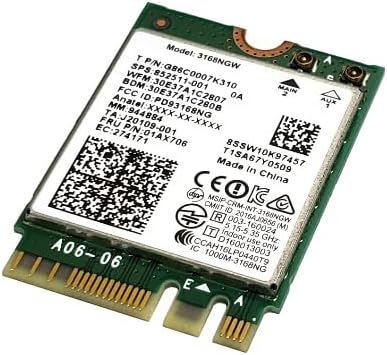
Image 1: Intel 3168NGW Dual Band Wireless-AC 3168 WiFi Card. This image displays the Intel 3168NGW WiFi card, an M.2 2230 form factor component. The card features a green PCB with a white label detailing the model number (3168NGW), part numbers (G86C0007K310, 852511-001), and regulatory information. Two small gold antenna connectors are visible at one end, labeled "MAIN" and "AUX". The M.2 connector pins are visible at the opposite end.
5. Ашиглалтын заавар
5.1. Драйвер суулгах
After physical installation, you will need to install the appropriate drivers for the WiFi and Bluetooth functionalities.
- Анхны ачаалах: Upon booting your computer, the operating system may automatically detect the new hardware and attempt to install generic drivers.
- Download Latest Drivers: For optimal performance and stability, it is highly recommended to download the latest drivers directly from the official Intel support webсайт. хайх "Intel Wireless-AC 3168 drivers" and "Intel Bluetooth 4.2 drivers".
- Драйверуудыг суулгах: Run the downloaded driver installation packages and follow the on-screen prompts. You may need to restart your computer after installation.
- Суулгацыг баталгаажуулах: Open Device Manager (Windows) or System Information (macOS/Linux) to confirm that the Intel Wireless-AC 3168 and Bluetooth 4.2 devices are recognized and functioning correctly.
5.2. Wi-Fi сүлжээнд холбогдох
- Ensure Wi-Fi is enabled in your operating system settings.
- Системийн тавиур (Windows) эсвэл цэсийн самбар (macOS) дээрх Wi-Fi дүрс дээр дарна уу.
- Боломжтой сүлжээнүүдийн жагсаалтаас хүссэн Wi-Fi сүлжээгээ сонгоно уу.
- Сүлжээний нууц үгийг оруулна уу (шаардлагатай бол) ба "Холбох" дээр дарна уу.
5.3. Bluetooth төхөөрөмжүүдийг хослуулж байна
- Таны үйлдлийн системийн тохиргоонд Bluetooth идэвхжсэн эсэхийг шалгана уу.
- Put your Bluetooth device into pairing mode (refer to the device's manual).
- Go to your computer's Bluetooth settings and search for new devices.
- Жагсаалтаас төхөөрөмжөө сонгоод дэлгэцэн дээрх зааврыг дагана уу.
6. Засвар үйлчилгээ
- Драйверын шинэчлэлтүүд: Regularly check the Intel support website for updated drivers to ensure optimal performance and security.
- Биеийн үзлэг: Periodically inspect the card and antenna connections for any signs of damage or loose connections.
- Цэвэрлэгээ: If necessary, gently clean any dust accumulation on the card using compressed air. Ensure the computer is powered off and disconnected before cleaning.
7. Алдаа засах
7.1. Wi-Fi or Bluetooth Not Detected
- Физик холболтыг шалгана уу: Ensure the card is properly seated in the M.2 slot and secured.
- Антенны холболтууд: Verify that antenna cables are securely attached to the card.
- Төхөөрөмжийн менежер: Check Device Manager (Windows) for any yellow exclamation marks or unknown devices. Reinstall drivers if necessary.
- BIOS/UEFI тохиргоо: Some motherboards may have an option to enable/disable M.2 slots or wireless functionality in the BIOS/UEFI settings. Ensure it is enabled.
7.2. Poor Wi-Fi Performance or Disconnections
- Драйверын шинэчлэлт: Ensure you have the latest drivers installed from Intel.
- Чиглүүлэгчийн ойролцоо: Move closer to your Wi-Fi router or access point.
- хөндлөнгийн оролцоо: Other electronic devices (cordless phones, microwaves) can cause interference. Try changing your router's Wi-Fi channel.
- Антенны байршил: If using external antennas, ensure they are positioned for optimal signal reception.
7.3. Bluetooth холболтын асуудлууд
- Төхөөрөмжийн нийцтэй байдал: Ensure the Bluetooth device you are trying to pair is compatible with Bluetooth 4.2.
- Хослуулах горим: Confirm the Bluetooth device is in pairing mode.
- Restart Bluetooth Service: Try disabling and re-enabling Bluetooth in your computer's settings.
- Одоо байгаа хосуудыг устгах: If you've previously paired the device, remove it from your computer's Bluetooth list and try pairing again.
8. Техникийн үзүүлэлтүүд
| Онцлог | Тодорхойлолт |
|---|---|
| Загвар | Intel 3168NGW |
| Хэсгийн дугаар | G86C0007K310, 852511-001, 01AX706, SW10K97457, J20109-001, 84811-002, 11S01AX706, 8SSW10K97457 |
| Утасгүй стандарт | 802.11a/b/g/n/ac |
| Давтамжийн зурвасууд | Хос зурвас (2.4 GHz ба 5 GHz) |
| Өгөгдөл дамжуулах хурд | 433 Mbps хүртэл |
| Bluetooth стандарт | Bluetooth 4.2 |
| Интерфэйс | PCI-Express (M.2 2230, Key E) |
| Form Factor | М.2 2230 |
| Тохиромжтой төхөөрөмжүүд | Desktop (with compatible M.2 slot) |
| Үйлдвэрлэгч | Intel |
| Зүйлийн жин | 2 фунт (Note: This weight might refer to shipping weight, actual card weight is minimal) |
| UPC | 735899008645 |
9. Баталгаат хугацаа ба дэмжлэг
Баталгаат хугацаа болон техникийн дэмжлэг авахыг хүсвэл албан ёсны Intel-ээс лавлана уу website or contact your point of purchase. Intel provides comprehensive support resources, including driver downloads, troubleshooting guides, and customer service contacts.
Intel-ийн дэмжлэг Webсайт: www.intel.com/support


