1. Танилцуулга
This manual provides detailed instructions for the setup, operation, and maintenance of your Natec TURBOT Wireless Keyboard with Touchpad (model NKL-0968). This device is designed to enhance your experience with Smart TVs, cellphones, and other compatible devices, offering convenient wireless control via 2.4 GHz technology.
Бүтээгдэхүүний зөв ажиллагааг хангах, эвдрэлээс урьдчилан сэргийлэхийн тулд ашиглахаасаа өмнө энэхүү гарын авлагыг сайтар уншина уу.
2. Багцын агуулга
Бүх зүйл багцад байгаа эсэхийг шалгана уу:
- Natec TURBOT Wireless Keyboard with Touchpad
- USB 2.4 GHz Receiver
- Хэрэглэгчийн гарын авлага (энэ баримт бичиг)
- (Note: 2 AAA batteries are required and may not be included)
3. Тохируулах гарын авлага
3.1. Зай суурилуулах
The Natec TURBOT keyboard requires two (2) AAA batteries for operation. Locate the battery compartment on the underside of the keyboard. Open the cover, insert the batteries according to the polarity markings (+/-), and close the cover securely.
3.2. USB хүлээн авагчийг холбох
The USB 2.4 GHz receiver is typically stored in a dedicated compartment on the keyboard itself for safekeeping. Carefully remove the receiver from its storage slot.

Figure 1: USB receiver stored in the keyboard compartment.
Insert the USB receiver into an available USB port on your Smart TV, computer, or other compatible device. The device should automatically detect and install the necessary drivers.
3.3. Powering On the Keyboard
Locate the power switch on the side of the keyboard. Slide the switch to the "ON" position. The keyboard should now be ready for use.
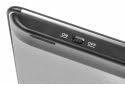
Figure 2: Power switch on the keyboard.
4. Ашиглалтын заавар
4.1. Гарны функцууд

Figure 3: Natec TURBOT Wireless Keyboard Layout.
The keyboard features a standard QWERTY layout for typing. It also includes dedicated function keys (F1-F12) which may have secondary multimedia functions (e.g., volume control, media playback). These secondary functions are often accessed by holding down the Fn товчлуурыг дараад харгалзах функцийн товчийг дарна уу.
- Caps Lock: Toggles uppercase/lowercase letters.
- Шилжилт: Used for uppercase letters and secondary symbols.
- Ctrl / Alt / Win: Standard modifier keys for various shortcuts depending on the operating system.
- Арын гэрэлтүүлэг: The keyboard features a backlight for improved visibility in low-light conditions. Refer to your device's operating system or the keyboard's specific function key combinations (often involving the Fn key) to activate or adjust the backlight.
4.2. Мэдрэгч самбарын функцууд
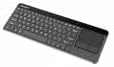
Figure 4: Integrated Touchpad.
The integrated touchpad allows for mouse-like navigation. It supports various gestures:
- Нэг хуруугаар товших: Functions as a left-click.
- Хоёр хуруугаараа товших: Functions as a right-click.
- Хоёр хуруугаараа гүйлгэх: Drag two fingers up or down to scroll through content.
- Физик товчлуурууд: Below the touchpad, there are two physical buttons. The left button acts as a left-click, and the right button acts as a right-click.
Touchpad sensitivity and other settings may be adjustable through your connected device's operating system settings.
5. Засвар үйлчилгээ
- Цэвэрлэгээ: Use a soft, dry cloth to clean the keyboard and touchpad. For stubborn dirt, a slightly damp cloth with mild cleaning solution can be used, ensuring no liquid enters the device.
- Зай солих: Replace batteries when the keyboard's performance degrades or it stops responding. Always use fresh AAA batteries.
- Хадгалах: When not in use for extended periods, turn off the keyboard to conserve battery life. Store the USB receiver in its designated compartment to prevent loss.
- Онцгой нөхцөл байдлаас зайлсхий: Do not expose the keyboard to extreme temperatures, direct sunlight, or high humidity.
6. Алдаа засах
6.1. Гар хариу өгөхгүй байна
- Гар асаалттай байгаа эсэхийг шалгаарай.
- Батерейг зөв суурилуулсан, хангалттай цэнэгтэй эсэхийг шалгана уу. Шаардлагатай бол солино.
- Verify that the USB receiver is securely plugged into a working USB port on your device.
- USB хүлээн авагчийг өөр USB порт руу залгаад үзээрэй.
- Restart your connected device (Smart TV, computer, etc.).
6.2. Touchpad Not Working
- Гар асаалттай, холбогдсон эсэхийг шалгаарай.
- Clean the touchpad surface to remove any dirt or obstructions.
- Check your device's settings for any touchpad-related configurations.
6.3. Тасралтгүй холболт
- Ensure there are no large metallic objects or other 2.4 GHz wireless devices causing interference between the keyboard and the USB receiver.
- Гарыг USB хүлээн авагч руу ойртуулна уу.
7. Техникийн үзүүлэлтүүд
| Брэнд | Natec |
| Загварын дугаар | NKL-0968 |
| Холболтын технологи | 2.4 GHz утасгүй |
| Тохиромжтой төхөөрөмжүүд | Smart TV, Cellphone |
| Үйлдлийн системийн нийцтэй байдал | Android 10.0 (and compatible systems) |
| Онцлог шинж чанарууд | Integrated Touchpad, Backlit Keys |
| Гарын тайлбар | Мультимедиа |
| Өнгө | Хар/Мөнгө |
| Материал | Акрилонитрил бутадиен стирол (ABS) |
| Эрчим хүчний эх үүсвэр | 2 х AAA батерей |
8. Баталгаат хугацаа ба дэмжлэг
For warranty information, technical support, or further assistance, please refer to the official Natec webсайт эсвэл харилцагчийн үйлчилгээний хэлтэстэй холбогдоно уу. Баталгаат зарга авахын тулд худалдан авалтын баримтаа хадгална уу.
Natec does not provide specific information regarding spare parts availability or software updates beyond the initial purchase.


