Танилцуулга
Welcome to your new TERIOS Mobile Game Controller. This manual provides detailed instructions for setup, operation, and maintenance to ensure optimal performance and an enhanced gaming experience across various platforms including Android smartphones, Windows PCs, and PlayStation 3 consoles. Please read this manual thoroughly before using the device.
Гол онцлогууд
- Innovative Gaming: Designed to enrich your mobile gaming experience with precision and responsiveness.
- Өргөн нийцтэй байдал: Connects via Bluetooth 4.0 to Android smartphones, and is compatible with Windows PC and PlayStation 3. Supports popular games like PUBG, Call of Duty, and Mobile Legends.
- Gaming Joysticks: Features dual analog sticks for comprehensive and precise control.
- Эргономик дизайн: Comfortable grip with an integrated smartphone holder for extended gaming sessions.
- Турбо функц: Allows for rapid, continuous input with a single button press.
- Responsive Active Buttons: Includes 2 quick access buttons on the back and numerous action buttons for enhanced accuracy.
- Батерейны урт наслалт: Up to 12 hours of continuous play on a single charge.
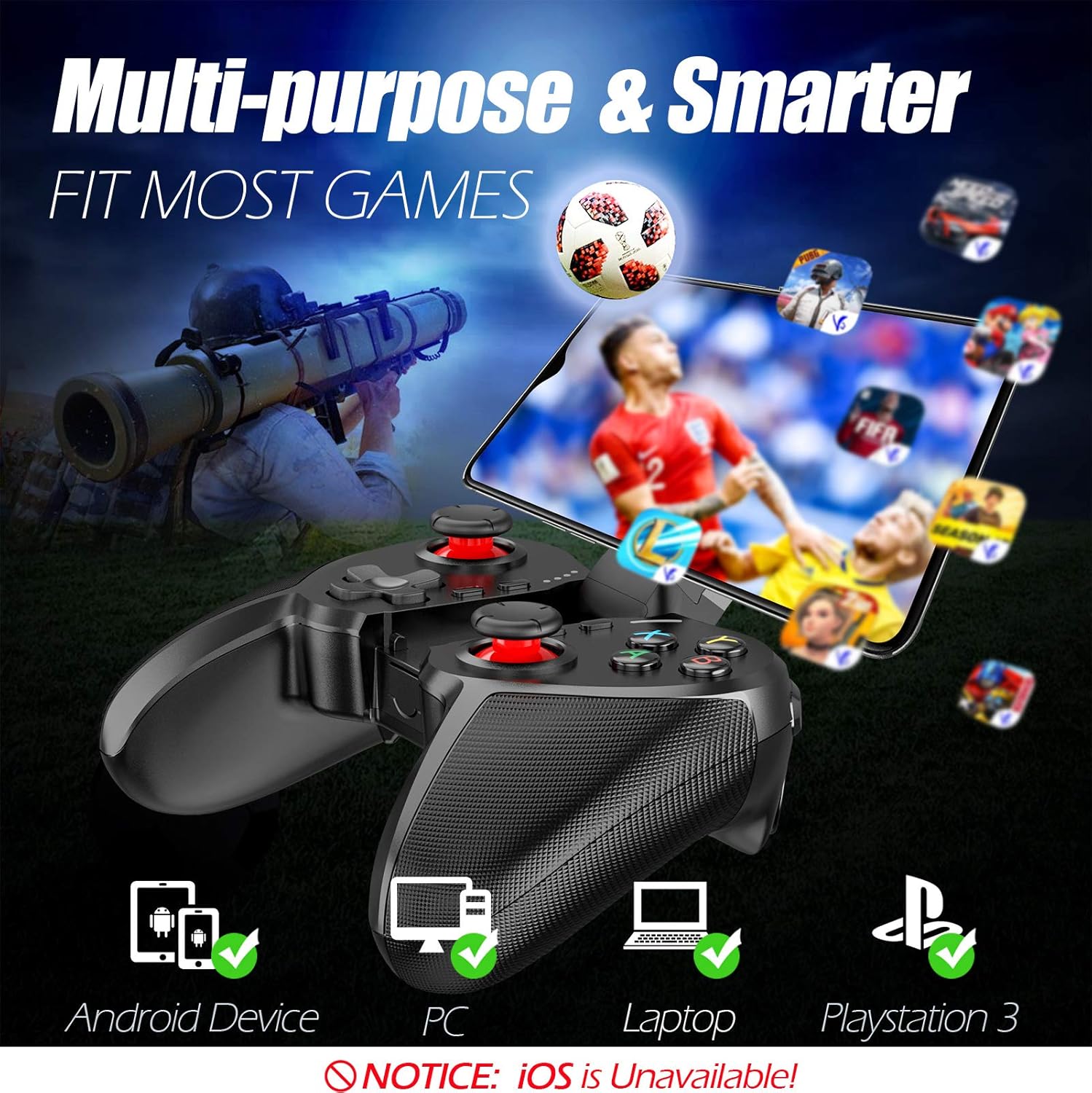
Figure 1: The TERIOS controller is compatible with Android devices, PCs, Laptops, and PlayStation 3.

Figure 2: Detail of the controller's built-in smartphone bracket, accurate buttons, and comfortable soft rubber grips.
Тохиргоо ба холболт
1. Хянагчийг цэнэглэж байна
Before first use, fully charge the controller. Connect the provided Micro USB cable to the controller's charging port and the other end to a USB power source (e.g., computer USB port, USB wall adapter). The indicator lights will show charging status and turn off when fully charged.

Figure 3: The controller features a 400mAh battery, providing 12-14 hours of playtime with a 2-3 hour charging time.
2. Асаах/унтраах
- Асаахын тулд: -г удаан дар ГЭР button for 2 seconds. The indicator lights will flash.
- Унтраахын тулд: -г удаан дар ГЭР button for 5 seconds until the indicator lights turn off. The controller will automatically power off after 5 minutes of inactivity.
3. Bluetooth Pairing (Android Smartphones / PS3)
- Хянагч унтарсан эсэхийг шалгаарай.
- On your Android smartphone or PS3, enable Bluetooth.
- -г удаан дар ГЭР button on the controller until the indicator lights flash rapidly, indicating pairing mode.
- On your device, search for new Bluetooth devices. Select "TERIOS Gamepad" or similar from the list.
- Холбогдсоны дараа заагч гэрэл тогтвортой болно.
4. Компьютерийн холболт
For PC connection, the controller typically uses a USB dongle (often included). Insert the USB dongle into an available USB port on your PC. The controller should automatically connect. If not, press the ГЭР button to initiate connection.
5. Initial Setup and App (V3 App)
For optimal customization and compatibility with certain mobile games, it is recommended to download the V3 app from the Google Play Store. This app allows you to map virtual keys on your screen to the physical buttons of the controller.
- Download the "V3" app from the Google Play Store.
- Connect the TERIOS gamepad to your smartphone via Bluetooth.
- Open the V3 app and follow the on-screen instructions to customize key mappings for your desired games.

Figure 4: The V3 app allows for easy customization of virtual keys to match controller buttons, creating more combinations.
Ашиглалтын заавар
1. Товчлуурын байршил ба функцууд

Figure 5: The TERIOS Mobile Game Controller with a smartphone securely mounted in its integrated holder.
- Зүүн аналог зөөгч: Хөдөлгөөний анхдагч хяналт.
- Баруун аналог зөөгч: Камерын удирдлага эсвэл хоёрдогч хөдөлгөөн.
- D-Pad (Чиглүүлэгч дэвсгэр): Precise directional input.
- ABXY товчлуурууд: Standard action buttons (A, B, X, Y).
- L1/L2, R1/R2 Buttons: Shoulder and trigger buttons for various in-game actions.
- СОНГОХ товчлуур: Typically used for menu navigation or specific game functions.
- START товч: Typically used for pausing games or accessing menus.
- HOME товчлуур: Powers on/off, enters pairing mode, and returns to home screen on some devices.
- TURBO товч: Activates the turbo function for other buttons.
- Цэвэрлэх товчлуур: Deactivates the turbo function.

Figure 6: The dual analog sticks are designed for precise control and execution in games.
2. Турбо функц
The Turbo function allows a button to be pressed repeatedly as long as you hold it down, which is useful for rapid-fire actions in games.
- Идэвхжүүлэхийн тулд: -г удаан дар ТУРБО button, then press the desired action button (e.g., A, B, X, Y, L1, R1). Release both buttons. Now, holding down the action button will activate turbo fire.
- Идэвхгүй болгохын тулд: -г удаан дар ЦЭВЭРЛЭХ button, then press the action button for which turbo was activated. Release both buttons.

Figure 7: The dedicated Turbo button enables rapid-fire functionality with one click.
3. Smartphone Holder Usage
The integrated smartphone holder can accommodate most smartphone sizes. Gently extend the holder and place your smartphone securely within the clamps. Ensure the phone is centered for balance.
Засвар үйлчилгээ
- Цэвэрлэгээ: Хянагчийг цэвэрлэхийн тулд зөөлөн, хуурай даавуу ашиглаарай. Зүлгүүрийн цэвэрлэгч эсвэл уусгагч хэрэглэж болохгүй.
- Хадгалах: Удирдагчийг нарны шууд тусгал, хэт температураас хол, сэрүүн, хуурай газар хадгална.
- Батерейны арчилгаа: Зайны ашиглалтын хугацааг уртасгахын тулд хянагчийг ойр ойрхон бүрэн цэнэглэхээс зайлсхий. Удаан хугацаагаар ашиглаагүй байсан ч тогтмол цэнэглээрэй.
Алдааг олж засварлах
| Асуудал | Боломжит шалтгаан | Шийдэл |
|---|---|---|
| Controller not connecting via Bluetooth. | Хянагч нь хослох горимд байхгүй байна; төхөөрөмжийн Bluetooth унтраалттай байна; хөндлөнгийн оролцоо. | Ensure controller is in pairing mode (rapid flashing lights). Check device Bluetooth settings. Move closer to the device. Try restarting both controller and device. |
| Товчлуурууд хариу өгөхгүй эсвэл хойшлогдсон байна. | Low battery; software glitch; interference. | Charge the controller fully. Restart the controller. Ensure no other strong wireless signals are nearby. For mobile games, check V3 app settings. |
| Хянагч байнга салдаг. | Батерей бага; төхөөрөмжөөс хэт хол; саад тотгор. | Charge the controller. Stay within the recommended Bluetooth range. Minimize wireless interference. |
| Турбо функц ажиллахгүй байна. | Incorrect activation sequence; button not supported. | Ensure you press and hold TURBO, then press the desired action button, then release both. Some games or buttons may not fully support turbo. |
Бүтээгдэхүүний техникийн үзүүлэлтүүд
| Онцлог | Дэлгэрэнгүй |
|---|---|
| Брэнд | TERIOS |
| Загвар | Т-12 |
| Холболтын технологи | Bluetooth 4.0 |
| Тохиромжтой төхөөрөмжүүд | Android Smartphones, Windows PC, PlayStation 3 |
| Эрчим хүчний эх үүсвэр | Батерейгаар ажилладаг (Литийн полимер) |
| Зайны багтаамж | 400mAh (approx. 1.48 Watt Hours) |
| Тоглох цаг | 12-14 цаг хүртэл |
| Цэнэглэх хугацаа | 2-3 цаг |
| Товчлуурын тоо | 16 (including ABXY, D-pad, analog sticks, L/R triggers/bumpers, Select, Start, Home, Turbo, Clear) |
| Онцлог шинж чанарууд | Turbo Function, Dual Analog Sticks, In-built Smartphone Holder, Responsive Action Buttons |
| Хэмжээ (багц) | 17 x 12.4 x 7.7 см |
| Жин (багц) | 310 гр |
Баталгаат болон дэмжлэгийн мэдээлэл
The TERIOS Mobile Game Controller is designed for durability and performance. For any product-related inquiries, technical support, or warranty claims, please refer to the contact information provided with your purchase or visit the official TERIOS support webсайт. Баталгаат хугацааны зорилгоор худалдан авалтын баримтаа хадгална уу.


