1. Танилцуулга
This user manual provides detailed instructions for the Waveshare Raspberry Pi 4 Model B Display Kit. It covers the assembly, setup, operation, and maintenance of your 7-inch capacitive touch LCD display kit designed for the Raspberry Pi 4. Please read this manual thoroughly before use to ensure proper functionality and to maximize your experience with the product.
2. Багцын агуулга
Доор жагсаасан бүх зүйлс таны багцад багтсан эсэхийг шалгана уу. Хэрэв ямар нэгэн эд анги дутуу эсвэл гэмтсэн бол хэрэглэгчийн дэмжлэгтэй холбогдоно уу.

Image: All components included in the Waveshare Raspberry Pi 4 Display Kit.
- 7-inch Capacitive Touch LCD
- Acrylic Case (Black/White)
- HDMI кабель
- USB-A to Micro-USB Cable (for touch and power)
- Эрчим хүчний адаптер
- Микро SD карт (16GB)
- Микро SD карт уншигч
- Screws and Standoffs for assembly
3. Бүтээгдэхүүн дууссанview
The Waveshare Raspberry Pi 4 Model B Display Kit combines a high-resolution 7-inch capacitive touch screen with essential accessories, allowing you to build a compact, all-in-one computer solution with your Raspberry Pi 4.
3.1 Raspberry Pi 4 Model B Features (Raspberry Pi board sold separately)
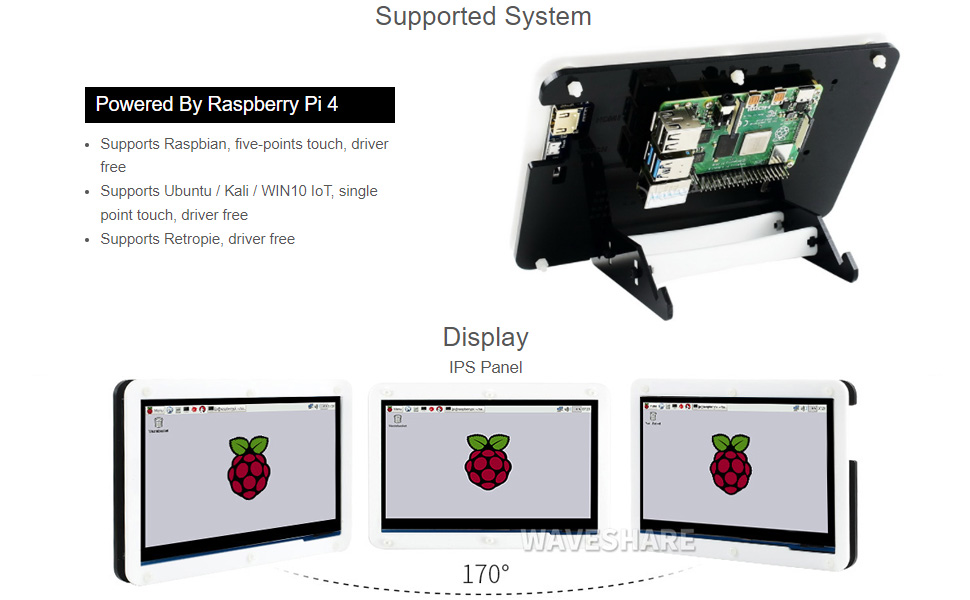
Image: Raspberry Pi 4 Model B board layout with key components labeled.
- Процессор: Broadcom BCM2711, Дөрвөн цөмт Cortex-A72 (ARM v8) 64 битийн SoC @ 1.5 GHz
- Санах ой: LPDDR4-2400 SDRAM (available in 1GB, 2GB, 4GB, or 8GB options)
- Холболт: 2.4 GHz and 5.0 GHz IEEE 802.11ac wireless, Bluetooth 5.0, Gigabit Ethernet
- USB портууд: 2 × USB 3.0 порт, 2 × USB 2.0 порт
- Видео ба дуу: 2 × micro-HDMI ports (up to 4Kp60 supported), 2-lane MIPI DSI display port, 2-lane MIPI CSI camera port, 4-pole stereo audio and composite video port
- GPIO: 40 зүүтэй GPIO толгой хэсэг
- Эрчим хүч: 5V DC via USB-C connector (minimum 3A recommended)
4. Тохируулах гарын авлага
Follow these steps to assemble and set up your Waveshare Raspberry Pi 4 Display Kit.
4.1 Hardware Assembly

Image: Fully assembled Waveshare Raspberry Pi 4 Display Kit.
- Prepare the Raspberry Pi: Ensure your Raspberry Pi 4 Model B board is ready.
- Mount the Raspberry Pi: Attach the Raspberry Pi 4 board to the designated mounting points on the back panel of the acrylic case using the provided screws and standoffs.
- Дэлгэцийг холбоно уу: Connect the 7-inch LCD to the Raspberry Pi 4. Typically, this involves connecting the HDMI cable from the display to one of the micro-HDMI ports on the Raspberry Pi, and the USB-A to Micro-USB cable for touch functionality and power.
- Assemble the Case: Secure the front panel of the acrylic case around the display and then attach it to the back panel, enclosing the Raspberry Pi and display. Ensure all cables are properly routed and not pinched.
- Суурилуулалтын суурь: Assemble and attach the included stand to the bottom of the case for stable positioning. The stand often allows for adjustable viewing angles (e.g., 45° or 60°).
4.2 Програм хангамжийн тохиргоо
The Waveshare 7-inch capacitive touch LCD is designed for driver-free operation with several popular operating systems.
- Үйлдлийн системийн суурилуулалт: Install your preferred operating system (e.g., Raspbian, Ubuntu, Kali, WIN10 IoT, Retropie) onto the provided 16GB Micro SD card using a suitable imaging tool (e.g., Raspberry Pi Imager).
- SD карт оруулах: Insert the prepared Micro SD card into the Raspberry Pi's Micro SD card slot.
- Асаах: Connect the power adapter to the display kit. The Raspberry Pi and display should power on automatically.
- Жолоочгүй ажиллагаа: For most supported systems, the display and touch functionality will work automatically without additional driver installation.
5. Ашиглалтын заавар
5.1 Мэдрэгчийн функц

Image: User interacting with the capacitive touch screen.
- The 7-inch display features a capacitive touch panel, supporting up to five-point touch input.
- Ensure the USB touch cable is securely connected between the display and the Raspberry Pi for touch input to function.
- Touch gestures and multi-touch capabilities will depend on the operating system and applications running on your Raspberry Pi.
5.2 Дэмжигдсэн үйлдлийн системүүд
The display kit offers broad compatibility with various Raspberry Pi operating systems:
- Raspbian: Supports five-point touch, driver-free.
- Ubuntu / Kali / WIN10 IoT: Supports single-point touch, driver-free.
- Retropie: Supports driver-free operation.
6. Техникийн үзүүлэлтүүд
| Онцлог | Тодорхойлолт |
|---|---|
| Дэлгэцийн хэмжээ | 7 инч |
| Төрөл дээр хүрнэ үү | Capacitive, up to 5-points |
| Интерфэйс | HDMI for display, USB for touch |
| Тохиромжтой байдал | Raspberry Pi 4 загвар B |
| Үйлдлийн системийн дэмжлэг | Raspbian, Ubuntu, Kali, WIN10 IoT, Retropie |
| Memory Storage Capacity (SD Card) | 16 ГБ |
| Зүйлийн жин | 1.28 фунт |
| Загварын дугаар | PI4B Display Acce |
| Үйлдвэрлэгч | Waveshare |
7. Засвар үйлчилгээ
- Цэвэрлэгээ: Дэлгэцийг зөөлөн, хөвөнгүй даавуугаар арчих. Зөрүүд толбоны хувьд бага зэрэг dampдаавуугаар усаар эсвэл дэлгэцэнд аюулгүй цэвэрлэгчээр угаана. Хүчтэй химийн бодис, зүлгүүрийн материалаас зайлсхий.
- Хадгалах: Хэрэглээгүй үед иж бүрдлийг сэрүүн, хуурай газар, нарны шууд тусгал болон хэт өндөр температураас хол хадгална уу.
- Харьцуулах: Handle the display and Raspberry Pi board with care to avoid physical damage. Avoid applying excessive pressure to the screen.
8. Алдаа засах
8.1 Дэлгэцийн гаралт байхгүй
- Эрчим хүчийг шалгах: Ensure the power adapter is securely connected to the display kit and plugged into a working power outlet.
- HDMI холболт: Verify that the HDMI cable is firmly connected between the display and the Raspberry Pi's micro-HDMI port. Try a different micro-HDMI port if available.
- SD карт: Confirm that the Micro SD card with a properly installed operating system is inserted correctly into the Raspberry Pi.
- Эрчим хүчний хангамж: Ensure your Raspberry Pi is receiving adequate power (a 5V/3A USB-C power supply is recommended for Raspberry Pi 4).
8.2 Touch функц ажиллахгүй байна
- USB холболт: Check that the USB-A to Micro-USB cable is securely connected from the display to a USB port on the Raspberry Pi.
- Үйлдлийн системийн дэмжлэг: Confirm that your operating system supports the touch functionality of this display. While most are driver-free, some configurations might require specific settings.
- Дахин ачаалах: Try rebooting the Raspberry Pi.
8.3 Screen Flickering or Instability
- Эрчим хүчний хангамж: Ensure a stable and sufficient power supply is used for both the display and the Raspberry Pi.
- Кабелийн бүрэн бүтэн байдал: Check the HDMI and USB cables for any damage or loose connections.
9. Баталгаат хугацаа ба дэмжлэг
For warranty information, technical support, or further assistance, please refer to the official Waveshare webсайт эсвэл худалдагчтайгаа холбогдоно уу. Худалдан авалтын баримтаа баталгаат нэхэмжлэлд зориулж худалдан авалтын баталгаа болгон хадгална уу.


