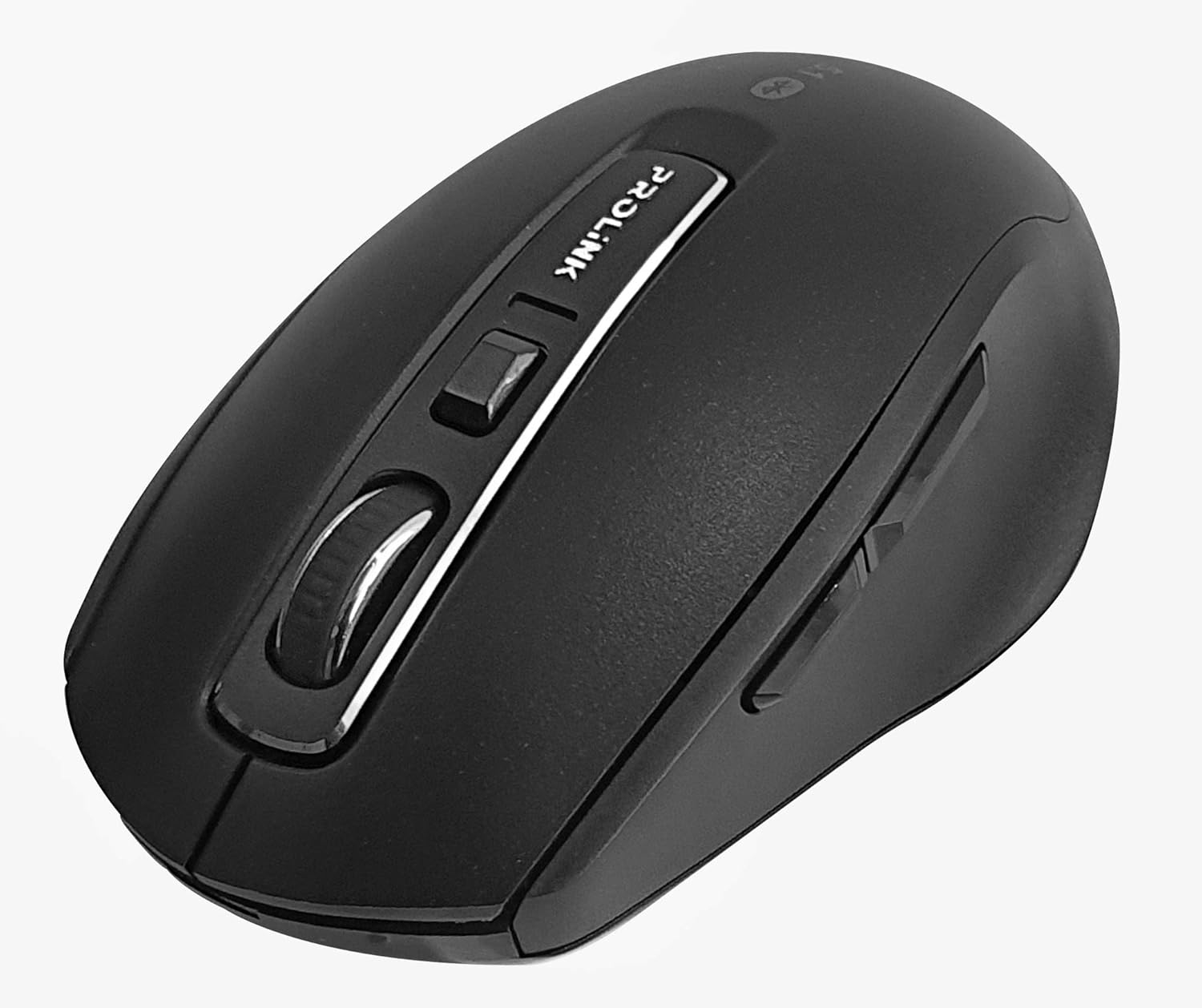
Зураг: дээрээс доош view of the Prolink PMB8502 Bluetooth Wireless Optical Mouse.
1. Оршил ба түүнээс дээшview
The Prolink PMB8502 Bluetooth Mouse is designed for seamless wireless control of your desktop, laptop, or tablet. It features Bluetooth 5.2 connectivity, an ergonomic design, and adjustable DPI settings for personalized comfort and precision. This manual provides detailed instructions for setup, operation, maintenance, and troubleshooting.
Гол онцлогууд:
- Bluetooth 5.2 connectivity (backward compatible with 5.1/5.0/4.2/4.1/4.0)
- Up to 27 months battery life (based on supplied batteries)
- Тохируулах DPI: 800/1200/1600
- 6-button design including back and forward buttons
- Тохиромжтой ашиглахад зориулагдсан эргономик дизайн
- Operating range of up to 10 meters

Image: Prolink PMB8502 mouse highlighting its Bluetooth 5.2, battery life, DPI, and range features.
2. Багцын агуулга
- Prolink PMB8502 Bluetooth Wireless Optical Mouse
- 1 x AA Battery (pre-installed or included separately)
- Хэрэглэгчийн гарын авлага (энэ баримт бичиг)
3. Тохируулах заавар
3.1. Зай суурилуулах
- Хулганы доод талд зайны тасалгааны тагийг олоорой.
- Тасалгааг нээхийн тулд тагийг нь зөөлөн гулсуулж эсвэл өргөж ав.
- Эерэг (+) ба сөрөг (-) терминалууд нь тасалгааны доторх тэмдэглэгээтэй зөв таарч байгаа эсэхийг шалгаарай, нэг АА зайг оруулна.
- Батерейны тасалгааны тагийг байрандаа найдвартай тогших хүртэл нь буцааж тавь.
3.2. Bluetooth хослол
Before pairing, ensure your device (computer, laptop, tablet) has Bluetooth enabled.
- Хулганы доод талд байрлах асаах/унтраах товчлуурыг ашиглан хулганыг асаана уу.
- Press and hold the Bluetooth 'Connect' button (usually located near the On/Off switch or within the battery compartment) for 3-5 seconds until the LED indicator on the mouse begins to flash, indicating it is in pairing mode.
- Төхөөрөмж дээрээ Bluetooth тохиргоо руу очно уу.
- хайх new devices. The mouse should appear as "Prolink PMB8502" or similar.
- Select the mouse from the list to complete the pairing process. The LED indicator on the mouse will stop flashing and remain solid for a few seconds, then turn off, indicating a successful connection.

Зураг: Урд view of the Prolink PMB8502 mouse, showing its ergonomic shape.
4. Ашиглалтын заавар
4.1. Товчлуурын функцууд
- Зүүн товшилтын товчлуур: Стандарт сонголт ба идэвхжүүлэлт.
- Баруун товчлуур дээр дарна уу: Контекст цэсэнд хандана.
- Гүйлгэх дугуй: Баримт бичгийг гүйлгэж байна web хуудсуудыг босоо байдлаар байрлуулна. Мөн дунд товшилтын функцийг ашиглахын тулд дарж болно.
- DPI тохируулах товч: Located below the scroll wheel. Press to cycle through DPI settings (800/1200/1600).
- Урагшаа товч: Урагшаа дотогш чиглүүлнэ web хөтөч эсвэл file судлаачид.
- Буцах товчлуур: Буцаж дотогш шилжинэ web хөтөч эсвэл file судлаачид.
Зураг: хажуу тал view of the Prolink PMB8502 mouse, illustrating the placement of the back and forward navigation buttons.
4.2. DPI тохируулга
The mouse offers three DPI (Dots Per Inch) settings: 800, 1200, and 1600. Press the DPI button located below the scroll wheel to switch between these sensitivities. A higher DPI setting results in faster cursor movement across the screen.
4.3. Эрчим хүчний менежмент
- Асаах/унтраах унтраалга: To conserve battery life, turn off the mouse using the switch on its underside when not in use for extended periods.
- Автомат унтах горим: The mouse automatically enters a sleep mode after more than 10 minutes of inactivity. To wake it up, simply move the mouse or click any button.
5. Засвар үйлчилгээ
5.1. Цэвэрлэгээ
Хулганыг цэвэрлэхийн тулд зөөлөн, хуурай, хөвөнгүй даавуу ашиглаарай. Зөрүүд бохирдлыг бага зэрэг арчина.ampАлчуурыг ус эсвэл зөөлөн цэвэрлэгээний уусмалаар арчина. Хүчтэй химийн бодис, зүлгүүрийн цэвэрлэгч хэрэглэх эсвэл шингэнийг хулгана руу шууд шүршихээс зайлсхий.
5.2. Зай солих
When the mouse performance degrades or the LED indicator suggests low battery, replace the AA battery following the steps in Section 3.1. Dispose of used batteries responsibly according to local regulations.
6. Алдаа засах
- Mouse not connecting or erratic movement:
- Хулгана асаалттай байгаа эсэхийг шалгаарай.
- Зайны түвшинг шалгаж, шаардлагатай бол солих.
- Таны төхөөрөмж дээр Bluetooth идэвхжсэн эсэхийг шалгаарай.
- Try re-pairing the mouse with your device (refer to Section 3.2).
- Хяналтын хүрээний асуудлыг арилгахын тулд хулганыг төхөөрөмж рүүгээ ойртуулна уу.
- Bluetooth холболтод саад болж буй бусад хүчтэй утасгүй дохио байхгүй эсэхийг шалгаарай.
- Cursor not moving smoothly:
- Хулганы доод талд байрлах оптик мэдрэгчийг цэвэрлэ.
- Хулганаа цэвэрхэн, гэрэл ойлгодоггүй гадаргуу дээр ашиглаарай.
- DPI тохиргоог өөрийн сонголтод тохирсон түвшинд тохируулна уу.
- Хариу өгөхгүй товчлуурууд:
- Батерейны түвшинг шалгана уу.
- Ensure the mouse is properly connected via Bluetooth.
- Компьютер эсвэл төхөөрөмжөө дахин эхлүүлнэ үү.
7. Техникийн үзүүлэлтүүд
| Онцлог | Дэлгэрэнгүй |
|---|---|
| Товчлуур | 6 |
| Мэдрэгч | Оптик |
| DPI нягтрал | 800 / 1200 / 1600 DPI |
| Интерфэйс | Bluetooth 5.2 (backward compatible with Bluetooth 5.1/5.0/4.2/4.1/4.0) |
| USB тайлангийн ханш | 125 Гц |
| FPS | 2400 удаа/сек |
| Ашиглалтын чийгшил | 30%НЭМ - 95%НЭМ |
| Ашиглалтын температур | -20°C - +60°C |
| Үйлдлийн систем | Windows 7 / 10 / 11, Mac OS 10.2 above |
| Хэмжээ (L x W x H) | 108 мм х 66.7 мм х 40.2 мм |
| Жин | 69.2g (product only) |
| Зайны төрөл | 1 х АА зай |

Image: Graphic displaying the technical specifications of the Prolink PMB8502 mouse.
8. Баталгаат хугацаа ба дэмжлэг
The Prolink PMB8502 Bluetooth Wireless Optical Mouse typically comes with a 3 жилийн баталгаат хугацаа from the date of purchase. Please refer to your purchase receipt or the official Prolink website for specific warranty terms and conditions applicable in your region.
For technical support, troubleshooting assistance, or warranty claims, please visit the official Prolink website or contact their customer service department. Contact information can usually be found on the product packaging or the Prolink official webсайт.
Онлайн нөөцүүд:

Image: Prolink PMB8502 mouse with a "3 Year Warranty" label, indicating product assurance.