Танилцуулга
This manual provides essential information for setting up, operating, maintaining, and troubleshooting your SYSTEMTREFF PC AMD Ryzen 7 5700G. Please read this manual thoroughly before using your new computer to ensure proper functionality and longevity.

Зураг: урд тал view of the SYSTEMTREFF PC, showcasing its transparent side panel and illuminated internal components.
Тохируулах гарын авлага
Follow these steps to set up your SYSTEMTREFF PC.
1. Хайрцагнаас задлах, байрлуулах
- Компьютерийг сав баглаа боодолоос нь болгоомжтой авч хая. Ирээдүйн тээвэрлэлт, үйлчилгээнд зориулж бүх савлагааны материалыг хадгал.
- Place the PC on a stable, flat surface with adequate ventilation. Ensure there is sufficient space around the computer for airflow, especially at the front, rear, and top vents.
- Avoid placing the PC near heat sources, in direct sunlight, or in areas with excessive dust or humidity.

Зураг: Янз бүрийн views of the PC case illustrating its physical dimensions for proper placement.
2. Захын төхөөрөмжүүдийг холбох
Connect your monitor, keyboard, mouse, and other devices to the appropriate ports.
- Монитор: Connect your monitor to the HDMI or DVI-D port on the rear of the PC. Ensure the cable is securely fastened.
- Гар ба хулгана: Connect your USB keyboard and mouse to any available USB ports (USB 2.0 or USB 3.0/3.2). PS/2 ports are also available for compatible devices.
- Аудио: Connect speakers or headphones to the audio output jack (green) and a microphone to the microphone input jack (pink) on the rear or front panel.
- Сүлжээ: For a wired connection, connect an Ethernet cable from your router to the RJ45 LAN port on the rear. For wireless connectivity, ensure the included USB Wi-Fi stick is connected.
- Эрчим хүч: Connect the power cable to the power supply unit (PSU) at the rear of the PC, then plug the other end into a grounded electrical outlet.

Зураг: Нарийвчилсан view of the available front and rear ports for connecting various peripherals.
Ашиглалтын заавар
1. Эхний ачаалалт ба анхны тохиргоо
- After connecting all peripherals, press the power button located on the top front of the PC.
- The system will boot into Windows 10 Pro. Follow the on-screen instructions to complete the initial Windows setup, including region, language, and user account creation.
- Drivers for all components are pre-installed, ensuring a plug-and-play experience.
2. Үндсэн хэрэглээ
- Асаах/унтраах: Асаахын тулд асаах товчийг дарна уу. Унтраахын тулд Windows дээрх Эхлүүлэх товчийг дараад, дараа нь Асаах > Унтраах гэснийг сонгоно уу.
- Дахин эхлүүлэх: Системийг дахин эхлүүлэхийн тулд Start товчийг дараад Power > Restart гэснийг сонгоно уу.
- Унтах горим: Системийг унтах горимд оруулахын тулд Эхлүүлэх товчийг дараад, дараа нь Асаах > Унтах горимыг сонгоно уу.
- Холболт: The PC supports Wi-Fi and Bluetooth for wireless connections. Use the Windows settings to connect to wireless networks or pair Bluetooth devices.

Зураг: Жишээ ньamples of typical usage scenarios for the PC, including productivity, entertainment, and gaming.
Засвар үйлчилгээ
Тогтмол засвар үйлчилгээ нь таны компьютерын оновчтой ажиллагаа, урт хугацааны ашиглалтыг хангахад тусална.
1. Цэвэрлэгээ
- Гадна: Зөөлөн ашиглах, damp гэрний гадна талыг цэвэрлэхийн тулд даавуугаар. Зүлгүүрийн цэвэрлэгчээс зайлсхий.
- Тоос: Periodically clean dust from the vents and fans using compressed air. Ensure the PC is powered off and unplugged before cleaning. The case features a mesh front and side panel for improved airflow and dust filtration.

Image: Features of the PC case designed for efficient cooling and maintenance access.
2. Програм хангамжийн шинэчлэлтүүд
- Системийн тогтвортой байдал, аюулгүй байдлыг хангахын тулд Windows шинэчлэлтүүдийг тогтмол шалгаж, суулгаарай.
- Keep your graphics drivers updated for optimal performance, especially for gaming and multimedia applications.
Алдааг олж засварлах
Энэ хэсэгт танд тулгарч болох нийтлэг асуудлуудыг авч үзэх болно.
Хүч чадалгүй
- Цахилгааны кабелийг компьютер болон цахилгааны залгуурт найдвартай холбосон эсэхийг шалгаарай.
- Verify that the power switch on the back of the power supply unit (PSU) is in the 'On' position.
- Test the outlet with another device to confirm it is functional.
Дэлгэц дээр дэлгэц байхгүй
- Check that the monitor is powered on and its video cable is securely connected to the PC's HDMI or DVI-D port.
- Ensure the monitor input source is correctly selected (e.g., HDMI 1, DVI).
- If you have multiple display outputs, try connecting to a different port.
Системийн удаашрал эсвэл хөлдөлт
- Ар талд ажиллаж байгаа шаардлагагүй програмуудыг хаа.
- Check for sufficient free space on your drives, especially the C: drive (SSD).
- Хортой програм байгаа эсэхийг шалгахын тулд вирусын хайлтыг ажиллуул.
- Ensure the PC has adequate ventilation and is not overheating.
Үзүүлэлтүүд
Detailed technical specifications of your SYSTEMTREFF PC.
| Бүрэлдэхүүн хэсэг | Тодорхойлолт |
|---|---|
| Процессор | AMD Ryzen 7 5700G (8 Cores, up to 4.6 GHz Turbo) |
| График | Integrated AMD Radeon RX Vega 8 (4GB, 2000 MHz, DirectX 12.1) |
| RAM | 32GB DDR4 3200 МГц |
| Хадгалах | 1TB M.2 NVMe SSD + 2TB HDD |
| Үйлдлийн систем | Windows 10 Pro (64-bit, pre-installed) |
| Эрчим хүчний хангамж | 500 ватт |
| Холболт | Wi-Fi, Bluetooth, Gigabit LAN (RJ45) |
| Урд портууд | 1x USB 3.0, 2x USB 2.0, Аудио оролт/гаралт |
| Арын портууд | HDMI 4K HD, DVI-D, PS/2, 4x USB 3.2, 2x USB 2.0, HD 7.1 Sound, RJ45 LAN |
| Хэмжээ (HxWxD) | 45 x 20.5 x 38.5 см |
| Жин | 12 кг |

Image: Visual summary of the PC's core performance components.


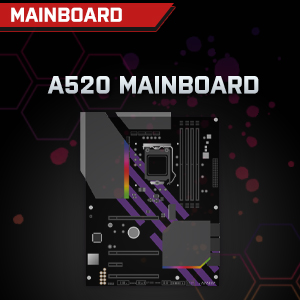

Image: Individual component representations for CPU, RAM, Graphics, Storage, Mainboard, and Power Supply.
Баталгаат болон дэмжлэг
SYSTEMTREFF is committed to providing excellent customer service.
- Үйлдвэрлэгчийн баталгаа: Your SYSTEMTREFF PC comes with a 36-month (3-year) manufacturer's warranty. This warranty covers defects in materials and workmanship under normal use.
- Чанарын хяналт: All individually assembled PCs undergo a quality control check before shipment.
- Буцах: In case of issues, SYSTEMTREFF offers free returns.
- Дэмжлэгтэй холбоо барина уу: For technical assistance, warranty claims, or any other inquiries, please contact SYSTEMTREFF customer support. Contact details can typically be found on the manufacturer's official webсайт эсвэл таны худалдан авалтад орсон баримт бичиг.

Image: Information regarding warranty, ease of setup, and customer support availability.


