1. Танилцуулга
This manual provides detailed instructions for the KuWFi Type-C Audio Video Capture Card, Model HDMI26. This device is designed to capture single HDMI video signals, supporting resolutions up to 1080p at 60Hz. It is compatible with various operating systems and offers plug-and-play functionality for ease of use.

Figure 1: KuWFi Type-C Audio Video Capture Card (Model HDMI26)
2. Онцлогууд
- High-Quality Capture: Captures single HDMI video signals with resolutions up to 1080p at 60Hz.
- Өргөн нийцтэй байдал: Supports MJPEG and YUY2. Compatible with Windows 7, 8, 8.1, 10, Linux OS, and Mac OS operating systems.
- Аудио дэмжлэг: Supports UAC&UVC protocol and 48 KHz PCM audio sampling rate. Automatically detects input audio format and converts to 48KHz PCM audio.
- Type-C гаралт: Utilizes Type-C output with up to 300~350MB/s bandwidth.
- Plug and Play: Meets UVC and UAC standards, requiring no driver installation or complex settings for most systems.
- Автомат тохируулга: Automatically detects input video format and adjusts output resolution and frame rate.
- HDMI давталт: Features an HDMI loop-out port for zero-latency pass-through while recording.
- Олон төхөөрөмж: Up to two capture cards can be used on a single PC.
- Enhanced Picture Quality: Provides clearer picture quality with an RGB color range of 0~255.
- Програм хангамжийг шинэчлэх боломжтой: Supports online firmware upgrades for improved compatibility.
3. Багцын агуулга
Доор жагсаасан бүх зүйл таны багцад байгаа эсэхийг шалгаарай.
- 1x KuWFi HDMI to Type-C Video Capture Dongle (Model HDMI26)
- 1x Type-C кабель
- 1x Parameter Description (Document)
- 1x Operating Instruction (User Manual)
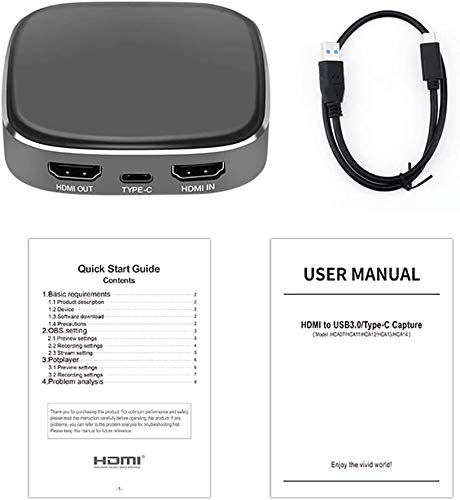
Figure 2: Included items: Capture card, Type-C cable, and documentation.
4. Тохируулах заавар
Follow these steps to connect your KuWFi Type-C Audio Video Capture Card:
- HDMI оролтыг холбоно уу: Connect an HDMI cable from your source device (e.g., game console, camera, set-top box) to the HDMI оролт зураг авах карт дээрх порт.
- HDMI гаралтыг холбох (заавал биш): Хэрэв та хүсвэл view the source content on a separate display without latency, connect another HDMI cable from the HDMI OUT port on the capture card to your TV, monitor, or projector.
- Компьютерт холбогдох: Connect the provided Type-C cable from the TYPE-C port on the capture card to a USB 3.0 or Type-C port on your computer (PC or Mac).
- Асаах: Ensure all devices are powered on. The capture card is typically powered via the Type-C connection.

Figure 3: Connection diagram for the capture card, illustrating HDMI input, HDMI output, and Type-C connections.
5. Ашиглалтын заавар
Once the capture card is connected, you can begin capturing or streaming using compatible software.
5.1. Software Setup (Example: OBS Studio)
For capturing and streaming, third-party software like OBS Studio, VLC, or PotPlayer is required. The following steps outline a general setup using OBS Studio:
- Програм хангамж суулгах: Download and install your preferred capture software (e.g., OBS Studio) on your computer.
- Add Video Source: Open the software. In OBS Studio, navigate to the "Sources" box, click the "+" icon, and select "Video Capture Device".
- Төхөөрөмж сонгох: In the properties window, select "USB Video" or a similar name for your capture card from the "Device" dropdown menu.
- Видеог тохируулах: Adjust resolution, FPS, and other video settings as needed. Ensure the resolution matches or is compatible with your input source.
- Аудиог тохируулах: In the "Audio Mixer" section, ensure "USB Audio" or similar is selected and levels are adjusted. You may need to add an "Audio Input Capture" source and select "USB Audio" if not automatically detected.
- Start Recording/Streaming: Once configured, you can start recording or streaming your content.
5.2. Driver Installation (Windows 7 Specific)
While the device is generally plug-and-play, some Windows 7 systems may require a specific driver installation. Refer to the included "Operating Instruction" manual or the manufacturer's website for driver download and installation procedures if necessary.
6. Техникийн үзүүлэлтүүд
| Онцлог | Дэлгэрэнгүй |
|---|---|
| Загвар | HDMI26 |
| Брэнд | KuWFi |
| HDMI Input Resolution Support | 4K/60, 1080P/60, 59.94, 50, 30, 29.97, 25, 24, 23.98, 1080i 50/60, 720P 50/60, 480P, 576P, 1280x1024, 1280x960, 1024x768, 800x600, 640x480 |
| HDMI оролтын формат | Compatible with HDMI1.4 standard, max bandwidth 225MHz 4K/30Hz, 12bit deep color |
| Type-C Output Bandwidth | Up to 300~350MB/s |
| Урьдчилсанview Шийдвэр | 1920x1080, 1680x1050, 1280x1024, 1280x960, 1400x900, 1440x900, 1360x768, 1366x768, 1024x768, 1280x720, 800x600, 720x576, 720x480, 640x480 |
| Frame Rate | 25/29.97/30/50/59.94/60 fps |
| HDMI Loop-out Resolution Support | 4K/60, 4K/30, 1080P/60, 59.94, 50, 30, 29.97, 25, 24, 23.98, 1080i 50/60, 720P 50/60, 480P, 576P, 1280x1024, 1280x960, 1024x768, 800x600, 640x480 |
| Тоног төхөөрөмжийн интерфейс | USB 2.0 (backward compatible), USB 3.0 (Type-C) |
| Видео бичлэгийн нягтрал | 1080p |
| Онцлог шинж чанарууд | Хөнгөн, зөөврийн |
| Зүйлийн жин | 250 гр |
| Хэмжээ | 16.2 x 9.8 x 5.4 см |
7. Системийн шаардлага
To ensure optimal performance, your computer system should meet or exceed the following specifications:
- Үйлдлийн систем: Windows 10 / Windows 8.1 / Windows 7 (SP1), Linux OS, Mac OS
- Ширээний компьютер:
- Processor: Intel Core i5-4440 3.10 GHz or higher
- Graphics Card: NVIDIA GeForce GTX 660 or above
- Тэмдэглэлийн дэвтэр:
- Processor: Intel Core i7-4810MQ or higher
- Graphics Card: NVIDIA GeForce GTX 870M or above
- RAM: 4 GB RAM (8 GB зөвлөж байна)
8. Алдаа засах
If you encounter issues while using the capture card, consider the following:
- Recording Screen Blinking or Black: This issue often indicates a low computer configuration. Ensure your system meets the recommended specifications listed in Section 7.
- Холболтын асуудал:
- Avoid using USB hubs or USB extension cables, as they can interfere with data transfer and power delivery. Connect the Type-C cable directly to a native USB 3.0 or Type-C port on your computer.
- Ensure all HDMI cables are securely connected to both the source device, the capture card, and the display (if using loop-out).
- Дохио илрээгүй:
- Verify that your source device is powered on and outputting an HDMI signal.
- Check the input resolution of your source device. While the capture card supports various resolutions, ensure it's within the compatible range.
- Өөр HDMI кабель ашиглаж үзнэ үү.
- Аудио ажиллахгүй байна:
- Ensure "USB Audio" is selected as the audio input device in your capture software.
- Check your computer's sound settings to ensure the capture card's audio input is enabled and not muted.
9. Чухал тэмдэглэл
- For optimal performance, connect the capture card directly to a USB 3.0 or Type-C port on your computer. Avoid using USB hubs or extension cables.
- A computer with specifications below the recommended requirements may experience performance issues such as flickering or black screens during recording.
- Төхөөрөмжийг хуурай газар хадгалж, хэт өндөр температураас зайлсхий.


