1. Танилцуулга
The i-tec USB-C Quattro Docking Station is designed to expand the connectivity of your USB-C enabled laptop or tablet, allowing for connection of up to four external displays, multiple USB peripherals, Gigabit Ethernet, and audio devices. It also provides up to 85W Power Delivery to charge your host device. This manual provides detailed instructions for setting up, operating, and maintaining your docking station.
2. Багцын агуулга
Доор жагсаасан бүх зүйл таны багцад байгаа эсэхийг шалгана уу.
- i-tec USB-C Quattro Docking Station
- Эрчим хүчний адаптер
- Цахилгаан кабель
- USB-C-аас USB-C кабель
- Түргэн эхлүүлэх гарын авлага

Зураг 2.1: Package Contents. The image displays the docking station, its power adapter, a power cable, and a quick setup guide.
3. Бүтээгдэхүүн дууссанview
Familiarize yourself with the ports and indicators on your i-tec USB-C Quattro Docking Station.
3.1 Урд самбар

Зураг 3.1: Front Panel. This image shows the front of the docking station with a power button, microphone input jack, headphone output jack, one USB-C data port, and one USB 3.0 port.
- Цахилгаан товч: Док станцыг асаах/унтраахын тулд.
- Микрофоны залгуур (3.5мм): Микрофон холбоно уу.
- Чихэвчний залгуур (3.5 мм): Чихэвч эсвэл чанга яригчийг холбоно уу.
- USB-C өгөгдлийн порт: USB-C дагалдах төхөөрөмжүүдийг холбоход зориулагдсан.
- USB 3.0 порт: For connecting USB 3.0/2.0 peripherals.
3.2 Арын самбар

Зураг 3.2: Rear Panel. This image displays the rear of the docking station, featuring the DC 20V power input, USB-C PD host connection, two DisplayPort outputs, two HDMI outputs, a Gigabit Ethernet (LAN) port, and four additional USB 3.0 ports.
- DC 20V цахилгаан оролт: Дагалдах тэжээлийн адаптерийг холбоно уу.
- USB-C PD Host Port: Connect to your laptop/tablet for data, video, and power delivery.
- 2x Дэлгэцийн порт: Connect external monitors via DisplayPort cables.
- 2x HDMI: Connect external monitors via HDMI cables.
- GLAN (RJ-45) Port: Утастай сүлжээнд холбогдоно уу.
- 4 USB 3.0 портууд: Connect USB 3.0/2.0 peripherals.
4. Тохируулах заавар
Follow these steps to set up your i-tec USB-C Quattro Docking Station:
- Эрчим хүчийг холбох: Connect the power adapter to the DC 20V input on the rear of the docking station, then plug the power cable into a wall outlet.
- Хост төхөөрөмжид холбогдох: Use the provided USB-C to USB-C cable to connect the docking station's USB-C PD Host Port to your laptop's USB-C port. Ensure your laptop's USB-C port supports DisplayPort Alternate Mode and Power Delivery for full functionality.
- Гадаад дэлгэцийг холбох: Connect your monitors to the DisplayPort and/or HDMI ports on the rear of the docking station. You can connect up to four displays simultaneously.
- Дагалдах төхөөрөмжүүдийг холбох: Plug your USB devices (keyboard, mouse, external drives) into the available USB 3.0 or USB-C data ports. Connect an Ethernet cable to the GLAN port for wired network access. Connect headphones/speakers and a microphone to the respective audio jacks on the front panel.
- Асаах: Press the power button on the front of the docking station. Your operating system should automatically detect the connected devices.
- Драйвер суурилуулах (шаардлагатай бол): For optimal performance or specific features, visit www.i-tec.cz/setup to download and install any required drivers for your operating system.
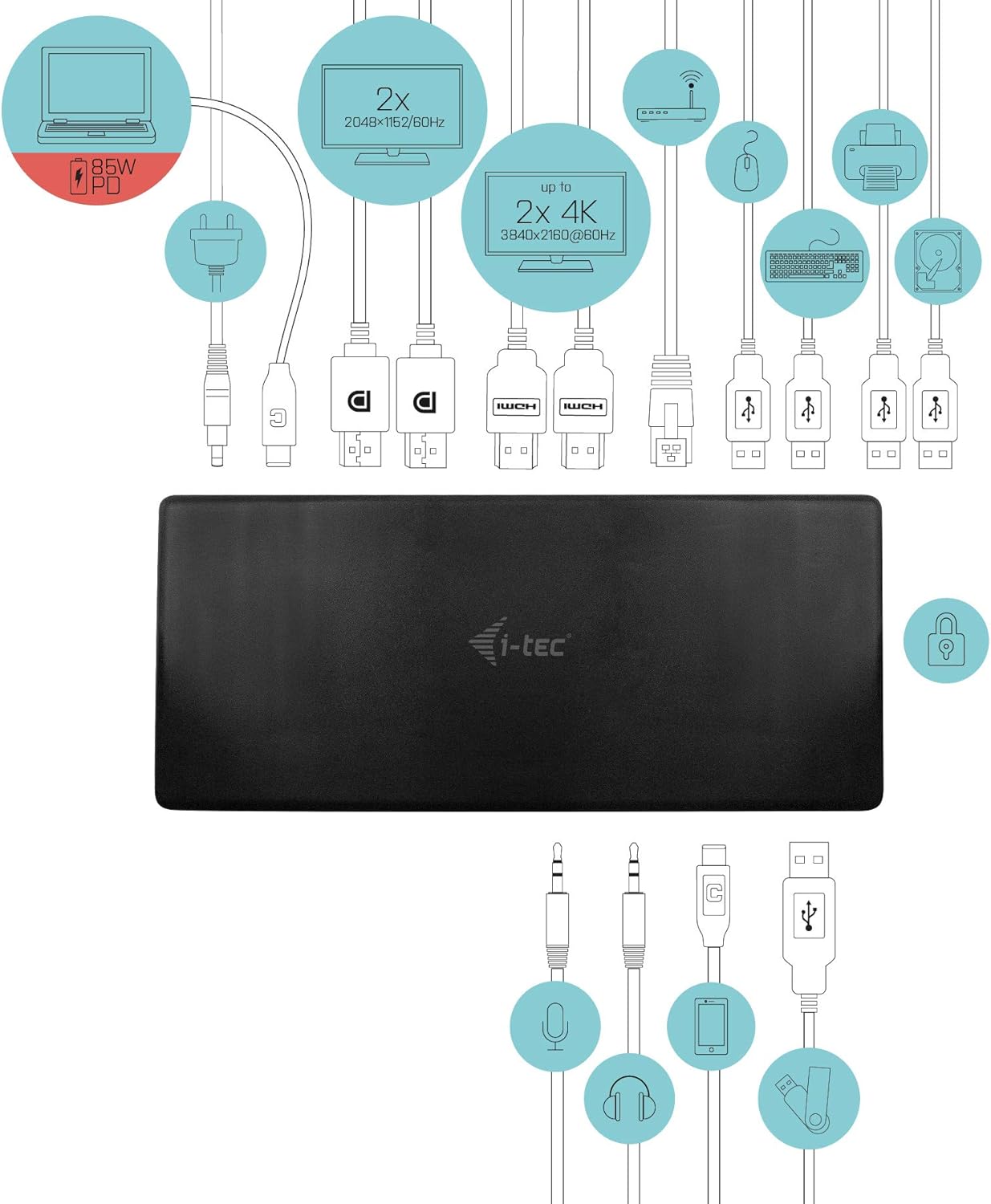
Зураг 4.1: Connection Diagram. This diagram shows the various connections to the docking station, including power, host laptop, multiple monitors (DisplayPort and HDMI), Ethernet, and USB peripherals like a mouse, keyboard, and external storage.
5. Ашиглалтын заавар
Once set up, your docking station provides enhanced functionality for your workspace.
5.1 Олон дэлгэцийн тохиргоо
The docking station supports up to four external displays. You can configure these displays in various modes (extended, mirrored) through your operating system's display settings.
- Шийдвэрүүд: Supports up to 2x 2048x1152@60Hz and 2x 4K/60Hz, depending on your host device's capabilities and display connections.
- Windows: Right-click on the desktop, select 'Display settings' to arrange and configure your monitors.
- макос: Go to 'System Preferences' > 'Displays' to adjust settings.

Зураг 5.1: Four-Display Setup Example. This image illustrates a workstation with a laptop connected to the docking station, driving four external monitors simultaneously, showcasing a multi-tasking environment.
5.2 Эрчим хүчний хангамж
The USB-C PD Host Port provides up to 85W of power to charge your connected laptop or tablet, eliminating the need for a separate power adapter for your host device.
5.3 USB холболт
Utilize the 5x USB 3.0 ports and 1x USB-C data port for connecting various peripherals such as external hard drives, USB flash drives, keyboards, mice, and printers. USB 3.0 ports offer high-speed data transfer.
5.4 Гигабит Ethernet
The GLAN RJ-45 port provides a stable and high-speed wired internet connection (10/100/1000 Mbps), which is often more reliable than Wi-Fi.
5.5 Аудио функц
Connect your headphones, speakers, or microphone to the 3.5mm audio jacks on the front panel for integrated audio input and output.

Зураг 5.2: Productivity Setup. This image shows a professional desk environment where the docking station facilitates a multi-monitor setup for enhanced productivity, displaying various applications and data across four screens.
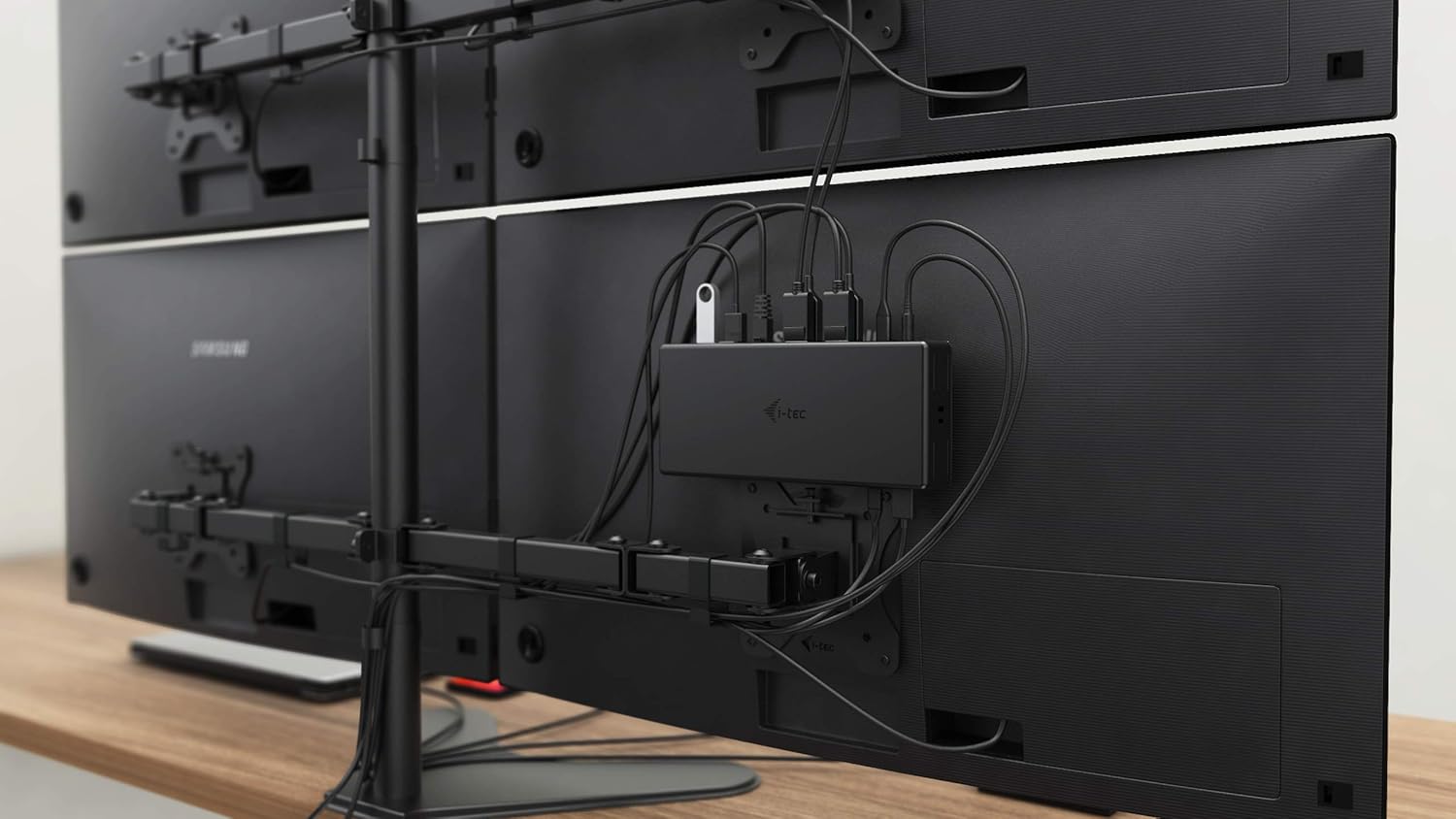
Зураг 5.3: VESA Mounting. The docking station is shown mounted vertically on the back of a VESA-compatible monitor, demonstrating its space-saving installation capability and organized cable routing.

Зураг 5.4: Connected Workstation. This image provides a close-up of the docking station on a desk, connected to a laptop via USB-C, and featuring various peripherals plugged into its front ports, including a USB drive and audio devices.
6. Засвар үйлчилгээ
Док станцын урт наслалт, оновчтой ажиллагааг хангахын тулд дараах засвар үйлчилгээний удирдамжийг дагана уу.
- Цэвэрлэгээ: Док станцын гадна талыг зөөлөн, хуурай даавуугаар цэвэрлэнэ үү. Шингэн цэвэрлэгч эсвэл аэрозоль хэрэглэж болохгүй.
- Агааржуулалт: Хэт халалтаас урьдчилан сэргийлэхийн тулд док станцыг агааржуулалт сайтай газар байрлуулсан эсэхийг шалгаарай. Агааржуулалтын нүхийг бүү бөглөөрэй.
- Харьцуулах: Avoid dropping or subjecting the docking station to strong impacts.
- Байгаль орчин: Төхөөрөмжийг хэт өндөр температур, чийгшил, нарны шууд тусгалаас хол байлга.
- Кабелийн менежмент: Ensure cables are not excessively bent or strained to prevent damage to ports and cables.
7. Алдаа засах
Хэрэв та залгах станцтай холбоотой асуудалтай тулгарвал дараах нийтлэг асуудал, шийдлүүдийг үзнэ үү.
7.1 Дэлгэцийн гаралт байхгүй
- Холболтуудыг шалгах: Ensure all display cables (HDMI/DisplayPort) are securely connected to both the docking station and the monitors.
- Хост холболт: Verify the USB-C cable from the docking station is firmly connected to your laptop's USB-C port.
- Эрчим хүч: Confirm the docking station is powered on and receiving power from the adapter.
- Зөөврийн компьютерын нийцтэй байдал: Таны зөөврийн компьютерын USB-C порт нь DisplayPort-н өөр горимыг дэмждэг эсэхийг шалгаарай.
- Жолооч нар: Install the latest drivers from www.i-tec.cz/setup.
- Дэлгэцийн тохиргоо: Adjust your operating system's display settings to detect and extend/mirror displays.
7.2 USB Devices Not Working
- Дахин холбогдох: Disconnect and reconnect the USB device to a different port on the docking station.
- Эрчим хүч: Док станц асаалттай байгаа эсэхийг шалгаарай.
- Хост холболт: Verify the USB-C connection to your laptop.
- Эрчим хүчний хэрэглээ: If connecting high-power USB devices, ensure the docking station's power adapter is correctly connected and providing sufficient power.
7.3 No Network Connection (GLAN)
- Кабель шалгах: Ethernet кабель нь док станц болон чиглүүлэгч/модем хоёуланд нь аюулгүй холбогдсон эсэхийг шалгаарай.
- Чиглүүлэгч/Модем: Verify your router/modem is working correctly.
- Жолооч нар: Ensure the latest network drivers are installed for the docking station.
7.4 Laptop Not Charging (Power Delivery)
- Эрчим хүчний адаптер: Confirm the docking station's power adapter is correctly connected and functioning.
- USB-C кабель: Ensure the USB-C cable connecting the dock to your laptop supports Power Delivery.
- Зөөврийн компьютерын нийцтэй байдал: Зөөврийн компьютерын USB-C порт нь Power Delivery оролтыг дэмжиж байгаа эсэхийг шалгаарай.
8. Техникийн үзүүлэлтүүд
| Онцлог | Дэлгэрэнгүй |
|---|---|
| Загварын дугаар | C31QUATTRODOCKPDUK |
| Брэнд | би-tec |
| Бүтээгдэхүүний хэмжээс | 10 x 2 x 2.7 инч (25.4 x 5.08 x 6.86 см) |
| Зүйлийн жин | 10.2 унц (0.29 кг) |
| Тоног төхөөрөмжийн интерфейс | DisplayPort, Ethernet, HDMI, USB, USB 3.0, USB Type C |
| Тохиромжтой төхөөрөмжүүд | Laptop, Monitor, Tablet with USB-C (DisplayPort Alt Mode & Power Delivery support recommended) |
| Нийт USB портууд | 6 (5x USB 3.0, 1x USB-C Data) |
| Нийт HDMI портууд | 2 |
| Нийт DisplayPort | 2 |
| Ethernet | Гигабит Ethernet (RJ-45) |
| Аудио залгуурууд | 1x Microphone (3.5mm), 1x Headphone (3.5mm) |
| Эрчим хүчний нийлүүлэлт | Up to 85W to host device |
| Өнгө | Хар |
| Үйлдлийн системүүд | Windows 10, macOS, Android, Linux |
9. Баталгаат хугацааны мэдээлэл
The i-tec USB-C Quattro Docking Station is covered by a manufacturer's warranty. Please refer to the warranty card included in your package or visit the official i-tec webнарийвчилсан баталгаат нөхцөлийг сайтаас авна уу. Баталгаат нэхэмжлэл гаргахын тулд худалдан авалтаа нотлох баримтаа хадгалаарай.
10. Хэрэглэгчийн дэмжлэг
For further assistance, technical support, or to download the latest drivers and firmware, please visit the official i-tec support webсайт:
You may also find helpful resources and FAQs on the product's dedicated setup page: www.i-tec.cz/setup


