1. Танилцуулга
This manual provides essential information for the safe and efficient operation of your iFFALCON 32F2A 32-inch HD Ready Android Smart LED TV. Please read these instructions thoroughly before using the television and retain them for future reference.
The iFFALCON 32F2A is an 80 cm (32 inches) HD Ready Android Smart LED TV designed to offer a comprehensive entertainment experience. It features a 720p resolution display, integrated Android operating system, and smart functionalities like Google Assistant and Chromecast built-in.
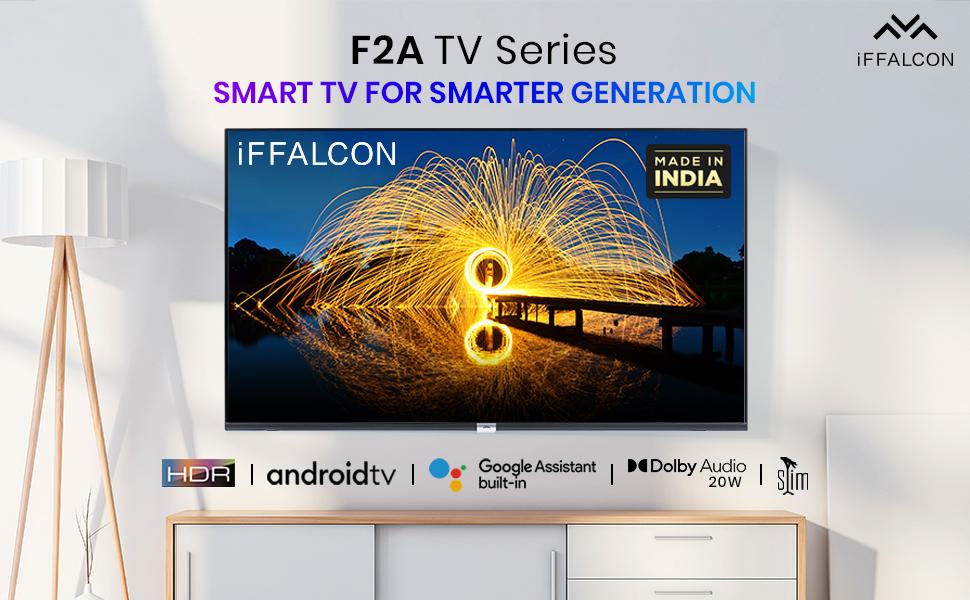
Зураг 1.1: Урд view of the iFFALCON 32F2A Smart LED TV displaying the Android TV interface, alongside icons representing key features such as HDR, Android TV, Google Assistant, Micro Dimming, IPQ Engine, Chromecast built-in, AI, and Dolby Audio with 20W speakers.
2. Хайрцагт юу байна
Verify that all components are present and undamaged upon unpacking your new television.
- 1 x iFFALCON 32F2A LED TV
- 1 х ширээний тавцан
- 1 х хэрэглэгчийн гарын авлага
- 1 х Баталгаат карт
- 1 x Алсын удирдлага
- 2 x AAA батерей (алсын удирдлагад зориулагдсан)
3. Тохиргоо
3.1 Савлах ба байрлуулах
Carefully remove the TV from its packaging. It is recommended to have two people for this process. Place the TV on a stable, flat surface or mount it securely on a wall.
3.2 Attaching the Table Top Stand
- Зурааснаас сэргийлэхийн тулд зурагтын дэлгэцийг зөөлөн, цэвэр гадаргуу дээр доош нь тавь.
- Тавиурын суурийг ТВ-ийн доод талд байгаа харгалзах үүртэй зэрэгцүүлнэ.
- Secure the stand bases using the provided screws. Ensure they are tightened firmly.
3.3 Хананд суурилуулах (заавал биш)
If you choose to wall mount your TV, please note that the wall mount bracket is not included and must be purchased separately. Follow the instructions provided with your wall mount kit and ensure professional installation for safety.
3.4 Гадаад төхөөрөмжүүдийг холбох
Your iFFALCON 32F2A TV offers various connectivity options:
- HDMI портууд: Blu-ray тоглуулагч, тоглоомын консол эсвэл тоглуулагчийг холбоно уу.
- USB порт: Медиа тоглуулахын тулд USB санах ойн төхөөрөмжүүдийг холбоно уу.
- Ethernet порт: Утастай интернет холболтын хувьд.
- Чихэвчний Жак: Хувийн сонсох зориулалттай.
3.5 Эрчим хүчний холболт
Connect the power cord to the TV's power input and then to a suitable AC power outlet (240 Volts, 50 Watts). Ensure the power cable is securely connected.
3.6 Анхдагч асаалт ба тохиргооны шидтэн
After connecting power, press the power button on the TV or remote control. The TV will guide you through the initial setup wizard, including language selection, network connection (Wi-Fi or Ethernet), Google account sign-in, and channel scanning.

Image 3.1: A diagram illustrating the physical dimensions of the iFFALCON 32F2A TV, including screen size (32 inches / 79.97 cm diagonal), width (73.20 cm / 29 inch), height (48.20 cm / 19 inch), and depth (17.30 cm / 6.9 inch).
4. Ашиглалтын заавар
4.1 Алсын удирдлага
The provided remote control allows you to navigate the TV's interface and access various functions. Insert the two AAA batteries (included) into the remote control, ensuring correct polarity.
- Цахилгаан товч: ТВ-г асаах эсвэл унтраана.
- Навигацийн товчлуурууд: Use the directional pad and OK button to move through menus.
- Эзлэхүүн +/-: Дууны түвшнийг тохируулна.
- Суваг +/-: Телевизийн сувгийг өөрчилдөг.
- Нүүр хуудас товч: Android TV-н үндсэн дэлгэц рүү буцна.
- Буцах товчлуур: Өмнөх дэлгэц рүү буцна.
- Google туслах товч: Дуут хяналтыг идэвхжүүлдэг.
- Netflix товчлуур: Netflix-д шууд хандах боломжтой.
- Amazon Prime Video Button: Amazon Prime Video руу шууд хандах боломжтой.
- Zee5 Button: Direct access to Zee5.
- TCL Channel Button: Direct access to TCL channel.

Image 4.1: The smart remote control for the iFFALCON TV, highlighting the Google Assistant button and a dedicated hotkey for Netflix for quick access.
4.2 Android ТВ интерфэйс
Your TV runs on Android 9, providing access to a wide range of apps and services. The home screen displays recommended content, installed applications, and input sources.
- Програмууд: Access pre-installed applications like Netflix, YouTube, Prime Video, Disney+Hotstar, Sun NXT, and Zee5. Download more from the Google Play Store.
- Оролтууд: Switch between HDMI inputs, USB, and other connected devices.
- Тохиргоо: Customize TV settings such as picture, sound, network, and system preferences.

Image 4.2: The iFFALCON Smart LED TV showcasing its Android TV home screen, featuring prominent app icons for Netflix, YouTube, Prime Video, and other streaming services.

Image 4.3: The iFFALCON Smart LED TV interface, illustrating the availability of popular streaming platforms such as YouTube, Prime Video, Disney+ Hotstar, SonyLIV, Zee5, ALTBalaji, Voot Select, and Eros Now.
4.3 Google туслах
The built-in Google Assistant allows you to control your TV and smart home devices using voice commands. Press the Google Assistant button on your remote and speak into the microphone.
- Search Content: Say "Play a cartoon movie" or "хайх action films."
- Control TV: Say "Turn up the volume" or "Switch to HDMI 1."
- Get Information: Ask "What's the weather today?" or "How long is Moonlight?"
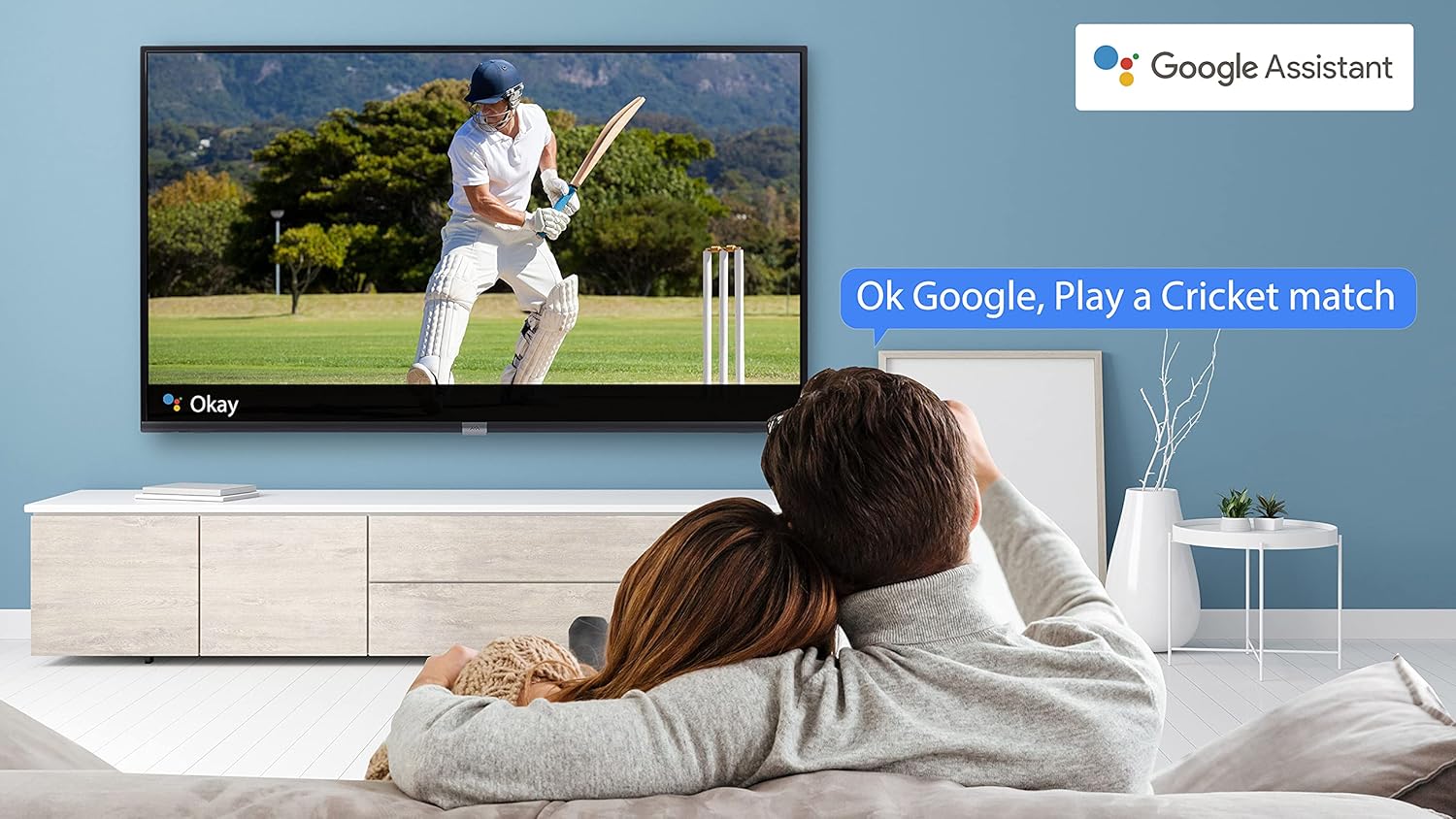
Image 4.4: A couple watching a cricket match on the iFFALCON TV, with a Google Assistant prompt bubble showing "Ok Google, Play a Cricket match," demonstrating voice control functionality.
Image 4.5: The Google Assistant logo, indicating the TV's integrated voice control capabilities.
4.4 Chromecast суурилуулсан
Use Chromecast built-in to cast content from your compatible smartphone, tablet, or computer directly to your TV screen. Ensure your device and TV are connected to the same Wi-Fi network.

Image 4.6: A smartphone displaying a car image, with a casting icon indicating that the content is being mirrored to a larger TV screen, demonstrating the Chromecast built-in feature.
5. Үндсэн шинж чанарууд
5.1 HDR (Өндөр динамик хүрээ)
HDR technology enhances contrast, color accuracy, and brightness, delivering a more lifelike and immersive viewing experience with greater detail in both dark and bright scenes.

Image 5.1: A split-screen comparison showing the visual difference between an image without HDR 10 (left, darker, less vibrant) and with HDR 10 (right, brighter, more detailed, and richer colors).
5.2 Бичил бүдэгрүүлэлт
Micro Dimming analyzes the TV content in hundreds of separate zones to adjust brightness and darkness independently. This results in improved contrast and picture quality, especially in scenes with mixed light levels.
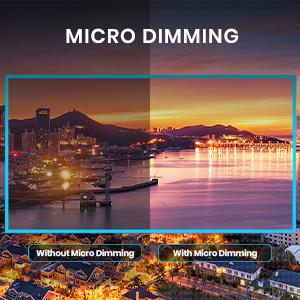
Image 5.2: A split-screen comparison demonstrating the effect of Micro Dimming, with the 'Without Micro Dimming' side appearing less vibrant and the 'With Micro Dimming' side showing enhanced contrast and color saturation in a city night scene.
5.3 IPQ Engine
The IPQ Engine (Image Quality Processing Engine) optimizes picture quality by intelligently adjusting brightness, color range, and contrast, ensuring a more vivid and accurate display.

Image 5.3: A visual representation of the IPQ Engine, highlighting its 'High Brightness Precision Control Technology' and 'Intelligent Color Range Control Technology' for optimized picture quality.
5.4 Dolby Аудио
Experience rich, clear, and powerful sound with Dolby Audio. This technology enhances the audio output, providing an immersive listening experience for movies, music, and games.

Image 5.4: The Dolby Audio logo, signifying enhanced sound quality and an immersive audio experience.
5.5 Smart Volume
Smart Volume automatically adjusts the sound level to prevent sudden changes in volume, such as during commercials or when switching channels, ensuring a consistent listening experience.

Image 5.5: An illustration of the Smart Volume feature, showing how it maintains consistent audio levels across different content types, represented by varying sound wave patterns.
5.6 Спортын горим
Sports Mode optimizes picture and sound settings for sports content, enhancing motion clarity and audio to provide a more engaging viewамьд спортоор хичээллэх туршлага.

Image 5.6: A split-screen comparison of a cricket player, showing the 'Without Sports Mode' side with standard clarity and the 'With Sports Mode' side with enhanced motion and detail, indicated by a playback bar.
5.7 Slim Design
The iFFALCON 32F2A features a slim design, allowing it to blend seamlessly into various living spaces and offering a modern aesthetic.

Image 5.7: An illustration emphasizing the slim profile of the iFFALCON TV, with a hand demonstrating its thinness.
6. Засвар үйлчилгээ
6.1 Дэлгэц цэвэрлэх
Зөөлөн, хөвөнгүй даавуугаар дэлгэцийг зөөлөн арчина. Зөрүүд тэмдгийн хувьд хөнгөнөөр dampдаавууг усаар эсвэл тусгай дэлгэц цэвэрлэгчээр угаана. Химийн хатуу бодис, зүлгүүрийн материал ашиглахаас зайлсхий.
6.2 Шүүгээ цэвэрлэх
ТВ-ийн шүүгээг зөөлөн, хуурай даавуугаар арчина. Шингэн цэвэрлэгчийг шүүгээнд шууд хэрэглэж болохгүй.
6.3 Power Cord Care
Regularly check the power cord for any damage. Do not place heavy objects on the cord or expose it to excessive heat.
7. Алдаа засах
Хэрэв танд ТВ-тэй холбоотой асуудал тулгарвал дараах нийтлэг асуудал, шийдлүүдийг үзнэ үү.
| Асуудал | Боломжит шалтгаан | Шийдэл |
|---|---|---|
| Хүч чадалгүй | Цахилгааны утас салгагдсан, цахилгаан гаралтын асуудал | Ensure power cord is securely plugged in. Check if the power outlet is working. |
| Зураг байхгүй ч дуу чимээ байна | Incorrect input source, faulty cable | Verify the correct input source is selected. Check HDMI/AV cable connections. |
| Дуу алга, гэхдээ зураг байна | Volume muted or too low, audio settings issue | Дууг нэмэгдүүл. ТВ цэснээс аудио гаралтын тохиргоог шалгана уу. |
| Алсын удирдлага ажиллахгүй байна | Dead batteries, obstruction, remote out of range | Replace batteries. Remove obstructions between remote and TV. Ensure remote is within operating range. |
| Wi-Fi-д холбогдох боломжгүй байна | Incorrect password, router issue, TV too far from router | Re-enter Wi-Fi password. Restart router. Move TV closer to router or use Ethernet. |
Хэрэв эдгээр шийдлүүдийг туршиж үзсэний дараа асуудал хэвээр байвал хэрэглэгчийн дэмжлэгтэй холбогдоно уу.
8. Техникийн үзүүлэлтүүд
Detailed technical specifications for the iFFALCON 32F2A Smart LED TV:
| Онцлог | Тодорхойлолт |
|---|---|
| Брэнд | iFFALCON |
| Загварын нэр | 32F2A |
| Дэлгэцийн хэмжээ | 32 инч (80 см) |
| Дэлгэцийн технологи | LED, A+ Grade Panel |
| Шийдвэр | HD бэлэн (1366 x 768 пиксел) |
| Сэргээх хурд | 60 Гц |
| Viewing өнцөг | 178 градус |
| Зургийн харьцаа | 16:9 |
| Зургийн ялгаатай харьцаа | 3000:1 |
| Үйлдлийн систем | Android |
| Суулгасан RAM санах ойн хэмжээ | 1 ГБ |
| Дижитал хадгалах багтаамж | 8 ГБ |
| График процессор | Mali470x2 |
| Аудио Wattage | 16 ватт |
| Чанга яригч орчны дуу | Dolby Аудио |
| Холболтын технологи | Wi-Fi, Ethernet, HDMI, USB |
| Нийт USB портууд | 1 |
| Эрчим хүчний эх үүсвэр | AC |
| Ботьtage | 240 вольт |
| Ватtage | 50 ватт |
| Бүтээгдэхүүний хэмжээс | 48.2 x 73.2 x 18.3 см |
| Зүйлийн жин | 3.9 кг |
9. Баталгаат хугацаа ба дэмжлэг
Your iFFALCON 32F2A TV comes with a warranty. Please refer to the included Warranty Card for detailed terms and conditions, including the warranty period and coverage.
For technical assistance, service requests, or further inquiries, please visit the official iFFALCON support website or contact their customer service helpline. Contact information can typically be found on the Warranty Card or the manufacturer's official webсайт.