Танилцуулга
This manual provides comprehensive instructions for the setup, operation, and maintenance of your Plantronics Poly Studio P5 Webcam and Voyager 4220 UC Headset Kit. Please read this manual thoroughly before using the product to ensure optimal performance and longevity.
The kit includes a high-definition webcam designed for professional video conferencing and a stereo Bluetooth wireless headset for clear audio communication.
Багцын агуулга
- Poly Studio P5 Webкамер
- Poly Voyager 4220 UC утасгүй чихэвч
- USB-A Adapter (for headset)
- USB Cable (for webкамер)
- Түргэн эхлүүлэх гарын авлага
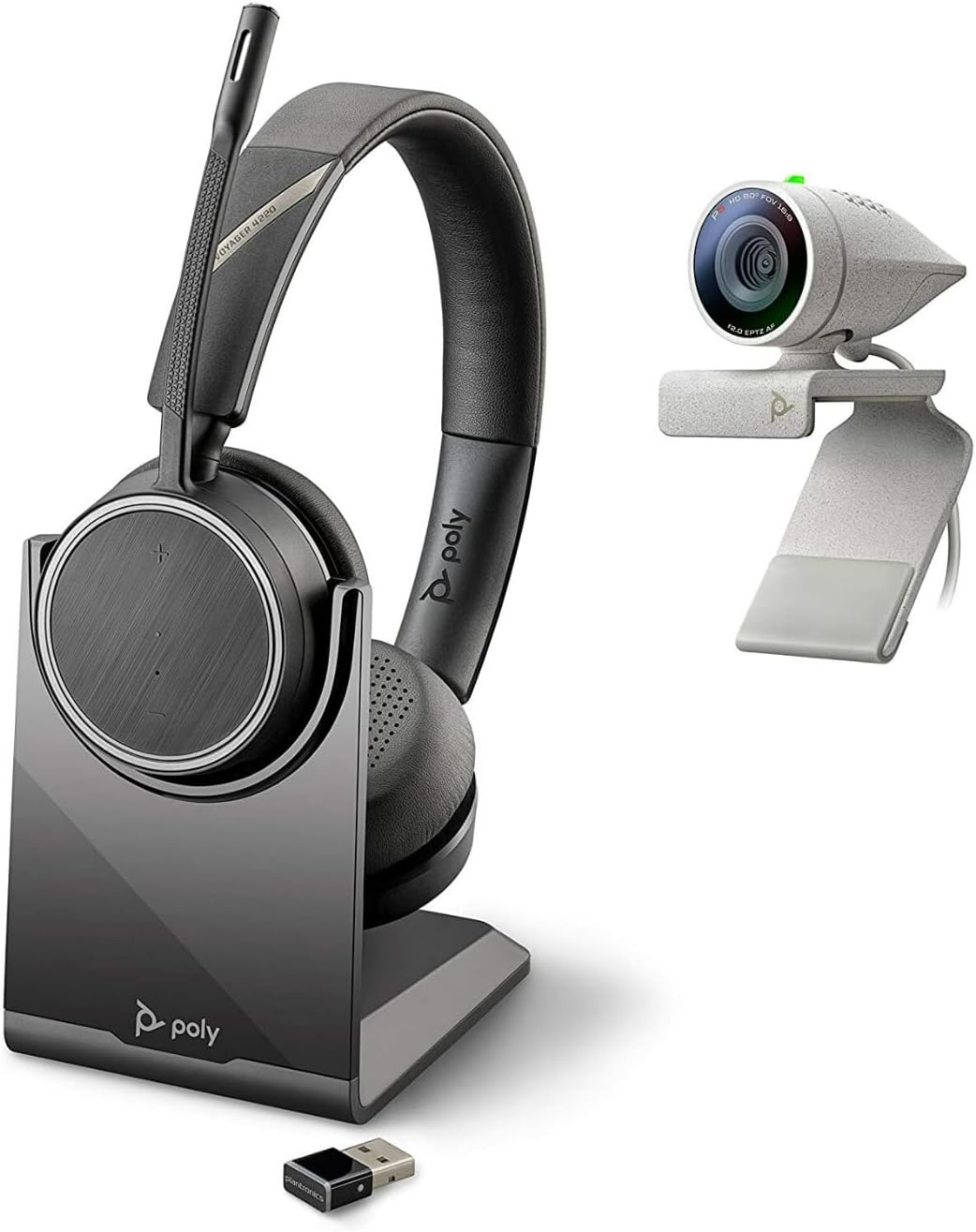
Image: Poly Studio P5 Webcam and Voyager 4220 UC Headset Kit, showing the webcam, headset, charging stand, and USB adapter.
Тохируулах заавар
1. Poly Studio P5 Webкамерын тохиргоо
- суурилуулах Webкамер:
-ийг байрлуул webcam on top of your monitor or laptop screen. Adjust the clip to secure it firmly. The webcam can also be mounted on a tripod using the integrated tripod-ready design.

Image: Poly Studio P5 Webcam positioned on top of a laptop screen, showing its compact design and mounting clip.
- Таны компьютерт холбогдох:
-ээс нэгдсэн USB кабелийг холбоно уу webcam to an available USB port on your PC or Mac. The device is plug-and-play; drivers will install automatically.
- Нууцлалын хаалт:
The webcam features an integrated privacy shutter. Slide the shutter to cover the lens when not in use to enhance security and privacy.

Зураг: Урд view of the Poly Studio P5 Webcam, highlighting the lens and the integrated privacy shutter mechanism.
2. Voyager 4220 UC Headset Setup
- Чихэвчийг цэнэглэх:
Before first use, fully charge the headset. Connect the charging cable to the headset and a USB power source. A full charge provides approximately 12 hours of talk time or 15 hours of listening time.
- Connecting the USB-A Adapter:
Insert the USB-A adapter into an available USB port on your PC or Mac. The adapter will automatically pair with the Voyager 4220 UC headset.
- Чихэвч зүүсэн:
Adjust the headband for a comfortable fit. Position the microphone boom approximately two finger-widths from the corner of your mouth for optimal voice pickup.
Ашиглалтын заавар
1. Using the Poly Studio P5 Webкамер
- Видео хурал: The webcam is compatible with Zoom, Microsoft Teams, and other video conferencing services. Select "Poly Studio P5" as your camera and microphone input within your chosen application's settings.
- Automatic Low-Light Compensation: The webcam automatically adjusts to maintain proper light exposure, ensuring clear visibility even in darker environments.
- Дижитал томруулах: The camera supports up to 4x digital zoom. This feature can typically be controlled through your video conferencing software or the Poly Lens Desktop app.

Image: A person wearing the Voyager 4220 UC Headset and using the Poly Studio P5 Webcam with a laptop, demonstrating a typical video conferencing setup.
2. Using the Voyager 4220 UC Headset
- Асаах/унтраах: Slide the power switch to turn the headset on or off.
- Дууны хяналт: Use the volume up (+) and volume down (-) buttons on the earcup to adjust audio levels.
- Дууг хаах/Асаах: Press the mute button on the microphone boom or earcup to mute or unmute your microphone.
- Дуудлагын хяналт: Press the call button to answer or end calls in supported applications.
- Noise-Cancelling Microphones: The headset features dual noise-cancelling microphones to reduce background noise for clear voice transmission.
3. Poly Lens Desktop App
The Poly Lens Desktop app allows you to customize settings, receive firmware updates, and access practical tips for your devices. Download the app from the official Poly webсайт.
- Тохируулах webcam settings (e.g., brightness, contrast, zoom).
- Configure headset audio preferences.
- Receive health and wellness reminders.
Засвар үйлчилгээ
- Цэвэрлэгээ:
арчих webcam lens and headset surfaces with a soft, dry, lint-free cloth. Do not use liquid cleaners or abrasive materials.
- Хадгалах:
Төхөөрөмжийг ашиглаагүй үед нарны шууд тусгал болон хэт өндөр температураас хол, сэрүүн, хуурай газар хадгална уу.
- Програм хангамжийн шинэчлэлтүүд:
Regularly check for firmware updates via the Poly Lens Desktop app to ensure optimal performance and access to new features.
Алдааг олж засварлах
| Асуудал | Боломжит шалтгаан | Шийдэл |
|---|---|---|
| Webкамер илрээгүй | Loose USB connection, incorrect software settings, driver issue. |
|
| Чихэвчнээс аудио байхгүй | Headset not powered on, not paired, volume too low, incorrect audio output selected. |
|
| Микрофон ажиллахгүй байна | Microphone muted, incorrect audio input selected, boom not positioned correctly. |
|
| Видео чанар муу | Low light conditions, dirty lens, internet bandwidth issues. |
|
Үзүүлэлтүүд
Poly Studio P5 Webкамер
- Хамгийн их дэлгэцийн нягтрал: FHD (1080p)
- Видео бичлэгийн нарийвчлал: 1080p
- Фото мэдрэгчийн технологи: CMOS
- Арын Webкамерын нягтрал: 5 МП
- Хамгийн их фокусын урт: 4
- Хамгийн их диафрагм: f/2.0
- Холболтын технологи: USB
- Тоног төхөөрөмжийн платформ: PC, Mac
- Онцлог шинж чанарууд: Integrated privacy shutter, automatic low-light compensation, tripod-ready design.
- Бүтээгдэхүүний хэмжээ: 14.1 x 8.3 x 4.5 inches (Kit dimensions)
- Барааны жин: 2.09 pounds (Kit weight)
Poly Voyager 4220 UC чихэвч
- Утасгүй төрөл: Bluetooth
- Ярилцах цаг: 12 цаг хүртэл
- Сонсох хугацаа: 15 цаг хүртэл
- Микрофонууд: Dual noise-cancelling
- Холболт: USB-A адаптер
- Дэмжигдсэн аудио формат: AAC, MP3
- Батерей: 1 Лити Полимер батерей (дагсан)
Баталгаат хугацааны мэдээлэл
For detailed warranty information, please refer to the warranty card included with your product or visit the official Poly webсайт. Стандарт баталгаат нөхцөл нь ихэвчлэн худалдан авсан өдрөөс хойш тодорхой хугацаанд үйлдвэрлэлийн согогийг хамардаг.
Дэмжлэг ба холбоо барих
For technical support, product registration, or to download the latest software and drivers, please visit the official Poly support webсайт:
Webсайт: www.poly.com/support
Та мөн дэмжлэгийн хуудсан дээрээс Түгээмэл асуултууд болон олон нийтийн форумыг олж болно.


