1. Танилцуулга
Thank you for choosing the NEC E438 43-inch LCD 4K UHD Commercial-Grade Monitor. This manual provides detailed instructions for the safe and efficient use of your display. Please read this manual thoroughly before operating the product and retain it for future reference.
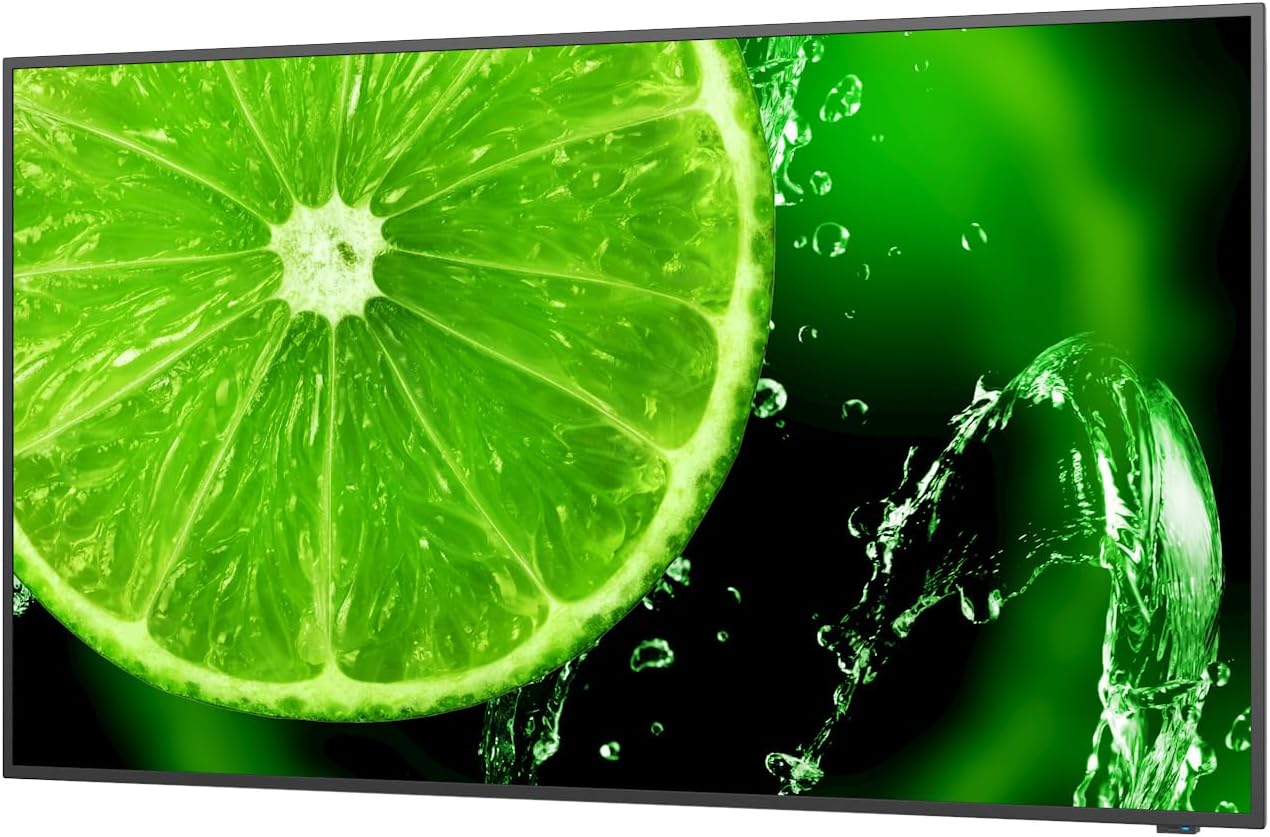
Зураг 1: Урд view of the NEC E438 43-inch 4K UHD monitor.
2. Аюулгүй байдлын мэдээлэл
Бүтээгдэхүүнийг гэмтээхээс сэргийлж, аюулгүй байдлаа хангахын тулд дараах аюулгүй байдлын урьдчилан сэргийлэх арга хэмжээг дагаж мөрдөнө үү.
- Do not expose the monitor to rain or moisture to avoid fire or electric shock.
- Мониторыг нээж болохгүй casing. Бүх үйлчилгээг мэргэшсэн үйлчилгээний ажилтнуудад шилжүүлээрэй.
- Зөв агааржуулалтыг хангах. Агааржуулалтын нүхийг хааж болохгүй.
- Зөвхөн дэлгэцтэй хамт ирсэн цахилгааны утас эсвэл тохирох солих хэрэгслийг ашиглана уу.
- Place the monitor on a stable, level surface or mount it securely according to VESA standards.
- Хэрэв мониторыг удаан хугацаагаар ашиглахгүй бол цахилгааны залгуурыг залгуураас салга.
3. Багцын агуулга
Бүх зүйл багцад байгаа эсэхийг шалгана уу:
- NEC E438 43-inch LCD 4K UHD Monitor
- Цахилгааны утас
- HDMI кабель
- USB-C кабель
- Алсын удирдлага (батарейтай)
- Хэрэглэгчийн гарын авлага (энэ баримт бичиг)
- Түргэн тохируулах гарын авлага
4. Тохиргоо
4.1 Физик байрлал
Place the monitor on a sturdy, flat surface or mount it using a VESA-compatible wall mount or stand. Ensure adequate space around the monitor for ventilation.
4.2 Холбох кабель
Connect the necessary cables to the corresponding ports on the monitor and your source device (e.g., computer, media player).

Зураг 2: Ар талд view of the monitor showing connection ports and mounting points.

Зураг 3: Хажуу тал view of the monitor illustrating the input port cluster.
- Эрчим хүч: Connect the power cord to the monitor's AC input and then to a grounded electrical outlet.
- Видео оруулах: Use an HDMI, VGA, or USB-C cable to connect your source device to the monitor. The monitor supports multiple HDMI inputs.
- LAN: Connect an Ethernet cable to the LAN port for network connectivity.
- USB-C: For video, data, and power delivery (if supported by the source device).
5. Ашиглалтын заавар
5.1 Асаах/унтраах
Press the power button located on the monitor or on the remote control to turn the display on or off. The power indicator light will illuminate when the monitor is on.
5.2 Оролтын сонголт
Use the 'Input' button on the remote control or the monitor's control panel to cycle through available input sources (HDMI 1, HDMI 2, HDMI 3, VGA, USB-C, etc.).
5.3 Дэлгэц дээрх дэлгэц (OSD) цэс
Access the OSD menu to adjust various display settings such as brightness, contrast, color temperature, aspect ratio, and audio settings. Navigate the menu using the directional buttons on the remote or monitor and confirm selections with the 'Enter' button.
5.4 Аудио
The monitor includes integrated speakers. Adjust the volume using the remote control or through the OSD menu. You can also connect external audio devices if desired.
6. Засвар үйлчилгээ
6.1 Мониторыг цэвэрлэх
- Цэвэрлэхийн өмнө мониторыг үргэлж салга.
- Зөөлөн, хөвөнгүй даавууг бага зэрэг хэрэглээрэй dampусаар эсвэл зөөлөн, зүлгүүргүй дэлгэц цэвэрлэгчээр дүүргэнэ.
- Цэвэрлэгч бодисыг дэлгэц рүү шууд цацаж болохгүй.
- Хүчтэй химийн бодис, уусгагч, зүлгүүрийн материал ашиглахаас зайлсхий.
6.2 Ерөнхий арчилгаа
- Мониторыг нарны шууд тусгал болон дулааны эх үүсвэрээс хол байлга.
- Хэт халалтаас урьдчилан сэргийлэхийн тулд зохих агааржуулалтыг хангах.
- Монитор болон түүний кабель дээр хүнд зүйл байрлуулахаас зайлсхий.
7. Алдаа засах
Хэрэв танд монитортой холбоотой асуудал гарвал дараах нийтлэг алдааг олж засварлах алхмуудыг үзнэ үү.
| Асуудал | Боломжит шийдэл |
|---|---|
| Хүч чадалгүй | Check if the power cord is securely connected to both the monitor and the power outlet. Ensure the power outlet is functional. |
| Дохио алга | Verify that the video cable (HDMI, VGA, USB-C) is correctly connected to both the monitor and the source device. Select the correct input source using the 'Input' button. |
| Image is distorted or unclear | Adjust resolution and refresh rate settings on your source device. Check cable connections for looseness or damage. Perform an auto-adjustment via the OSD menu if using VGA. |
| Чанга яригчаас дуу гарахгүй | Check the volume settings on the monitor and your source device. Ensure the audio output is correctly configured on your source device. |
If the problem persists after trying these steps, please contact NEC customer support.
8. Техникийн үзүүлэлтүүд
Key technical specifications for the NEC E438 monitor:
- Дэлгэцийн хэмжээ: 43 инч
- Шийдвэр: 3840 x 2160 (4K UHD)
- Харьцаа: 16:9
- Самбарын төрөл: IPS (онгоц доторх шилжих)
- Зургийн тод байдал: 350 cd/m² (NITS)
- Видео оролт: HDMI (multiple), VGA, USB-C
- Бусад портууд: LAN, Total 2 USB Ports
- Илтгэгчид: Нэгдсэн
- Бүтээгдэхүүний хэмжээ: 2.8 x 38.2 x 22.04 инч
- Барааны жин: 19.58 фунт
- Ботьtage: 240 вольт
- Загварын дугаар: 60005045

Figure 4: Excerpt from the product data sheet.
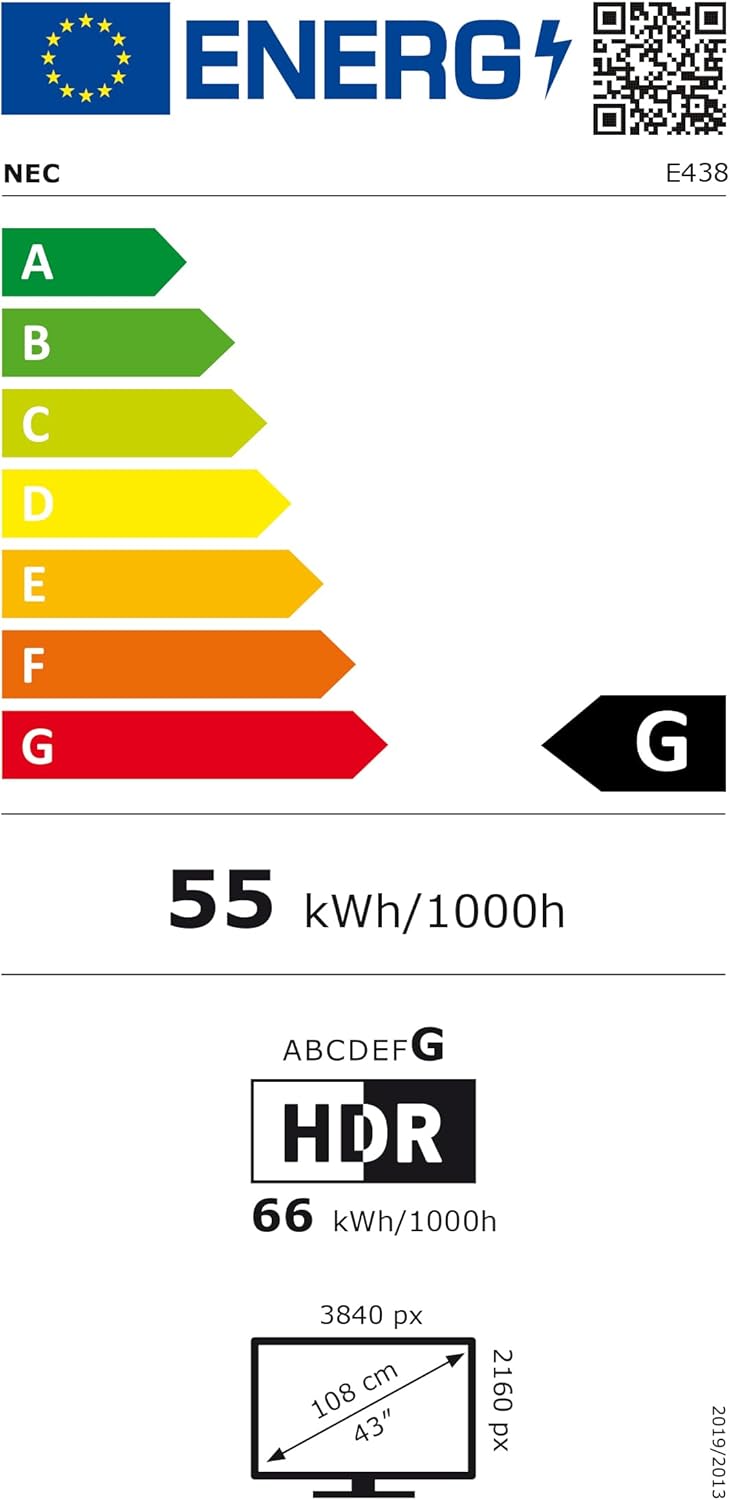
Figure 5: EU Energy Label for the NEC E438 monitor.
Эрчим хүчний талаарх дэлгэрэнгүй мэдээллийг EPREL мэдээллийн санд зочилж авна уу: https://eprel.ec.europa.eu/qr/429363
9. Баталгаат хугацаа ба дэмжлэг
9.1 Баталгаат хугацааны мэдээлэл
This NEC E438 monitor comes with a 3-year limited warranty. Please refer to the warranty card included in your package for specific terms and conditions. Keep your proof of purchase for warranty claims.
9.2 Хэрэглэгчийн дэмжлэг
For technical assistance, service, or further inquiries, please contact NEC customer support. Visit the official NEC webхолбоо барих мэдээлэл болон тусламжийн эх сурвалжийг авах сайт.


