1. Танилцуулга
The Rapoo MT550 is a versatile multi-device wireless mouse designed for enhanced productivity and comfort. This manual provides detailed instructions for setting up, operating, and maintaining your MT550 mouse, ensuring optimal performance across various devices.
Гол онцлогууд нь:
- Multi-device connectivity (Bluetooth 3.0, Bluetooth 4.0, and 2.4G wireless)
- Adjustable DPI settings (600/1000/1300/1600)
- Тохиромжтой ашиглахад зориулагдсан эргономик дизайн
- Long battery life of up to 12 months
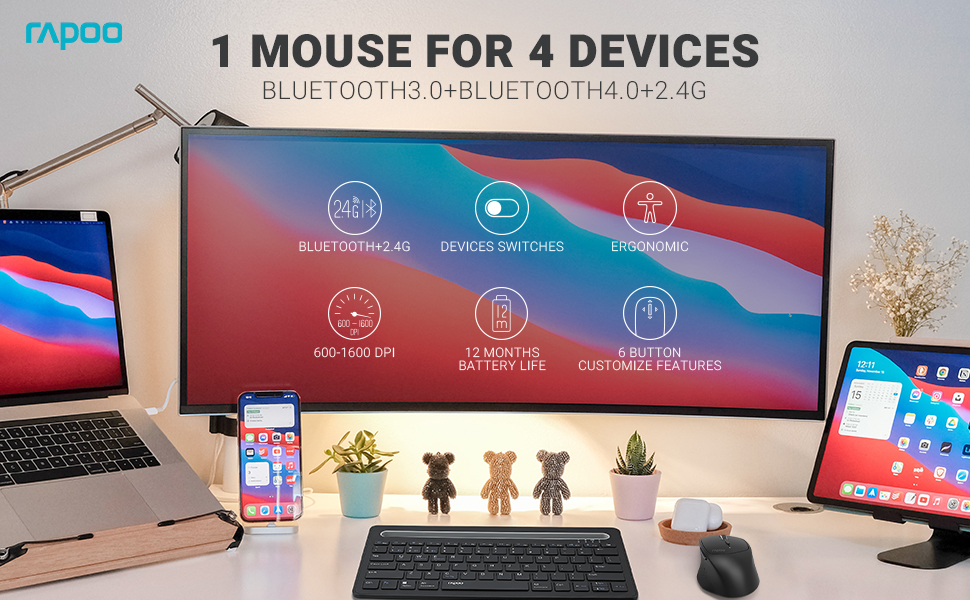
Image: The Rapoo MT550 mouse, highlighting its design for endurance, versatility, and comfort.
2. Тохиргоо
2.1. Зай суурилуулах
The Rapoo MT550 mouse requires two AA batteries (included). To install:
- Хулганы доод талд зайны тасалгааны тагийг олоорой.
- Тагийг нь нээнэ үү.
- Зөв туйлшралыг (+/-) баталгаажуулан хоёр АА батерейг оруулна уу.
- Зайны тасалгааны тагийг хаа.
2.2. 2.4G утасгүй холболт (USB хүлээн авагч)-аар холбогдож байна
For a 2.4G wireless connection:
- Доод талд байрлах ON/OFF товчлуурыг ашиглан хулганаа асаана уу.
- Locate the USB receiver stored in the battery compartment.
- USB хүлээн авагчийг компьютер дээрээ байгаа USB порт руу оруулна уу.
- The mouse should automatically connect. If not, press the device switch button until the indicator for channel 4 (usually indicated by a specific light pattern or number) is active.
2.3. Bluetooth-ээр холбогдож байна
The Rapoo MT550 supports up to three Bluetooth connections. To connect:
- ON/OFF товчлуурыг ашиглан хулганаа асаана уу.
- Short press the device switch button to select a Bluetooth channel (1, 2, or 3). The corresponding indicator light will illuminate.
- Press and hold the Bluetooth pairing button (often located near the device switch button) for approximately 3 seconds until the indicator light for the selected channel starts flashing rapidly. This indicates the mouse is in pairing mode.
- On your device (computer, laptop, tablet, phone), enable Bluetooth and search for new devices.
- Select "Rapoo MT550" from the list of available devices to complete the pairing process.
- Repeat these steps to pair with up to two additional Bluetooth devices on channels 2 and 3.

Image: Labeled diagram of the Rapoo MT550 mouse, indicating the location of the ON/OFF switch, Bluetooth button, device switch button, battery slot, USB receiver, DPI button, scroller, and other buttons.
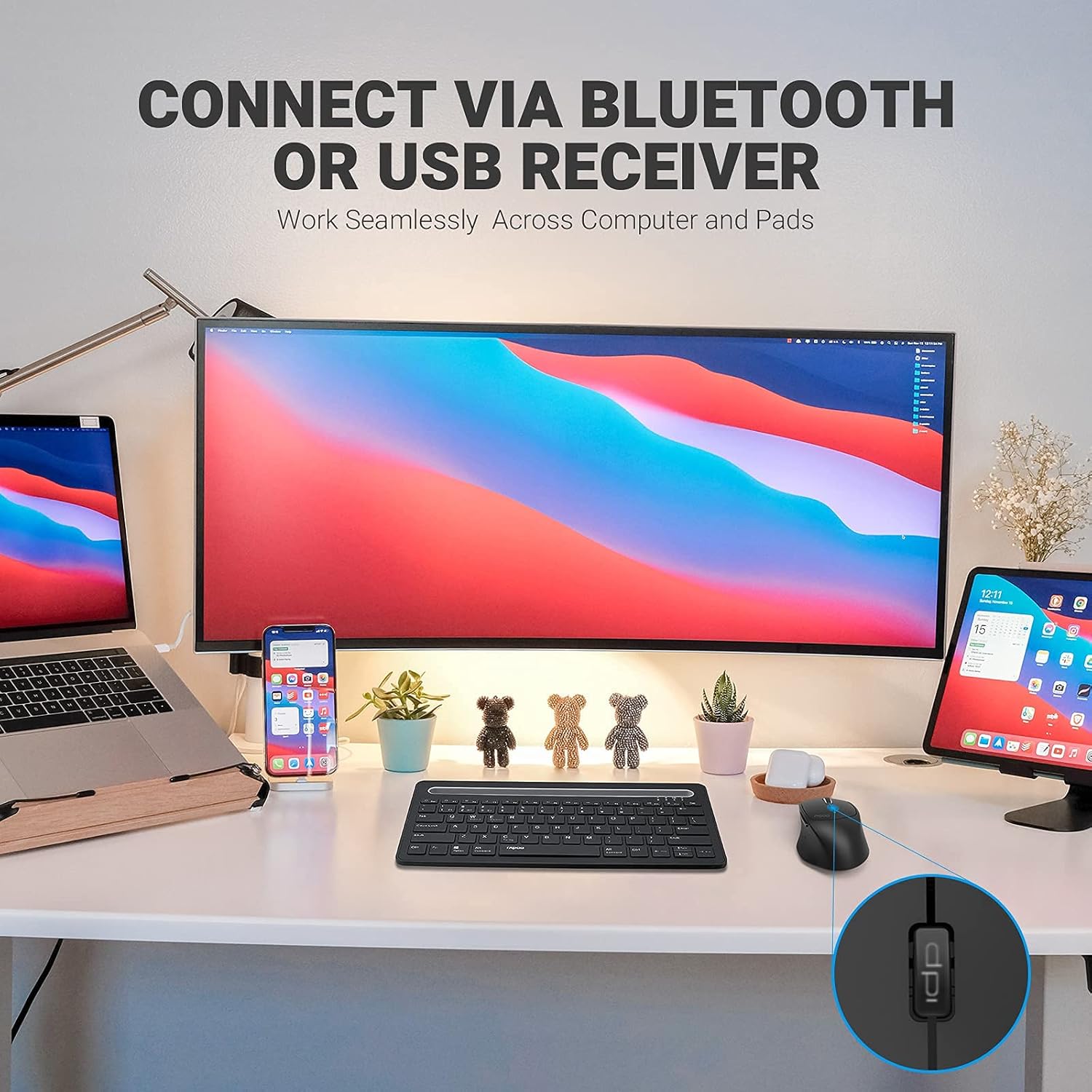
Image: A workstation demonstrating the Rapoo MT550 mouse connecting to multiple devices via Bluetooth or USB receiver.
3. Ашиглалтын заавар
3.1. Төхөөрөмжүүдийн хооронд шилжих
To switch between your connected devices:
- Short press the device switch button located on the underside of the mouse.
- Each press will cycle through the connected channels (1, 2, 3 for Bluetooth, 4 for 2.4G USB receiver). The corresponding indicator light will show the active channel.
3.2. DPI (Мэдрэмж)-ийг тохируулах
The MT550 mouse features four adjustable DPI settings for precise control:
- Press the DPI button, located behind the scroll wheel, to cycle through the available settings: 600, 1000, 1300, and 1600 DPI.
- The indicator light will briefly change to reflect the selected DPI level.

Зураг: Ойролцоогоор view of the DPI button on the Rapoo MT550 mouse, with the indicator light showing the current DPI setting.
3.3. Using Forward/Back Buttons
The two thumb buttons on the side of the mouse provide quick navigation:
- The forward button advances to the next page or folder.
- The back button returns to the previous page or folder.
4. Засвар үйлчилгээ
4.1. Цэвэрлэгээ
To maintain the appearance and functionality of your mouse:
- Хулганы гадаргууг зөөлөн, хуурай даавуугаар арчина.
- Түрэмгий химийн бодис, зүлгүүрийн цэвэрлэгч эсвэл уусгагч хэрэглэхээс зайлсхий, учир нь эдгээр нь өнгөлгөөг гэмтээж болзошгүй.
4.2. Зай солих
When the low battery indicator appears or the mouse becomes unresponsive, it's time to replace the batteries:
- 2.1-р хэсэгт дурдсан батерей суурилуулах алхмуудыг дагана уу.
- Ensure you use two fresh AA batteries and insert them with the correct polarity.
4.3. Хадгалах
When not in use for extended periods, store the mouse in a dry, cool environment away from direct sunlight and extreme temperatures.
5. Алдаа засах
If you encounter issues with your Rapoo MT550 mouse, refer to the following troubleshooting steps:
5.1. Хулгана хариу өгөхгүй байна
- Эрчим хүчийг шалгах: Ensure the mouse is turned on using the ON/OFF switch.
- Батерейг шалгах: Батерейг зөв суурилуулсан, хангалттай цэнэгтэй эсэхийг шалгаарай. Шаардлагатай бол тэдгээрийг солино уу.
- 2.4G хүлээн авагч: For 2.4G connection, ensure the USB receiver is securely plugged into a working USB port on your computer. Try a different USB port.
- Bluetooth холболт: For Bluetooth, ensure Bluetooth is enabled on your device and the mouse is paired to the correct channel. Try re-pairing the mouse if the connection is lost.
5.2. Завсарлагатай холболт эсвэл хоцролт
- Ойролцоох: Move the mouse closer to your computer or device to ensure a strong signal.
- хөндлөнгийн оролцоо: Avoid using the mouse near other wireless devices (e.g., Wi-Fi routers, cordless phones) that might cause interference.
- Гадаргуу: Ensure you are using the mouse on a suitable surface. While the MT550 is designed for various surfaces, extreme textures or reflective surfaces can affect tracking.
5.3. DPI өөрчлөгдөхгүй
- Ensure you are pressing the dedicated DPI button, not another button.
- If the issue persists, try turning the mouse off and on again.
6. Техникийн үзүүлэлтүүд
| Бүтээгдэхүүний хэмжээс | 3.93 x 2.55 x 1.57 инч |
| Зүйлийн жин | 5.3 унц |
| Батерей | 2 АА батерей (дагсан) |
| Холболтын технологи | Bluetooth (3.0/4.0) and 2.4G Wireless |
| Хөдөлгөөнийг илрүүлэх технологи | Оптик |
| Тохируулж болох DPI | 600/1000/1300/1600 |
| Товчлуурын тоо | 6 (Зүүн, Баруун, Гүйлгэх, DPI, Урагш, Буцах) |
| Зайны ашиглалт | 12 сар хүртэл (хэвийн нөхцөлд) |
7. Баталгаат хугацаа ба дэмжлэг
Rapoo provides the following coverage for your MT550 Multi-Device Wireless Mouse:
- Баталгаат хугацаа: 3-year worry-free warranty.
- Буцаах бодлого: 180 хоногийн мөнгө буцааж өгөх баталгаа.
For further assistance, technical support, or warranty claims, please visit the official Rapoo webсайт эсвэл харилцагчийн үйлчилгээний хэлтэстэй холбогдоно уу.