1. Тохиргоо ба суурилуулалт
1.1 Хайрцагт юу байгаа вэ
Суулгаж эхлэхээсээ өмнө бүх бүрэлдэхүүн хэсгүүд байгаа эсэхийг шалгана уу:
- 1 x 8MP PTZ Camera
- 1 x хурдан эхлүүлэх гарын авлага
- 1 x DC 12V тэжээлийн адаптер
- 1 х угсрах хаалт
- Lifetime Technical Support Information
1.2 Физик суурилуулалт
The VIKYLIN PTZ camera is designed for outdoor use and can be wall-mounted. Ensure the mounting location provides a clear field of view цахилгаан болон сүлжээний холболтод хүрэх боломжтой.

The camera supports Power over Ethernet (PoE), allowing both power and data transmission through a single Ethernet cable. If your router or switch does not support PoE, use the included DC 12V power adapter.

1.3 Network and Initial Web Интерфэйсийн тохиргоо
This video demonstrates the process of connecting the camera to your network and configuring its basic settings via a computer's web interface. It covers connecting the camera to a router or switch, finding the camera's IP address, modifying network settings, and accessing various camera functions.
Key steps covered in the video:
- Connect the camera to a router or network switch using an Ethernet cable.
- Connect the router/switch to your computer.
- Install the AjDevTools configuration software on your computer.
- Open the software to find the camera's IP address.
- Access your computer's Network and Internet settings to view its IPv4 Address and Gateway.
- Modify the camera's IP address to be on the same network segment as your computer, ensuring no IP conflicts.
- Enter the camera's web login interface using a web browser. The default username is 'admin' and the default password is '123456'.
- Download and install any required browser plugins бүрэн ажиллагаатай байхын тулд.
- Adjust camera image basic parameters, video parameters (Encode Mode, Resolution, FPS, Video Quality, Bit Rate), and audio settings.
- Configure TCP/IP settings and P2P functions for remote access.
- Enable and set up Motion Detection, including scheduling and defining detection areas.
- Manage user accounts and modify the camera's date and time settings.
- Perform firmware upgrades and configure auto-maintenance settings.
1.4 Mobile Application Setup
The camera can be easily added to your mobile phone via the Videolink APP. This allows for real-time video viewing, playback, snapshots, and motion alerts. You can also share real-time video with others.

2. Ашиглалтын заавар
2.1 Пан, хазайлт, томруулах (PTZ) хяналт
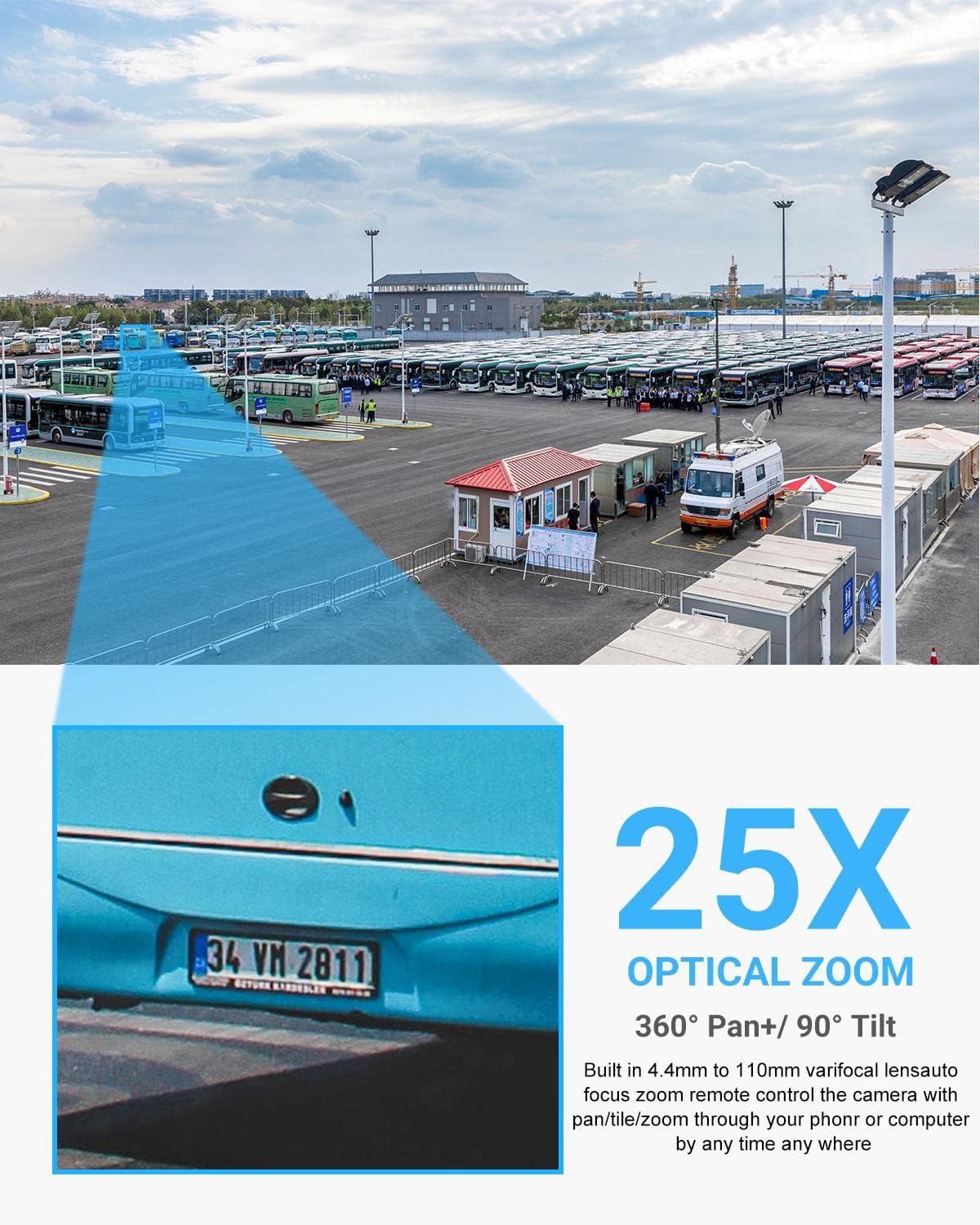
The camera offers extensive movement capabilities with 0° to 360° pan and 0° to 90° tilt. Its 25x optical zoom (4.4mm-110mm motorized lens) allows you to view distant objects in detail without compromising image quality.
2.2 Auto-Tracking and Human/Vehicle Detection
The camera features professional auto-tracking and human/vehicle detection. When a person or vehicle enters the monitored area, the camera automatically tracks their movement and sends real-time video or snapshots to your mobile device. Detection areas and sensitivity can be adjusted to minimize false alarms.


2.3 Хоёр талын аудио
Equipped with a built-in microphone and speakers, the camera supports two-way audio communication. This allows for real-time conversations with visitors or the ability to issue audible warnings to intruders directly through the camera.

2.4 Шөнийн хараа
The camera is equipped with 8 IR LEDs, providing up to 328ft (100 meters) of ultra-long night vision distance. This ensures clear image capture in low light or complete darkness.

2.5 Auto Cruise
Configure up to 8 groups of cruising routes, with each route supporting up to 16 preset positions. The camera will cyclically check these preset positions, providing continuous surveillance of your property.

2.6 Бичлэг хийх сонголтууд
The camera supports multiple recording options without additional monthly fees. It can record to a Micro SD card (up to 512GB, not included), work with a PoE NVR (such as VIKYLIN NVR ASIN: B0DKXFQYQJ), or utilize FTP for storage.

3. Засвар үйлчилгээ
3.1 Цаг агаарын эсэргүүцэл
The camera is certified with an IP66 protection rating, indicating its resistance to dust and water immersion. It is designed to operate reliably in various outdoor weather conditions, with a wide operating temperature range.
3.2 Firmware Updates and Auto Maintenance
Regular firmware updates ensure optimal performance and access to new features. The camera's web interface allows for easy firmware upgrades and configuration of auto-maintenance schedules. Refer to Section 1.3 for detailed steps on accessing and navigating the web interface for these settings.
4. Алдаа засах
- Сүлжээний холболтын асуудлууд: If the camera is not connecting to the network, ensure the Ethernet cable is securely connected and that your router/switch is functioning correctly. Verify the camera's IP address is on the same network segment as your computer, as detailed in Section 1.3.
- Mobile App Connection Problems: If you are unable to connect via the Videolink APP, check your P2P settings in the web interface (Section 1.3) to ensure it is enabled and the QR code is correctly scanned. Ensure your mobile device has a stable internet connection.
- Хөдөлгөөн илрүүлэх нь идэвхгүй: Review the motion detection settings in the web interface (Section 1.3). Confirm that motion detection is enabled, the detection area is correctly defined, and sensitivity/thresholds are appropriately set.
- Зургийн чанарын асуудал: Check the camera's image and video parameters in the web interface (Section 1.3) to ensure resolution, frame rate, and quality settings are optimized for your network and storage capacity.
- Аудио байхгүй эсвэл дууны чанар муу: Verify audio settings in the web interface (Section 1.3), ensuring audio input/output volumes are correctly adjusted and the audio encode type is suitable.
- Гүйцэтгэлийн ерөнхий асуудлууд: Consider performing a factory reset via the web interface (Section 1.3) if persistent issues occur. Always back up configurations before a reset. Ensure the camera's firmware is up to date.
Нэмэлт тусламж авахыг хүсвэл зочилно уу VIKYLIN Official Store эсвэл хэрэглэгчийн дэмжлэгтэй холбоо бариарай.
5. Техникийн үзүүлэлтүүд
| Онцлог | Дэлгэрэнгүй |
|---|---|
| Загварын дугаар | VK-GK4825 PTZ (PTZ-4825-IS2) |
| Шийдвэр | 8MP (4K) @ 20fps, 4MP @ 30fps |
| Зургийн мэдрэгч | 1 / 2.8 "Progressive Scan CMOS |
| Оптик томруулалт | 25x (4.4-110mm Motorized Lens) |
| Дижитал томруулах | 30x |
| Пан хамрах хүрээ | 0 ° -аас 360 ° хүртэл |
| Налалтын хүрээ | 0 ° -аас 90 ° хүртэл |
| Шөнийн харааны хүрээ | Up to 328ft (100m) with 8 IR LEDs |
| Аудио | Built-in Microphone and Speakers (Two-Way Audio) |
| Илрүүлэх | AI Human/Vehicle Detection, Auto Tracking |
| Холболт | PoE (802.3af), Ethernet, ONVIF, RTSP |
| Хадгалах | Micro SD Card (up to 512GB), NVR, FTP |
| Цаг агаарын эсэргүүцэл | IP66 Усны хамгаалалттай |
| Эрчим хүчний эх үүсвэр | 12V DC эсвэл PoE |
| Материал | Металл |
| Хэмжээ | 10 x 6.5 x 6.5 инч |
| Жин | 4.3 фунт |
6. Баталгаат хугацаа ба дэмжлэг
VIKYLIN is committed to providing reliable security solutions. This product includes:
- 2 жилийн хязгаарлагдмал баталгаа: Хэвийн ашиглалтын үед гарсан үйлдвэрлэлийн согог болон эвдрэлийг нөхнө.
- 30 хоногийн мөнгө буцааж өгөх баталгаа: Allows for returns within 30 days of purchase for a full refund.
- Насан туршийн техникийн дэмжлэг: Access to expert assistance for any questions or issues you may encounter.
For warranty claims, technical support, or additional product information, please visit the VIKYLIN Official Store on Amazon эсвэл бүтээгдэхүүнийхээ савлагаанд байгаа холбоо барих мэдээллийг харна уу.


