1. Танилцуулга
This manual provides essential information for the installation, operation, maintenance, and troubleshooting of your Sapphire Pulse AMD Radeon RX 6600 XT Gaming Graphics Card. Please read this manual thoroughly before installing and using your new graphics card to ensure proper functionality and to maximize its performance.
The Sapphire Pulse AMD Radeon RX 6600 XT is a high-performance gaming graphics card featuring 8GB GDDR6 memory and built on AMD RDNA 2 architecture, designed to deliver an optimal gaming experience.
2. Бүтээгдэхүүний онцлог
The Sapphire Pulse AMD Radeon RX 6600 XT graphics card is engineered with advanced features for superior gaming and visual performance:
- Тоглоомын цаг: 2382 МГц хүртэл
- Цагийг нэмэгдүүлэх: 2593 МГц хүртэл
- Санах ойн интерфейс: 128-bit GDDR6
- Гадаад хүч: 1 x 8 pin connector required
- PCI-Express: 4.0 дэмжлэг

Урд view Sapphire Pulse AMD Radeon RX 6600 XT график картын, showcasing its dual-fan cooling system.

Өнцөгтэй view of the graphics card, highlighting the display output ports (3x DisplayPort, 1x HDMI).

Арын view of the graphics card, showing the protective metal backplate with Radeon branding.
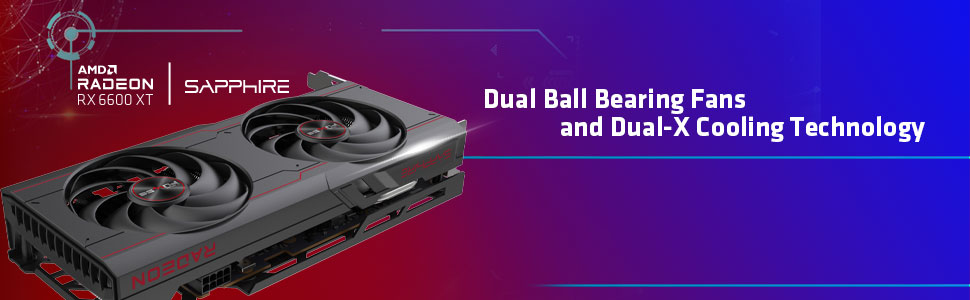
Diagram illustrating the Dual-X Cooling Technology and internal components for efficient heat dissipation.
3. Тохиргоо ба суурилуулалт
Before beginning installation, ensure your computer's power supply unit (PSU) meets the recommended wattage for your system, including the new graphics card. A minimum 500W PSU is generally recommended for systems with an RX 6600 XT.
3.1. Физик суурилуулалт
- Унтраах: Turn off your computer and unplug all power cables.
- Нээлттэй хэрэг: Open your computer's side panel to access the motherboard.
- PCIe үүрийг олох: Identify an available PCI-Express x16 slot on your motherboard. The RX 6600 XT supports PCIe 4.0, but is backward compatible with PCIe 3.0 slots.
- Слотын тагийг арилгах: Remove the necessary expansion slot covers from your computer case to accommodate the graphics card.
- Карт оруулах: Carefully align the graphics card with the PCIe slot and press down firmly until it is securely seated. You should hear a click from the retention clip.
- Хамгаалалтын карт: График картыг компьютерийн хайрцагт бэхлэхийн тулд боолтыг ашиглана уу.
- Эрчим хүчийг холбох: Connect the required 8-pin PCIe power connector from your PSU to the graphics card. Ensure the connection is firm.
- Кейс хаах: Replace the computer's side panel and reconnect all power cables.
3.2. Драйвер суулгах
After physical installation, you must install the latest AMD Radeon drivers for optimal performance and stability:
- Ачаалах систем: Power on your computer. It may boot into a lower resolution.
- Драйверуудыг татаж авах: Албан ёсны AMD-д зочилно уу webсайт (amd.com/en/support) and download the latest AMD Adrenalin Edition drivers for your Radeon RX 6600 XT.
- Драйверуудыг суулгах: Run the downloaded installer and follow the on-screen instructions. A system restart may be required.
4. Ашиглалтын заавар
4.1. Дэлгэцүүдийг холбох
Connect your monitor(s) to the graphics card's output ports. The Sapphire Pulse RX 6600 XT typically features 3x DisplayPort and 1x HDMI output. Ensure your display cables are securely connected to both the graphics card and your monitor.
4.2. Програм хангамжийн тохиргоо
Utilize the AMD Adrenalin Edition software to manage your graphics card settings. This software allows you to:
- Adjust display resolution (up to 3840x2160).
- Тоглоомын мэргэжлийн тохиргооfiles.
- GPU-ийн гүйцэтгэл болон температурыг хянах.
- Драйверуудыг шинэчлэх.
5. Засвар үйлчилгээ
Regular maintenance helps ensure the longevity and optimal performance of your graphics card:
- Тоос арилгах: График картын сэнс болон радиаторын тоосыг шахсан агаараар үе үе цэвэрлэж байгаарай. Цэвэрлэхийн өмнө компьютерийг унтрааж, залгуураас нь салгасан эсэхээ шалгаарай.
- Кейсийн агаарын урсгал: Maintain good airflow within your computer case by keeping it clean and ensuring all case fans are functioning correctly.
- Драйверын шинэчлэлтүүд: Keep your graphics drivers updated to the latest version from the official AMD webсайт.
6. Алдаа засах
6.1. Дэлгэцийн гаралт байхгүй
- График карт PCIe үүрэнд бүрэн суусан эсэхийг шалгаарай.
- Verify that the 8-pin external power connector is securely attached.
- Check that your display cable is correctly connected to both the graphics card and the monitor.
- Confirm your monitor is set to the correct input source.
6.2. Performance Issues / Low FPS
- Ensure you have the latest AMD Radeon drivers installed.
- Check your in-game graphics settings; try reducing them if performance is consistently low.
- Monitor GPU temperature to ensure it's not overheating, which can lead to throttling.
- Verify your system meets the recommended specifications for the games you are playing.
6.3. Audio Crackling (after AMD driver installation)
- This can sometimes occur after installing AMD drivers.
- Go to Windows Update settings and install all available optional updates. This often resolves audio-related issues by providing necessary system or driver patches.
7. Техникийн үзүүлэлтүүд
| Онцлог | Тодорхойлолт |
|---|---|
| Брэнд | Сапфир |
| Загварын дугаар | 11309-03-20G |
| График процессор | AMD Radeon RX 6600 XT |
| Чипсет брэнд | AMD |
| График картын RAM-ийн хэмжээ | 8 ГБ GDDR6 |
| Санах ойн хурд | 2 GHz |
| Хамгийн их дэлгэцийн нягтрал | 3840х2160 |
| Видео гаралтын интерфейс | DisplayPort, HDMI |
| Зүйлийн жин | 2.07 фунт |
| Бүтээгдэхүүний хэмжээ (LxWxH) | 11.25 x 6.5 x 3.5 инч |
| PCI-Express Version | 4.0 |
| Гадаад цахилгаан холбогч | 1 х 8 зүү |
8. Баталгаат хугацаа ба дэмжлэг
For detailed warranty information and technical support, please refer to the official Sapphire Technology webсайт эсвэл харилцагчийн үйлчилгээтэй холбогдоно уу. Баталгаат нэхэмжлэл гаргахын тулд худалдан авалтаа нотлох баримтаа хадгалаарай.
Сапфир албан ёсны Webсайт: www.sapphiretech.com


