Танилцуулга
This manual provides detailed instructions for the setup, operation, maintenance, and troubleshooting of your ECHTPower Wireless Bluetooth Ergonomic Vertical Mouse. Please read this manual thoroughly before using the device to ensure proper functionality and longevity.

Image: The ECHTPower Wireless Bluetooth Ergonomic Vertical Mouse, showing its vertical design and the included USB receiver.
Бүтээгдэхүүний онцлог
- Эргономик босоо загвар: Designed to reduce wrist and forearm strain, promoting a natural hand posture.
- Гурван горимын холболт: Supports dual Bluetooth 5.0 connections and a 2.4GHz wireless USB connection, allowing control of up to three devices.
- Тохируулах DPI: Switch between 1000, 1600, and 2400 DPI settings for precise cursor control.
- Цэнэглэдэг батерей: Built-in 700mAh battery provides up to 150 hours of continuous use on a 2-hour charge via Type-C port.
- Чимээгүй дарах товчлуурууд: Main left and right click buttons are designed for quiet operation, reducing noise by 90% compared to traditional mice.
- 7 Товчлуур: Includes left click, right click, scroll wheel, DPI switch, forward, back, and device switch buttons.

Image: Comparison showing the natural wrist posture with the ergonomic vertical mouse versus the bent wrist posture with a traditional mouse.

Image: The mouse demonstrating its ability to connect to three different devices simultaneously via 2.4G and dual Bluetooth modes.
Багцын агуулга
- ECHTPower Wireless Bluetooth Ergonomic Vertical Mouse
- USB Receiver (stored in the mouse's bottom compartment)
- USB-C цэнэглэгч кабель
- Хэрэглэгчийн гарын авлага (энэ баримт бичиг)
Тохируулах гарын авлага
1. Хулгана цэнэглэж байна
Before first use, it is recommended to fully charge the mouse. Connect the provided USB-C charging cable to the Type-C port on the front of the mouse and the other end to a USB power source (e.g., computer USB port, USB wall adapter).
- The LED light will indicate charging status.
- Бүрэн цэнэглэхэд ойролцоогоор 2 цаг зарцуулагдана.
- The mouse can be used for up to 150 hours on a full charge (with lights off state).
- If the battery is low, the indicator light will blink.

Image: The mouse being charged via its Type-C port, highlighting the 700mAh battery capacity and 2-hour charging time.
2. Хулгана холбох
The ECHTPower mouse supports three connection modes: 2.4GHz Wireless USB and two Bluetooth 5.0 channels (BT1 and BT2).
- Асаах: Хулганы доод хэсэгт байрлах цахилгаан унтраалгыг олоод "ON" байрлалд гулсуулна уу.
- Холболтын горимыг сонгох: Press the "Device Switch Button" on the bottom of the mouse to cycle through the modes:
- 2.4GHz горим: The indicator light will show a specific color (refer to troubleshooting if not). Insert the USB receiver into an available USB port on your computer. The mouse should connect automatically.
- Bluetooth 1 (BT1) Mode: The indicator light will show a specific color. Press and hold the device switch button for 3-5 seconds until the indicator light flashes rapidly, indicating pairing mode.
- Bluetooth 2 (BT2) Mode: The indicator light will show a specific color. Press and hold the device switch button for 3-5 seconds until the indicator light flashes rapidly, indicating pairing mode.
- Pairing via Bluetooth (for BT1/BT2 modes):
- On your device (PC, Laptop, Mac, Tablet), go to Bluetooth settings.
- хайх шинэ төхөөрөмжүүд.
- Select "ECHTPower Mouse" (or similar name) from the list of available devices.
- Confirm pairing. The indicator light on the mouse will stop flashing and remain solid once connected.
To switch between connected devices, simply press the "Device Switch Button" on the bottom of the mouse.

Зураг: Нарийвчилсан view of the mouse's underside, indicating the location of the power switch, device switch button, optical lens, and the compartment for the USB receiver.
Ашиглалтын заавар
Товчлуурын функцууд
| Товчлуур | Чиг үүрэг |
|---|---|
| Зүүн товчийг дарна уу | Standard left mouse click. Silent operation. |
| Баруун товчийг дарна уу | Standard right mouse click. Silent operation. |
| Гүйлгэх дугуй | Дээш/доошоо гүйлгэж, дунд товш. |
| DPI шилжих товчлуур | Cycles through DPI settings: 1000, 1600, 2400. |
| Урагшаа товч | Урагшаа дотогш чиглүүлнэ web хөтөч эсвэл file судлаачид. |
| Буцах товчлуур | Navigates back in web хөтөч эсвэл file судлаачид. |
| Device Switch Button (bottom) | Switches between 2.4GHz, Bluetooth 1, and Bluetooth 2 modes. Long press to enter Bluetooth pairing mode. |

Зураг: урд ба хажуу views of the mouse with labels for the DPI switch button, roller, left button, right button, forward button, back button, and LED light.
DPI тохируулж байна
Press the DPI switch button located on the top of the mouse, behind the scroll wheel, to cycle through the available DPI settings: 1000, 1600, and 2400. Each press will change the cursor sensitivity, allowing you to select the speed that best suits your needs.

Image: A visual representation of the DPI adjustment feature, indicating the three selectable DPI levels.
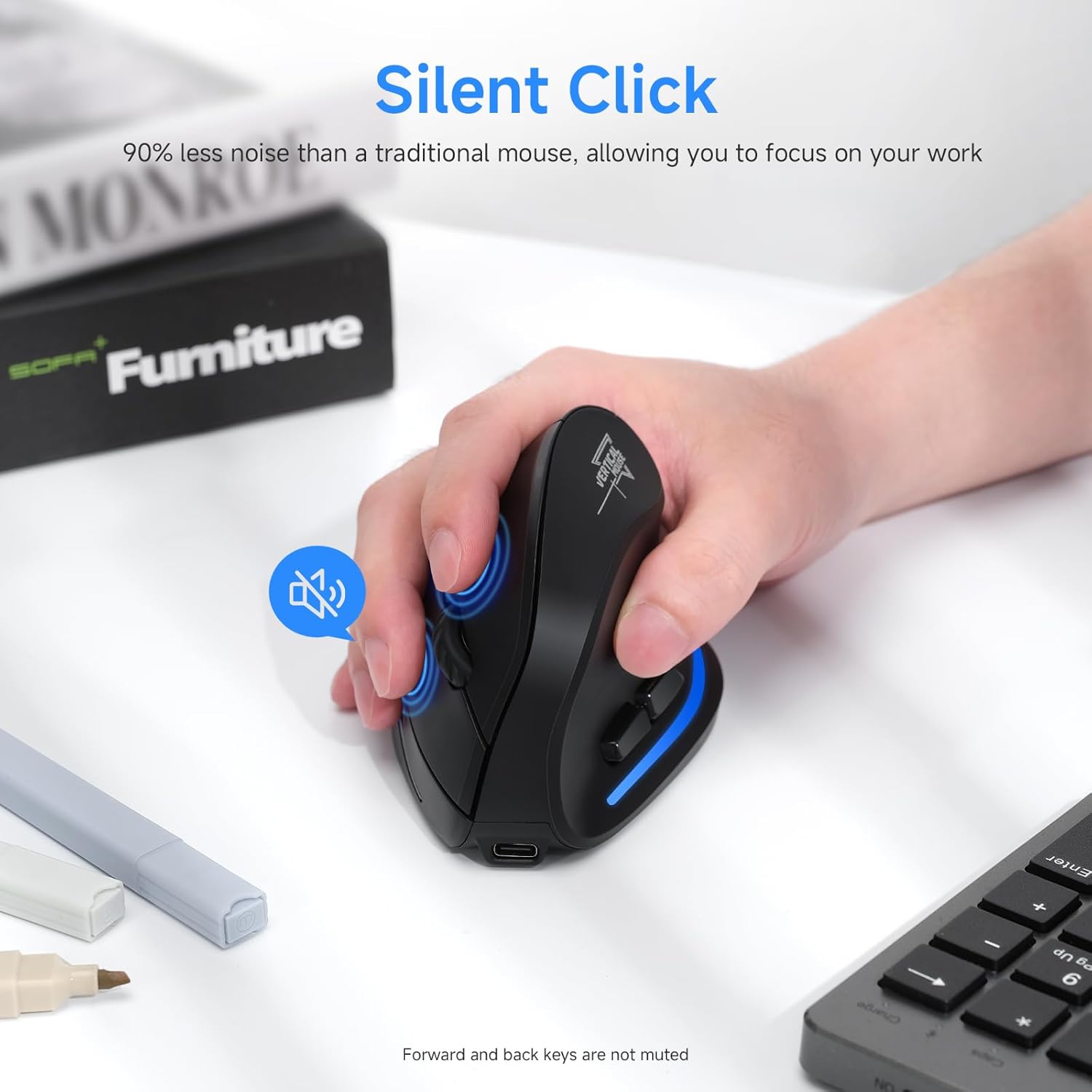
Image: A user's hand on the mouse, highlighting the silent click functionality of the main buttons. Note that forward and back keys are not muted.
Засвар үйлчилгээ
- Цэвэрлэгээ: Хулганыг цэвэрлэхийн тулд зөөлөн, хуурай даавуу ашиглана уу. Зөрүүд шороонд бага зэрэг damp даавуу ашиглаж болох ч төхөөрөмжид чийг орохгүй байхыг анхаарна уу. Хүчтэй химийн бодис эсвэл зүлгүүрийн цэвэрлэгч хэрэглэж болохгүй.
- Хадгалах: When not in use for extended periods, store the mouse in a cool, dry place. It is recommended to turn off the mouse to conserve battery life.
- Батерейны арчилгаа: To prolong battery life, avoid fully discharging the mouse frequently. Charge it when the low battery indicator blinks.
- USB хүлээн авагч: When transporting the mouse, store the USB receiver in its designated compartment on the bottom of the mouse to prevent loss.
Алдааг олж засварлах
| Асуудал | Боломжит шалтгаан | Шийдэл |
|---|---|---|
| Хулгана хариу өгөхгүй байна | Low battery; Mouse is off; Incorrect connection mode; USB receiver not properly inserted (2.4GHz mode); Bluetooth not paired (BT mode). | Charge the mouse; Turn on the mouse; Switch to the correct connection mode (2.4GHz, BT1, BT2); Re-insert USB receiver; Re-pair Bluetooth. |
| Курсорын хөдөлгөөн тогтворгүй эсвэл удаан байна | Low battery; Dirty optical sensor; Surface not suitable for optical mouse; DPI setting too low. | Charge the mouse; Clean the optical sensor with a soft cloth; Use a mouse pad or a non-reflective, opaque surface; Increase DPI setting. |
| Bluetooth-ээр холбогдож чадахгүй байна | Mouse not in pairing mode; Bluetooth on device is off; Interference; Already connected to another device. | Ensure mouse is in BT pairing mode (flashing light); Turn on Bluetooth on your device; Move closer to the device; Disconnect from other devices. |
| Товчнууд ажиллахгүй байна | Software conflict; Mouse malfunction. | Restart your computer; Try the mouse on another device; If problem persists, contact customer support. |
Үзүүлэлтүүд
- Загвар: SB-F35B
- Холболт: 2.4GHz Wireless, Bluetooth 5.0 (BT1, BT2)
- DPI тохиргоо: 1000/1600/2400
- Зайны багтаамж: 700 мАч цэнэглэдэг лити батерей
- Цэнэглэх хугацаа: Ойролцоогоор 2 цаг
- Ажлын цаг: Up to 150 hours (with lights off)
- Товчлуурын тоо: 7 (Left, Right, Scroll Wheel, DPI, Forward, Back, Device Switch)
- Гарын чиг баримжаа: Left (Note: Product images depict a right-handed mouse design.)
- Барааны жин: 6.2 унц
- Хэмжээ (LxWxH): Approximately 4.33 x 2.83 x 2.95 inches (110mm x 72mm x 75mm)
- Тохиромжтой байдал: PC, Laptop, Mac, Windows (and other Bluetooth-enabled devices)
Зураг: Нарийвчилсан view of the mouse's underside, indicating the location of the power switch, device switch button, optical lens, and the compartment for the USB receiver.
Зураг: урд ба хажуу views of the mouse with labels for the DPI switch button, roller, left button, right button, forward button, back button, and LED light, along with dimensions.
Баталгаат болон дэмжлэг
ECHTPower products are designed for reliability and performance. For warranty information and technical support, please refer to the official ECHTPower webсайт эсвэл харилцагчийн үйлчилгээтэй шууд холбогдоно уу.
Холбоо барих мэдээлэл:
- Webсайт: Visit the ECHTPower Store on Amazon
- For further assistance, please consult the product listing page or contact the seller directly through Amazon's messaging system.


