Бүтээгдэхүүн дууссанview
The Intel NUC 11 Extreme Kit (NUC11BTMi9) is a high-performance barebone mini PC designed for gaming and demanding applications. It offers uncompromised performance within a compact form factor, allowing users to customize it with their preferred RAM, storage, and operating system.

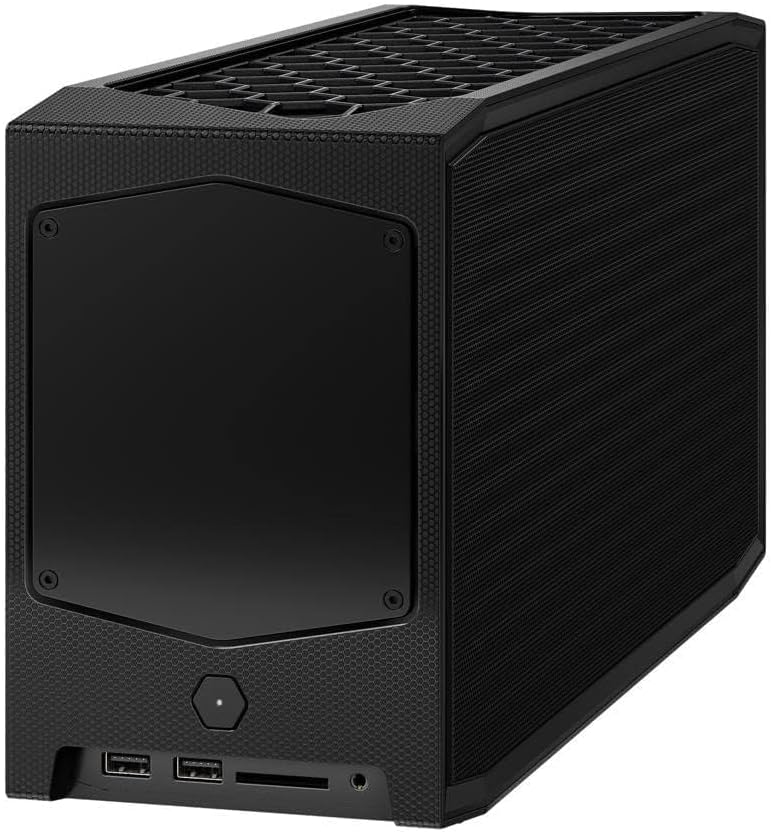
Зураг 1: Урд талын өнцөг view of the Intel NUC 11 Extreme Kit, showcasing its compact design and the illuminated skull logo.
Багцын агуулга
Verify that all items are present in the package before proceeding with setup:
- Intel NUC 11 Extreme Kit (NUC11BTMi9) Barebone System
- АНУ-ын цахилгааны утас
- Баримт бичиг (Шуурхай эхлүүлэх гарын авлага, аюулгүй байдлын мэдээлэл)
Note: Additional components such as RAM, storage drives, and operating system are sold separately and are required for full system functionality.
Тохируулах гарын авлага
This section outlines the steps required to set up your Intel NUC 11 Extreme Kit. As a barebone system, it requires the installation of memory (RAM) and storage (SSD) before initial use.
1. Санах ой (RAM) суулгаж байна
- Unscrew and remove the top cover of the NUC chassis.
- Locate the DDR4 SO-DIMM slots on the motherboard.
- Align the notch on the SO-DIMM module with the notch in the slot.
- Insert the module at a 45-degree angle and press down firmly until the retaining clips snap into place.
- Repeat for additional memory modules if applicable.
2. Installing Storage (SSD)
The NUC 11 Extreme Kit supports M.2 NVMe SSDs.
- Эх хавтан дээрх M.2 слотуудыг олоорой.
- M.2 SSD-ийг үүрэнд өнцгөөр оруулна.
- SSD-г зөөлөн доош түлхэж, өгөгдсөн боолтоор бэхлэнэ үү.
- The system also supports Serial ATA/600 interface for additional storage options.
3. Захын төхөөрөмжүүдийг холбох
Connect your monitor, keyboard, mouse, and other peripherals to the appropriate ports. The system features 12 USB ports for extensive connectivity.
Зураг 2: Ар талд view of the Intel NUC 11 Extreme Kit, highlighting the array of input/output ports for connecting external devices.
- Дэлгэц: Connect your monitor using HDMI or DisplayPort.
- USB төхөөрөмжүүд: Use the available USB ports for keyboard, mouse, external drives, etc.
- Сүлжээ: Connect an Ethernet cable for wired network access, or use the integrated Wi-Fi.
- Аудио: Чанга яригч эсвэл чихэвчийг аудио залгуурт холбоно уу.
4. Эрчим хүчний холболт
Connect the provided power cord to the NUC and then to a power outlet.
5. Үйлдлийн систем суурилуулах
Once RAM and storage are installed, you will need to install an operating system (e.g., Windows 10, Linux) from a bootable USB drive or disc.
Ашиглалтын заавар
This section provides basic instructions for operating your Intel NUC 11 Extreme Kit.
Асаах/унтраах
- Асаах: Төхөөрөмжийн урд талд байрлах асаах товчийг дарна уу. Цахилгаан заагч гэрэл асна.
- Унтраах:
- Стандарт унтрах: Use the operating system's shutdown function.
- Албадан унтраах: Press and hold the power button for 5-10 seconds until the unit powers off. Use this only as a last resort.
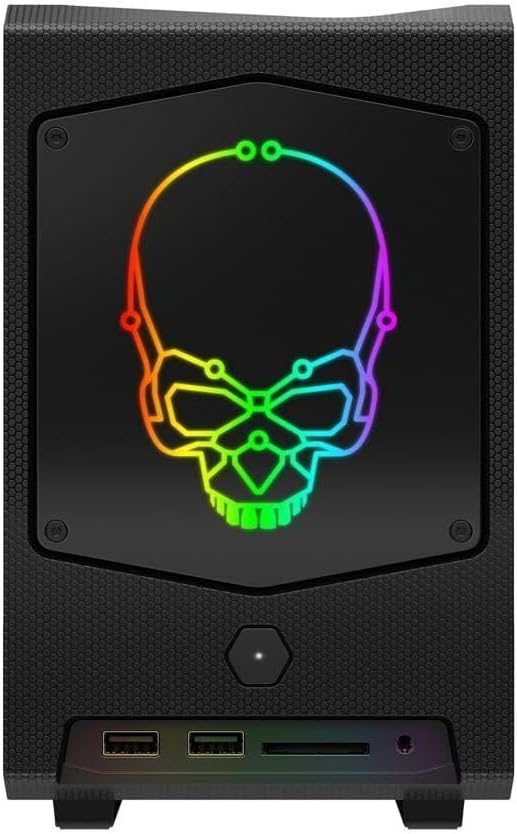
Зураг 3: Урд view of the Intel NUC 11 Extreme Kit, showing the power button and front panel connectivity options.
USB төхөөрөмжүүдийг холбож байна
The NUC 11 Extreme Kit offers numerous USB ports (up to 12) for connecting various peripherals. Devices can be connected or disconnected without needing to shut down the system.
BIOS/UEFI хандалт
To access the BIOS/UEFI settings, power on the system and repeatedly press the F2 key during startup. This allows configuration of boot order, system settings, and hardware diagnostics.
Засвар үйлчилгээ
Proper maintenance ensures the longevity and optimal performance of your Intel NUC 11 Extreme Kit.
- Цэвэрлэгээ: Regularly clean the exterior with a soft, dry cloth. Use compressed air to clear dust from vents and fan areas to ensure proper airflow and prevent overheating. Ensure the system is powered off and unplugged before cleaning.
- Програм хангамжийн шинэчлэлтүүд: Keep your operating system, drivers, and BIOS/UEFI firmware updated to the latest versions. Visit the official Intel support website for driver downloads specific to the NUC11BTMi9 model.
- Агааржуулалт: Ensure the NUC is placed in a well-ventilated area, away from direct sunlight or heat sources. Do not block the ventilation openings.
- Өгөгдлийн нөөцлөлт: Өгөгдөл алдагдахаас сэргийлэхийн тулд чухал өгөгдлөө гадаад диск эсвэл үүлэн хадгалалт руу тогтмол нөөцөлж байгаарай.
Алдааг олж засварлах
This section provides solutions to common issues you might encounter with your Intel NUC 11 Extreme Kit.
Цахилгаан байхгүй / Систем асахгүй байна
- Ensure the power cord is securely connected to both the NUC and a working power outlet.
- Өөр төхөөрөмжийг залгах замаар цахилгааны залгуур ажиллаж байгаа эсэхийг шалгана уу.
- If using a power strip or surge protector, ensure it is switched on.
Дэлгэцийн гаралт байхгүй
- Check that the monitor is powered on and the video cable (HDMI/DisplayPort) is securely connected to both the NUC and the monitor.
- Хэрэв боломжтой бол өөр видео кабель эсвэл монитор ашиглаж үзээрэй.
- Ensure RAM modules are properly seated in their slots. Reseat them if necessary.
Систем хөлдөх эсвэл эвдрэх
- Ensure the system has adequate ventilation and is not overheating.
- Update your operating system and device drivers to the latest versions.
- RAM-ийн асуудлыг шалгахын тулд санах ойн оношлогооны хэрэгслийг ажиллуул.
- Check the health of your storage drive.
Захын төхөөрөмж илрээгүй
- Дагалдах төхөөрөмжийг өөр USB порт руу холбож үзнэ үү.
- Захын төхөөрөмжийн драйверууд суулгагдсан, шинэчлэгдсэн эсэхийг шалгаарай.
- Системийг дахин эхлүүлнэ үү.
Техникийн үзүүлэлтүүд
Below are the key technical specifications for the Intel NUC 11 Extreme Kit (NUC11BTMi9).

Зураг 4: Хажуу тал view of the Intel NUC 11 Extreme Kit, illustrating its physical dimensions.
| Онцлог | Тодорхойлолт |
|---|---|
| Загварын дугаар | NUC11BTMi9 |
| Процессор | Intel Core i9-11900KB Octa-core (8 Core) @ 3.3 GHz |
| Memory (RAM) Type | DDR4 SDRAM (Barebone - user installable) |
| Хадгалах интерфейс | M.2 (SSD), Serial ATA/600 |
| График процессор | Intel UHD график |
| График картны RAM хэмжээ | 8 ГБ (Нэгдсэн) |
| Утасгүй холболт | Bluetooth, WiFi |
| USB портууд | 12 |
| Operating System (Pre-installed) | None (Supports Windows 10) |
| Зүйлийн жин | 5 фунт |
| Багцын хэмжээ | 21.1 x 15 x 13.6 инч |
| Өнгө | Хар |
| Эхний боломжтой огноо | 13 оны аравдугаар сарын 2021 |
Баталгаат болон дэмжлэг
Intel provides a limited warranty for its NUC products. For detailed warranty information, technical support, driver downloads, and troubleshooting resources, please visit the official Intel support webсайт.
You can typically find support by searching for "Intel NUC support" or by visiting Intel's Official Support Page.
When contacting support, please have your product model number (NUC11BTMi9) and serial number ready.


