1. Танилцуулга
Welcome to the Polaroid Hi-Print Gen1 Bluetooth Pocket Photo Printer. This compact, dye-sublimation printer allows you to transform digital photos from your mobile device into high-quality, 2x3 inch self-adhesive prints. This manual provides essential information for setup, operation, and maintenance to ensure optimal performance of your device.
2. Багцын агуулга
The Polaroid Hi-Print Everything Box includes:
- Polaroid Hi-Print Wireless Pocket Photo Printer
- Two packs of Polaroid Hi-Print Paper (40 sheets total)
- USB цэнэглэгч кабель
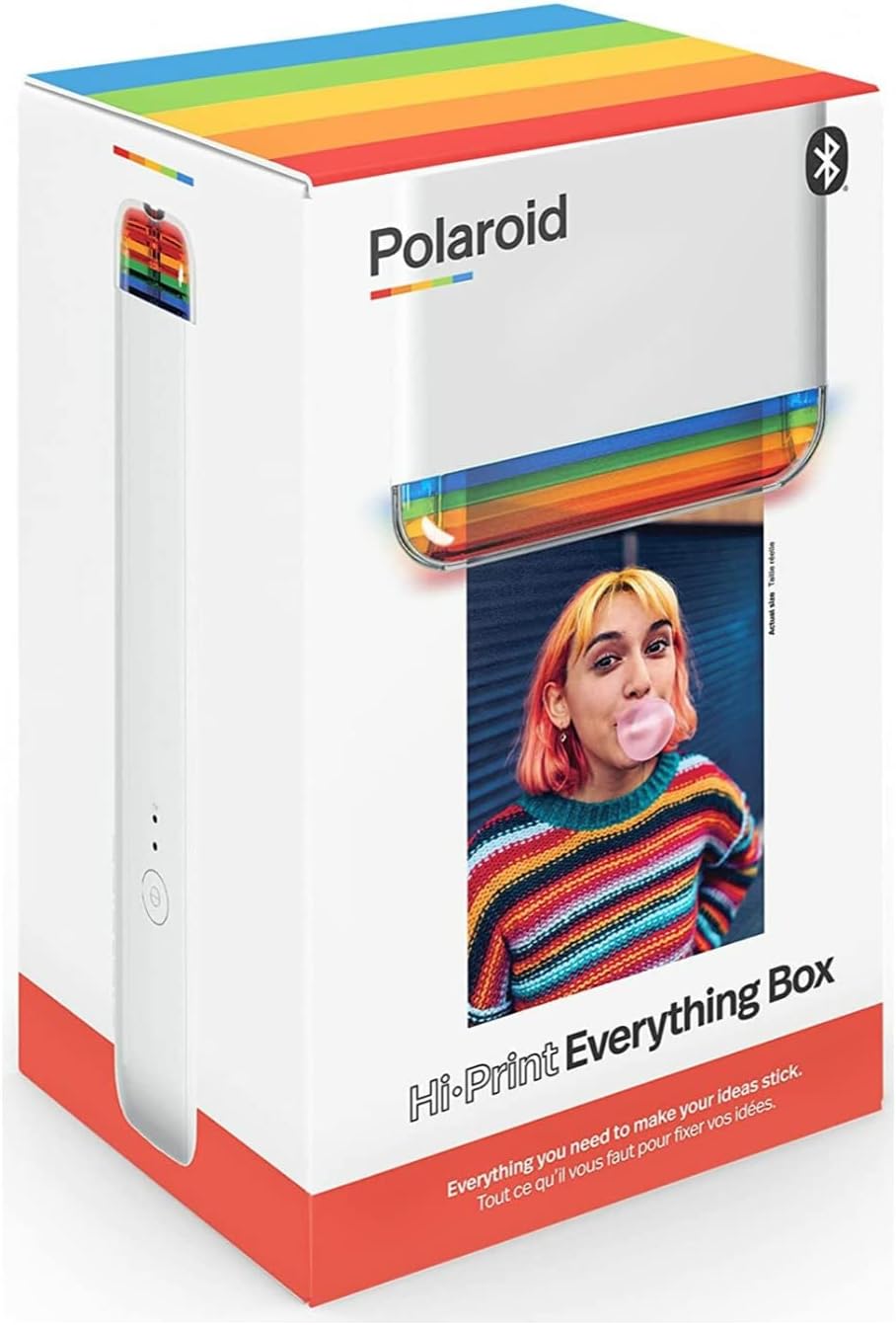
Image 1: The Polaroid Hi-Print Everything Box, showing the printer and paper cartridges.
3. Тохиргоо
3.1 Принтерийг цэнэглэх
Before first use, fully charge your Polaroid Hi-Print printer. Connect the provided USB charging cable to the printer's charging port and a compatible USB power source. The LED indicators will show charging status.
3.2 Installing the Paper Cartridge
- Open the paper compartment door on the side of the printer.
- Remove a new 2x3 Paper Cartridge from its packaging.
- Insert the cartridge into the compartment, ensuring it clicks securely into place. The paper should be facing upwards.
- Тасалгааны хаалгыг хаа.
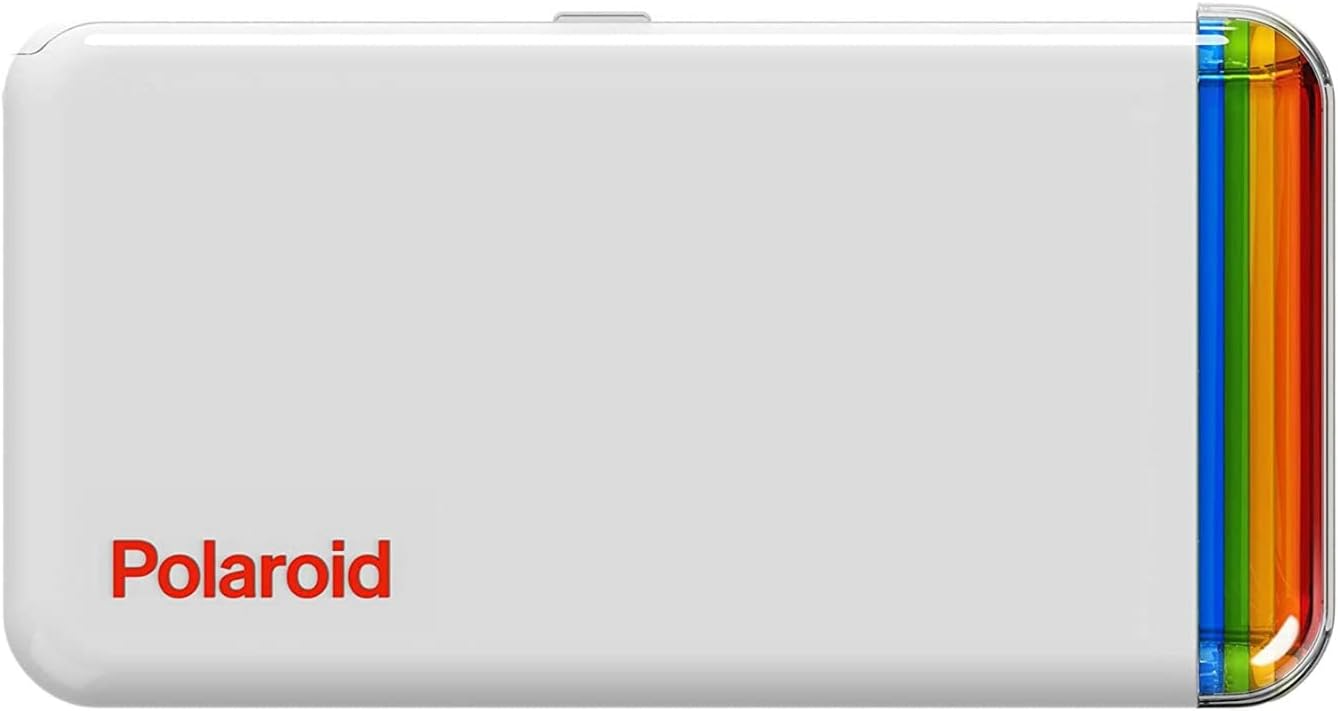
Зураг 2: Дээд талд view of the Polaroid Hi-Print printer, showing the paper cartridge slot.
3.3 Мобайл програмд холбогдох
The Polaroid Hi-Print operates via a dedicated mobile application. Download the Polaroid Hi-Print app from your device's app store (available for iOS and Android).
- Turn on your Polaroid Hi-Print printer by pressing the power button.
- Мобайл төхөөрөмж дээрээ Bluetooth-г идэвхжүүлнэ үү.
- Open the Polaroid Hi-Print app and follow the on-screen instructions to pair your device.
Video 1: Official Polaroid demonstration of the Hi-Print printer, showcasing its ease of use and quick printing capabilities.
4. Принтерийг ажиллуулах
4.1 Зураг хэвлэх
Once your printer is paired with the app and a paper cartridge is loaded, you can begin printing:
- Select a photo from your mobile device's gallery within the Polaroid Hi-Print app.
- Use the app's editing tools to customize your photo with frames, filters, text, and emoticons.
- Tap the print button in the app. The printer will process the image using dye-sublimation technology, layering colors (yellow, magenta, cyan) and a protective coating in under 50 seconds.
- The finished 2x3 inch self-adhesive print will emerge from the printer.

Image 3: The Polaroid Hi-Print printer in action, with a photo emerging from the print slot.
Video 2: A detailed product demonstration video showing the unboxing, paper loading, and printing process of the Polaroid Hi-Print.
4.2 Using Self-Adhesive Prints
Each 2x3 inch print features a self-adhesive backing. Simply peel off the backing to stick your photos onto journals, scrapbooks, laptops, or any other surface.
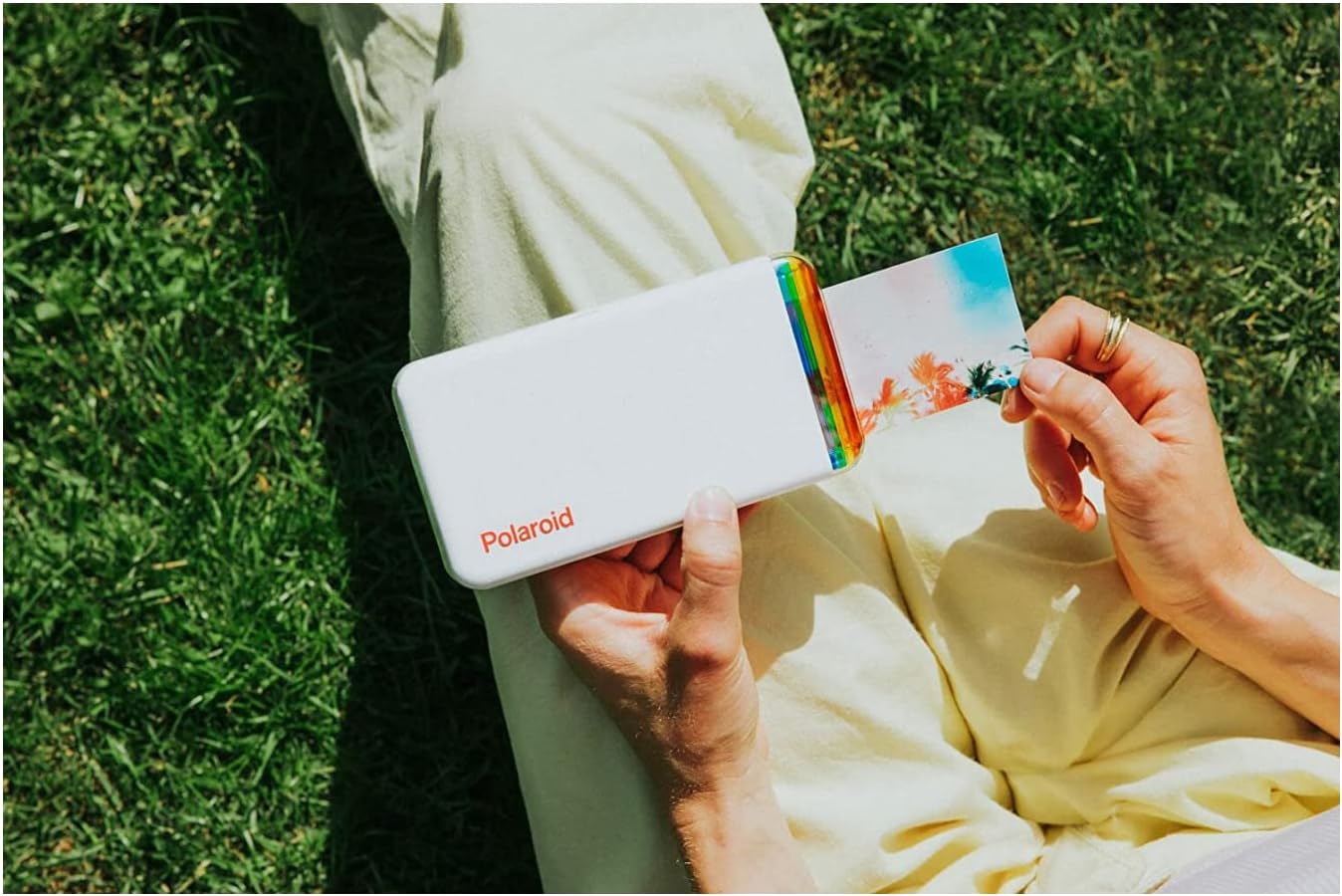
Image 4: A hand holding the Polaroid Hi-Print printer, with a freshly printed photo being held next to it, demonstrating its portability and the size of the prints.
5. Засвар үйлчилгээ
5.1 Принтерийг цэвэрлэх
To maintain optimal print quality, keep the printer clean. Gently wipe the exterior with a soft, dry cloth. Avoid using harsh chemicals or abrasive materials. Ensure no dust or debris enters the paper compartment.
5.2 Storing Paper Cartridges
Store unused paper cartridges in their original sealed packaging in a cool, dry place away from direct sunlight to prevent damage and maintain print quality.
6. Алдаа засах
6.1 Хэвлэгч Bluetooth-ээр холбогдоогүй байна
- Принтер асаалттай, бүрэн цэнэглэгдсэн эсэхийг шалгаарай.
- Таны мобайл төхөөрөмж дээр Bluetooth идэвхжсэн эсэхийг шалгана уу.
- Принтер болон мобайл төхөөрөмжөө дахин эхлүүлнэ үү.
- If issues persist, try unpairing and re-pairing the printer through your device's Bluetooth settings and the Polaroid Hi-Print app.
6.2 Хэвлэх чанар муу
- Ensure the paper cartridge is correctly inserted and not expired.
- Check the original image quality on your mobile device. Higher resolution images yield better prints.
- Засвар үйлчилгээний хэсэгт тайлбарласны дагуу принтерийг цэвэрлэ.
6.3 Програм хангамжийн шинэчлэлтийн асуудлууд
If you encounter problems during a firmware update, ensure your printer is fully charged and has a stable Bluetooth connection. Try restarting the update process. If the issue persists, contact Polaroid customer support.
7. Техникийн үзүүлэлтүүд
| Загварын нэр | 6152 |
| Бүтээгдэхүүний хэмжээс | 4"D x 7"W x 4"H |
| Зүйлийн жин | 1 фунт (454 грамм) |
| Холболтын технологи | Bluetooth |
| Хэвлэлийн технологи | Будаг сублимация |
| Хамгийн их медиа хэмжээ | 2x3 inch (self-adhesive photo paper) |
| Хамгийн их өнгөт хэвлэх нягтрал | 300 dpi |
| Бэхний өнгө | Цэнхэр, ягаан, шар, хар |
| Хяналтын арга | App (iOS and Android compatible) |
| Батерей | 1 лити ион батерей (дагсан) |
8. Баталгаат хугацаа ба дэмжлэг
8.1 Хязгаарлагдмал баталгаат хугацаа
Your Polaroid Hi-Print Gen1 Bluetooth Pocket Photo Printer comes with a limited warranty. Please refer to the warranty information included in your product packaging or visit the official Polaroid website for details regarding coverage and terms.
8.2 Хэрэглэгчийн дэмжлэг
For further assistance, technical support, or to purchase additional paper cartridges, please visit the official Polaroid webсайт эсвэл харилцагчийн үйлчилгээний хэлтэстэй холбогдоно уу.
Албан ёсны бүтээгдэхүүний хуудас: polaroid.com/hiprint2x3
Visit the Polaroid Store: Амазон дээрх Polaroid дэлгүүр


