1. Танилцуулга
Welcome to the user manual for your Kurio Tab XL 2, a 10-inch tablet specifically designed for children. This tablet offers a safe and engaging digital experience with robust parental controls, pre-installed educational applications, and a durable design. This manual will guide you through the setup, operation, maintenance, and troubleshooting of your device.

Image 1.1: The Kurio Tab XL 2 tablet showing its user interface with pre-installed applications.
2. Тохиргоо
2.1 Хайрцагнаас задлах, анхны үзлэг
Carefully remove all components from the packaging. Ensure the tablet, protective case, and charging cable are present. The Kurio Tab XL 2 comes with a splash-proof and shock-resistant protective case already installed.

Зураг 2.1: Ар талд view of the Kurio Tab XL 2, highlighting the protective case and brand logo.
2.2 Таблетыг цэнэглэх
Before first use, fully charge the tablet. Connect the charging cable to the USB port on the tablet and plug the other end into a power adapter (not always included) or a computer's USB port. The charging port is located on the bottom edge of the tablet.

Image 2.2: The USB port and headphone jack on the tablet's bottom edge.
2.3 Асаалт ба анхны тохиргоо
Press and hold the power button (located on the top edge) until the Kurio logo appears. Follow the on-screen prompts to select your language, connect to a Wi-Fi network, and set up parent and child profiles. The tablet runs on Android Go, optimized for performance.

Image 2.3: The power and volume buttons located on the top edge of the tablet.
3. Ашиглалтын заавар
3.1 Интерфэйсийг удирдах
The Kurio Tab XL 2 uses a simplified Android interface. Swipe left or right to browse through app pages. Tap an icon to open an application. Use the navigation buttons at the bottom of the screen for Back, Home, and Recent Apps.
3.2 Pre-installed and Educational Apps
The tablet comes with over 40 pre-installed educational and child-friendly applications and games. These are designed to enhance learning and provide entertainment. Examples include vocabulary builders, counting games, and various interactive activities.

Image 3.1: The tablet's home screen showcasing a wide selection of pre-installed apps and games.
3.3 Downloading New Applications
Parents can easily install additional applications from the Google Play Store. Popular streaming services like Netflix, Disney+, and Videoland can be downloaded, along with other educational or entertainment apps. Access to the Google Play Store is managed through parental controls.
3.4 Camera and Connectivity
The tablet features a 2.0 MP camera for capturing photos and videos. It supports Wi-Fi connectivity for internet access and Bluetooth for connecting to compatible accessories like headphones.
4. Parental Control Features (Kurio Genius)
The Kurio Tab XL 2 is equipped with the exclusive Kurio Genius system, offering comprehensive parental controls to ensure a safe online environment for children.

Image 4.1: The Kurio Genius interface, demonstrating various parental control options.
4.1 Internet Filtering
The Kurio Genius system filters billions of web pages daily to block inappropriate content, ensuring children only access suitable websites. Parents can customize web тохиргоонд хандах.
4.2 Screen Time Control
Set daily play time limits and authorized hours for tablet usage. This feature helps manage screen time effectively.
4.3 Програмын удирдлага
Parents can authorize or block specific applications, ensuring children only use approved content. New app installations from the Google Play Store require parental approval.
4.4 Аюулгүй байдлын онцлогууд
- Цэнхэр гэрлийн шүүлтүүр: Reduces blue light emission to protect children's eyes, especially during evening use.
- Чих хамгаалах: Manages audio output levels to prevent hearing damage.
- Хамгаалалтын хайрцаг: The included splash-proof and shock-resistant case provides physical protection against drops and spills.
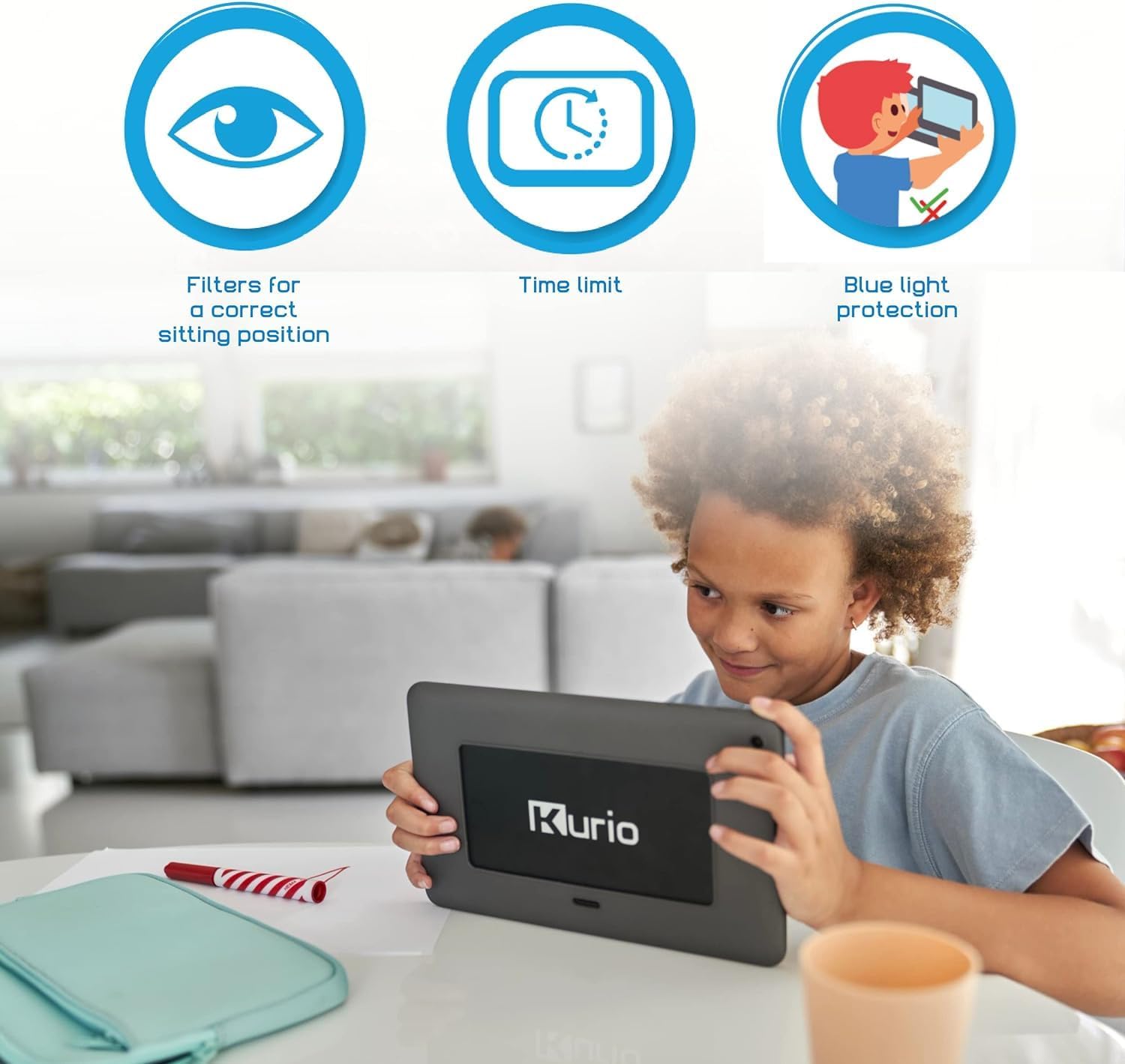
Image 4.2: Visual representation of key safety features like blue light protection and time limits.
5. Засвар үйлчилгээ
5.1 Төхөөрөмжийг цэвэрлэх
To clean the tablet screen and body, use a soft, lint-free cloth. For stubborn marks, slightly dampдаавуугаар усаар. Химийн хатуу бодис, зүлгүүрийн материал ашиглахаас зайлсхий.
5.2 Батерейны арчилгаа
To prolong battery life, avoid fully discharging the tablet frequently. Charge the device regularly. The tablet uses a 2580 mAh Lithium-polymer battery.
5.3 Програм хангамжийн шинэчлэлтүүд
Ensure your tablet's software is up to date for optimal performance and security. Check for updates periodically through the Android settings menu.
5.4 Хадгалалтын менежмент
The tablet has 16 GB of internal storage. If more space is needed for apps, photos, or videos, you can expand the storage using a microSD card up to 128 GB.
6. Алдаа засах
6.1 Нийтлэг асуудал ба шийдвэрлэх арга замууд
- Таблет асахгүй байна: Ensure the tablet is charged. Connect it to a power source and try again.
- Wi-Fi холболтын асуудал: Тохиргоо хэсэгт Wi-Fi идэвхжсэн эсэхийг шалгана уу. Чиглүүлэгч болон таблетаа дахин асаана уу.
- Аппликейшнууд гацах эсвэл хөлдөх: Програмыг хаагаад дахин нээнэ үү. Хэрэв асуудал хэвээр байвал програмын кэшийг цэвэрлэх эсвэл дахин суулгана уу.
- Удаан гүйцэтгэл: Ашиглагдаагүй програмуудыг хааж, кэшийг цэвэрлэх эсвэл хадгалах зайг чөлөөл.
6.2 Үйлдвэрийн тохиргоонд дахин оруулах
Хэрэв та програм хангамжийн байнгын асуудалтай тулгарвал үйлдвэрийн тохиргоонд нь буцааж оруулснаар тэдгээрийг шийдэж магадгүй юм. Анхааруулга: A factory reset will erase all data on the tablet. Back up important data before proceeding. Consult the Android settings for the factory reset option.
7. Техникийн үзүүлэлтүүд
| Брэнд | Курио |
| Загварын дугаар | C21200 |
| Үйлдлийн систем | Android |
| Дэлгэцийн хэмжээ | 10 инч |
| Дэлгэцийн нягтрал | 1920 x 1200 пиксел |
| Процессорын брэнд | Qualcomm or MediaTek or Samsung |
| График чипсет брэнд | Qualcomm or MediaTek or Samsung |
| RAM хэмжээ | 1 ГБ |
| Хадгалах багтаамж | 16 GB (expandable up to 128 GB with SD card) |
| Холболтын төрөл | Wi-Fi, Bluetooth |
| Батерей | 1 Лити-полимер (2580 мАч) |
| Хэмжээ (L x W x H) | 26 x 1.3 x 16 см |
| Зүйлийн жин | 840 грамм |
| Онцлог шинж чанарууд | Blue Light Filter, Protective Case |
8. Баталгаат хугацааны мэдээлэл
Warranty details are typically provided within the physical instruction manual included with your product. Please refer to that document for specific terms and conditions regarding your Kurio Tab XL 2 warranty.
9. Дэмжлэг
For further assistance, technical support, or inquiries regarding your Kurio Tab XL 2, please refer to the customer service information provided with your product or visit the official Kurio webсайт.


