1. Танилцуулга
The Keychron Q7 is a wired custom mechanical keyboard featuring a 70% layout. It is designed for users seeking a compact yet fully functional keyboard with advanced customization options. The Q7 supports QMK/VIA open-source firmware for key remapping and macro creation, and features a hot-swappable design for easy switch replacement. Its double-gasket mount structure and CNC machined aluminum case contribute to a premium typing experience. This manual provides instructions for setting up, operating, and maintaining your Keychron Q7 keyboard.
2. Багцын агуулга
Please verify that all items listed below are included in your package. If any items are missing or damaged, contact Keychron support.

Image: Contents of the Keychron Q7 package, including the keyboard, cables, and tools.
- Гар:
- 1х бүрэн угсарсан гар
- Including: 1x Aluminum Case, 1x PCB, 1x Steel Plate, 1x Sound Absorbing Foam, 1x Case Foam, 10x Gaskets (6 Installed and 4 in the Box)
- Товчлуурын товчлуурууд: 1 set x Keycaps (Double-Shot PBT)
- Шилжүүлэгч: 1 багц x унтраалга (Gateron G Pro)
- Тогтворжуулагчид: 5 багц х тогтворжуулагч
- Кабель:
- 1x Type-C - Type-C кабель
- 1x Type-A-аас Type-C адаптер
- Багаж хэрэгсэл:
- 1х шилжүүлэгч татагч
- 1х товчлуурын товчлуур
- 1х Халив
- 1х Hex Key
Note: All tools are typically located at the bottom of the product box.
3. Тохиргоо
3.1 Гарыг холбох
The Keychron Q7 is a wired keyboard. To connect it to your computer:
- Гарны ар талд USB Type-C портыг олоорой.
- Connect one end of the provided Type-C to Type-C cable to the keyboard.
- Connect the other end of the cable to a compatible USB Type-C port on your computer. If your computer only has USB Type-A ports, use the provided Type-A to Type-C adapter.
- Гарыг таны үйлдлийн систем автоматаар таних ёстой.

Image: The Keychron Q7 keyboard with its USB-C cable connected, ready for use.
3.2 Switching Between Mac and Windows Layouts
The Keychron Q7 is compatible with both macOS and Windows operating systems. A physical switch on the back of the keyboard allows you to toggle between the two layouts, ensuring correct key functionality for your system.
- Locate the "Win/Mac" toggle switch on the rear edge of the keyboard, near the USB-C port.
- Slide the switch to the "Mac" position if you are using a macOS device.
- Slide the switch to the "Win" position if you are using a Windows or Linux device.

Image: Close-up of the Keychron Q7's rear, showing the physical switch to select between Windows and macOS modes.
4. Ашиглалтын заавар
4.1 QMK and VIA Support for Customization
The Keychron Q7 fully supports QMK (Quantum Mechanical Keyboard) and VIA firmware, allowing for extensive customization of key functions, macros, and backlighting without requiring programming knowledge. VIA is a graphical user interface that works with QMK firmware.
- Download the VIA software or access the Keychron Launcher Web App from the official Keychron webсайт.
- Connect your Keychron Q7 keyboard to your computer.
- Launch the VIA application or web app. The software should automatically detect your keyboard.
- Use the interface to remap keys, create custom macros, adjust RGB lighting effects, and configure different keyboard layers.

Image: Screenshot of the Keychron Launcher Web App, demonstrating the interface for key remapping, macro creation, and shortcut customization via QMK/VIA.
4.2 Халуун сольж болдог унтраалга
The Keychron Q7 features a hot-swappable PCB, allowing you to change mechanical switches without soldering. This enables easy customization of your typing feel.
- The PCB supports both 3-pin and 5-pin MX-style mechanical switches (e.g., Cherry, Gateron, Kailh).
- The keyboard comes pre-installed with factory-lubed Gateron G Pro Brown switches, known for their tactile feedback.

Зураг: Ойролцоогоор view of the keyboard's PCB with keycaps and switches removed, showing the hot-swappable sockets ready for switch installation.
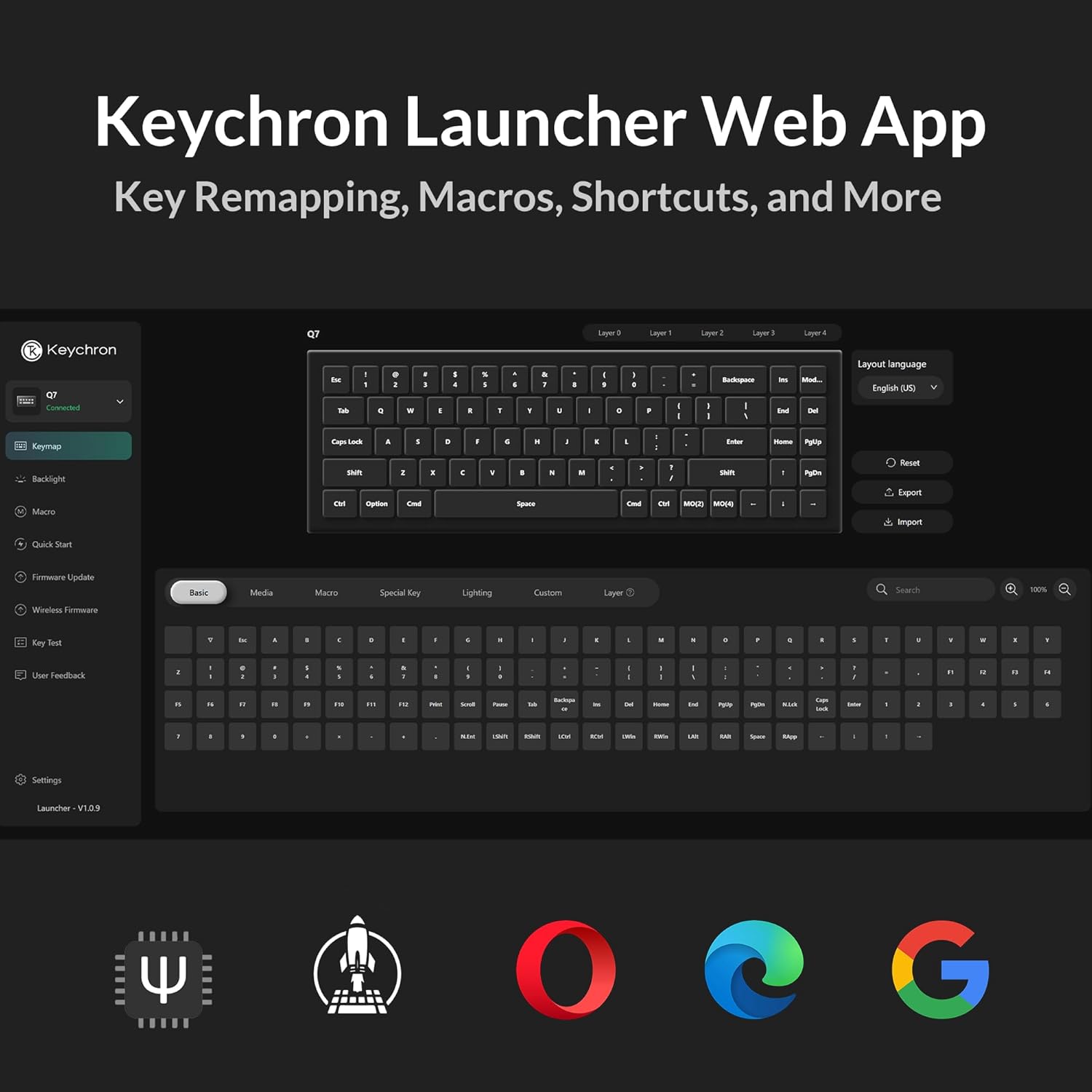
Image: Diagram detailing the specifications of the Gateron G Pro Brown switch, including operating force, pre-travel, travel distance, behavior, lubrication, and sound level.
4.3 Double-Gasket Design
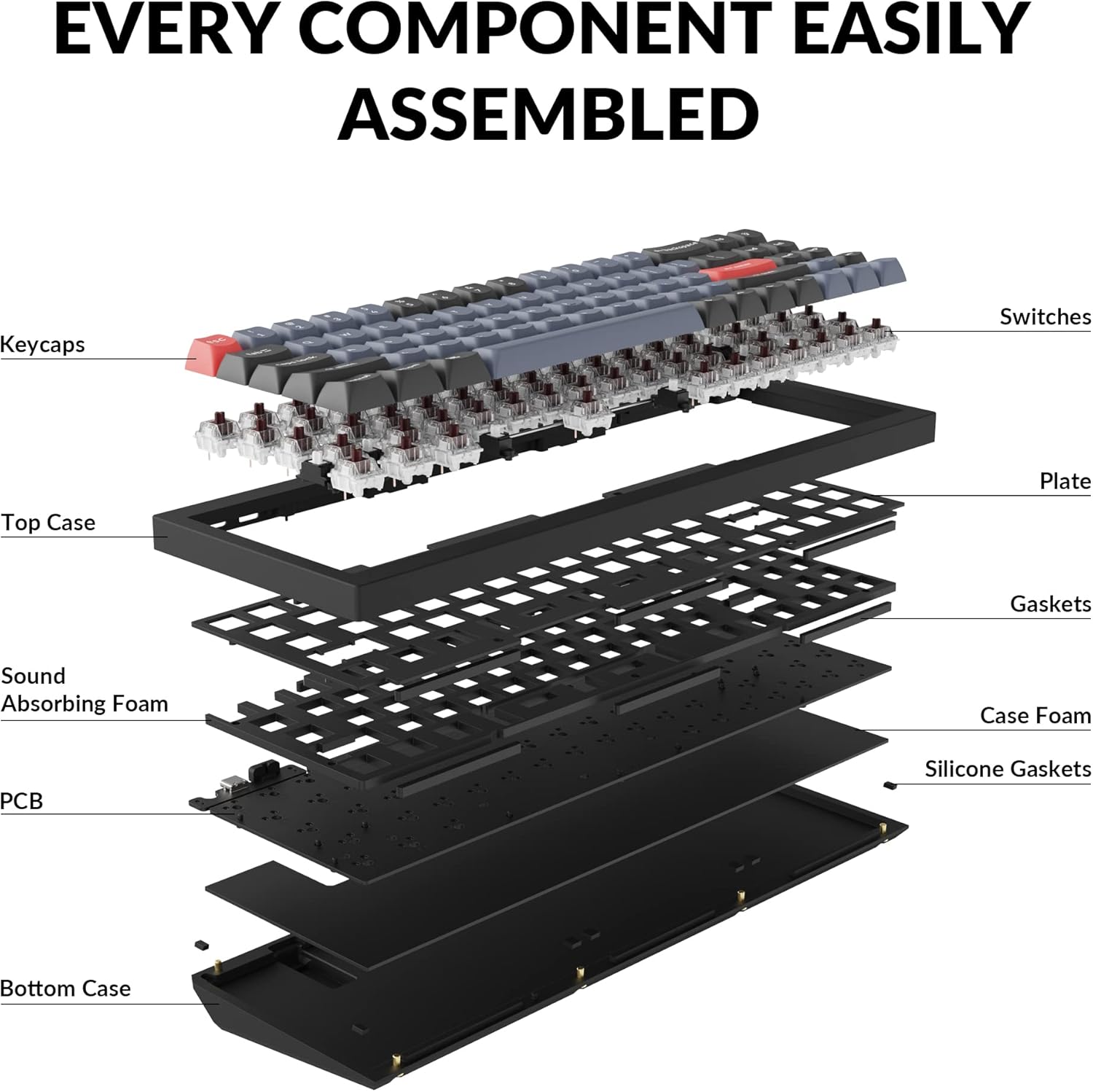
The Keychron Q7 incorporates a double-gasket mount design with silicone pads. This construction enhances typing feel and sound by allowing for more flexibility and dampening vibrations within the aluminum case.

Image: An exploded diagram illustrating the various layers and components of the Keychron Q7 keyboard, including keycaps, switches, plate, gaskets, sound absorbing foam, PCB, and bottom case.
4.4 Double-Shot PBT Keycaps
The keyboard is equipped with durable double-shot PBT keycaps. This material and manufacturing process ensure that the legends will not fade or wear over time, and the keycaps resist shine from prolonged use.
Зураг: Ойролцоогоор view of the Keychron Q7's keycaps, highlighting their texture and legends.
4.5 South-Facing RGB Backlighting
The Keychron Q7 features south-facing RGB LEDs. This design provides even backlighting and ensures compatibility with most custom keycap sets, as it prevents interference with Cherry-profile товчлуурууд.

Image: Close-up of several switches on the Keychron Q7, showing the vibrant RGB backlighting emanating from beneath the keycaps.
4.6 70% Layout
The 70% layout of the Keychron Q7 retains essential function keys while offering a significantly reduced footprint compared to full-size keyboards. This design optimizes desk space for mouse movement and promotes a cleaner workspace.

Image: A visual comparison illustrating the compact 70% layout of the Keychron Q7 next to a standard full-size keyboard, highlighting the space-saving benefits.
5. Засвар үйлчилгээ
5.1 Ерөнхий цэвэрлэгээ
Тогтмол цэвэрлэгээ нь гарны гүйцэтгэл болон гадаад төрхийг хадгалахад тусалдаг.
- Тоос арилгах: Түлхүүрийн тагны хоорондох тоос шороо, хог хаягдлыг үлээж цэвэрлэхийн тулд шахсан агаар ашиглана уу.
- Гадаргууг цэвэрлэх: Gently wipe the keycaps and keyboard case with a soft, lint-free cloth dampБага хэмжээний ус эсвэл зөөлөн, үрэлтгүй цэвэрлэгээний уусмалаар арчина. Хэт их чийгнээс зайлсхий.
- Гүн цэвэрлэгээ: For thorough cleaning, keycaps can be removed (see 5.2 Keycap Removal/Replacement) and cleaned separately.
5.2 Keycap Removal/Replacement
To remove keycaps:
- Use the provided keycap puller.
- Gently hook the puller onto opposite sides of the keycap.
- Pull straight up with even pressure until the keycap detaches from the switch stem.
To replace keycaps:
- Align the keycap's cross-shaped stem with the switch's stem.
- Press down firmly and evenly until the keycap clicks into place.
5.3 Шилжүүлэгчийг солих (Халуун солих боломжтой)
The hot-swappable design allows for easy switch replacement without soldering.
- Түлхүүрийн тагийг арилгах: First, remove the keycap from the switch you wish to replace using the keycap puller (refer to 5.2).
- Шилжүүлэгчийг устгах: Use the provided switch puller. Align the prongs of the switch puller with the two clips on the top and bottom of the switch housing. Squeeze the clips and gently pull the switch straight up from the PCB.
- Шинэ шилжүүлэгчийг суулгах: Ensure the pins on the new switch are straight. Align the pins with the holes on the PCB. Gently push the switch straight down until it clicks into place. Do not force it; if resistance is met, check the pins for bending.
- Түлхүүрийн тагийг солих: Түлхүүрийн тагийг шинэ унтраалга дээр буцааж байрлуул.
6. Алдаа засах
6.1 Гар хариу өгөхгүй байна
- Кабелийн холболтыг шалгах: Ensure the USB-C cable is securely connected to both the keyboard and your computer. Try a different USB port or cable.
- Үйлдлийн системийн шилжүүлэгч: Verify that the "Win/Mac" toggle switch on the back of the keyboard is set to the correct operating system (Windows/macOS).
- Компьютерийг дахин эхлүүлэх: Sometimes a simple computer restart can resolve connectivity issues.
- Өөр компьютер дээр туршилт хийх: If possible, test the keyboard on a different computer to determine if the issue is with the keyboard or the original computer's setup.
6.2 Түлхүүрүүд бүртгэгдээгүй эсвэл давхар бичиж байна
- Шалгах унтраалга: Since the keyboard is hot-swappable, a switch might not be fully seated or could be faulty. Carefully remove the keycap and then the switch (refer to 5.3) and re-seat it firmly. If the issue persists, try replacing the switch with a spare one.
- Түлхүүрийн тагны доорх цэвэрлэгээ: Debris under the keycap or around the switch stem can interfere with key presses. Remove the keycap and clean the area.
6.3 RGB Backlighting Issues
- Check VIA Settings: Ensure that backlighting is enabled and configured correctly within the VIA software.
- Гэрэлтүүлгийн тохируулга: Use the keyboard's default function keys (if any) or VIA to adjust brightness levels.
- Програм хангамжийн шинэчлэлт: Ensure your keyboard's firmware is up to date. Check the Keychron webхамгийн сүүлийн үеийн програм хангамж болон шинэчлэх зааврыг авах сайт.
6.4 QMK/VIA Software Not Detecting Keyboard
- Ensure Wired Connection: VIA requires a direct wired connection to function.
- Re-plug Keyboard: Гараа салгаад дахин холбоно уу.
- Програм хангамжийг дахин ачаалах: Close and reopen the VIA application or web апп.
- Драйвер суурилуулах: For some operating systems, specific drivers might be required. Refer to the Keychron support page for your model.
7. Техникийн үзүүлэлтүүд
| Загвар | Keychron Q7 |
| Загварын дугаар | Keychron Q7M3 |
| Зохион байгуулалт | 70% |
| Холболтын технологи | USB-C (Утастай) |
| Тохиромжтой төхөөрөмжүүд | Laptop, Mac, PC (Windows, macOS, Linux) |
| Шилжүүлэгч | Hot-swappable Gateron G Pro Brown (pre-installed) |
| Товчлуурууд | Давхар шидэлт PBT |
| Арын гэрэлтүүлэг | Урд зүг рүү харсан RGB |
| Кейсийн материал | CNC боловсруулсан хөнгөн цагаан |
| Суулгах хэв маяг | Double-Gasket Mount |
| Бүтээгдэхүүний хэмжээс | 13.44 x 4.76 x 1.33 инч |
| Зүйлийн жин | 5.21 фунт |
| Үйлдвэрлэгч | Түлхүүр товч |
8. Баталгаат хугацаа ба дэмжлэг
8.1 Баталгаат хугацааны мэдээлэл
Keychron products typically come with a limited warranty against manufacturing defects. The specific warranty period and terms may vary by region and product. Please refer to the official Keychron webбаталгааны дэлгэрэнгүй мэдээллийг авахын тулд вэбсайт эсвэл худалдан авалтын баримт бичгээс үзнэ үү.
To claim warranty service:
- Retain your proof of purchase (e.g., invoice, order number).
- Contact Keychron customer support through their official channels.
8.2 Хэрэглэгчийн дэмжлэг
For technical assistance, troubleshooting, or general inquiries regarding your Keychron Q7 keyboard, please visit the official Keychron support page:
The Keychron website also provides FAQs, firmware updates, and additional resources for product customization and maintenance.


