1. Танилцуулга
Thank you for choosing the Meetion C4120 2.4G Wireless Mouse and Keyboard Combo. This manual provides essential information for setting up, operating, and maintaining your new wireless peripheral set. Please read it thoroughly before use to ensure optimal performance and longevity.
This combo includes a full-size wireless keyboard and a wireless optical mouse, designed for efficient and comfortable use across various operating systems.
2. Багцын агуулга
- Meetion 2.4G Wireless Keyboard
- Meetion 2.4G Wireless Mouse
- USB Nano Receiver (typically stored inside the mouse battery compartment)
- Хэрэглэгчийн гарын авлага (энэ баримт бичиг)
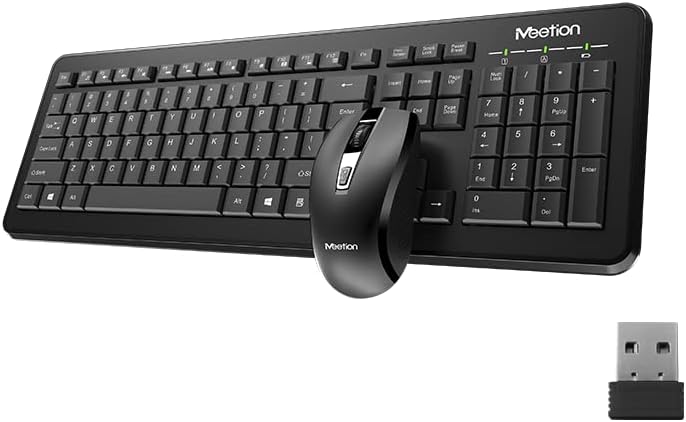
Image Description: This image displays the Meetion C4120 wireless keyboard, the wireless mouse, and the compact USB nano receiver, which is essential for connecting both devices to your computer.
3. Тохируулах гарын авлага
3.1. Батерейг суурилуулах
Гарын батерей суурилуулах
- Гарны доод талд байгаа зайны тасалгааг ол.
- Зайны тасалгааны тагийг нээ.
- Insert the required batteries (e.g., 2 x AAA alkaline batteries), ensuring correct polarity (+/-).
- Зайны тасалгааны тагийг сайтар хаа.
Хулганы батерейг суурилуулах
- Хулганы доод талд байгаа зайны тасалгааг ол.
- Зайны тасалгааны тагийг нээ.
- Remove the USB Nano Receiver from its storage slot.
- Insert the required battery (e.g., 1 x AA alkaline battery), ensuring correct polarity (+/-).
- Зайны тасалгааны тагийг сайтар хаа.
3.2. Компьютертээ холбогдох
- Ensure batteries are correctly installed in both the keyboard and mouse.
- Turn on the power switch on the underside of the mouse (if present).
- USB Нано хүлээн авагчийг компьютер дээрээ байгаа USB порт руу холбоно уу.
- Таны компьютер шаардлагатай драйверуудыг автоматаар илрүүлж, суулгах ёстой. Энэ процесс хэдэн минут үргэлжилж магадгүй.
- Once drivers are installed, the keyboard and mouse should be ready for use.

Image Description: This image shows the top view of the wireless keyboard and mouse, along with the USB receiver, illustrating their compact design and how they appear together.
4. Ашиглалтын заавар
4.1. Гарны функцууд
The Meetion C4120 keyboard features a standard layout with a numeric keypad for efficient data entry.
Заагч гэрэл:
- Num Lock үзүүлэлт: Тоон товчлуур идэвхтэй үед гэрэлтдэг.
- Caps Lock заагч: Illuminates when Caps Lock is engaged.
- Scroll Lock заагч: Scroll Lock идэвхжсэн үед гэрэлтдэг.
- Зайны үзүүлэлт: May flash or illuminate to indicate low battery power. Replace batteries when this occurs.
4.2. Хулганы функцууд
The Meetion C4120 wireless mouse is equipped with a 1200 DPI optical sensor for precise tracking and smooth cursor movement.
Товчлуур:
- Зүүн товшилтын товчлуур: Стандарт сонголт ба идэвхжүүлэлт.
- Баруун товчлуур дээр дарна уу: Контекст цэсэнд хандана.
- Гүйлгэх дугуй: Баримт бичгийг гүйлгэж байна web хуудаснууд. Мөн дунд товшилтын товчлуураар ажиллах боломжтой.
- DPI тохируулах товч: Located below the scroll wheel, this button allows you to cycle through different DPI settings for varying cursor speeds.
DPI (Инч тутамд цэг): The mouse operates at 1200 DPI, providing accurate and smooth cursor movement suitable for general computing tasks.

Image Description: This image provides a detailed view of the Meetion C4120 wireless mouse, highlighting its ergonomic design and the USB nano receiver.
5. Алдаа засах
5.1. Keyboard or Mouse Not Responding
- Батерейг шалгах: Батерейг зөв оруулсан, хангалттай цэнэгтэй эсэхийг шалгаарай. Шаардлагатай бол солино уу.
- USB хүлээн авагчийг шалгах: Make sure the USB Nano Receiver is securely plugged into a working USB port on your computer. Try a different USB port.
- Эрчим хүч солих: Ensure the mouse's power switch (if applicable) is in the "ON" position.
- Холболтыг сэргээх: Unplug the USB receiver, wait a few seconds, and plug it back in.
- хөндлөнгийн оролцоо: Move the keyboard and mouse closer to the USB receiver. Avoid placing the receiver near other wireless devices or large metal objects that could cause interference.
- Компьютерийг дахин эхлүүлэх: Sometimes a simple computer restart can resolve connectivity issues.
5.2. Lagging or Intermittent Connection
This can often be caused by wireless interference. Try the suggestions above regarding proximity and interference sources.
5.3. Mouse Cursor Jumps or is Inaccurate
Ensure the mouse optical sensor is clean and free from dust or debris. Use the mouse on a clean, non-reflective surface.
6. Засвар үйлчилгээ
To ensure the longevity and optimal performance of your Meetion C4120 wireless combo, follow these maintenance guidelines:
- Цэвэрлэгээ:
- Keyboard: Use a soft, dry cloth to wipe the surface. For deeper cleaning, use compressed air to remove debris from between keys. Avoid liquid cleaners directly on the keys.
- Mouse: Use a soft, dry cloth to clean the exterior. Ensure the optical sensor on the underside is free of dust and lint.
- Зай солих: Replace batteries promptly when the low battery indicator appears or performance degrades. Dispose of old batteries responsibly according to local regulations.
- Хадгалах: When not in use for extended periods, remove batteries and store the devices in a cool, dry place away from direct sunlight and extreme temperatures.
- Шингэнээс зайлсхийх: Keep the keyboard and mouse away from liquids to prevent damage.
7. Бүтээгдэхүүний техникийн үзүүлэлтүүд
| Онцлог | Дэлгэрэнгүй |
|---|---|
| Загвар | C4120 (MT-C4120) |
| Брэнд | УУЛЗАЛТ |
| Холболт | 2.4G утасгүй |
| Хулганы DPI | 1200 DPI Optical |
| Тохиромжтой байдал | Windows, Mac, Linux |
| Гарны төрөл | Тоон товчлууртай бүтэн хэмжээтэй |
| Battery Type (Keyboard) | Alkaline (e.g., 2x AAA*) |
| Battery Type (Mouse) | Alkaline (e.g., 1x AA*) |
| Өнгө | Хар |
*Note: Battery types are typical for such devices; please refer to the product packaging for exact requirements.
8. Баталгаат хугацаа ба дэмжлэг
8.1. Үйлдвэрлэгчийн баталгаа
The Meetion C4120 Wireless Mouse and Keyboard Combo comes with a 1 жилийн үйлдвэрлэгчийн баталгаа худалдан авсан өдрөөс. Энэхүү баталгаа нь ердийн ашиглалтын үед хийгдсэн материал, хийцийн согогийг хамарна.
The warranty does not cover damage caused by misuse, accident, unauthorized modification, or external causes such as liquid damage.
8.2. Хэрэглэгчийн дэмжлэг
For technical assistance, warranty claims, or further inquiries, please contact Meetion customer support through their official webтухайн бүтээгдэхүүнийг худалдаж авсан сайт эсвэл жижиглэнгийн худалдаачин.
Please have your product model number (C4120 or MT-C4120) and proof of purchase ready when contacting support.