1. Танилцуулга
Худалдан авалт хийсэнд баярлалааasing the Yifeng Wireless Keyboard. This keyboard offers versatile connectivity options, supporting both 2.4 GHz USB wireless and Bluetooth connections. It is designed for multi-device use, allowing simultaneous pairing with up to four devices and quick switching between them. Featuring a comfortable scissor-switch mechanism and an integrated stand, it enhances productivity across various platforms including Windows, iOS, and Android devices.
2. Аюулгүй байдлын мэдээлэл
- Гарыг шингэн зүйл эсвэл хэт өндөр температурт бүү байлга.
- Төхөөрөмжийг задлах эсвэл өөрөө засах гэж оролдохоос зайлсхий.
- Хүүхдийн гар хүрэхгүй газар хадгална.
- Цэнэглэхийн тулд зөвхөн өгсөн USB кабелийг ашиглана уу.
3. Багцын агуулга
Бүх зүйл байгаа эсэхийг шалгана уу:
- Yifeng Wireless Keyboard
- USB цэнэглэгч кабель
- 2.4 GHz USB Receiver (may be stored in the keyboard's battery compartment)
- Хэрэглэгчийн гарын авлага (энэ баримт бичиг)
4. Тохиргоо
4.1. 2.4 GHz USB Wireless Connection
- Locate the 2.4 GHz USB receiver. It is often stored in a dedicated slot on the keyboard.
- USB хүлээн авагчийг компьютер эсвэл төхөөрөмж дээрх боломжтой USB порт руу холбоно уу.
- Turn on the keyboard using the power switch (usually located on the side or back).
- The keyboard should automatically connect to your device. If not, press the dedicated 2.4GHz connection key (often labeled with a '4' or '2.4G' icon) to activate pairing mode.
4.2. Bluetooth холболт
- Гар цэнэглэгдэж, асаалттай байгаа эсэхийг шалгаарай.
- Press and hold one of the Bluetooth channel keys (e.g., Bluetooth 1, Bluetooth 2, эсвэл Bluetooth 3) заагч гэрэл анивчих хүртэл 3-5 секундын турш дарж, хослуулах горимыг заана.
- On your device (tablet, smartphone, PC), go to Bluetooth settings and enable Bluetooth.
- хайх available devices. The keyboard should appear as "Yifeng Keyboard" or similar.
- Хослуулах гарыг сонгоно уу. Хослуулах код оруулах гэх мэт дэлгэцэн дээрх зааврыг дагана уу.
- Хослуулсны дараа заагч гэрэл анивчихаа больж, хэдэн секундын турш тогтвортой хэвээр байна.
4.3. Multi-Device Pairing
This keyboard supports connecting up to 4 devices simultaneously: one via 2.4 GHz USB and three via Bluetooth. Follow the steps above to pair each device to a different channel (2.4GHz, Bluetooth 1, Bluetooth 2, Bluetooth 3).
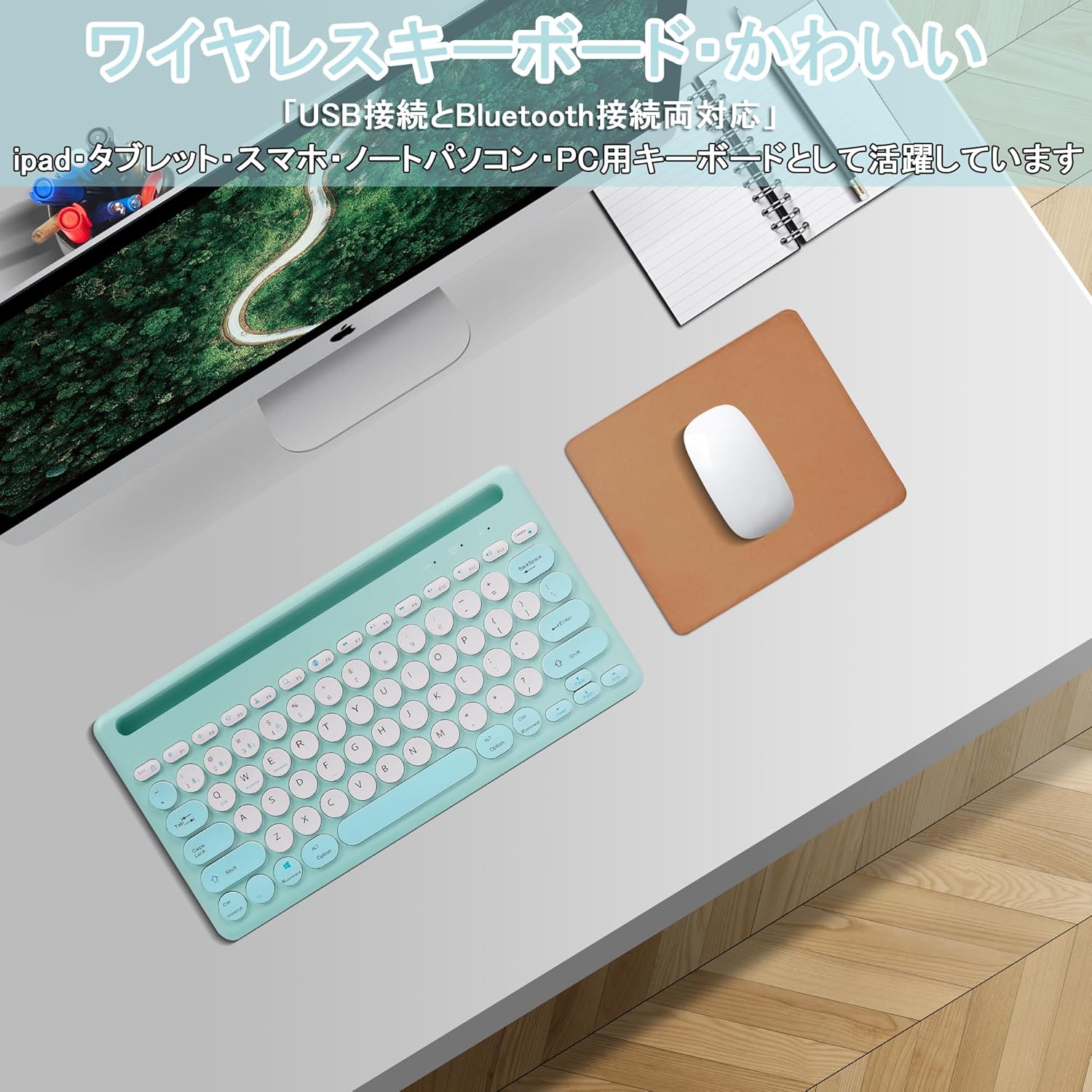
Image: The Yifeng Wireless Keyboard connected to a tablet, smartphone, and laptop, demonstrating its multi-device pairing capability.
5. Ашиглалтын заавар
5.1. Холбогдсон төхөөрөмжүүдийн хооронд шилжих
To switch between your paired devices, simply press the corresponding connection key:
- дарна уу Bluetooth 1 to switch to the first Bluetooth device.
- дарна уу Bluetooth 2 to switch to the second Bluetooth device.
- дарна уу Bluetooth 3 to switch to the third Bluetooth device.
- дээр дарна уу 2.4 ГГц key (often labeled with a '4' or '2.4G' icon) to switch to the USB wireless device.
5.2. Системийн нийцтэй байдлын шилжилт
The keyboard supports Windows, iOS, and Android operating systems. Use the dedicated system keys to optimize key functions for your current device:
- дарна уу Fn + Q iOS-д зориулсан.
- дарна уу Fn + W Android-д зориулсан.
- дарна уу Fn + E Windows-д зориулсан.
5.3. Гарыг цэнэглэж байна
The keyboard features a built-in rechargeable lithium-ion battery. A single full charge provides approximately 30 days of continuous use.
- Connect the included USB charging cable to the charging port on the keyboard.
- USB кабелийн нөгөө үзүүрийг USB тэжээлийн эх үүсвэрт (жишээ нь, компьютерын USB порт, USB ханын адаптер) залгаарай.
- Цэнэглэх заагч гэрэл цэнэглэх үед асч, бүрэн цэнэглэгдсэн үед унтарна.

Image: The Yifeng Wireless Keyboard connected to a power strip via its USB charging cable, indicating the rechargeable feature.
5.4. Using the Integrated Stand
The keyboard includes an integrated stand slot at the top, designed to hold your tablet or smartphone upright. This allows for comfortable viewing and typing, making it ideal for document creation, chatting, or watching media while commenting.
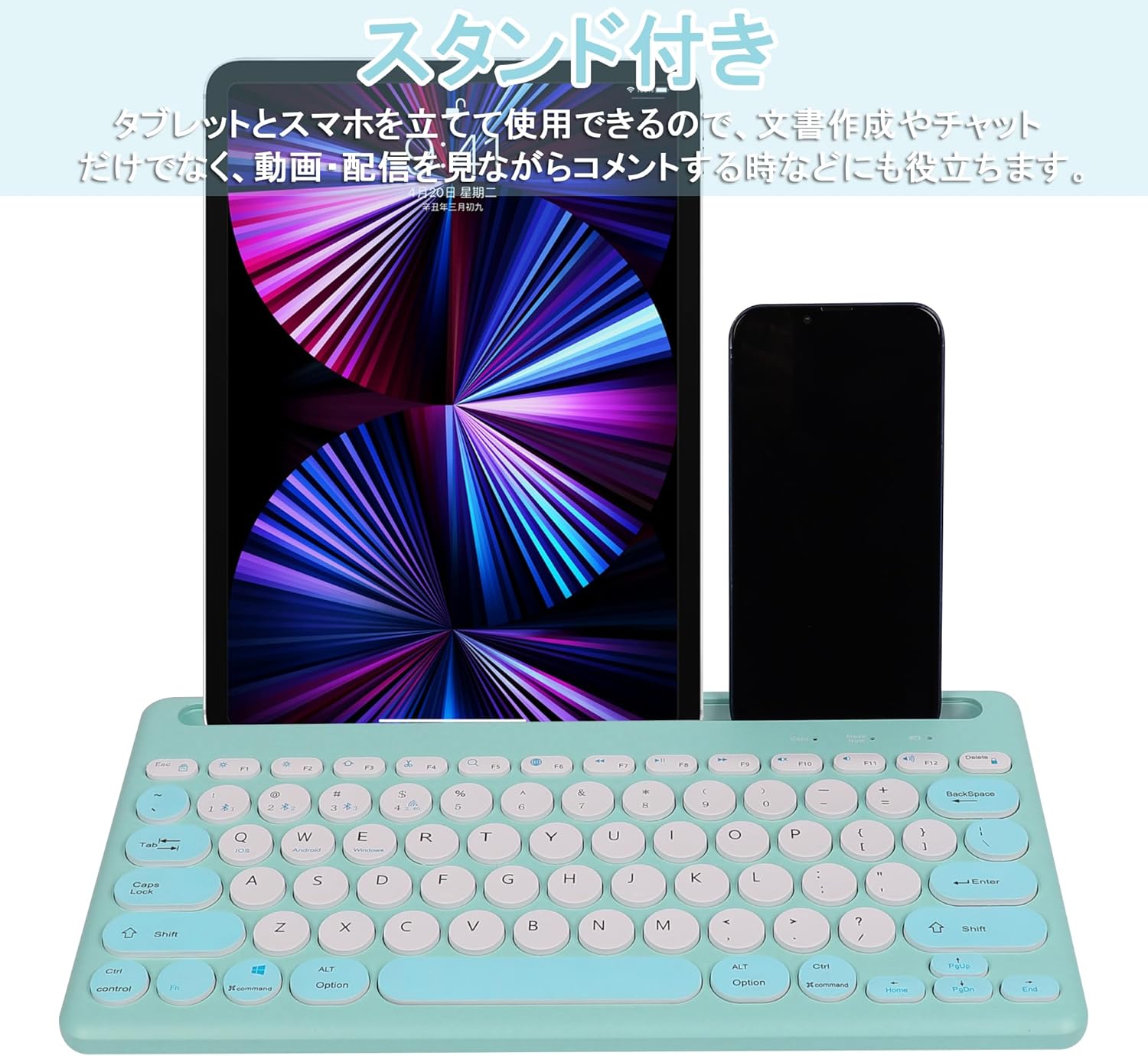
Image: The Yifeng Wireless Keyboard with a tablet and smartphone securely positioned in its integrated stand, demonstrating its utility for multi-device setups.
6. Засвар үйлчилгээ
- Clean the keyboard regularly with a soft, dry cloth. For stubborn dirt, a slightly damp cloth can be used, ensuring no moisture enters the keyboard.
- Хүчтэй химийн бодис, зүлгүүрийн цэвэрлэгч хэрэглэхээс зайлсхий.
- Ашиглаагүй үедээ гарыг сэрүүн, хуурай газар хадгална уу.
- The keyboard features anti-slip pads on the back for stable use. Ensure these pads are clean and intact for optimal stability.

Image: The underside of the Yifeng Wireless Keyboard, highlighting the four anti-slip pads designed for stable placement on various surfaces.
7. Алдаа засах
7.1. Гар холбогдоогүй байна
- Эрчим хүчийг шалгах: Гар асаалттай, хангалттай цэнэгтэй байгаа эсэхийг шалгаарай.
- Дахин холбох: For Bluetooth, delete the keyboard from your device's Bluetooth list and attempt to pair again. For 2.4 GHz USB, try plugging the receiver into a different USB port.
- Суваг солих: Ensure you have selected the correct channel (Bluetooth 1/2/3 or 2.4GHz) for your device.
- Төхөөрөмжийн Bluetooth: Verify that Bluetooth is enabled on your device and that it is discoverable.
7.2. Түлхүүрүүд хариу өгөхгүй байна
- Батерейны түвшин: Хэрэв батерей бага байвал гарыг цэнэглээрэй.
- Системийн горим: Ensure the keyboard is set to the correct operating system mode (Windows, iOS, Android) using Fn + Q/W/E.
- хөндлөнгийн оролцоо: Гараа төхөөрөмждөө ойртуулж, саад учруулж болзошгүй бусад утасгүй төхөөрөмжөөс холдуул.
7.3. Цэнэглэхтэй холбоотой асуудлууд
- Кабель шалгах: Ensure the USB charging cable is securely connected to both the keyboard and the power source.
- Эрчим хүчний эх үүсвэр: Өөр USB порт эсвэл ханын адаптер ашиглаж үзнэ үү.
- Заагч гэрэл: If the charging indicator light does not turn on, the cable or power source may be faulty.
8. Техникийн үзүүлэлтүүд
| Брэнд | Yifeng |
| Загварын дугаар | AMWS0584A-L |
| Холболтын технологи | Bluetooth, 2.4 GHz Wireless (USB) |
| Тохиромжтой төхөөрөмжүүд | Tablets, Smartphones, PCs, Laptops (Windows, iOS, Android) |
| Гарны зохион байгуулалт | QWERTY (US Layout) |
| Гол механизм | Хайч солих |
| Онцлог шинж чанар | Rechargeable, Integrated Stand, Multi-Pairing (4 devices) |
| Зайны төрөл | 1 лити ион батерей (дагсан) |
| Зайны ашиглалт | Approx. 30 days (per charge) |
| Хэмжээ | 33.7 x 16.7 x 2.9 см |
| Жин | 820 гр |
| Оруулсан бүрэлдэхүүн хэсгүүд | USB кабель |
9. Баталгаат хугацаа ба дэмжлэг
Энэ бүтээгдэхүүн нь хамт ирдэг 1 жилийн чанарын баталгаатай from the date of purchase. In case of initial defects or malfunctions occurring within the warranty period, we offer return or exchange services.
Should you encounter any issues or require assistance, please contact us directly through your purchase platform:
- Танайх руу оч Захиалгын түүх.
- Select the order for this product.
- дээр дарна уу Худалдагчтай холбоо бариарай.
Our support team will be happy to assist you.


