1. Танилцуулга
This manual provides instructions for the NEWDERY TV Docking Stations, which include two distinct products: a compact TV Docking Station and a portable Multi-Function Hub. Both devices are designed to enhance your gaming and productivity experience by offering charging, video output, and data transfer capabilities for compatible USB-C devices.
The NEWDERY TV Docking Stations are compatible with Nintendo Switch, Nintendo Switch OLED, Steam Deck, mobile phones, pads, and notebooks equipped with a USB Type-C port that supports video output.
Гол онцлогууд:
- TV Mode Functionality: Seamlessly switch between handheld/tabletop mode and TV mode for an immersive gaming experience.
- Өндөр хурдны өгөгдөл дамжуулах: Equipped with USB 3.0 ports supporting data transfer speeds up to 5Gbps.
- 4K HD Video Output: Supports 4K HDMI output for high-definition display on compatible televisions or monitors.
- Power Delivery Charging: Features 100W Power Delivery (PD) charging ports to power your device while in use.
- Олон төхөөрөмжийн нийцтэй байдал: Supports Nintendo Switch/Switch OLED, Steam Deck, various mobile phones, pads, and notebooks with USB-C video output.
- Samsung DeX Mode Support: Enables desktop experience for compatible Samsung Galaxy devices.
2. Бүтээгдэхүүн дууссанview
2.1 NEWDERY TV Docking Station (Stand-alone)
This compact docking station serves as a replacement for the official Nintendo Switch dock, offering TV output, charging, and USB connectivity. It features a dedicated button to switch between tabletop and TV modes.
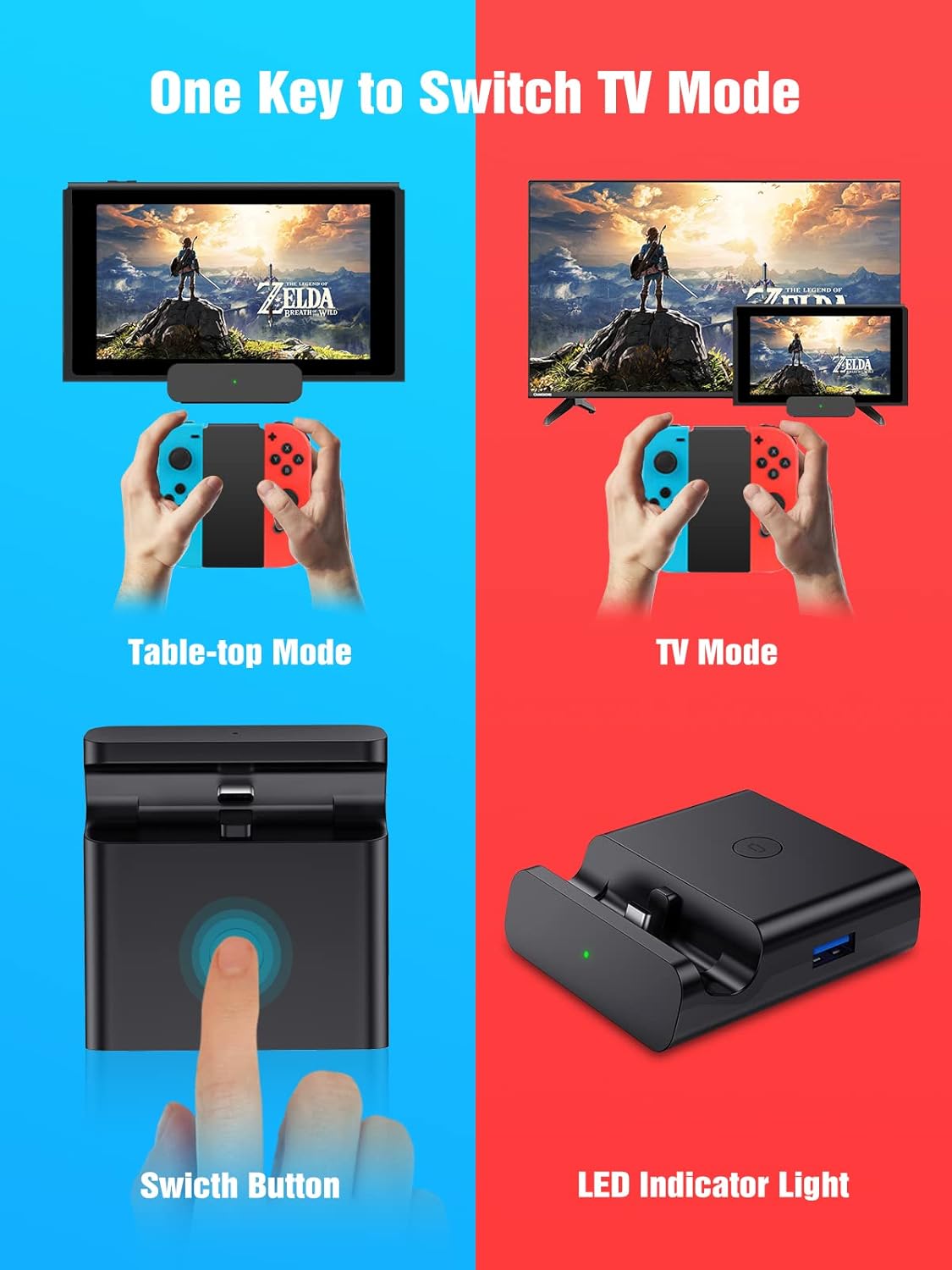
Figure 2.1: Illustration of the NEWDERY TV Docking Station showing tabletop mode, TV mode, the mode switch button, and the LED indicator light.

Figure 2.2: Detailed diagram of the NEWDERY TV Docking Station's ports and controls, including the Mode Switch Key, USB-C Output for the console, LED Indicator Light, USB 3.0 Output, two USB-A 2.0 Outputs, USB-C Input Port for power, and an HDMI Port for video output.
2.2 NEWDERY Multi-Function Hub (Portable)
This portable hub offers versatile connectivity for various USB-C devices, allowing for video output, high-speed data transfer, and power delivery in a compact form factor.

Зураг 2.3: Жишээ ньample setup of the NEWDERY Multi-Function Hub connected to a Nintendo Switch, a power adapter, and a television for video output.
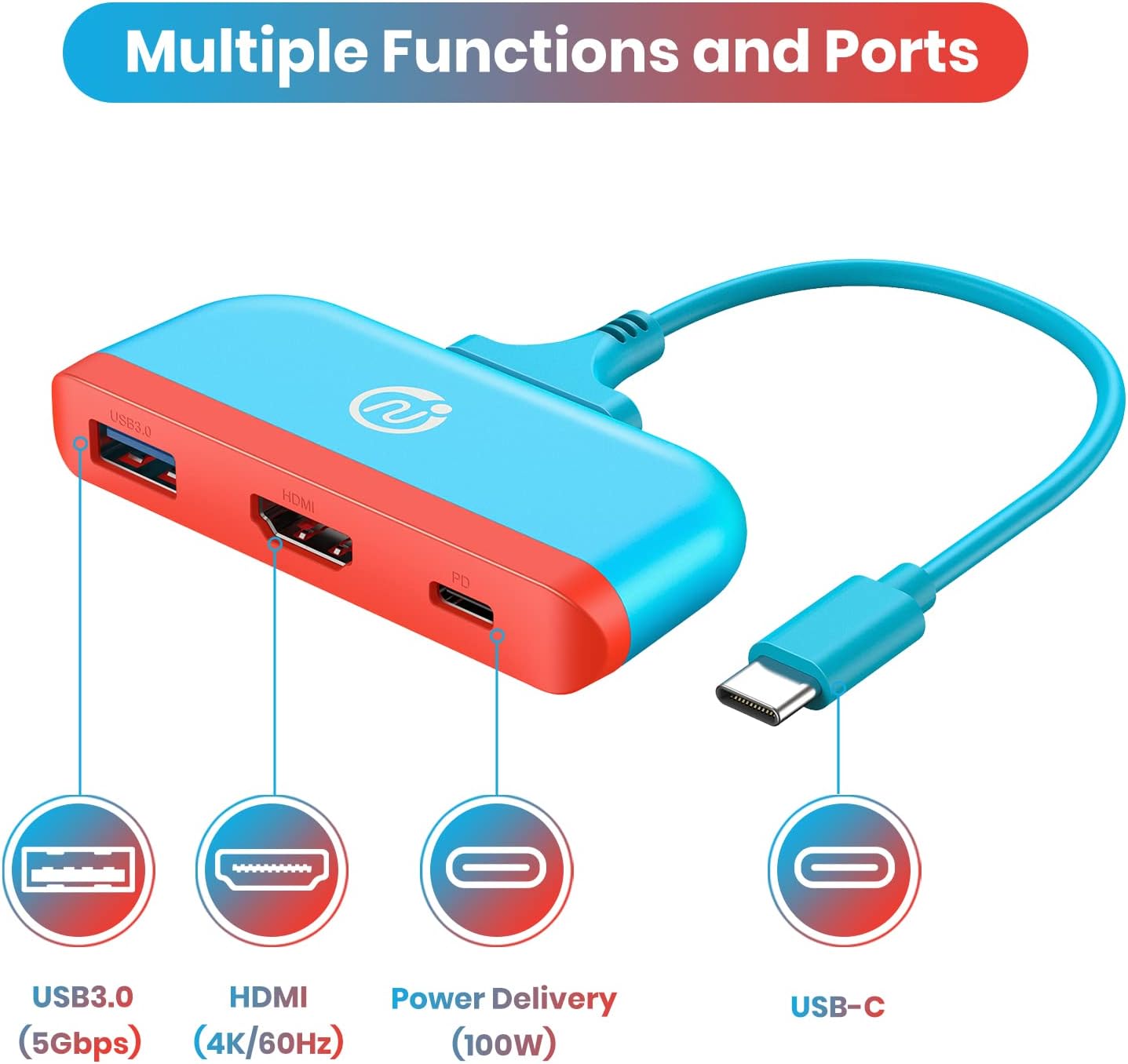
Figure 2.4: Diagram illustrating the ports of the NEWDERY Multi-Function Hub, including USB 3.0 (5Gbps), HDMI (4K/60Hz), Power Delivery (100W), and the integrated USB-C cable for device connection.
3. Тохируулах заавар
3.1 Setting up the NEWDERY TV Docking Station
- Connect an HDMI cable (not included) from the HDMI port on the docking station to an HDMI input on your TV or monitor.
- Connect a USB-C power adapter (not included, original Switch adapter recommended) to the USB-C Input Port on the docking station.
- Place your Nintendo Switch or Switch OLED console into the USB-C Output slot on the docking station. Ensure it is securely seated.
- Turn on your TV/monitor and select the correct HDMI input.
- Press the "Mode Switch Key" on the docking station to toggle between tabletop mode (console screen) and TV mode (external display). The LED indicator will change color to show the active mode.
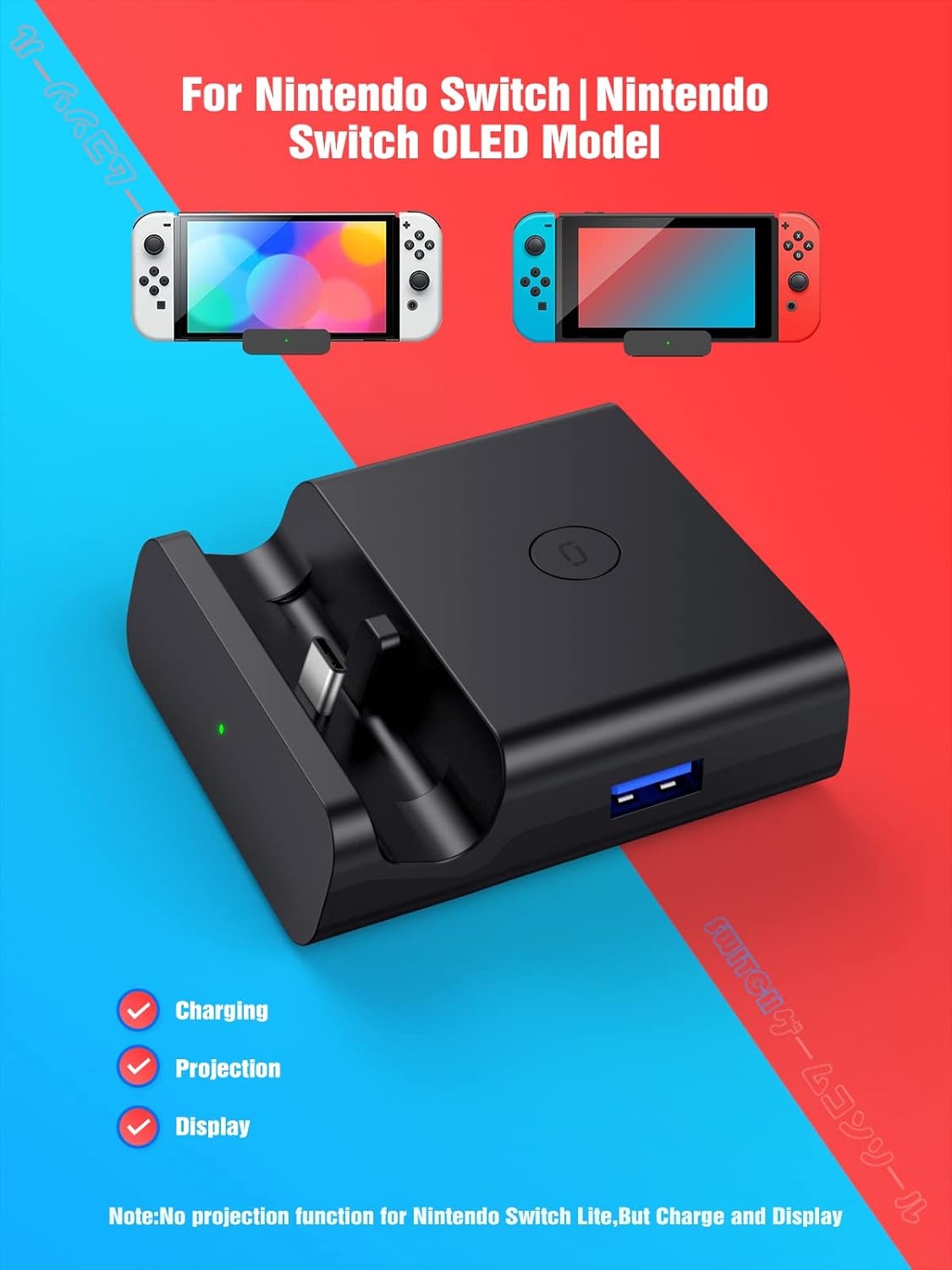
Figure 3.1: The NEWDERY TV Docking Station supporting both Nintendo Switch and Switch OLED models.

Figure 3.2: The NEWDERY TV Docking Station connected to a TV and projector, demonstrating 4K video output for gaming.
3.2 Setting up the NEWDERY Multi-Function Hub
- Connect the integrated USB-C cable of the Multi-Function Hub to your compatible device (e.g., Nintendo Switch, Steam Deck, phone, laptop).
- For video output, connect an HDMI cable (not included) from the HDMI port on the hub to your TV or monitor.
- For charging, connect a USB-C power adapter (not included) to the Power Delivery (PD) port on the hub.
- For connecting peripherals, plug USB devices (e.g., mouse, keyboard, USB drive) into the USB 3.0 port.
- Ensure your TV/monitor is set to the correct HDMI input.

Figure 3.3: The NEWDERY Multi-Function Hub demonstrating its wide compatibility with various devices and peripherals.
3.3 Тохиргооны видео гарын авлага
Video 3.1: A detailed video guide demonstrating the setup process for the NEWDERY TV Docking Stations.
4. Ашиглалтын заавар
4.1 Switching Display Modes (TV Docking Station)
For the stand-alone TV Docking Station, press the "Mode Switch Key" located on the top of the dock to alternate between displaying content on the console's screen (tabletop mode) and an external display (TV mode). The LED indicator will confirm the active mode.
4.2 Тоглож байх үед цэнэглэх
Both the TV Docking Station and the Multi-Function Hub support charging your device while it is connected and in use. Ensure a compatible USB-C power adapter is connected to the respective power input port on the dock/hub. The built-in smart chip provides protection against short-circuits, over-power, and overheating.
4.3 Using USB 3.0 Ports
The USB 3.0 ports on both devices allow for high-speed data transfer up to 5Gbps. Connect compatible USB peripherals such as external hard drives, USB flash drives, keyboards, or mice for expanded functionality.
4.4 Samsung DeX Mode (Multi-Function Hub)
The Multi-Function Hub is compatible with Samsung DeX mode for supported Samsung Galaxy phones and tablets (e.g., S10/S9/S8 Plus/Note 10/Note 9/Note 8, Tab S4/S5/S6). Connect your Samsung device to the hub, and then connect the hub to a monitor via HDMI to activate the DeX desktop experience, transforming your phone into a PC-like environment.
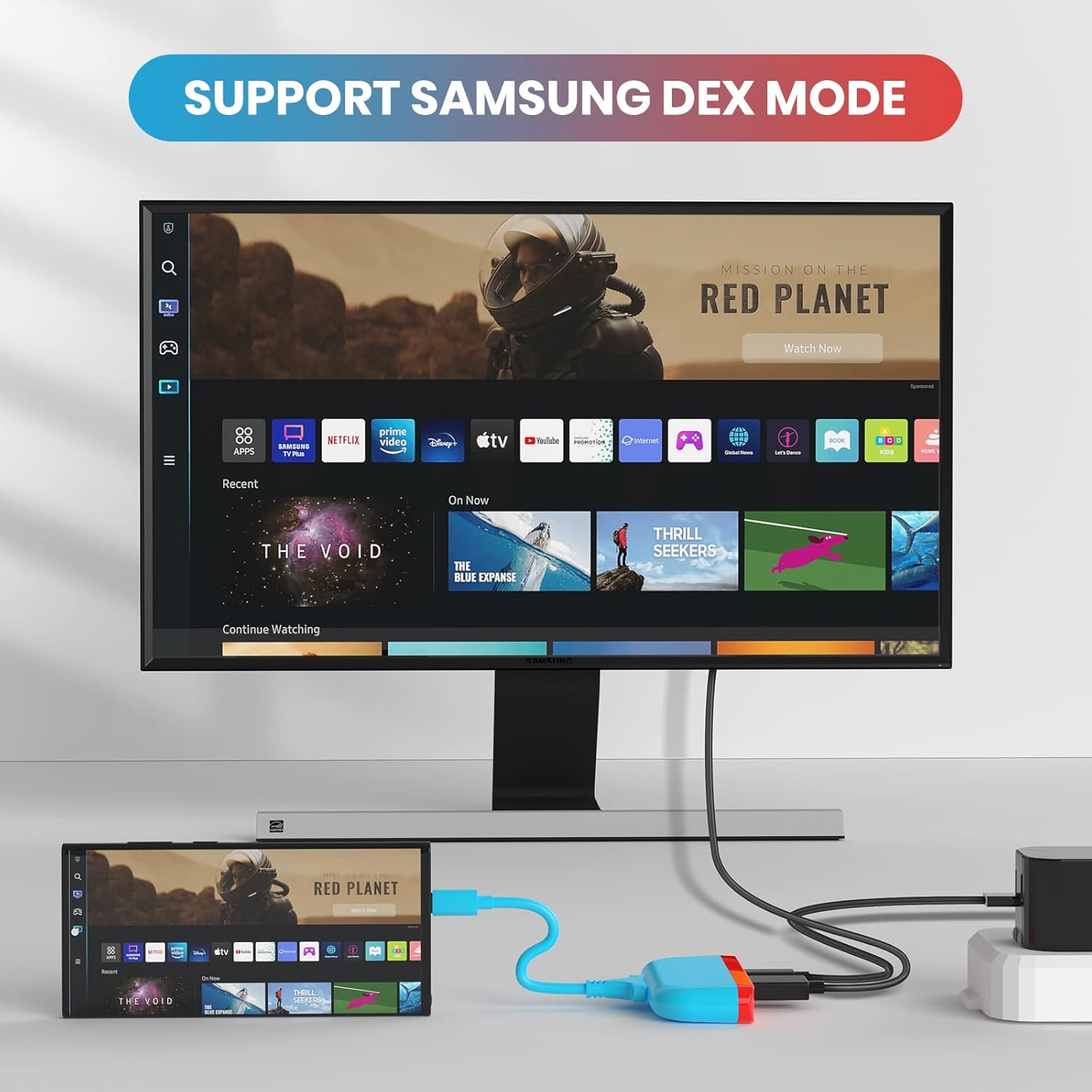
Figure 4.1: The NEWDERY Multi-Function Hub enabling Samsung DeX mode on a monitor, extending the functionality of a compatible Samsung smartphone.
4.5 Operation Demonstration Video
Video 4.1: A comprehensive video demonstrating the various operating functions and features of the NEWDERY TV Docking Stations.
5. Засвар үйлчилгээ
- Цэвэрлэгээ: Use a soft, dry cloth to clean the surface of the docking stations. Avoid using liquid cleaners or abrasive materials.
- Хадгалах: Төхөөрөмжүүдийг нарны шууд тусгал, хэт температураас хол, сэрүүн, хуурай газар хадгална.
- Харьцуулах: Handle the devices with care. Avoid dropping or subjecting them to strong impacts.
- Холболт: Ensure all cables are connected firmly but do not force them. Regularly check cables for damage.
6. Алдаа засах
- No Video Output to TV/Monitor:
- Ensure all cables (HDMI, USB-C power) are securely connected.
- Verify the TV/monitor is set to the correct HDMI input source.
- For the stand-alone dock, press the "Mode Switch Key" to ensure it's in TV mode.
- Confirm your device (Switch, phone, laptop) supports video output via its USB-C port.
- Try a different HDMI cable or TV/monitor to rule out external issues.
- Төхөөрөмж цэнэглэхгүй байна:
- Ensure the USB-C power adapter is properly connected to the dock/hub and a power outlet.
- Use a compatible power adapter (e.g., original Nintendo Switch AC adapter for Switch).
- Check if the power adapter and USB-C cable are functional.
- USB захын төхөөрөмжүүд ажиллахгүй байна:
- Ensure the peripheral is properly connected to the USB port on the dock/hub.
- Verify the peripheral is compatible with your connected device.
- Зарим өндөр хүчин чадалтай USB төхөөрөмжүүд гадаад цахилгаан эсвэл USB төв шаардаж магадгүй.
- Завсарлагатай холболт:
- Сул кабелийн холболт байгаа эсэхийг шалгана уу.
- Ensure the device is firmly seated in the stand-alone dock.
- Avoid placing the dock/hub near sources of strong electromagnetic interference.
7. Техникийн үзүүлэлтүүд
| Онцлог | Дэлгэрэнгүй |
|---|---|
| Брэнд | ШИНЭ |
| Загварын дугаар | B0BN85G4MF |
| Өнгө | Blue (for Multi-Function Hub), Black (for TV Docking Station) |
| Тоног төхөөрөмжийн интерфейс | USB Type C, HDMI, USB 3.0, USB 2.0 |
| Тохиромжтой төхөөрөмжүүд | Nintendo Switch, Switch OLED, Steam Deck, Mobile Phone, Pad, Notebook (e.g., Samsung Galaxy S10/S9/S8 Plus/Note 10/Note 9/Note 8, Samsung Tab S4/S5/S6) |
| Нийт HDMI портууд | 1 |
| USB 3.0 хурд | 5Gbps хүртэл |
| Видео гаралт | 4K HD |
| Эрчим хүчний нийлүүлэлт | Up to 100W (via PD port on Multi-Function Hub) |
8. Туслах мэдээлэл
For further assistance, technical support, or warranty inquiries, please refer to the NEWDERY official webсайт эсвэл харилцагчийн үйлчилгээтэй шууд холбогдоно уу.
Та мөн зочилж болно NEWDERY Store on Amazon for product updates and additional resources.
