Танилцуулга
This manual provides essential information for the proper setup, operation, and maintenance of your GRAUGEAR G-3501-A-10G-8TB External Hard Drive. Please read these instructions carefully before using the product to ensure optimal performance and safety. This external hard drive is designed to expand storage for your PlayStation 4 and PlayStation 5 consoles, allowing you to store and manage a larger game library.
Аюулгүй байдлын мэдээлэл
- Цахилгаан адаптер нь тохирох цахилгаан залгуурт холбогдсон эсэхийг шалгаарай.
- Төхөөрөмжийг ус, чийг, хэт өндөр температурт бүү тавь.
- Төхөөрөмжийг унагах эсвэл хүчтэй нөлөөнд оруулахаас зайлсхий.
- Төхөөрөмжийг өөрөө нээх, засах гэж бүү оролдоорой. Бүх үйлчилгээг мэргэшсэн боловсон хүчинд шилжүүлээрэй.
- Төхөөрөмжийг хүчтэй соронзон орноос хол байлга.
- Disconnect the power supply during thunderstorms or when unused for extended periods.
Багцын агуулга
Доор жагсаасан бүх зүйл таны багцад байгаа эсэхийг шалгаарай.
- GRAUGEAR G-3501-A-10G-8TB External Hard Drive
- Эрчим хүчний адаптер
- USB Type-C-Type-C кабель
- USB Type-C-Type-A кабель
- Хэрэглэгчийн гарын авлага (энэ баримт бичиг)
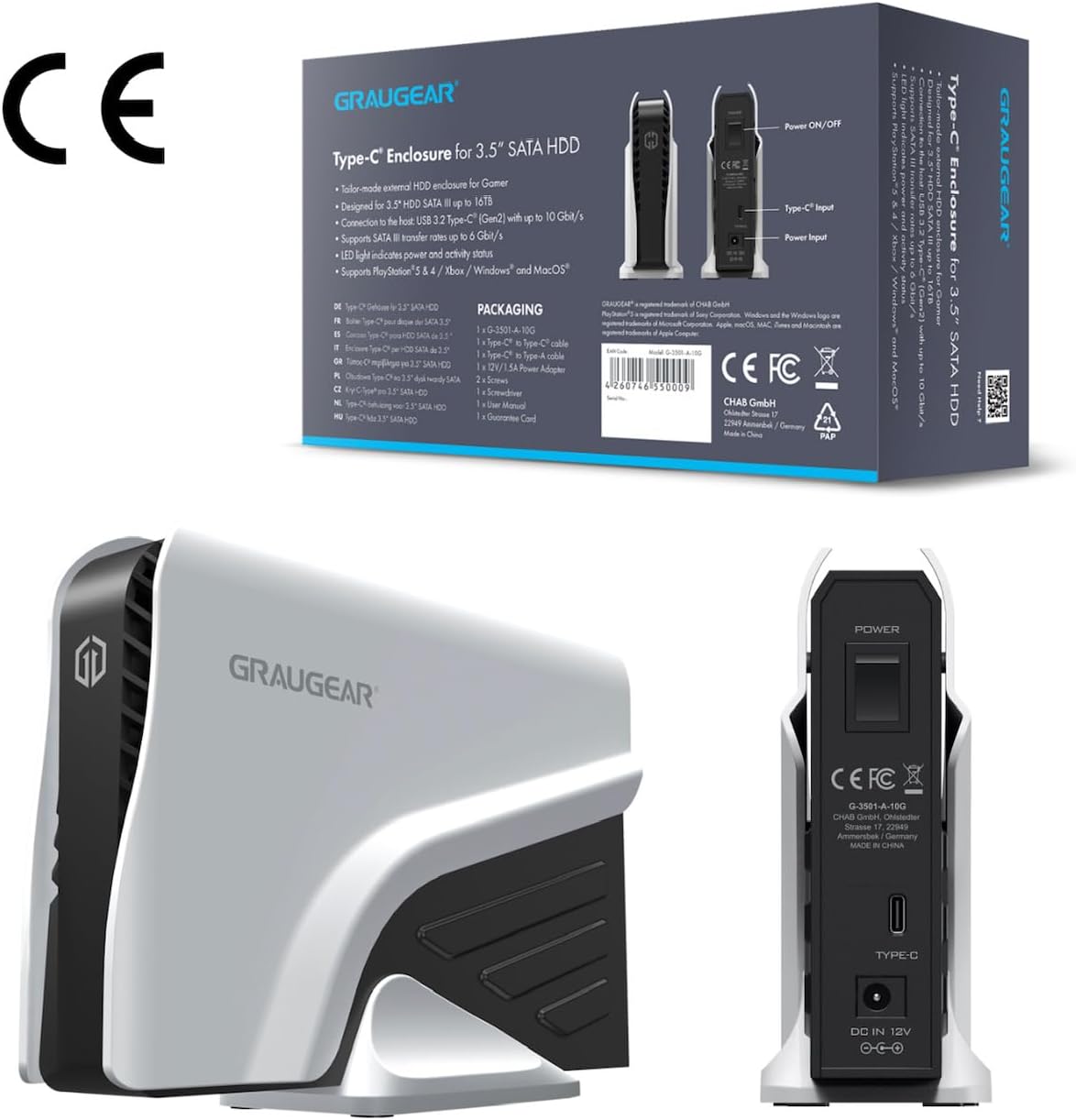
This image shows the product packaging alongside a rear view of the GRAUGEAR external hard drive, detailing the power input, Type-C port, and power on/off switch.
Бүтээгдэхүүн дууссанview
The GRAUGEAR G-3501-A-10G-8TB is a high-capacity external hard drive designed for reliable data storage and quick access. Its robust enclosure protects the internal 3.5-inch SATA HDD, while its connectivity options ensure compatibility with various devices.
This image displays the GRAUGEAR external hard drive from the front, showcasing its sleek design and compact form factor, designed to complement gaming consoles.

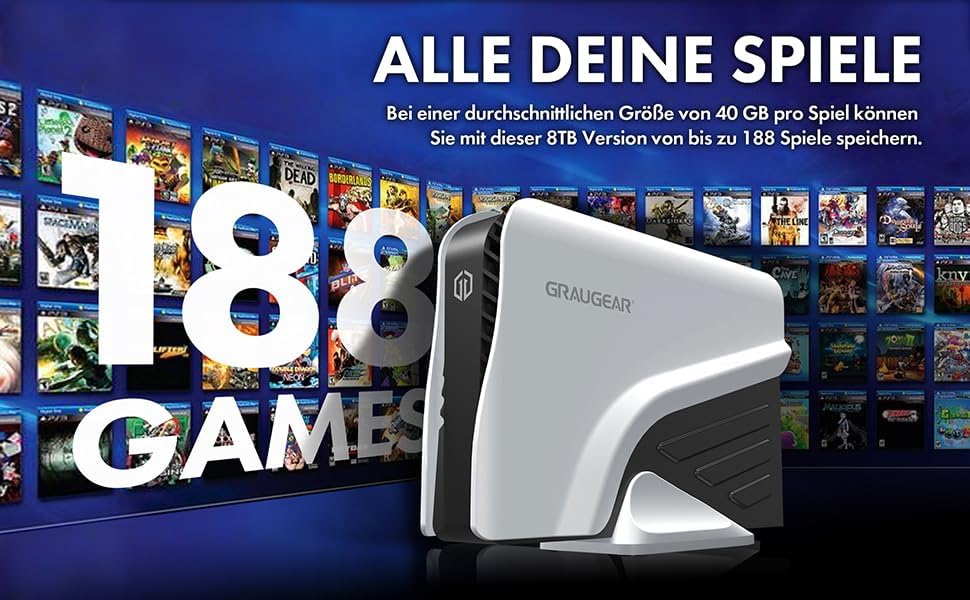
This image highlights key features of the GRAUGEAR external hard drive, including its Type-C enclosure for 3.5-inch SATA HDDs, support for UASP and TRIM technologies, and the inclusion of two USB cables for versatile connectivity.
Портууд ба үзүүлэлтүүд
- USB-C порт: For data connection to your console or computer.
- Эрчим хүчний оролт: Дагалдах тэжээлийн адаптерт холбогдоно.
- Асаах/унтраах унтраалга: Төхөөрөмжийн тэжээлийг хянадаг.
- LED үзүүлэлт: Shows the operational status of the hard drive (e.g., power on, data activity).
Тохиргоо
1. Цахилгаан тэжээлд холбогдох
- Connect the included power adapter to the 'Power Input' port on the back of the GRAUGEAR external hard drive.
- Цахилгаан адаптерийг ханын залгуурт холбоно уу.
- Flip the 'Power On/Off' switch to the 'On' position. The LED indicator should illuminate.
2. Connecting to PlayStation Console
The GRAUGEAR external hard drive supports both USB Type-A and USB Type-C connections.
- Choose the appropriate USB cable (Type-C to Type-C or Type-C to Type-A) based on the available port on your PlayStation console.
- Connect one end of the USB cable to the USB-C port on the external hard drive.
- Connect the other end of the USB cable to an available USB port on your PlayStation 4 or PlayStation 5 console. For optimal performance, use a USB 3.2 Gen 2 compatible port if available.

This image illustrates the GRAUGEAR external hard drive's flexible connectivity, showing it connected to a console via a USB Type-A port and to another console via a USB Type-C port, demonstrating its compatibility with various console interfaces.

The external hard drive is shown connected and positioned next to a PlayStation 5 console, illustrating its intended use and physical integration with the gaming system.
3. Initial Console Setup and Formatting
Once connected, your PlayStation console should detect the external hard drive. Follow the on-screen prompts to format the drive for use as extended storage. This process will erase any existing data on the drive, so ensure it is empty or backed up before proceeding.
- For PlayStation 4: The console will guide you through formatting the drive as 'Extended Storage'. Once formatted, you can install and play PS4 games directly from this drive.
- For PlayStation 5: The console will guide you through formatting the drive as 'Extended USB Storage'. You can store PS4 games and PS5 games on this drive. However, PS5 games stored on this drive must be moved back to the console's internal SSD to be played. PS4 games can be played directly from the external drive.
Operating the External Hard Drive
Storing and Playing Games
After successful formatting, your console will automatically manage game installations and transfers to and from the external drive. You can typically set the external drive as the default installation location for new games (especially PS4 games on PS5). Consult your console's system settings for specific options on moving, copying, or deleting games.
Өгөгдөл дамжуулах
The GRAUGEAR G-3501-A-10G-8TB supports USB 3.2 Gen 2, offering data transfer speeds up to 10 Gbit/s. Actual speeds may vary depending on your console's USB port, the game size, and other system activities. This high-speed interface ensures quick game transfers and loading times for PS4 titles.

This image visually confirms the broad compatibility of the GRAUGEAR external hard drive, showing icons for PS5, Xbox, Router, and TV, indicating its versatility beyond just PlayStation consoles.

The external hard drive is depicted connected to a computer monitor, demonstrating its use with a PC setup, highlighting its functionality as a general-purpose external storage device.
Засвар үйлчилгээ
- Цэвэрлэгээ: Use a soft, dry cloth to clean the exterior of the hard drive. Do not use liquid cleaners or aerosols.
- Хадгалах: When not in use, store the hard drive in a cool, dry place, away from direct sunlight and extreme temperatures.
- Салгах: Always safely eject the external hard drive from your console's system menu before physically disconnecting the USB cable or power to prevent data corruption.
Алдааг олж засварлах
- Драйвыг таньсангүй:
- Цахилгаан адаптер найдвартай холбогдсон бөгөөд хөтөч асаалттай байгаа эсэхийг шалгаарай.
- Check that the USB cable is firmly connected to both the drive and the console.
- Try connecting the drive to a different USB port on your console.
- Боломжтой бол өөр USB кабелиар туршиж үзээрэй.
- Restart your PlayStation console.
- Удаан дамжуулах хурд:
- Ensure you are using a USB 3.2 compatible port on your console.
- Avoid running other high-bandwidth applications or downloads during transfers.
- Verify the USB cable is not damaged.
- LED үзүүлэлт асаагүй байна:
- Check the power adapter connection and wall outlet.
- Ensure the power switch on the drive is in the 'On' position.
Үзүүлэлтүүд
| Онцлог | Тодорхойлолт |
|---|---|
| Брэнд | GRAUGEAR |
| Загварын дугаар | G-3501-A-10G-8TB |
| Өнгө | Хар |
| Техник хангамжийн платформ | PlayStation 4, PlayStation 5 |
| Хатуу дискний эргэлтийн хурд | 7200 эргэлт |
| Хатуу дискний хэмжээ | 8 TB |
| Хатуу дискний технологи | Mechanical Hard Drive |
| Хатуу дискний интерфейс | USB-C |
| Тоног төхөөрөмжийн интерфейс | USB 3.1 Type C, USB 3.1 Type A |
| Холбогч төрөл | USB |
| Төхөөрөмжийн нийцтэй байдал | Тоглоомын консол |
| Хэмжээ (L x W x H) | 19.7 x 5.5 x 13.3 см |
| Бүтээгдэхүүний жин | 10 грамм |
| Онцлог шинж чанарууд | Design Hard Drive, External 8 TB Hard Drive for PS4/PS5, LED Light |
| Дижитал хадгалах багтаамж | 8 TB |
| Холболтын технологи | USB |
| Хатуу дискний хэлбэр хүчин зүйл | 3.5 инч |
| Суурилуулалтын төрөл | Гадаад хатуу диск |
| Үйлдвэрлэгч | CHAB ХХК |
| Гарал үүслийн улс | Хятад |
Баталгаат болон дэмжлэг
For warranty information and technical support, please refer to the documentation provided with your purchase or visit the official GRAUGEAR website. Keep your proof of purchase for warranty claims. If you encounter issues not covered in this manual, please contact GRAUGEAR customer support for assistance.


