1. Танилцуулга
This manual provides comprehensive instructions for the setup, operation, and maintenance of your iDPRT 320E Thermal Label Printer. Please read this manual thoroughly before using the device to ensure proper functionality and to prevent damage. The iDPRT 320E is designed for efficient label printing in various environments, supporting multiple operating systems and connectivity options.
2. Хайрцагт юу байна
Савлахдаа бүх бүрэлдэхүүн хэсгүүд байгаа эсэхийг шалгана уу:
- iDPRT 320E Thermal Label Printer
- Зааварчилгааны гарын авлага
- USB мэдээллийн кабель
- Эрчим хүчний адаптер
- Sample шошго
3. Бүтээгдэхүүн дууссанview
The iDPRT 320E Thermal Label Printer is a compact device designed for high-speed, high-resolution label printing. It features a simple design with essential ports for connectivity and an intuitive LED indicator for operational status.
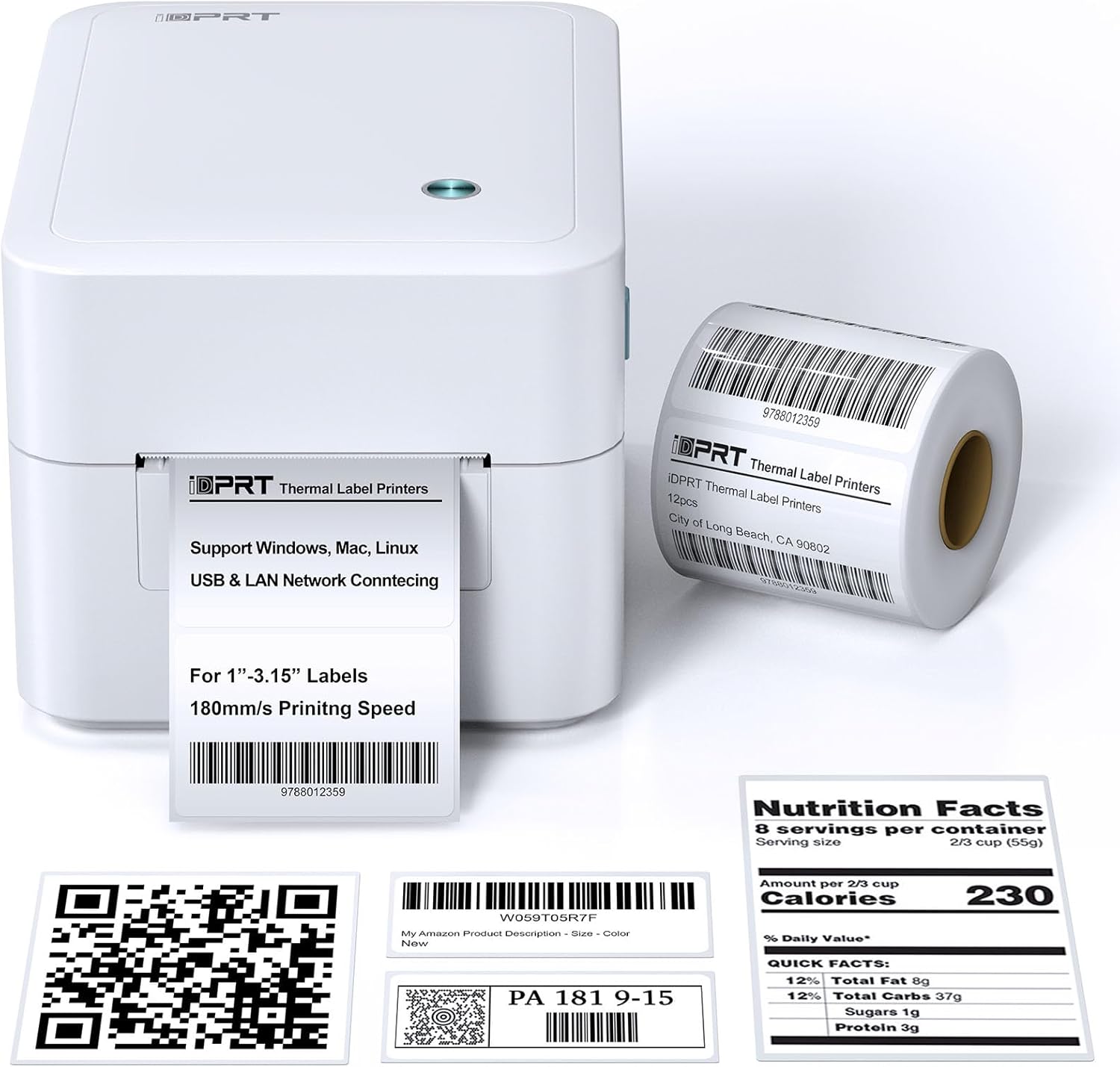
Зураг 3.1: Урд view of the iDPRT 320E Thermal Label Printer with sampшошго.
Гол бүрэлдэхүүн хэсгүүд:
- Шошгоны гаралтын үүр: Хэвлэмэл шошго гарч ирдэг газар.
- Cover Release Latches: Used to open the printer cover for label loading.
- Эрчим хүчний порт: Цахилгаан адаптерт холбогдоно.
- USB порт: Компьютерт шууд холбогдох зориулалттай.
- LAN порт: Сүлжээний холболтын хувьд.
- LED үзүүлэлт: Принтерийн статусыг харуулна.
4. Тохируулах заавар
4.1 Эрчим хүчний холболт
- Цахилгаан адаптерийг принтерийн тэжээлийн порт руу холбоно уу.
- Цахилгаан адаптерийг тохирох цахилгаан залгуурт холбоно уу.
4.2 Шошгыг ачаалж байна
The printer supports thermal labels with widths between 1 and 3.15 inches.
- Gently press the cover release latches on both sides of the printer to open the top cover.
- Place the roll of thermal labels into the label compartment, ensuring the labels feed from the bottom of the roll and the printable side faces upwards.
- Adjust the label guides to fit the width of your labels snugly, without creasing тэднийг.
- Pull a few labels past the print head and out through the label exit slot.
- Дээд тагийг байрандаа товших чимээ гартал сайтар хаа.

Figure 4.1: Correct method for loading thermal labels into the printer.
4.3 Драйвер болон програм хангамж суурилуулах
To use the printer with your computer, you must install the appropriate drivers and the Label Designer software.
- Visit the official iDPRT website to download the latest drivers for your operating system (Windows, Mac, or Linux).
- Download and install the free Label Designer software from the official website. This software is available for Windows and as an online editor for Mac users.
- Follow the on-screen instructions to complete the installation process for both the drivers and the software.

Figure 4.2: The iDPRT 320E printer supports multiple operating systems.
4.4 Холболтын сонголтууд
The iDPRT 320E offers flexible connectivity:
- USB холболт: Connect the printer directly to your computer using the provided USB cable.
- LAN Network Connection: Connect the printer to your local area network using an Ethernet cable for shared access.
- Гар утасны програм: For direct printing from your smartphone, download the iDPRT mobile application.

Figure 4.3: USB and LAN network connectivity options.
5. Ашиглалтын заавар
5.1 Creating Labels with Label Designer Software
The Label Designer software allows you to create and customize various label types.
- Launch the Label Designer software on your computer.
- Загвар сонгох эсвэл шинэ шошгоны загвар эхлүүлнэ үү.
- Customize your labels with text, barcodes, QR codes, images, and various fonts. The software supports different label sizes and layouts.
- Ensure the label dimensions in the software match the physical labels loaded in the printer.

Figure 5.1: Designing labels using the Label Designer software.
5.2 Шошго хэвлэх
Once your label design is complete and labels are loaded:
- In the Label Designer software, click the 'Print' button.
- Select the iDPRT 320E printer from the list of available printers.
- Adjust print settings such as quantity and print speed if necessary. The printer supports speeds up to 180mm/s and a resolution of 203 DPI.
- Confirm the settings and initiate printing.

Figure 5.2: The printer delivers high-quality 203 DPI resolution for clear labels.
Figure 5.3: The printer is capable of high-speed printing up to 180mm/s.
5.3 LED заагчийн утга
The LED indicator on the printer provides visual feedback on its status:
- Green (Solid On): The printer is currently printing.
- Red (Solid On): The printer cover is not properly closed, or there is a paper jam/error.
- Blue (Solid On): Принтер ажиллахад бэлэн байна.
6. Засвар үйлчилгээ
6.1 Принтерийг цэвэрлэх
Тогтмол цэвэрлэгээ нь хэвлэх чанарыг хадгалахад тусалдаг ба принтерийн ашиглалтын хугацааг уртасгадаг.
- Цэвэрлэхийн өмнө принтерийг унтрааж, залгуураас нь салгасан эсэхээ шалгаарай.
- Зөөлөн, хөвөнгүй даавуу хэрэглэх dampened with isopropyl alcohol to gently wipe the print head. Avoid touching the print head with bare hands.
- Clean the exterior of the printer with a dry, soft cloth. Do not use abrasive cleaners or solvents.
- Remove any dust or label debris from the label compartment.
7. Алдаа засах
If you encounter issues with your iDPRT 320E printer, refer to the following common problems and solutions:
| Асуудал | Боломжит шалтгаан | Шийдэл |
|---|---|---|
| Принтер асахгүй байна | Power cable disconnected; Power outlet faulty | Цахилгаан холболтыг шалгана уу; Өөр залгуурыг туршаад үзээрэй. |
| Шошго хэвлэхгүй байна | Labels loaded incorrectly; Printer cover open; No drivers installed; Incorrect printer selected | Reload labels correctly; Close cover firmly; Install drivers; Select iDPRT 320E in print dialog. |
| Poor print quality (faded, blurry) | Print head dirty; Low-quality labels; Incorrect print density settings | Clean the print head; Use recommended thermal labels; Adjust print density in software settings. |
| Cannot connect via USB/LAN | Cable faulty; Driver issue; Network configuration problem | Try a different cable; Reinstall drivers; Verify network settings (for LAN). |
| Cannot connect via mobile app | App not installed; Printer not discoverable; Network issue | Ensure app is installed and updated; Check printer's network connection; Restart printer and app. |
| Mac Bluetooth connectivity issues | Direct Bluetooth printing to Mac is not supported; Driver limitations | Connect via USB or LAN for Mac systems. Mobile app connectivity is available for smartphones. |
8. Техникийн үзүүлэлтүүд
Detailed technical specifications for the iDPRT 320E Thermal Label Printer:
| Онцлог | Тодорхойлолт |
|---|---|
| Загварын нэр | 320E |
| Хэвлэлийн технологи | Дулааны |
| Хамгийн их хэвлэх хурд | 180 mm/s (Monochrome) |
| Хамгийн их хэвлэх нягтрал | 203 DPI |
| Хамгийн их медиа хэмжээ | 1"-3.15" inches width |
| Холболтын технологи | USB, LAN |
| Тохиромжтой төхөөрөмжүүд | PC (Windows, Mac, Linux), Mobile (iOS/Android via App) |
| Хяналтын арга | App, Software |
| Бүтээгдэхүүний хэмжээс | 8.11"D x 6.1"W x 5.28"H |
| Зүйлийн жин | 3.78 фунт |
| Онцлог шинж чанарууд | Automatic Label Recognition, LAN Network Connectivity |
9. Баталгаат хугацаа ба дэмжлэг
9.1 Баталгаат хугацааны мэдээлэл
The iDPRT 320E Thermal Label Printer comes with a limited warranty. Please refer to the warranty card included in your product packaging or visit the official iDPRT webдэлгэрэнгүй нөхцөл, болзлыг сайт.
9.2 Хэрэглэгчийн дэмжлэг
For technical assistance, troubleshooting, or any inquiries regarding your iDPRT 320E printer, please contact our customer service team. You can reach us via the Amazon messaging system or through the contact information provided on the official iDPRT website. Our team is available to assist you with any pre-sales or after-sales support needs.


