Танилцуулга
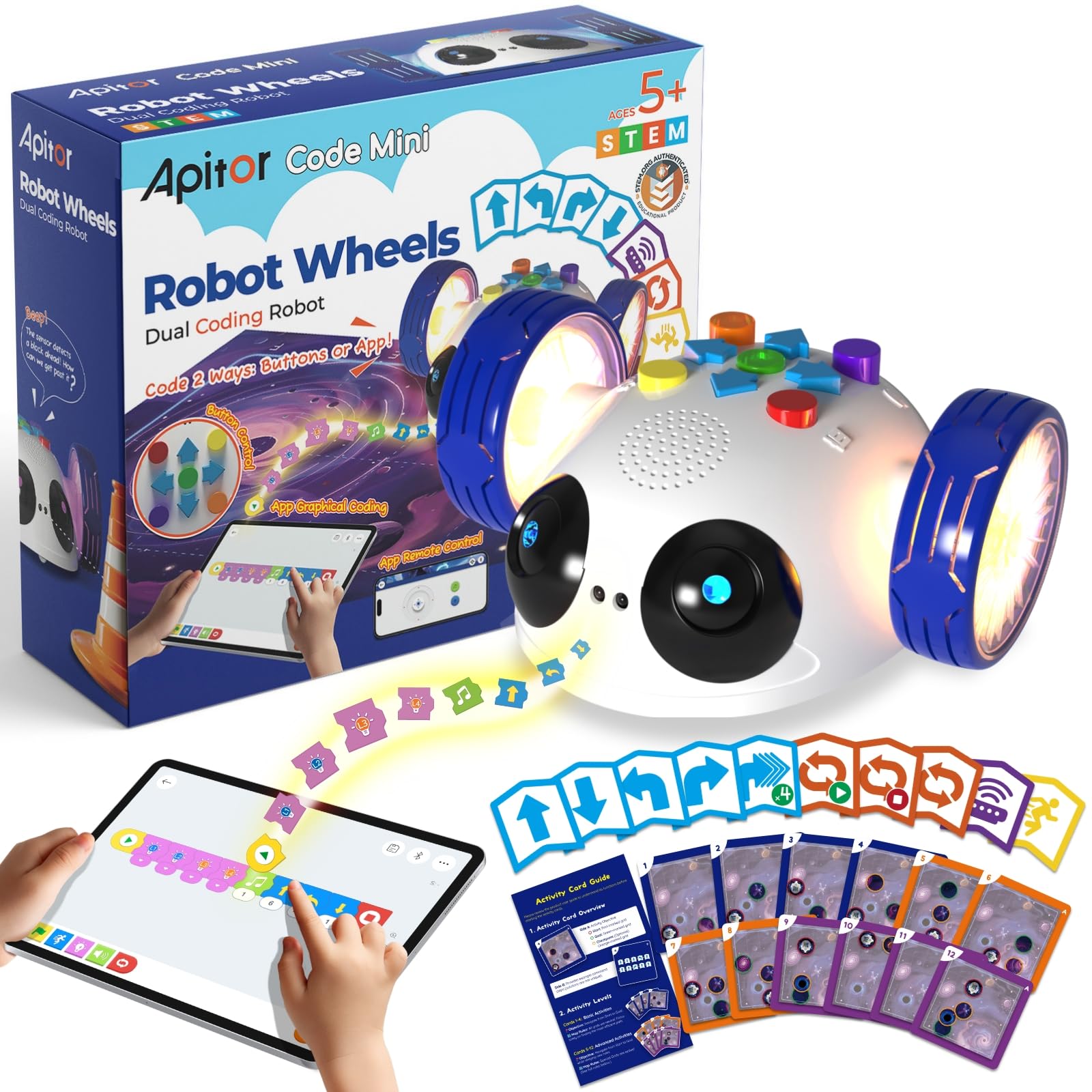
The Apitor Robot Wheels Dual Coding Robot (Model APR011) is an educational STEM toy designed to introduce children aged 5 and up to the fundamentals of coding through interactive play. This robot offers two distinct programming methods: screen-free physical button coding using activity cards and a map, and app-based graphical programming via Bluetooth. This manual provides detailed instructions for setting up, operating, maintaining, and troubleshooting your robot to ensure a rewarding learning experience.
Видео тайлбар: Албан ёсны видео үзүүлбэрasing the Apitor Robot Wheels Dual Coding Robot in action, highlighting its features and dual coding capabilities for children aged 5-7.
Хайрцагт юу байна
Upon unboxing your Apitor Robot Wheels, please verify that all components listed below are present:
- 1 x Robot Wheels Unit
- 48 x Coding Cards
- 12 х үйл ажиллагааны карт
- 1 x Хөтөчийн карт
- 1 x Space Map
- 1 х хэрэглэгчийн гарын авлага (энэ гарын авлага)
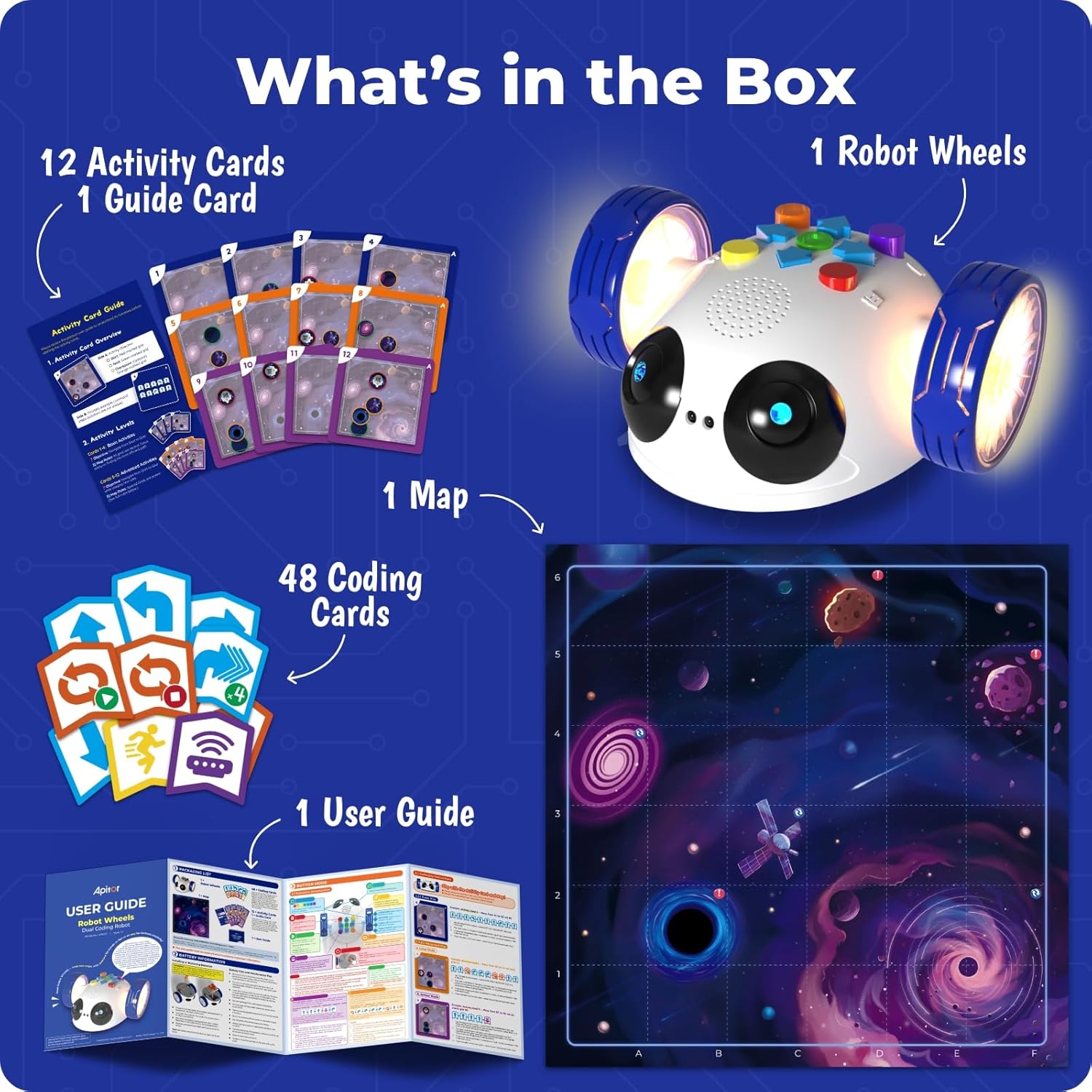
Зургийн тайлбар: A visual representation of all items included in the Apitor Robot Wheels package, neatly arranged to show the robot, various cards, the space map, and the user guide.
Тохиргоо
Батерей суурилуулах
The Robot Wheels unit requires 3 AA batteries (not included) for operation. Follow these steps to install the batteries:
- Locate the battery compartment on the underside of the Robot Wheels unit.
- Филлипсийн жижиг халив ашиглан зайны тасалгааны тагийг тайл.
- Тасалгааны дотор заасан зөв туйлшралыг (+/-) баталгаажуулж, 3 шинэ АА батерейг оруулна уу.
- Зайны тасалгааны тагийг сольж, боолтоор бэхлээрэй.
Жич: Always use fresh batteries for optimal performance. Do not mix old and new batteries, or different types of batteries.
Preparing the Play Area
Unfold the provided Space Map and place it on a flat, clear surface. Ensure there are no obstacles that could interfere with the robot's movement, especially when using the obstacle avoidance feature.
Ашиглалтын заавар
The Apitor Robot Wheels offers two primary modes of operation: Button Mode for screen-free physical coding and App Mode for Bluetooth-controlled graphical programming.
1. Button Mode (Screen-Free Coding)
This mode allows children to program the robot directly using physical buttons and coding cards, fostering an understanding of basic coding logic without a screen.
- Асаах: Press the orange power button located on the underside of the robot. The robot's lights will illuminate.
- Select an Activity: Choose an Activity Card. Each card displays a starting position and a goal on the Space Map, along with the sequence of movements required to reach the goal.
- Роботыг байрлуулах: Position the Robot Wheels on the designated starting point on the Space Map, ensuring it faces the correct initial direction as shown on the Activity Card.
- Enter Program: Press the green 'Start/Pause' button on the robot. The robot is now ready to receive commands. Use the directional buttons (up, down, left, right) and other action buttons (e.g., loop, turn) on the robot's top panel to input the sequence of commands from the Activity Card. Each button press will be accompanied by a sound or light cue.
- Execute Program: After entering the full sequence of commands, press the green 'Start/Pause' button again to execute the program. The robot will move according to the programmed sequence.
- Програмыг цэвэрлэх: To clear the current program and start a new one, press the red 'Clear' button.
Зургийн тайлбар: This image illustrates the hands-on, screen-free coding method, showing a child interacting directly with the robot's buttons and the physical coding cards on a space-themed map.
2. App Mode (Bluetooth Control)
For extended play and advanced programming, connect your Robot Wheels to the dedicated Apitor Kit app on a compatible smart device.
- Апп татаж авах: хайх "Apitor Kit" in the Apple App Store or Google Play Store, or scan the QR codes provided in the user guide to download the free app.
- Bluetooth-г идэвхжүүлэх: Ухаалаг төхөөрөмж дээрээ Bluetooth идэвхжсэн эсэхийг шалгаарай.
- Роботыг холбох: Power on the Robot Wheels unit. In the Apitor Kit app, navigate to the connection screen and select your robot from the list of available devices. The robot's lights will indicate a successful connection.
- Алсын удирдлага: Use the 'Control' interface within the app to drive the robot manually using a virtual joystick.
- График програмчлал: Access the 'Code' interface in the app. Drag and drop colorful coding blocks to create complex sequences of movements, sounds, and light patterns. Press the 'Play' button in the app to execute your code.
- Challenges & Games: Explore the 'Challenge' section for interactive games and missions that provide structured learning opportunities and downloadable maps for continuous engagement.

Зургийн тайлбар: This image demonstrates the app's graphical programming interface, where a child uses a tablet to visually construct code sequences for the robot.

Зургийн тайлбар: This image shows the remote control functionality of the app, with a child using a smartphone to navigate the robot via an on-screen joystick.
Засвар үйлчилгээ
To ensure the longevity and optimal performance of your Apitor Robot Wheels, follow these maintenance guidelines:
- Цэвэрлэгээ: Wipe the robot with a soft, dry cloth. Do not use harsh chemicals or abrasive cleaners. Avoid submerging the robot in water.
- Батерейны арчилгаа: Remove batteries if the robot will not be used for an extended period to prevent leakage. Dispose of used batteries responsibly.
- Хадгалах: Store the robot and its accessories in a cool, dry place, away from direct sunlight and extreme temperatures. Keep all small parts, especially the coding cards, organized and protected.
Алдааг олж засварлах
If you encounter any issues with your Apitor Robot Wheels, please refer to the following common problems and solutions:
- Робот асахгүй байна:
- Check if the batteries are correctly installed with the right polarity.
- Шинэхэн АА батерейгаар солино уу.
- Robot Not Moving/Responding in Button Mode:
- Ensure the green 'Start/Pause' button was pressed to enter programming mode before inputting commands, and pressed again to execute.
- Verify that the robot is on a flat surface and its wheels are not obstructed.
- Батерейны түвшинг шалгана уу.
- App Connection Issues (Bluetooth):
- Таны ухаалаг төхөөрөмж дээр Bluetooth идэвхжсэн эсэхийг шалгана уу.
- Ensure the robot is powered on and within Bluetooth range (typically 10 meters).
- Restart both the robot and the app.
- Check if the app has necessary permissions (e.g., location) enabled as required by Bluetooth protocol.
- Robot Not Following App Commands:
- Confirm the robot is successfully connected via Bluetooth in the app.
- Review your graphical code for any logical errors.
- Саад бэрхшээлээс зайлсхийх нь ажиллахгүй байна:
- Ensure the infrared sensor on the front of the robot is clean and unobstructed.
- Test in different lighting conditions, as strong direct light can sometimes interfere with infrared sensors.
Үзүүлэлтүүд
| Бүтээгдэхүүний хэмжээс | 5 x 5.7 x 2.6 инч |
| Зүйлийн жин | 1.65 фунт |
| Загварын дугаар | APR011 |
| Үйлдвэрлэгчийн санал болгосон нас | 5 - 5 years (suitable for ages 5-8 and up) |
| Эрчим хүчний эх үүсвэр | 3 х АА батерей (оруулаагүй) |
| Холболт | Bluetooth 4.0 ба түүнээс дээш |
| Апп нийцтэй байдал | Android 8 буюу түүнээс дээш, iOS 10 буюу түүнээс дээш |
Аюулгүй байдлын мэдээлэл
АНХААРУУЛГА: ХӨГЖҮҮЛЭХ АЮУЛ - Жижиг хэсгүүд. Not for children under 3 years. Adult supervision is recommended during play, especially with younger children, to ensure safe handling of small components like coding cards.
Баталгаат болон дэмжлэг
Apitor Technology Co., Ltd. stands behind the quality of its products. For specific warranty details, please refer to the packaging or contact Apitor customer support directly. If you have any questions, require technical assistance, or need to report a defect, please visit the official Apitor website or contact their customer service team through the contact information provided on the product packaging or their webсайт.


