1. Танилцуулга
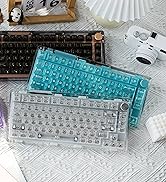
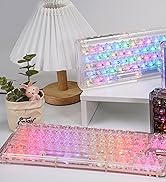
This manual provides detailed instructions for the KiiBoom Phantom 68 mechanical keyboard. The Phantom 68 is a 65% layout, gasket-mounted mechanical keyboard featuring hot-swappable switches, multi-mode connectivity (Bluetooth 5.0, 2.4GHz wireless, and USB-C wired), and customizable RGB lighting. Its transparent acrylic construction and KiiBoom Crystal Switches offer a unique aesthetic and typing experience.

Image 1: KiiBoom Phantom 68 Mechanical Keyboard in purple, showcasing its transparent design and key layout.
2. Багцын агуулга
Бүх зүйл багцад байгаа эсэхийг шалгана уу:
- KiiBoom Phantom 68 Mechanical Keyboard
- Товчлуур татагч
- USB кабель (USB-C-ээс USB-A хүртэл)
- 2.4 GHz USB Dongle
3. Тохируулах гарын авлага
3.1 Анхны цэнэглэлт
Before first use, connect the keyboard to a USB power source using the provided USB-C cable to ensure it is fully charged. The keyboard features a 4000mAh battery.
3.2 Холболтын горимууд
The Phantom 68 supports three connection modes: USB-C Wired, Bluetooth 5.0, and 2.4GHz Wireless.

Image 2: Illustration of the KiiBoom Phantom 68 keyboard highlighting its Tri-Mode Connection Support: Type C Wired, Bluetooth 5.0, and 2.4G Wireless.
3.2.1 USB-C утастай холболт
- Кабелийн USB-C үзүүрийг гарны USB-C порттой холбоно уу.
- Connect the USB-A end of the cable to your computer's USB port.
- Ensure the mode switch on the keyboard (located on the side/back) is set to the wired mode (usually indicated by a cable icon or "USB").
- The keyboard will be recognized automatically by your operating system.
3.2.2 2.4GHz утасгүй холболт
- Locate the 2.4GHz USB dongle.
- USB тохируулагчийг компьютер дээрээ байгаа USB порт руу холбоно уу.
- Set the mode switch on the keyboard to 2.4GHz wireless mode (usually indicated by a wireless icon or "2.4G").
- Гар автоматаар холбогдох ёстой. Хэрэв холбогдоогүй бол дарна уу Fn + R 2.4GHz хослох горимыг идэвхжүүлэх.
3.2.3 Блютүүт 5.0 Утасгүй холболт
- Set the mode switch on the keyboard to Bluetooth mode (usually indicated by a Bluetooth icon or "BT").
- Дарж удаан дарна уу Fn + Q, Fn + W, эсвэл Fn + E for 3-5 seconds to enter pairing mode for Bluetooth device 1, 2, or 3 respectively. The indicator light will flash rapidly.
- On your device (computer, smartphone, tablet), open Bluetooth settings and search for new devices.
- Select "KiiBoom Phantom 68" from the list of available devices to pair.
- Once paired, the indicator light on the keyboard will stop flashing.
- Хосолсон Bluetooth төхөөрөмжүүдийн хооронд шилжихийн тулд дарна уу Fn + Q, Fn + W, эсвэл Fn + E товчхон.

Зураг 3: Ойролцоогоор view of the KiiBoom Phantom 68's side, showing the USB-C port, and switches for Windows/Mac and Bluetooth/2.4G modes.
4. Ашиглалтын заавар
4.1 Үйлдлийн системийн нийцтэй байдал
The Phantom 68 is compatible with Windows and Mac operating systems. Use the dedicated switch on the keyboard to select the appropriate operating system mode (Win/Mac) for optimal key mapping.
4.2 RGB гэрэлтүүлгийн тохируулга
The keyboard features south-facing RGB LEDs with 16.8 million colors and multiple dynamic patterns. You can choose from over 19 RGB lighting presets.
- Урьдчилсан тохиргоог өөрчлөх: Refer to the keyboard's quick function guide (often printed on the bottom or available online) for specific key combinations to cycle through lighting effects.
- Гэрэлтүүлгийн хяналт: Ашиглах Fn + ↑ гэрэлтүүлгийг нэмэгдүүлэх ба Fn + ↓ гэрэлтүүлгийг багасгах.
- Хурдны хяналт: Ашиглах Fn + ← to decrease effect speed and Fn + → нөлөөллийн хурдыг нэмэгдүүлэхийн тулд.

Image 4: The KiiBoom Phantom 68 keyboard illuminated with vibrant RGB lighting, showcasing the transparent keycaps and acrylic body.
4.3 Програм хангамжийн тохируулга
The Phantom 68 is programmable with dedicated software for Mac and Windows. This software allows for full customization of RGB effects, custom key programming, and macro function mapping. Download the software from the official KiiBoom webсайт.

Image 5: Screenshot of the KiiBoom Phantom 68 software interface, showing options for lighting customization and key remapping.
4.4 Checking Battery Power
To check the battery level, press the key combination Fn + Backspace. The backlight will temporarily turn off, and the number keys 1 through 0 will light up to indicate the power percentage:
- Lights 1 to 10 indicate 10% to 100% power.
- Below 30% power, the indicator will be red.
- Between 30% and 50% power, the indicator will be yellow.
- Above 50% power, the indicator will be green.

Image 6: The KiiBoom Phantom 68 keyboard demonstrating the battery power check feature, with keys illuminating to show charge level.
5. Засвар үйлчилгээ
5.1 Гарыг цэвэрлэх
To clean the transparent acrylic body and keycaps, use a soft, lint-free cloth. For stubborn dirt, slightly dampen the cloth with water or a mild, non-abrasive cleaner. Avoid harsh chemicals that may damage the acrylic.
5.2 Халуун сольж болдог унтраалга
The Phantom 68 features hot-swappable sockets, allowing you to easily replace mechanical switches without soldering. It is compatible with most 3-pin and 5-pin mechanical switches.
- Шилжүүлэгчийг арилгах: Use the provided switch puller tool. Gently grip the switch from the top and bottom clips and pull upwards with even pressure until the switch detaches from the PCB.
- Шилжүүлэгч суурилуулах нь: Align the pins of the new switch with the holes on the PCB. Ensure the switch is oriented correctly. Gently press the switch down until it clicks into place. Do not force the switch, as this may bend the pins. If resistance is met, remove the switch, check the pins for bending, straighten them if necessary, and reattempt installation.

Image 7: A switch being removed from the KiiBoom Phantom 68 keyboard using a switch puller, demonstrating its hot-swappable feature.
6. Алдаа засах
6.1 Гар хариу өгөхгүй байна
- Утастай горим: Ensure the USB-C cable is securely connected to both the keyboard and the computer. Verify the mode switch is set to wired mode. Try a different USB port or cable.
- 2.4GHz утасгүй горим: Ensure the USB dongle is properly inserted into a USB port. Check that the mode switch is set to 2.4GHz. Press Fn + R холболтыг дахин тохируулахын тулд.
- Bluetooth горим: Confirm the keyboard is in Bluetooth mode and paired correctly with your device. Re-enter pairing mode (Fn + Q/W/E) and re-pair if necessary. Ensure your device's Bluetooth is enabled.
- Зай: Check the battery level (Fn + Backspace) and charge the keyboard if the battery is low.
6.2 Keys Not Registering or Double Typing
- This can sometimes be caused by a faulty switch or improper switch seating.
- Carefully remove the affected switch using the switch puller.
- Шилжүүлэгчийн зүүг ямар нэгэн нугалаа эсвэл гэмтэл байгаа эсэхийг шалгана уу. Хэрэв нугарсан бол зөөлөн тэгшлэнэ.
- Reinsert the switch firmly into the socket, ensuring it is fully seated.
- If the issue persists, try replacing the switch with a known working one.
6.3 RGB гэрэлтүүлэг ажиллахгүй эсвэл буруу байна
- Ensure the keyboard is powered on and not in a low-power state.
- Cycle through RGB presets using the designated key combinations.
- Check brightness settings (Fn + ↑/↓).
- If using the software, ensure the settings are applied correctly and the software is up to date.
6.4 Програм хангамжийн асуудал
- Ensure you have downloaded the correct software version for your operating system from the official KiiBoom webсайт.
- Компьютер болон гараа дахин ачаална уу.
- Reinstall the software if problems persist.
7. Техникийн үзүүлэлтүүд
| Загвар | Phantom 68 |
| Зохион байгуулалт | 65% (68 түлхүүр) |
| Холболт | Bluetooth 5.0, 2.4GHz утасгүй, USB-C утастай |
| Зайны багтаамж | 4000 мАч |
| Шилжүүлэгч | KiiBoom Crystal Mechanical Switches (Hot-swappable, 3-pin/5-pin compatible) |
| Товчлуурууд | Crystal Keycaps (Polycarbonate with UV Printing, ESA Profile) |
| Арын гэрэлтүүлэг | South-Facing RGB (16.8 million colors, multiple dynamic patterns) |
| Барилга | Transparent Acrylic, Gasket-Mounted Design |
| Тохиромжтой төхөөрөмжүүд | Зөөврийн компьютер, компьютер, ухаалаг утас |
| Үйлдлийн системүүд | Windows, macOS, Android |
| Зүйлийн жин | 4.09 фунт (ойролцоогоор 1.85 кг) |
| Багцын хэмжээ | 17.24 x 6.77 x 3.03 инч |
7.1 KiiBoom Crystal Switch Specifications
The Phantom 68 comes with KiiBoom's proprietary pre-lubed Crystal Switches. Specifics for different color variants are provided below:

KiiBoom Pink Switch
- Төрөл: Шугаман
- Actuation Force: 38±15gf
- Bottom Force: 42±15gf
- Нийт аяллын урт: 3.80±0.2мм
- Аяллын өмнөх: 1.6±0.4мм
KiiBoom Purple Switch
- Төрөл: Шугаман
- Actuation Force: 45±15gf
- Bottom Force: 55±15gf
- Нийт аяллын урт: 3.80±0.2мм
- Аяллын өмнөх: 1.6±0.4мм
KiiBoom Crystal Switch
- Төрөл: Шугаман
- Actuation Force: 55±15gf
- Bottom Force: 60±15gf
- Нийт аяллын урт: 3.60±0.2мм
- Аяллын өмнөх: 1.6±0.4мм
8. Баталгаат хугацаа ба дэмжлэг
For warranty information and technical support, please refer to the official KiiBoom website or contact KiiBoom customer service directly. Details regarding specific warranty periods and service procedures can be found on their support pages.
Official KiiBoom Webсайт: www.kiiboom.com


