1. Танилцуулга
Thank you for choosing the OMOTON KB515 Bluetooth Keyboard. This full-size wireless keyboard is specifically designed for Mac OS devices, offering a comfortable typing experience with multi-device connectivity. Please read this manual carefully to ensure proper setup and operation.

The OMOTON KB515 Bluetooth Keyboard integrated into a multi-device Mac OS workspace.
2. Багцын агуулга
- OMOTON KB515 Bluetooth гар
- Товчлуур татагч
- Хэрэглэгчийн гарын авлага
Note: 2 AAA batteries are required for operation and are not included in the package.
3. Тохиргоо ба Хослуулах
3.1 Батерей суурилуулах
- Гарны арын хэсэгт зайны тасалгааг ол.
- Зайны тасалгааны тагийг нээ.
- Хоёр (2) AAA батерейг зөв туйлшралыг (+/-) баталгаажуулна уу.
- Зайны тасалгааны тагийг хаа.
3.2 Асаах/унтраах
Slide the power switch, located on the top edge of the keyboard, to the "ON" position to power on the keyboard. Slide it to "OFF" to power off.
3.3 Bluetooth холбох заавар
The OMOTON KB515 keyboard supports connection to up to three devices simultaneously via Bluetooth. Ensure Bluetooth is enabled on your Mac OS device before proceeding.
- ON/OFF товчлуурыг ашиглан гарыг асаана уу.
- -г удаан дар Fn товчлуур болон Bluetooth сувгийн товчлууруудын нэг (BT1, BT2, эсвэл BT3) for 3-5 seconds until the corresponding LED indicator (blue light) blinks. This activates pairing mode for the selected channel.
- On your Mac OS device, go to Системийн тохиргоо (эсвэл Системийн тохиргоо) > Bluetooth.
- In the list of available devices, select "OMOTON гар".
- Follow any on-screen prompts to complete the pairing process. The blue indicator light will turn off once successfully connected.
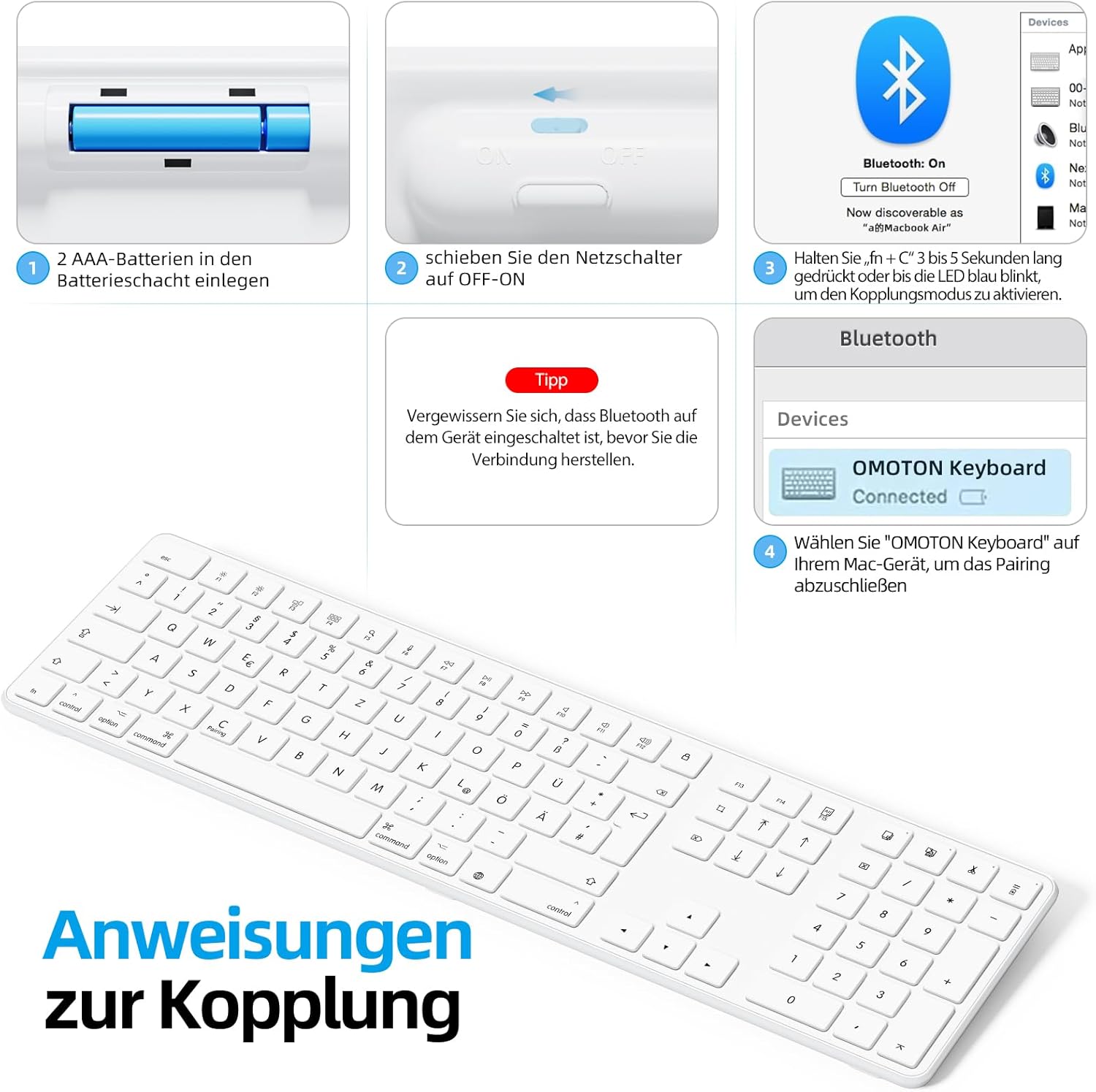
Visual guide for battery insertion and Bluetooth pairing steps.
Зөвлөгөө: To pair with additional devices, repeat step 2 using a different Bluetooth channel (BT2 or BT3).
4. Гарыг ажиллуулах
4.1 Хосолсон төхөөрөмжүүдийн хооронд шилжих
Хосолсон төхөөрөмжүүдийнхээ хооронд шилжихийн тулд товчийг дарна уу Fn товчлуурыг харгалзах Bluetooth сувгийн товчлуурын хамт (BT1, BT2, эсвэл BT3) that your desired device is paired to. A short press is sufficient for switching.
4.2 Мультимедиа болон функцийн товчлуурууд
The OMOTON KB515 keyboard features 12 dedicated multimedia shortcut keys optimized for Mac OS, providing quick access to various functions.

The keyboard layout highlighting the optimized multimedia keys for Mac OS.
- F1-F2: Дэлгэцийн гэрэлтүүлгийн тохируулга
- F3: Даалгаврын хяналт
- F4: Эхлүүлэх самбар
- F7-F9: Медиа тоглуулах удирдлага (Өмнөх, Тоглуулах/Түр зогсоох, Дараагийн)
- F10-F12: Volume Controls (Mute, Volume Down, Volume Up)
4.3 Цахилгаан хэмнэх горим
To conserve battery life, the keyboard will automatically enter sleep mode after 10 minutes of inactivity. To wake it up, simply press any key. The keyboard will reconnect to the last active device.
5. Засвар үйлчилгээ
- Гараа зөөлөн, хуурай даавуугаар арчиж цэвэрхэн байлгаарай.
- Гарыг шингэн зүйл эсвэл хэт их чийгэнд өртүүлэхээс зайлсхий.
- Do not disassemble the keyboard, as this will void the warranty.
- When not in use for extended periods, turn off the keyboard to save battery life.
- Use the included keycap puller to carefully remove and clean individual keycaps if necessary.
6. Алдаа засах
6.1 Гар холбогдоогүй/холбогдохгүй байна
- Ensure the keyboard is powered on and has fresh batteries.
- Make sure Bluetooth is enabled on your Mac OS device.
- Verify that the keyboard is in pairing mode (blue LED blinking) for the selected channel.
- Төхөөрөмжийнхөө Bluetooth тохиргооноос гарыг салгаж, дахин холбож үзнэ үү.
- Restart your Mac OS device and try pairing again.
- Ensure the keyboard is within the effective Bluetooth range (typically up to 10 meters).
6.2 Түлхүүр хариу өгөхгүй байна
- Зайны түвшинг шалгаж, шаардлагатай бол солих.
- Ensure the keyboard is properly connected to your device. Try switching Bluetooth channels.
- Clean any debris that might be under the keys.
6.3 Хоцрогдол эсвэл холболт тасалдах
- Move the keyboard closer to your Mac OS device to reduce interference.
- Ensure there are no other strong wireless signals or devices interfering with the Bluetooth connection.
- Check for any available software updates for your Mac OS.
7. Техникийн үзүүлэлтүүд
| Загварын дугаар | KB515 |
| Брэнд | ОМОТОН |
| Холболтын технологи | Bluetooth |
| Эрчим хүчний эх үүсвэр | 2 x AAA батерей (оруулаагүй) |
| Гарны зохион байгуулалт | QWERTZ (Герман) |
| Тохиромжтой байдал | Mac OS X 10.10 and above (MacBook Air, MacBook Pro, iMac, iPad, etc.) |
| Онцлог шинж чанарууд | Wireless Connection, Numeric Keypad, Multimedia Keys, Ergonomic Design |
| Материал | Rubber (keypad cushioning) |
| Өнгө | Цагаан |

Keyboard dimensions and key features like ON/OFF switch and battery slot.
8. Баталгаат хугацаа ба дэмжлэг
For warranty information or technical support, please refer to the documentation provided with your purchase or contact OMOTON customer service directly through their official website or the retailer where you purchased the product. Please have your model number (KB515) and proof of purchase ready.


