Танилцуулга
This manual provides essential information for setting up, operating, and maintaining your Microsoft Surface Studio 2+ All-In-One Desktop Computer. The Surface Studio 2+ is designed for productivity and creativity, featuring a versatile 28-inch PixelSense™ touchscreen display.
Төхөөрөмжийнхөө ашиглалтын хугацааг уртасгахын тулд энэ гарын авлагыг сайтар уншина уу.
Хайрцагт юу байна
Савлагаанд бүх зүйл байгаа эсэхийг шалгана уу:
- Surface Studio 2+ All-in-One Computer
- Гадаргуугийн үзэг
- Гадаргуугийн гар
- Хулгана
- Power Cord with Grip-Release Cable
- Түргэн эхлүүлэх гарын авлага
- Аюулгүй байдал ба баталгаат гарын авлага
Тохиргоо
- Савлах: Carefully remove the Surface Studio 2+ and its accessories from the packaging. Place the computer on a stable, flat surface.

Image: The Microsoft Surface Studio 2+ All-in-One computer displaying the Windows 11 desktop interface.
- Эрчим хүчний холболт: Connect the power cord to the power port on the back of the Surface Studio 2+ base, then plug the other end into a wall outlet.

Зураг: Ар талд view of the Surface Studio 2+ base, highlighting the various ports including the power input.
- Дагалдах төхөөрөмжүүдийг холбох: Connect the Surface Keyboard and Mouse. These devices typically connect wirelessly via Bluetooth. Follow the on-screen instructions during initial setup for pairing.
- Анхны ачаалах: Press the power button, usually located on the back or side of the display. The computer will guide you through the Windows 11 Pro setup process, including language selection, network connection, and user account creation.
Ашиглалтын заавар
Дэлгэцийг тохируулах
The Surface Studio 2+ features a unique Zero Gravity Hinge, allowing the display to be adjusted from an upright desktop mode to a flat studio mode for drawing and writing.

Image: A sequence showing the Surface Studio 2+ display being adjusted from an upright position to a nearly flat angle.
- Ширээний горим: Gently push the top of the screen backward to tilt it into an upright position for traditional desktop use.
- Studio горим: Gently pull the top of the screen forward and down towards the base to transition it into a low-angle, flat position ideal for creative tasks with the Surface Pen.
Using the Surface Pen and Touchscreen
The 28-inch PixelSense™ touchscreen supports multi-touch gestures and is optimized for use with the included Surface Pen.
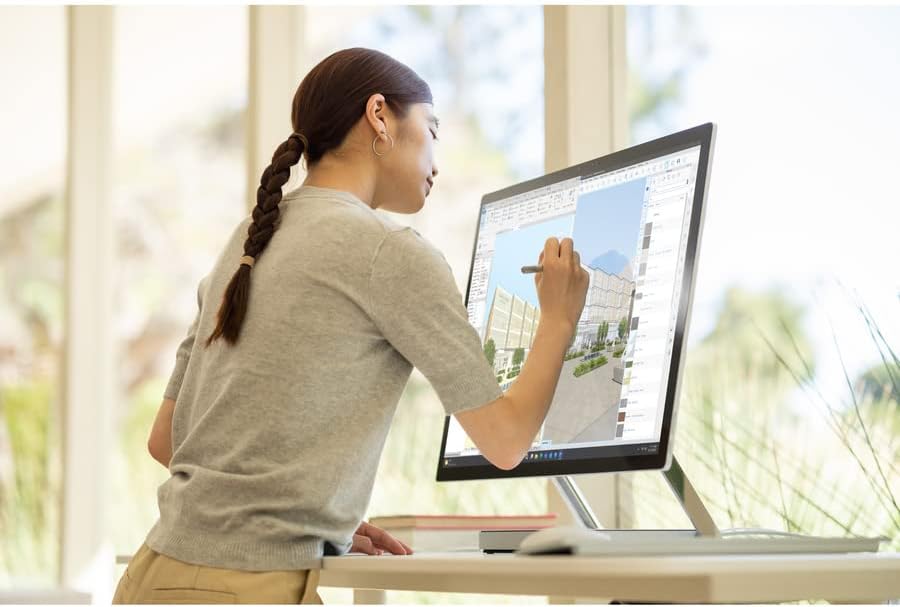
Image: A person using the Surface Pen to interact with the touchscreen of the Microsoft Surface Studio 2+ in studio mode.
- Хүрэх дохио: Навигаци хийх, томруулах болон гүйлгэхийн тулд Windows-ийн стандарт мэдрэгчтэй дохио зангаа ашиглаарай.
- Surface Pen: The Surface Pen allows for precise drawing, writing, and annotation directly on the screen. It can be magnetically attached to the side of the display for storage.
Windows 11 Pro
Your Surface Studio 2+ comes pre-installed with Windows 11 Pro. Familiarize yourself with the operating system's interface and features for optimal productivity.
- Эхлэх цэс: Access applications, settings, and power options from the Start Menu.
- Taskbar: Түргэн хандахын тулд байнга ашиглагддаг програмуудыг taskbar дээр хавсаргана уу.
- Тохиргоо: Customize your device, manage accounts, and configure privacy settings through the Settings app.
Онцлогууд
The Microsoft Surface Studio 2+ is equipped with advanced components for high performance:
- Процессор: Intel Core i7 3 GHz processor for demanding tasks.
- Санах ой: 32 GB DDR4 RAM for smooth multitasking.
- Хадгалах: 1 TB Solid State Drive (SSD) for fast boot times and application loading.
- График: NVIDIA GeForce RTX 3060 with 6GB dedicated memory for graphics-intensive applications and gaming.
- Дэлгэц: 28-inch PixelSense™ touchscreen with 4500 x 3000 resolution.
- Үйлдлийн систем: Windows 11 Pro.
- Холболт: Integrated 802.11ax Wi-Fi and Bluetooth for wireless connections.
Засвар үйлчилгээ
Төхөөрөмжийг цэвэрлэх
- Дэлгэц: Зөөлөн, хөвөнгүй даавууг бага зэрэг хэрэглээрэй dampус эсвэл цахилгаан хэрэгсэлд тусгайлан зориулсан дэлгэц цэвэрлэгчээр хангана. Химийн хүчтэй бодисоос зайлсхий.
- Их бие: Гаднах гадаргууг зөөлөн, хуурай даавуугаар арчина.
- Агааржуулалт: Ensure the ventilation openings on the base are clear of dust and obstructions to prevent overheating.
Програм хангамжийн шинэчлэлтүүд
Систем чинь хамгийн сүүлийн үеийн аюулгүй байдлын засварууд болон гүйцэтгэлийн сайжруулалттай эсэхийг шалгахын тулд Windows шинэчлэлтүүдийг тогтмол шалгаж, суулгаарай.
- руу оч Тохиргоо > Windows Update.
- дарна уу Шинэчлэлт байгаа эсэхийг шалгана уу мөн боломжтой шинэчлэлтүүдийг суулгана уу.
Алдааг олж засварлах
| Асуудал | Боломжит шийдэл |
|---|---|
| Компьютер асахгүй байна. | Ensure the power cord is securely connected to both the computer and a working electrical outlet. Try a different outlet. |
| Дэлгэц хоосон байна. | Check power connection. Ensure the computer is powered on. If connected to an external display, verify display input settings. |
| Surface Pen or Mouse not responding. | Check battery levels. Re-pair the devices via Bluetooth settings in Windows. |
| Удаан гүйцэтгэл. | Close unnecessary applications. Check for and install Windows updates. Run a disk cleanup. |
| Wi-Fi холболтын асуудал. | Restart your router and the Surface Studio 2+. Check Wi-Fi settings in Windows to ensure it's enabled and connected to the correct network. |
Үзүүлэлтүүд
| Онцлог | Дэлгэрэнгүй |
|---|---|
| Загварын дугаар | SBG-00001 |
| Дэлгэцийн хэмжээ | 28 инч |
| Дэлгэцийн нягтрал | 4500 x 3000 |
| Процессор | Intel Core i7 (3 GHz) |
| RAM | 32 ГБ DDR4 |
| Хатуу диск | 1 TB SSD |
| График процессор | NVIDIA GeForce RTX 3060 |
| График картын RAM-ийн хэмжээ | 6 ГБ |
| Үйлдлийн систем | Windows 11 Pro |
| Утасгүй төрөл | 802.11ax, Bluetooth |
| Зүйлийн жин | 21.1 фунт |
| Бүтээгдэхүүний хэмжээ (LxWxH) | 25.1 x 0.5 x 17.3 инч |
| Өнгө | Мөнгө |
Баталгаат болон дэмжлэг
Your Microsoft Surface Studio 2+ is covered by a manufacturer's warranty. Please refer to the included "Safety and Warranty Guide" for detailed information regarding warranty terms, conditions, and registration.
For technical support, driver downloads, or further assistance, please visit the official Microsoft Support webсайт руу орж үзэх эсвэл Microsoft-ын хэрэглэгчийн үйлчилгээтэй холбогдоно уу.
Онлайн дэмжлэг: support.microsoft.com/surface


