Танилцуулга
This manual provides instructions for the Alienware AW520H Wired Gaming Headset. It covers setup, operation, maintenance, and troubleshooting to ensure optimal performance and longevity of your device.
The Alienware AW520H headset is designed to deliver precision audio with Hi-Res certified drivers and Dolby Atmos spatial audio support, integrated into a comfortable and adjustable design.
Хайрцагт юу байна
Бүх бүрэлдэхүүн хэсгүүд багцад байгаа эсэхийг шалгана уу:
- Alienware AW520H Wired Gaming Headset
- Баримт бичиг (хэрэглэгчийн гарын авлага, баталгааны мэдээлэл)
Бүтээгдэхүүн дууссанview
Familiarize yourself with the key components and features of your Alienware AW520H headset.
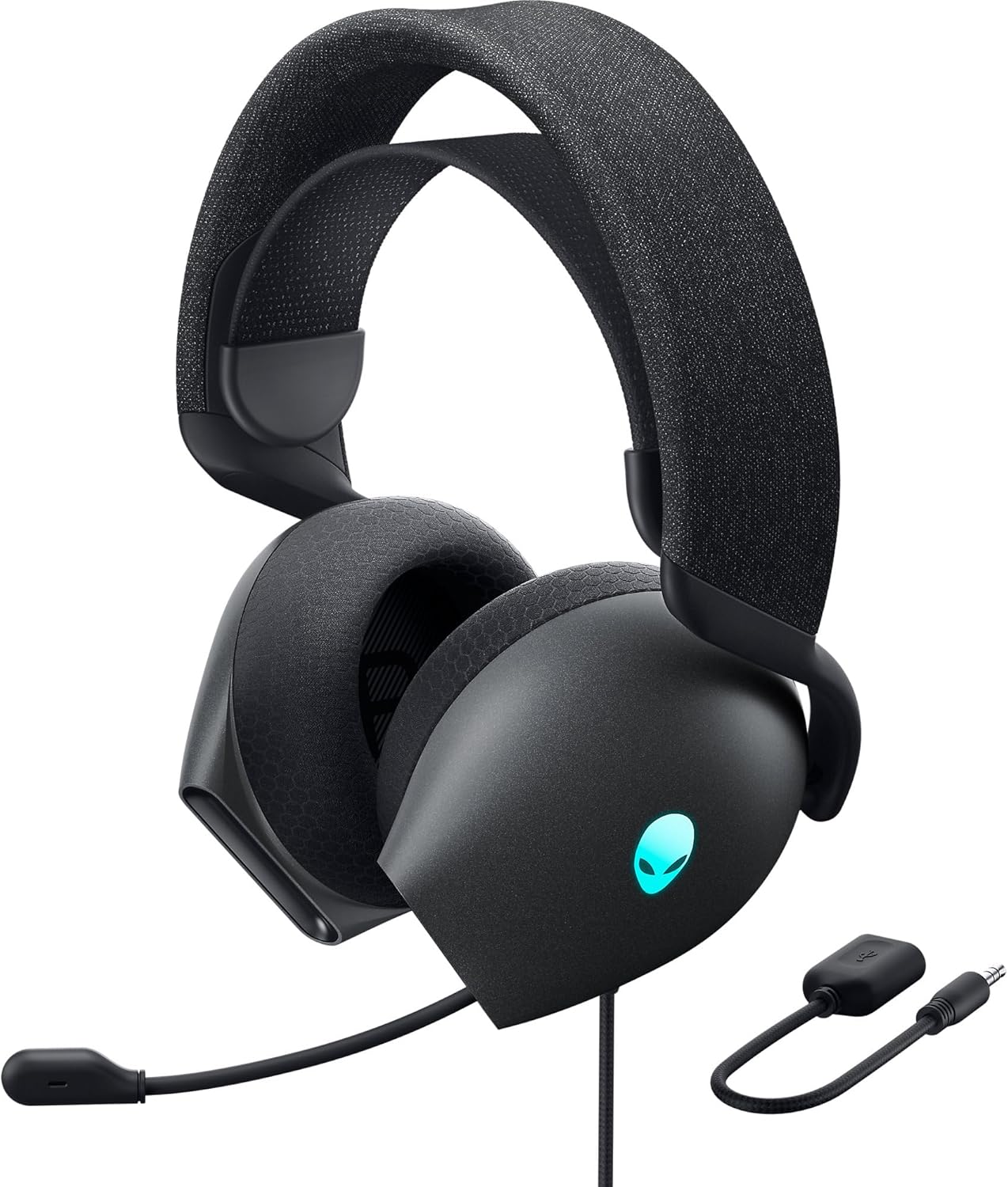

Гол онцлогууд:
- Hi-Res Certified Drivers: Delivers clear and rich sound across a wide frequency range.
- Dolby Atmos Spatial Audio: Provides precise positional audio for an immersive experience.
- AI-Driven Noise Cancellation Microphone: Retractable boom mic focuses on your voice, reducing ambient noise.
- Тав тухтай дизайн: Features soft memory foam ear pads with breathable fabric and an adjustable suspension headband for extended wear.
- AlienFX RGB гэрэлтүүлэг: Customizable RGB lighting on the earcups, controllable via Alienware Command Center.
- Олон талт холболт: Supports both USB and 3.5mm connections for broad compatibility.
Тохиргоо
Follow these steps to set up your Alienware AW520H headset.
1. Чихэвчийг холбох
The AW520H offers flexible connectivity options:
- 3.5 мм аудио залгуур: Connect the 3.5mm cable directly to your PC, gaming console controller, or any other compatible device with a 3.5mm audio port. This provides basic audio and microphone functionality.
- USB холболт: For full functionality, including Dolby Atmos spatial audio and AlienFX RGB lighting customization, connect the headset via USB to your PC. This typically involves using a 3.5mm to USB adapter if your PC does not have a combined audio jack.


2. Software Installation (Optional, for full features)
To unlock the full potential of your headset, including Dolby Atmos and AlienFX RGB lighting customization, install the Alienware Command Center software on your PC. This software allows for personalized audio profiles ба гэрэлтүүлгийн эффектүүд.
- Download the latest version of Alienware Command Center from the official Alienware support webсайт.
- Суулгацыг дуусгахын тулд дэлгэцэн дээрх зааврыг дагана уу.
- Connect your headset via USB to ensure it is recognized by the software.
Ашиглалтын заавар
Аудио хяналт
The headset features integrated controls for convenient audio management:
- Эзлэхүүний хүрд: Located on the earcup, rotate the wheel to increase or decrease the audio volume.
- Микрофоны дууг хаах товчлуур: Press the button on the earcup to mute or unmute the microphone.

Микрофоны хэрэглээ
The AW520H features an AI-driven noise-canceling retractable boom microphone:
- Сунгах/Буцаан татах: Gently pull the microphone boom out from the earcup to extend it for use. Push it back into the earcup to retract it when not needed.
- Байршил: Дуу хоолойг оновчтой тод сонсохын тулд микрофоноо амнаасаа ойролцоогоор 1-2 инчийн зайд байрлуул.
- Дуу чимээг цуцлах: The AI-driven noise cancellation automatically works to filter out ambient sounds, focusing on your voice.

Тав тухтай байдалд тохируулж байна
The headset is designed for comfort during long gaming sessions:
- Suspension Headband: Slide the suspension headband up or down to find the ideal fit for your head size.
- Earcup Rotation: The earcups can slightly pivot to conform to the shape of your ears.
- Memory Foam Ear Pads: The soft memory foam ear pads with breathable fabric provide cushioning and ventilation.

AlienFX RGB гэрэлтүүлэг
Customize the RGB lighting on your headset using the Alienware Command Center software:
- Alienware командын төвийг нээнэ үү.
- Navigate to the lighting settings for your AW520H headset.
- Select desired colors, effects, and brightness levels.
- Ensure the headset is connected via USB for lighting customization.
Засвар үйлчилгээ
Proper maintenance ensures the longevity and performance of your headset.
- Цэвэрлэгээ: Чихэвч болон толгойн туузыг зөөлөн, хуурай даавуугаар арчина. Зөрүүд шороонд бага зэрэг damp даавууг ашиглаж болно, гэхдээ хэт их чийгээс зайлсхий. Химийн хүчтэй бодис, зүлгүүрийн цэвэрлэгч хэрэглэж болохгүй.
- Хадгалах: Store the headset in a clean, dry place away from extreme temperatures and direct sunlight. Retract the microphone when not in use to protect it.
- Кабель арчилгаа: Avoid sharp bends or kinks in the audio cable. Do not pull on the cable to disconnect the headset.
- Чихний дэвсгэр: The ear pads are made of breathable fabric and memory foam. While durable, they are not designed for frequent removal. If replacement is needed, consult Alienware support.
Алдааг олж засварлах
If you encounter issues with your Alienware AW520H headset, refer to the following common solutions:
Аудио байхгүй эсвэл дуу багатай
- Холболтуудыг шалгах: Ensure the 3.5mm cable or USB connection is securely plugged into both the headset and your device.
- Дууны түвшин: Verify that the volume wheel on the headset is turned up. Check the audio output settings on your PC or console to ensure the headset is selected as the default output device and volume is not muted.
- Програм хангамж/Драйверууд: If connected via USB, ensure Alienware Command Center is installed and updated. Check your operating system's sound settings for driver issues.
- Өөр төхөөрөмж дээр турших: Connect the headset to a different device (e.g., smartphone, another PC) to determine if the issue is with the headset or the original device.
Микрофон ажиллахгүй байна
- Дуугүй болгох товчлуурыг шалгах: Чихэвч дээрх микрофоны дууг хаах товчлуур идэвхжээгүй байгаа эсэхийг шалгаарай.
- Микрофоны байрлал: Verify the microphone boom is fully extended and positioned correctly.
- Оролтын тохиргоо: Check your PC or console's sound input settings to ensure the headset microphone is selected as the default input device. Adjust microphone volume levels.
- Програмын тохиргоо: Some applications (e.g., Discord, Zoom) have their own microphone settings. Verify the correct microphone is selected within these applications.
- Програм хангамж/Драйверууд: If connected via USB, ensure Alienware Command Center is installed and updated.
AlienFX RGB Lighting Not Working
- USB холболт: Ensure the headset is connected via USB to your PC. RGB lighting functionality requires a USB connection.
- Alienware Command Center: Verify that Alienware Command Center is installed and running. Check the lighting settings within the software for the headset.
- Програм хангамжийн шинэчлэл: Ensure Alienware Command Center and headset firmware are up to date.
Үзүүлэлтүүд
| Онцлог | Дэлгэрэнгүй |
|---|---|
| Загварын нэр | AW520H |
| Холболтын технологи | Wired (USB, 3.5 mm Jack) |
| Аудио драйверын төрөл | Динамик драйвер |
| Давтамжийн хариу үйлдэл | 40 KHz (40,000 Hz) |
| Эсэргүүцэл | 32 Ом |
| Дуу чимээний хяналт | Active Noise Cancellation (AI-driven for mic) |
| Микрофон | Retractable, Unidirectional |
| Хяналтууд | Volume Control, Microphone Mute (On-headset) |
| Чихний байрлал | Чихний дээгүүр |
| Form Factor | Чихэн дээр |
| Материал | Memory foam, breathable fabric |
| Өнгө | Сарны харанхуй тал |
| Бүтээгдэхүүний хэмжээс | 7.28 x 4.35 x 8.46 инч |
| Зүйлийн жин | 11.8 унц |
| Үйлдвэрлэгч | Dell |
| Тохиромжтой төхөөрөмжүүд | Windows, wired devices |
Баталгаат болон дэмжлэг
For warranty information and technical support, please refer to the documentation included with your product or visit the official Alienware support webсайт.
Үйлдвэрлэгч: Dell
Загварын дугаар: AW520H
Эхний боломжтой огноо: 30 оны зургадугаар сарын 2023
For further assistance, please contact Alienware customer support through their official channels.


