1. Танилцуулга
Худалдан авалт хийсэнд баярлалааasing the WiMiUS K9 Projector. This manual provides essential information for setting up, operating, and maintaining your projector. Please read it thoroughly before use to ensure proper functionality and to maximize your viewтуршлага.
The WiMiUS K9 is a high-performance projector featuring native Full HD 1080P resolution with 4K support, AI auto-focus and keystone correction, WiFi 6, Bluetooth 5.2, and integrated Netflix certification with Dolby Audio support.
2. Аюулгүй байдлын мэдээлэл
- l байх үед проекторын линз рүү шууд харж болохгүйamp асаалттай байна.
- Хэт халалтаас сэргийлэхийн тулд проекторын эргэн тойронд агааржуулалтыг сайтар хангана уу.
- Avoid placing the projector in dusty, humid, or extremely hot/cold environments.
- Зөвхөн проектортой хавсаргасан тэжээлийн адаптерийг ашиглана уу.
- Проекторыг ус болон бусад шингэнээс хол байлга.
- Проекторыг өөрөө задлах эсвэл засах гэж бүү оролдоорой. Тусламж авахын тулд хэрэглэгчийн дэмжлэгтэй холбогдоно уу.
3. Багцын агуулга
Бүх зүйл багцад байгаа эсэхийг шалгана уу:
- WiMiUS K9 Projector
- HDMI кабель
- Алсын удирдлага
- Цахилгаан кабель
- Цэвэрлэгээний даавуу
- Линзний таг
- Хэрэглэгчийн гарын авлага (энэ баримт бичиг)
4. Бүтээгдэхүүн дууссанview
Проекторын эд ангиуд болон холболтын портуудтай танилцаарай.
Зураг: урд ба хажуу view of the WiMiUS K9 Projector, showing the lens and ventilation.
4.1. Портууд ба холболтууд
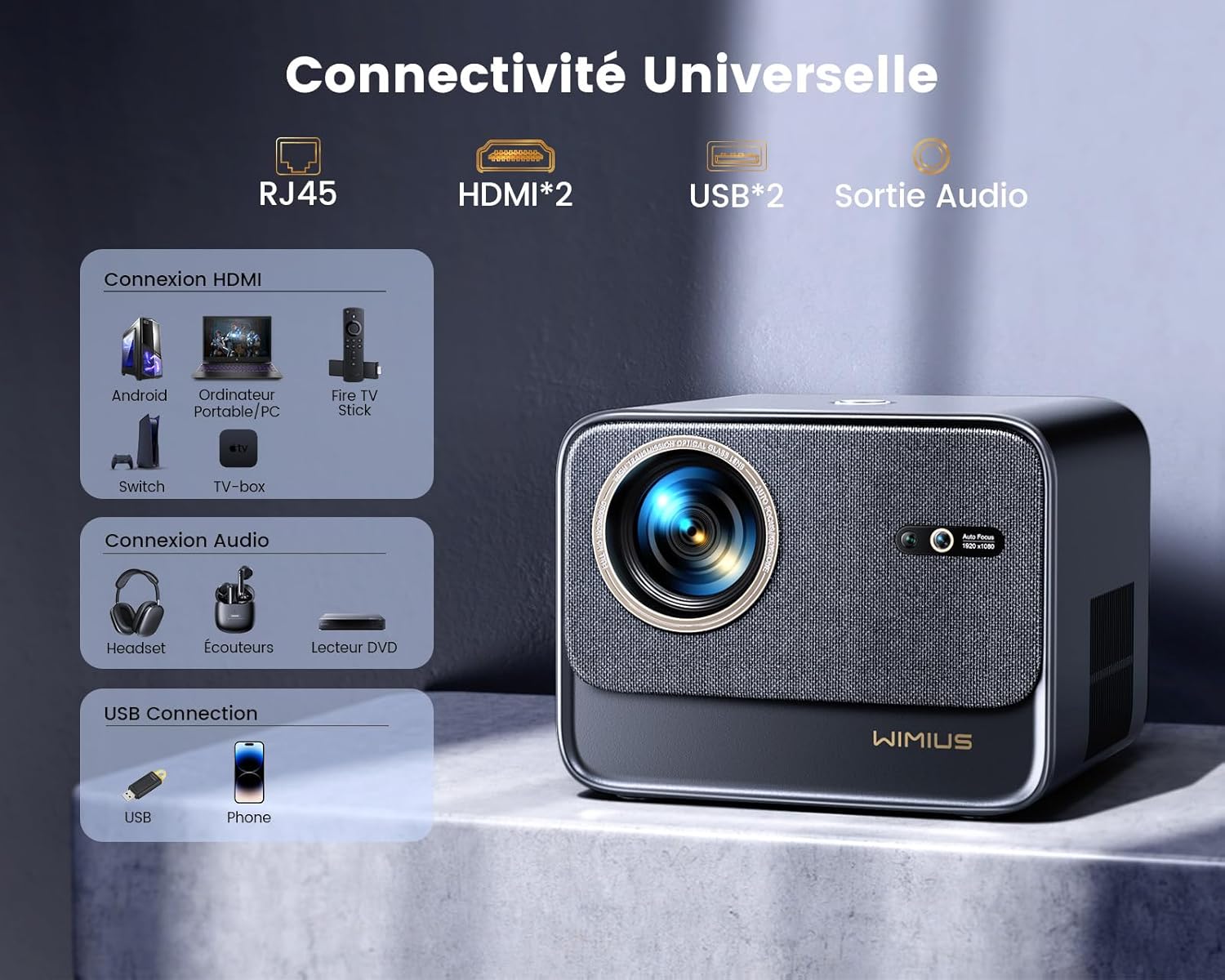
Зураг: Ар талд view of the WiMiUS K9 Projector, highlighting the Ethernet (RJ45), HDMI (x2), USB (x2), and Audio Out ports.
- RJ45 (Ethernet): Утастай интернет холболтын хувьд.
- HDMI (x2): Connect to devices like TV sticks, game consoles (PS5), laptops, or TV boxes. Supports HDMI ARC.
- USB (x2): Connect USB drives for media playback or charge compatible devices.
- Аудио гаралт (3.5 мм үүр): Гадаад чанга яригч эсвэл чихэвчийг холбоно уу.
5. Тохиргоо
5.1. Байрлуулах
Place the projector on a stable, flat surface or mount it according to your preference. Ensure the lens is unobstructed. The projector supports a screen size of 50-300 inches with a projection ratio of 1.33:1.
5.2. Эрчим хүчний холболт
- Цахилгааны кабелийг проекторын тэжээлийн оролтод холбоно.
- Цахилгааны кабелийн нөгөө үзүүрийг цахилгаан залгуурт холбоно уу.
- Проектор эсвэл алсын удирдлага дээрх цахилгаан товчийг дарж асаана уу.
5.3. Автомат фокус ба Keystone залруулга
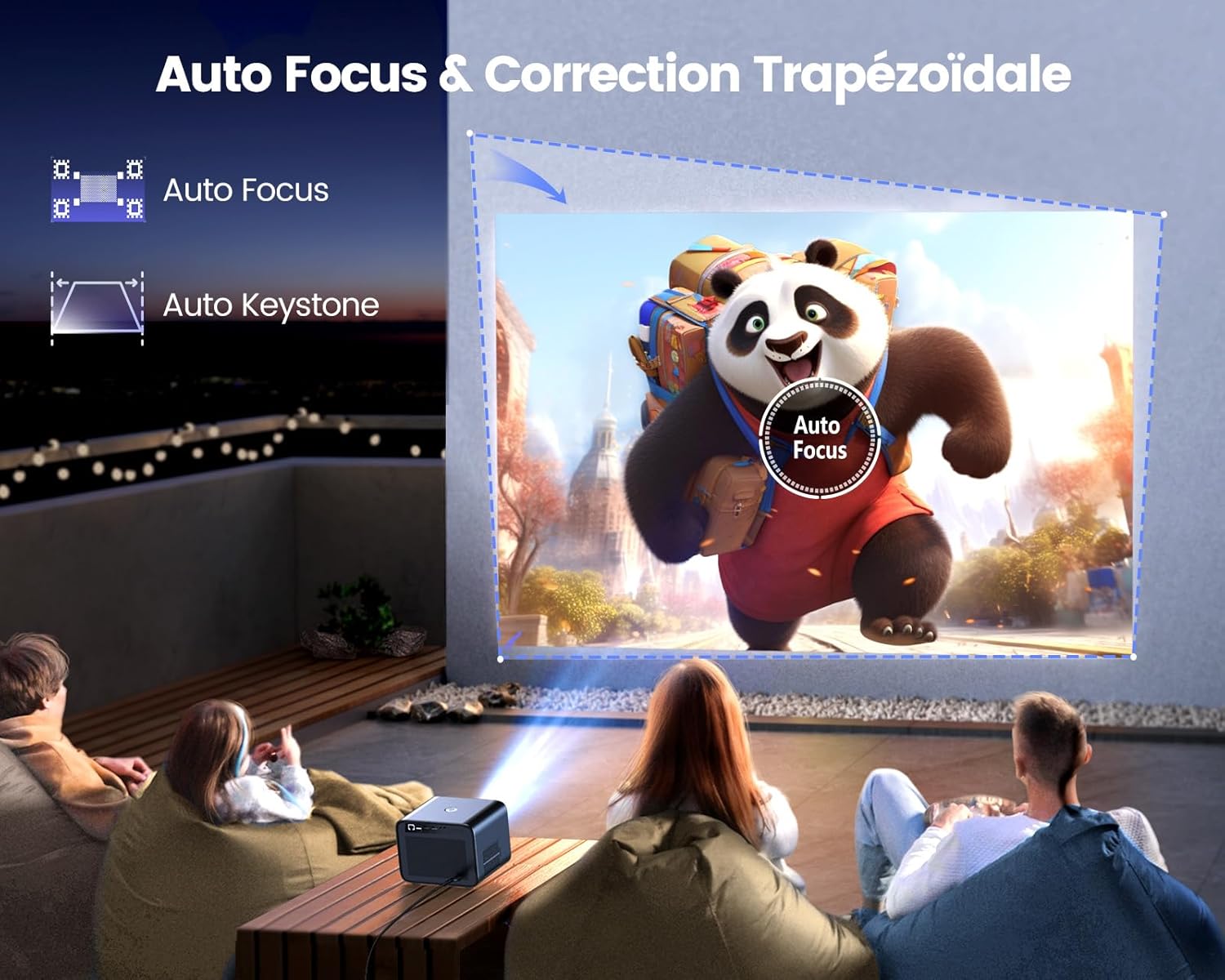
Image: Illustration of the projector automatically adjusting focus and keystone to achieve a rectangular image.
The WiMiUS K9 features AI-powered auto-focus and auto-keystone correction. Upon startup or movement, the projector will automatically adjust the image to be clear and rectangular within approximately 3 seconds. If manual adjustment is needed, use the remote control to fine-tune focus or keystone settings.
5.4. Томруулах функц
The projector includes a 50%-100% zoom function, allowing you to adjust the image size without physically moving the projector. Access this feature through the projector's menu or dedicated remote control buttons.
6. Ашиглалтын заавар
6.1. Навигаци ба хэрэглэгчийн интерфэйс

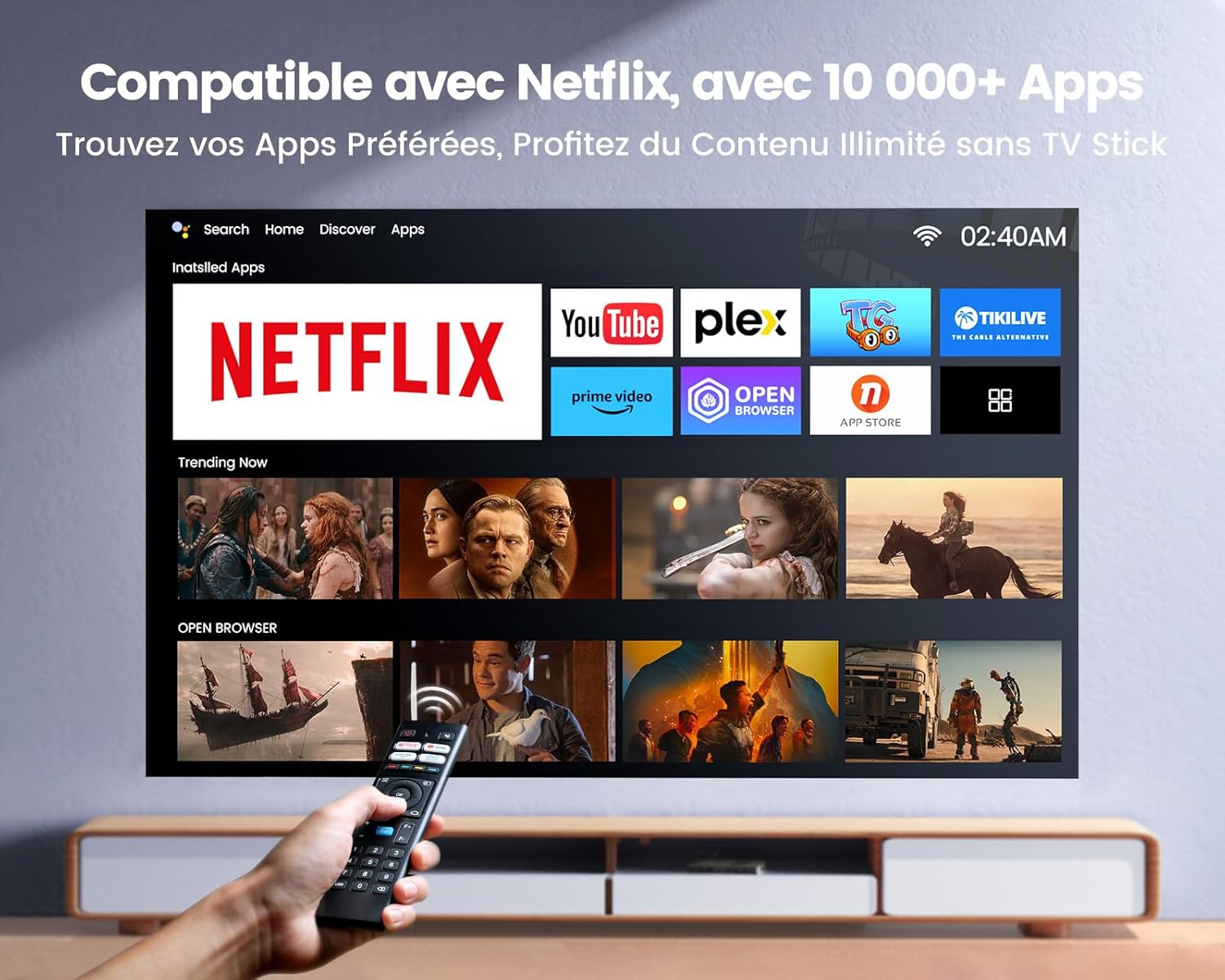
Image: The projector's home screen displaying various streaming applications like Netflix, YouTube, and Prime Video, controlled by a remote.
Use the provided remote control to navigate the projector's Linux-based operating system. The interface provides access to certified applications such as Netflix, Amazon Prime Video, and YouTube, along with other streaming services.
6.2. Гадаад төхөөрөмжүүдийг холбох
The K9 projector offers multiple connectivity options:
- HDMI: Connect your TV stick, game console (e.g., PS5), laptop, or TV box using an HDMI cable. Select the corresponding HDMI input from the projector's source menu.
- USB: Insert a USB flash drive into a USB port to play media fileшууд.
- Ethernet (RJ45): For a stable wired internet connection, plug an Ethernet cable into the RJ45 port.
6.3. Wireless Connectivity (WiFi 6 & Bluetooth 5.2)

Image: A person enjoying a video game projected by the WiMiUS K9, illustrating the fast WiFi 6 connection.
- WiFi 6: Connect to your wireless network for internet access and streaming. Navigate to the network settings in the projector's menu to connect to a WiFi 6 network. This enables seamless streaming and screen mirroring from iOS/Android phones and tablets.
- Bluetooth 5.2: Pair with Bluetooth headphones, speakers, or soundbars for enhanced audio. Go to Bluetooth settings in the menu, enable Bluetooth, and select your device to pair. The projector supports Dolby Audio output to connected Bluetooth devices.
6.4. Аудио тохиргоо (Dolby Audio)

Image: The WiMiUS K9 Projector prominently displaying the Dolby Audio logo, indicating its audio capabilities.
The K9 projector supports Dolby Audio, providing a cinematic sound experience. You can output audio through the built-in speakers, the 3.5mm audio jack, or wirelessly via Bluetooth 5.2 to compatible audio devices.
7. Засвар үйлчилгээ
7.1. Линзийг цэвэрлэх
Gently wipe the projector lens with the provided cleaning cloth or a soft, lint-free cloth. Avoid using abrasive cleaners or excessive pressure, which can damage the lens coating.
7.2. Тоосжилтоос урьдчилан сэргийлэх
The WiMiUS K9 features a fully sealed optical machine design to effectively block dust and reduce black spots on the projection. Periodically clean the projector's exterior with a soft cloth. Ensure ventilation openings are clear of obstructions.
7.3. Хадгалах
When not in use for extended periods, store the projector in a cool, dry place, protected from dust and extreme temperatures. Use the lens cap to protect the lens.
8. Алдаа засах
If you encounter issues with your WiMiUS K9 Projector, refer to the following common problems and solutions:
- Зураг байхгүй:
- Цахилгааны кабелийг найдвартай холбосон бөгөөд проектор асаалттай байгаа эсэхийг шалгаарай.
- Check the input source selection (HDMI 1, HDMI 2, etc.) matches your connected device.
- Verify the connected device (laptop, TV stick) is powered on and outputting a signal.
- Бүдэг зураг:
- Allow the auto-focus function to complete its adjustment.
- If needed, manually adjust the focus using the remote control.
- Ensure the projection surface is flat and the projector lens is clean.
- Гажуудсан зураг (тэгш өнцөгт биш):
- Allow the auto-keystone correction to complete.
- If necessary, manually adjust keystone correction via the projector's menu.
- Дуугүй:
- Проектор болон холбогдсон эх үүсвэрийн төхөөрөмжийн дууны түвшинг шалгана уу.
- Ensure external speakers or headphones are correctly connected and powered on if used.
- Verify Bluetooth audio is correctly paired and selected as the output.
- WiFi/Bluetooth Connection Issues:
- Ensure the WiFi network is active and within range. Re-enter the password if necessary.
- Bluetooth-ийн хувьд төхөөрөмж нь хослох горимд байгаа бөгөөд хүрээн дотор байгаа эсэхийг шалгаарай.
- Restart the projector and the device you are trying to connect.
Нэмэлт тусламж авахыг хүсвэл Баталгаат болон дэмжлэгийн хэсэг дэх холбоо барих мэдээллийг үзнэ үү.
9. Техникийн үзүүлэлтүүд
| Брэнд | WiMiUS |
| Загвар | K9 |
| Төрөлхийн тогтоол | 1920 x 1080P (Бүрэн HD) |
| Дэмжигдсэн нягтрал | Up to 4K Ultra HD (60Hz) |
| Гэрэлтүүлэг | 32000 люмен (1100 ANSI люмен) |
| Ялгаатай харьцаа | 40000:1 |
| Үйлдлийн систем | Linux (Netflix Certified) |
| Холболт | WiFi 6, Bluetooth 5.2, 2x HDMI (ARC), 2x USB, Ethernet (RJ45), 3.5mm Audio Out |
| Онцлог шинж чанарууд | AI Auto Focus, AI Auto Keystone Correction, Dolby Audio Support, Fully Sealed Optical Machine, 50-100% Zoom |
| Зөвлөмж болгож буй хэрэглээ | Home Cinema, Gaming Console |
| Оруулсан бүрэлдэхүүн хэсгүүд | Projector, HDMI Cable, Remote Control, Power Cable, Cleaning Cloth, Lens Cap, User Manual |
10. Баталгаат хугацаа ба дэмжлэг
The WiMiUS K9 Projector comes with a 3 жилийн баталгаат хугацаа худалдан авсан өдрөөс.
For technical support, warranty claims, or any questions regarding your projector, please contact WiMiUS customer service. Refer to the contact information provided in the physical user manual included with your product or visit the official WiMiUS webТусламжийн дэлгэрэнгүй мэдээллийг сайтаас авна уу.
When contacting support, please have your product model (K9) and purchase details ready.


