1. Танилцуулга
This manual provides detailed instructions for the installation, operation, and maintenance of your Jennov JS7015 5MP Dual-Band Wi-Fi Outdoor Security Camera. Please read this manual thoroughly before using the product to ensure correct usage and optimal performance.

Figure 1: Jennov JS7015 Outdoor Security Camera
The Jennov JS7015 is a 5-megapixel outdoor security camera featuring dual-band Wi-Fi connectivity (2.4GHz and 5GHz). It offers 360-degree viewing capabilities, PIR human detection, auto-tracking, 24/7 recording, and two-way audio for comprehensive outdoor surveillance.
2. Багцын агуулга
Хүлээн авахдаа багцын агуулгыг шалгана уу. Хэрэв ямар нэгэн зүйл алга болсон эсвэл гэмтсэн бол хэрэглэгчийн дэмжлэгтэй холбогдоно уу.
- Jennov JS7015 5MP Dual-Band Wi-Fi Outdoor Security Camera
- Эрчим хүчний адаптер
- Суурилуулах эрэг ба зангуу
- Хэрэглэгчийн гарын авлага (энэ баримт бичиг)
3. Бүтээгдэхүүн дууссанview
Камерын бүрэлдэхүүн хэсгүүдтэй танилцаарай.

Figure 2: Camera Pan and Tilt Mechanism
The camera features a motorized pan and tilt mechanism, allowing for a 355° horizontal rotation (pan) and a 60° vertical rotation (tilt). This enables comprehensive coverage of the surveillance area. The camera body houses the lens, infrared LEDs, white light LEDs, microphone, and speaker. Two external antennas provide enhanced Wi-Fi signal reception.
- Камерын линз: Foo видеог авдагtage.
- Хэт улаан туяаны LED: Provide illumination for black and white night vision.
- Цагаан гэрлийн LED чийдэн: Provide illumination for color night vision and act as a spotlight.
- Микрофон: Хоёр талын харилцаа холбоо болон бичлэг хийх зорилгоор аудиог бичдэг.
- Илтгэгч: Хоёр талын харилцаа холбоо болон дохиоллын аудио гаралт.
- Антенууд: Wi-Fi холболтын хувьд.
- Эрчим хүчний порт: Цахилгаан адаптерт холбогдоно.
- Дахин тохируулах товч: Used to reset the camera to factory settings (usually located near the SD card slot or under a cover).
- SD картны үүр: For local video storage (supports up to 128GB, not included).
4. Тохируулах гарын авлага
4.1 Физик суурилуулалт
The camera is designed for outdoor use and is IP66 waterproof. Choose a suitable location for mounting, ensuring a clear view of the area you wish to monitor and proximity to a power source.
- Өрөмдлөгийн байрлалыг тэмдэглэх: Use the mounting template (if provided) or the camera base to mark the screw holes on the wall.
- Өрөмдлөгийн цооног: Drill holes at the marked positions. Insert wall anchors if mounting on masonry.
- Аюулгүй камер: Attach the camera base to the wall using the provided screws.
- Өнцөг тохируулах: Loosen the adjustment screws (if any) to position the camera for optimal coverage before tightening.

Зураг 3: IP66 Усны хамгаалалттай загвар
The camera is built with waterproof materials and has an IP66 rating, making it suitable for outdoor installation and resistant to dust and water jets.
4.2 Эрчим хүчний холболт
Өгөгдсөн тэжээлийн адаптерийг камерын тэжээлийн портод холбоод дараа нь цахилгааны залгуурт залгана уу. Камер асаж, эхлүүлэх дарааллаа эхлүүлнэ.
4.3 Апп татаж авах, дансны бүртгэл
The Jennov JS7015 camera uses the EseeCloud application for remote access and control.
- Апп татаж авах: хайх "EseeCloud" in your smartphone's app store (Google Play Store for Android or Apple App Store for iOS) and download the application.
- Бүртгэл бүртгүүлэх: Open the EseeCloud app and follow the on-screen instructions to register a new account using your email address or phone number.
4.4 Аппликейшнд камер нэмэх
Таны ухаалаг утас камер холбох гэж буй ижил Wi-Fi сүлжээнд (2.4GHz эсвэл 5GHz) холбогдсон эсэхийг шалгаарай.
- Нээлттэй програм: Launch the EseeCloud app and log in.
- Төхөөрөмж нэмэх: "+" дүрс эсвэл "Төхөөрөмж нэмэх" сонголтыг товшино уу.
- Төхөөрөмжийн төрлийг сонгох: Choose "Wi-Fi Camera" or similar option.
- QR кодыг скан хийх: The app may prompt you to scan a QR code located on the camera or its packaging.
- Wi-Fi тохиргоо: Follow the app's instructions to enter your Wi-Fi network name (SSID) and password. The camera supports both 2.4GHz and 5GHz Wi-Fi bands.
- Холбох: The camera will attempt to connect to your Wi-Fi network. Once connected, it will appear in your device list within the app.
- Нууц үг тохируулах: Create a strong password for your camera for security purposes.
5. Ашиглалтын заавар
5.1 Амьд View болон Pan/Tilt Control
From the EseeCloud app, select your camera to access the live view.
- Шууд хангамж: View real-time video from your camera.
- Товчлуур/Найлгах: Use the directional controls within the app to remotely adjust the camera's horizontal (pan) and vertical (tilt) angles.
5.2 Автоматаар мөрдөх
Камер нь өөрийн талбар дахь хөдөлж буй объектуудыг автоматаар хянах боломжтой view.

Figure 4: Auto Tracking in Action
Enable the auto-tracking feature in the app settings. The camera will then detect and follow moving targets until they leave the camera's view.
5.3 Хөдөлгөөн илрүүлэх ба дохиолол
The camera features advanced PIR (Passive Infrared) human detection to minimize false alarms.

Figure 5: PIR Human Detection and Alarm Options
When a human thermal profile is detected, the camera can trigger various alarms.
- PIR илрүүлэлт: Activates recording and sends notifications when a human is detected.
- Дуут дохиолол: Configure the camera to emit a siren sound upon detection.
- Spotlight Alarm: The integrated spotlight can be activated to deter intruders.
- Мэдэгдэл: Receive instant alerts on your smartphone via the EseeCloud app.
5.4 Хоёр талын аудио
Суурилуулсан микрофон болон чанга яригчийг ашиглан камерын ойролцоо байгаа хүмүүстэй шууд холбогдоорой.

Зураг 6: Хоёр талын аудио харилцаа холбоо
Tap the microphone icon in the app to speak, and listen through the camera's speaker. This feature is useful for interacting with visitors or deterring unwanted guests.
5.5 Бичлэг ба хадгалах
The camera supports continuous 24/7 recording and offers flexible storage options.
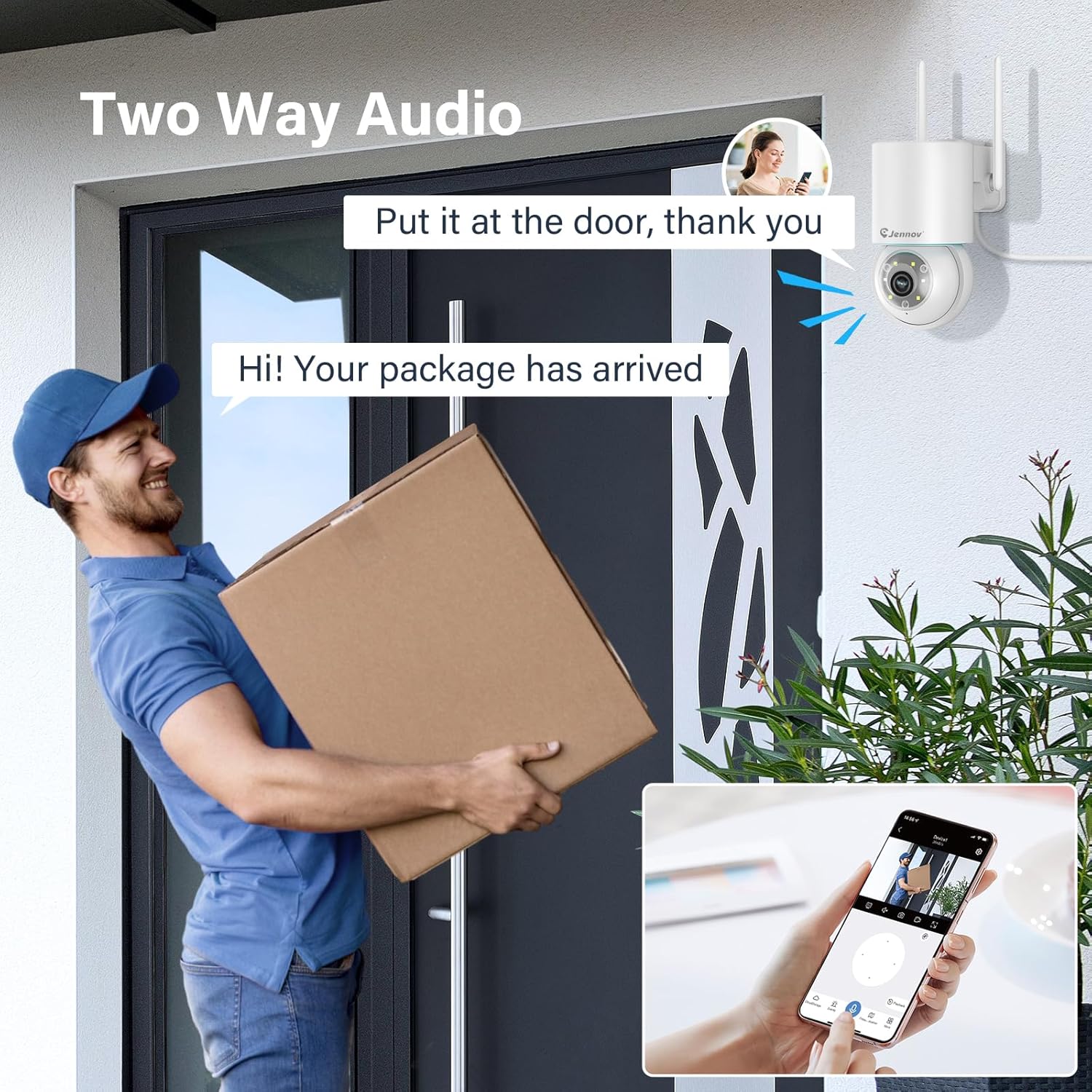
Figure 7: 24/7 Recording and Storage Options
Бүртгэгдсэн foo руу нэвтрэхtagаппликейшны тоглуулах функцээр дамжуулан.
- 24/7 бичлэг: The camera can continuously record footage, ensuring no vital moments are missed.
- Орон нутгийн хадгалах сан: Insert a microSD card (up to 128GB, not included) into the camera's SD card slot for local storage.
- Үүл хадгалах сан: Optional cloud storage service is available, often with a free trial period (e.g., 7 days). This provides off-site backup of your recordings.
5.6 Шөнийн харааны горимууд
The camera offers three night vision modes for clear visibility in low-light conditions.

Figure 8: 5MP Color Night Vision
The camera provides clear night vision up to 65 feet (20 meters) with 5MP resolution.
- Бүрэн өнгөт горим: Utilizes white LEDs to provide full-color video at night.
- Хар ба цагаан горим: Uses infrared LEDs for traditional black and white night vision.
- Ухаалаг горим: Automatically switches between black and white and full color based on detected motion or light conditions.
You can switch between these modes within the EseeCloud mobile application.
5.7 Customized Detection Area
Камерын доторх тодорхой хэсгийг тодорхойл view хөдөлгөөн мэдрэгч идэвхтэй байх ёстой газар.

Figure 9: Customized Detection Area Settings
This feature helps reduce unwanted alerts by focusing detection on critical zones. The app typically offers "Area mode" and "Cordon mode" for defining these zones.
6. Засвар үйлчилгээ
- Цэвэрлэгээ: Зургийн чанарыг тодорхой болгохын тулд камерын линзийг зөөлөн, хуурай даавуугаар тогтмол цэвэрлэ. Химийн хатуу бодис хэрэглэж болохгүй.
- Програм хангамжийн шинэчлэлтүүд: Check the EseeCloud app periodically for available firmware updates. Keeping your camera's firmware updated ensures optimal performance and security.
- SD картын менежмент: If using local storage, periodically check the SD card's status in the app. Format the card as needed to maintain recording efficiency.
- Эрчим хүчний хангамж: Ensure the power adapter and cable are free from damage and properly connected.
7. Алдаа засах
- Офлайн камер:
- Wi-Fi дохионы хүчийг шалгана уу.
- Камер асаалттай байгаа эсэхийг шалгаарай.
- Камер болон Wi-Fi чиглүүлэгчээ дахин эхлүүлнэ үү.
- If using 5GHz Wi-Fi, ensure your router supports it and the camera is connected to the correct band.
- Try re-adding the camera to the EseeCloud app.
- Зургийн чанар муу:
- Камерын линзийг цэвэрлэ.
- Ensure sufficient lighting, especially at night.
- Интернет холболтын хурдаа шалгана уу.
- Хөдөлгөөн мэдрэгч ажиллахгүй байна:
- Verify motion detection settings in the app are enabled.
- Илрүүлэх мэдрэмжийг тохируулах.
- Камерын үйл ажиллагаанд ямар ч саад бэрхшээл тулгараагүй эсэхийг шалгаарай view.
- Check if detection areas are correctly configured.
- Хоёр талын аудио асуудал:
- Ensure microphone and speaker permissions are granted to the EseeCloud app on your smartphone.
- Check volume settings on both the app and your phone.
- Камерын микрофон эсвэл чанга яригчийг хааж буй ямар нэгэн бие махбодийн саад байхгүй эсэхийг шалгаарай.
- Cannot Access SD Card Recordings:
- SD картыг зөв оруулсан эсэхийг шалгаарай.
- Check if the SD card is formatted correctly (usually FAT32).
- Verify that continuous recording or event recording to SD card is enabled in the app.
- The SD card might be full; consider formatting it or replacing it.
8. Техникийн үзүүлэлтүүд
| Онцлог | Тодорхойлолт |
|---|---|
| Загварын дугаар | JS7015 |
| Брэнд | Женнов |
| Шийдвэр | 5 Megapixel (1920p video recording) |
| Тойрог/назайлтын өнцөг | Пан 355 °, 60 ° хазайна |
| Шөнийн хараа | Color Night Vision, Black & White Night Vision, Smart Mode (up to 65ft/20m) |
| Wi-Fi холболт | Dual-Band (2.4GHz / 5GHz) |
| Аудио | Хоёр талын аудио (Суурилагдсан микрофон ба чанга яригч) |
| Хөдөлгөөн илрүүлэх | PIR Human Detection, Auto Tracking |
| Хадгалах сонголтууд | MicroSD карт (128GB хүртэл), Үүлэн санах ой |
| Усны хамгаалалттай үнэлгээ | IP66 |
| Эрчим хүчний оролт | 5 вольт |
| Эрчим хүчний хэрэглээ | 24 ватт |
| Хэмжээ (L x W x H) | 12 x 8 x 16 см |
| Материал | Хуванцар |
| Суурилуулах төрөл | Ханын бэхэлгээ |
| Тохиромжтой төхөөрөмжүүд | Ухаалаг утас, таблет, компьютер |
| Хяналтын програм | EseeCloud |
9. Баталгаат хугацаа ба дэмжлэг
For warranty information and technical support, please refer to the warranty card included with your product or visit the official Jennov webсайт.
- Харилцагчийн үйлчилгээ: Contact Jennov customer support for assistance with product issues, technical questions, or warranty claims.
- Онлайн нөөцүүд: Check the Jennov webТүгээмэл асуултууд, шинэчлэгдсэн гарын авлага, програм хангамжийг татаж авах сайт.


