1. Танилцуулга
Thank you for choosing the JSAUX USB C Docking Station Stand. This 5-in-1 multiport hub is designed to enhance your mobile device experience by providing expanded connectivity, including video output, high-speed data transfer, and power delivery, all while serving as a stable phone stand. This manual provides detailed instructions for setup, operation, and maintenance to ensure optimal performance.
2. Бүтээгдэхүүн дууссанview
The JSAUX 5-Port Docking Station Stand integrates multiple essential ports into a compact design, allowing you to connect various peripherals to your USB-C enabled smartphone or tablet.
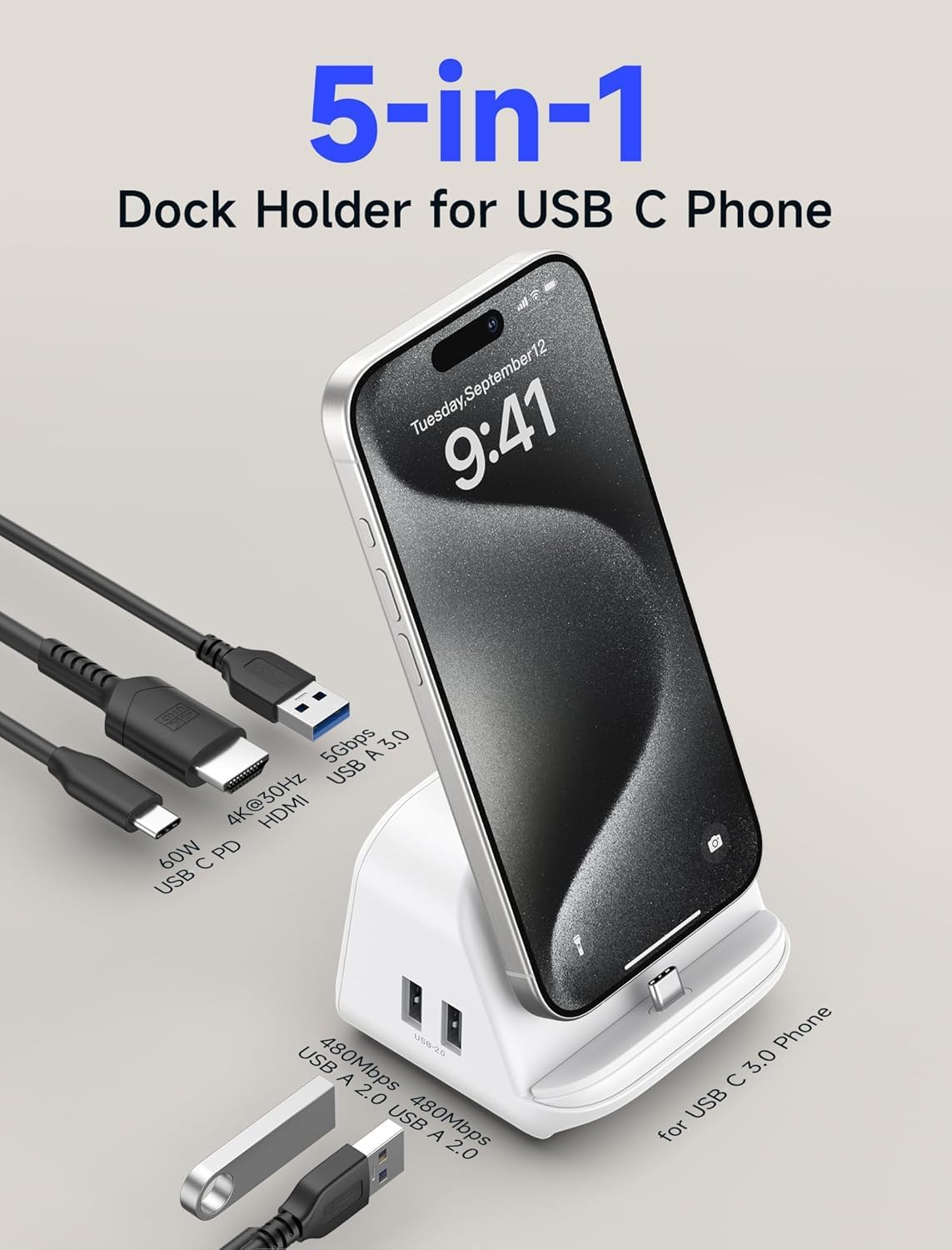
Зураг 1: Урд ба хойд view of the JSAUX 5-in-1 USB C Docking Station Stand, highlighting its various ports including USB-C PD, HDMI, USB 3.0, and USB 2.0.
Гол онцлогууд:
- 5-ын-1 холболт: Combines essential ports for versatile use.
- 4K HDMI гаралт: Supports video output up to 4K@30Hz for external displays.
- USB 3.0 өгөгдөл дамжуулах: One USB-A 3.0 port for high-speed data transfer up to 5Gbps.
- USB 2.0 өгөгдөл дамжуулах: Two USB-A 2.0 ports for standard data transfer up to 480Mbps, ideal for peripherals.
- 60 Вт цахилгаан дамжуулах (PD): USB-C PD port for fast charging your device while in use.
- Integrated Phone Stand: Provides a stable and convenient viewing angle for your device.
- SD/TF картны үүрүүд: For direct access to memory cards.
3. Багцын агуулга
- JSAUX USB C Docking Station Stand (5-Port)
- USB-C-аас USB-C кабель
- Power Adapter (Charging Brick)
- Adjustable Pads (for phone case thickness)
- Хэрэглэх заавар (энэ баримт бичиг)
4. Тохиргоо
Док станцаа тохируулахын тулд дараах алхмуудыг дагана уу:
- Эрчим хүчийг холбох: Plug the provided USB-C to USB-C cable into the USB-C PD port on the docking station and connect the other end to the power adapter. Plug the power adapter into a wall outlet. Ensure the power adapter is rated over 30W for 60W fast charging support.
- Prepare Phone Stand: The docking station includes adjustable pads to accommodate different phone case thicknesses. Refer to the guide on the dock for proper pad placement:

Image 2: The phone stand section of the dock, illustrating how to place the included pads for bare phones (3mm pad) and phones with cases (1mm pad) to ensure stability. Note: Only supports phone cases with a thickness of 3mm or less.
- Утас оруулах: Carefully place your USB-C enabled phone onto the stand, aligning its USB-C port with the connector on the dock. Ensure a secure connection. A blue indicator light on the dock will illuminate to confirm a proper connection.

Image 3: Close-up of the dock's base, showing a blue light indicating a proper connection and the absence of light for an incorrect connection.
5. Ашиглалтын заавар
5.1. Дэлгэцтэй холбогдох (HDMI)
Connect an HDMI cable (not included) from the HDMI port on the docking station to your monitor, TV, or projector. The dock supports 4K@30Hz video output, allowing you to mirror or extend your phone's display to a larger screen for presentations, video streaming, or gaming.

Image 4: A smartphone docked and connected to an external monitor via the HDMI port, showcasing 4K video output.
5.2. Data Transfer (USB & Card Slots)
- USB 3.0 порт: Use the blue USB-A 3.0 port for connecting external storage devices like hard drives or USB flash drives. This port offers data transfer speeds up to 5Gbps, ideal for quickly moving large files.

Image 5: A smartphone docked, with a USB drive connected to the USB A 3.0 port, illustrating 5Gbps data transfer speeds.
- USB 2.0 портууд: The two black USB-A 2.0 ports are suitable for connecting peripherals such as keyboards, mice, or game controllers. These ports provide data transfer speeds up to 480Mbps.

Image 6: A smartphone docked and connected to a monitor, with a gamepad connected to a USB A 2.0 port for gaming.
- SD/TF картны үүрүүд: Insert your SD or TF (MicroSD) cards into the corresponding slots for direct access to files on your phone or computer.
5.3. Charging (60W PD)
The USB-C PD port allows you to charge your connected device at up to 60W while simultaneously using other functions of the docking station. This ensures your device remains powered during extended use.

Image 7: A smartphone docked and charging via the 60W Power Delivery port, with the charging status visible on the phone screen.
5.4. Тохиромжтой байдлын тэмдэглэл
- iPhone 15 Plus: When an HDMI connection is active, the USB 3.0 port may not function.
- Samsung S21 / Samsung Note20 Ultra: A USB drive must be connected to the dock before connecting the phone. Additionally, the USB drive and Power Delivery (PD) cannot be used simultaneously.
- Phone Case Thickness: For optimal stability and connection, the dock only supports phone cases with a thickness of 3mm or less.

Image 8: Visual representation of compatible phone models, including iPhone 15 series, Google Pixel, Samsung Galaxy S23/S22/S21/S20 series, OnePlus 9/8 series, Xiaomi Mi 10 series, Huawei P40 series, and Huawei Mate 40 series.
6. Засвар үйлчилгээ
To ensure the longevity and proper functioning of your docking station, follow these maintenance guidelines:
- Цэвэрлэгээ: Use a soft, dry cloth to wipe the surface of the docking station. Avoid using harsh chemicals or abrasive cleaners.
- Порт арчилгаа: Keep all ports free of dust and debris. Use compressed air if necessary to clear any blockages.
- Хадгалах: Ашиглаагүй үед залгах станцыг нарны шууд тусгал, хэт температураас хол, сэрүүн, хуурай газар хадгална.
- Харьцуулах: Avoid dropping or subjecting the device to strong impacts, as this can damage internal components.
7. Алдаа засах
If you encounter issues with your JSAUX USB C Docking Station Stand, please refer to the following common solutions:
- Тэжээлгүй/Цэнэглэхгүй:
- Ensure the power adapter is securely plugged into both the wall outlet and the dock's USB-C PD port.
- Verify that the power adapter is functioning correctly and provides sufficient wattage (over 30W for 60W PD).
- Check the connection between your phone and the dock's USB-C connector. The blue indicator light should be on.
- HDMI-ээр дамжуулан видео гаралт байхгүй байна:
- HDMI кабель нь док болон дэлгэц хоёуланд нь найдвартай холбогдсон эсэхийг шалгаарай.
- Verify the display input source is set to the correct HDMI port.
- For iPhone 15 Plus users, note that the USB 3.0 port may not work when HDMI is active. Try disconnecting any USB 3.0 devices.
- Боломжтой бол өөр HDMI кабель эсвэл дэлгэцээр туршиж үзээрэй.
- Танигдаагүй USB төхөөрөмжүүд:
- Ensure USB devices are properly inserted into the correct USB-A ports.
- For Samsung S21/Note20 Ultra, connect the USB drive before docking the phone. Also, avoid using USB drive and PD simultaneously.
- Some high-power USB devices may require external power or may not be fully supported.
- Phone Not Stable on Stand:
- Ensure the correct adjustable pads are used based on your phone's case thickness (or lack thereof).
- The dock supports phone cases with a maximum thickness of 3mm. Thicker cases may prevent a stable connection.
If the issue persists, please contact JSAUX customer support for further assistance.
8. Техникийн үзүүлэлтүүд
| Онцлог | Тодорхойлолт |
|---|---|
| Загвар | 5-порт |
| Холбогч төрөл | HDMI, USB-C, USB-A, SD, TF |
| HDMI гаралт | 4K@30Hz |
| USB-A 3.0 Data Speed | 5Gbps хүртэл |
| USB-A 2.0 Data Speed | 480Mbps хүртэл |
| USB-C тэжээлийн хангамж | 60 Вт хүртэл |
| Тохиромжтой төхөөрөмжүүд | Cellular Phones (USB-C enabled) |
| Тохиромжтой утасны загварууд | iPhone 15 Series, Google Pixel, Samsung S24/23/21/20, OnePlus 9/8, Xiaomi Mi 10, Huawei P40/Mate 40 series |
| Материал | Хуванцар |
| Зүйлийн жин | 10.5 унц (297.67 грамм) |
| Багцын хэмжээ | 5.87 x 4.8 x 3.23 инч |
| Эрчим хүчний эх үүсвэр | Утастай цахилгаан |
9. Баталгаат хугацаа ба дэмжлэг
JSAUX products are designed and manufactured to the highest quality standards. For specific warranty information, please refer to the warranty card included with your purchase or visit the official JSAUX website. If you require technical support, have questions about product functionality, or need assistance with troubleshooting, please contact JSAUX customer service through their official channels. Please have your product model and purchase details ready when contacting support.


