1. Танилцуулга
The ZEBRONICS Pulse Wireless Mouse is designed for versatile and comfortable use across various devices. Featuring multi-connectivity options including dual Bluetooth and a 2.4GHz USB nano receiver, it offers seamless switching between systems. Its ergonomic design and 1200 DPI optical sensor ensure precise and smooth cursor control for enhanced productivity.

Зураг 1.1: Дээд талд view of the ZEBRONICS Pulse Wireless Mouse, showcasing түүний гоёмсог хар загвар, гүйлгэх дугуй.
2. Багцын агуулга
Таны багцад бүх зүйл байгаа эсэхийг шалгана уу:
- ZEBRONICS Pulse Wireless Mouse
- USB нано хүлээн авагч
- Хэрэглэгчийн гарын авлага
3. Үндсэн шинж чанарууд
- Олон холболт: Supports dual Bluetooth and 2.4GHz wireless connections.
- Өндөр нарийвчлал: 1200 DPI optical sensor for accurate tracking.
- Эргономик дизайн: Comfortable and lightweight for extended use.
- 3 Товчлуур: Standard left, right, and scroll wheel buttons.
- Removable USB Nano Receiver: Conveniently stored in the mouse's bottom panel.
- Өргөн нийцтэй байдал: Works with desktop PCs, laptops, Mac OS, tablets, and more.
- Эрчим хүч хэмнэх: Features an auto-shutoff function to conserve battery life.

Image 3.1: A visual summary of the mouse's key features, including its comfortable design, power switch, plug-and-play functionality, and high precision.
4. Тохируулах гарын авлага
4.1. Зай суурилуулах
- Flip the mouse over to access the bottom panel.
- Зайны тасалгааны тагийг олоод гулсуулж нээнэ үү.
- Зөв туйлшралыг (+/-) баталгаажуулж, нэг АА батерейг оруулна уу.
- Зайны тасалгааны тагийг сайтар хаа.
4.2. Connecting via 2.4GHz USB Nano Receiver
- Locate the USB nano receiver stored in the slot on the bottom of the mouse.
- Хүлээн авагчийг хадгалах үүрнээс нь салга.
- Plug the USB nano receiver into an available USB port on your computer or laptop.
- Slide the power switch on the bottom of the mouse to the 'ON' position.
- The mouse should automatically connect. If not, press the connection toggle button on the bottom of the mouse to select the 2.4GHz mode (indicated by '2.4G').

Image 4.1: The underside of the mouse, highlighting the battery slot, nano receiver storage, power switch, and connection toggle button.

Image 4.2: The USB nano receiver plugged into a laptop, demonstrating the 2.4GHz wireless connection.
4.3. Bluetooth-ээр холбогдож байна (BT1 / BT2)
- Ensure the mouse has a fresh battery and the power switch is in the 'ON' position.
- Press the connection toggle button on the bottom of the mouse to select either 'BT1' or 'BT2' mode. The corresponding LED indicator will blink.
- On your device (laptop, tablet, etc.), go to Bluetooth settings.
- хайх new devices. The mouse should appear as 'ZEB-PULSE' or similar.
- Select the mouse to pair. Once paired, the LED indicator will stop blinking and remain solid for a few seconds before turning off.
- You can pair a second device using the other Bluetooth channel (BT2) by repeating steps 2-5.
5. Ашиглалтын заавар
5.1. Үндсэн функцууд
- Зүүн товчлуур: Үндсэн товшилтын функц.
- Баруун товчлуур: Хоёрдогч товшилтын функц (контекст цэс).
- Гүйлгэх дугуй: Дээш/доош гүйлгэж, дунд товшилтын функцийг ашиглана уу.

Image 5.1: Illustration of the mouse's three buttons: left, right, and the scroll wheel/middle button.
5.2. Switching Connectivity Modes
To switch between the 2.4GHz wireless mode and Bluetooth modes (BT1, BT2), press the connection toggle button located on the bottom of the mouse. The mouse will cycle through the available modes, indicated by the corresponding LED.
5.3. DPI тохиргоо
The ZEBRONICS Pulse mouse operates at a fixed 1200 DPI (Dots Per Inch), providing a balance of speed and precision suitable for general use. This setting ensures smooth and responsive cursor movement.

Image 5.2: Visual representation of the mouse's 1200 DPI precision for accurate tracking.
6. Засвар үйлчилгээ
- Цэвэрлэгээ: Хулганыг цэвэрлэхийн тулд зөөлөн, хуурай даавуу ашиглана уу. Химийн хатуу бодис, зүлгүүрийн материал ашиглахаас зайлсхий.
- Зай солих: Хулганы ажиллагаа муудах эсвэл хариу өгөхөө больсон үед AA батерейг солино уу.
- Хадгалах: When not in use for extended periods, turn off the mouse to conserve battery life. Store the USB nano receiver in its dedicated slot on the mouse's bottom.
- Байгаль орчин: Хулганыг хэт өндөр температур, нарны шууд тусгал эсвэл хэт их чийгэнд өртөхөөс зайлсхий.
7. Алдаа засах
7.1. Хулгана хариу өгөхгүй байна
- Ensure the mouse is turned 'ON'.
- Зайг шалгана уу. Шаардлагатай бол солино уу.
- For 2.4GHz connection: Ensure the USB nano receiver is securely plugged into a working USB port and the mouse is in 2.4GHz mode.
- For Bluetooth connection: Ensure Bluetooth is enabled on your device and the mouse is in the correct BT1/BT2 mode. Try re-pairing the mouse.
- Try connecting the mouse to a different USB port or a different device to rule out port or device issues.
7.2. Курсорын тогтворгүй хөдөлгөөн
- Хулганы доод хэсэгт байрлах оптик мэдрэгчийг зөөлөн, хуурай даавуугаар цэвэрлэ.
- Та хулганыг тусгалгүй, цэвэр гадаргуу дээр ашиглаж байгаа эсэхээ шалгаарай.
- Бусад утасгүй төхөөрөмжүүдийн хөндлөнгийн оролцоог шалгана уу.
7.3. Difficulty Switching Modes
- Батерейг хангалттай хүч чадалтай эсэхийг шалгаарай.
- Press the connection toggle button firmly and observe the LED indicators to confirm mode changes.
8. Техникийн үзүүлэлтүүд
| Онцлог | Дэлгэрэнгүй |
|---|---|
| Брэнд | ЗЕБРОНИК |
| Загвар | Zeb-Pulse |
| Холболтын технологи | Wireless (2.4GHz, Dual Bluetooth) |
| Хөдөлгөөнийг илрүүлэх технологи | Оптик |
| DPI | 1200 |
| Товчлуурын тоо | 3 |
| Эрчим хүчний эх үүсвэр | Батерейгаар ажилладаг (1х АА) |
| Зүйлийн жин | 160 гр |
| Бүтээгдэхүүний хэмжээс | 16.6 x 9.5 x 0.1 см |
| Үйлдлийн системийн нийцтэй байдал | Windows, Mac OS, etc. |
| Гарал үүслийн улс | Хятад |
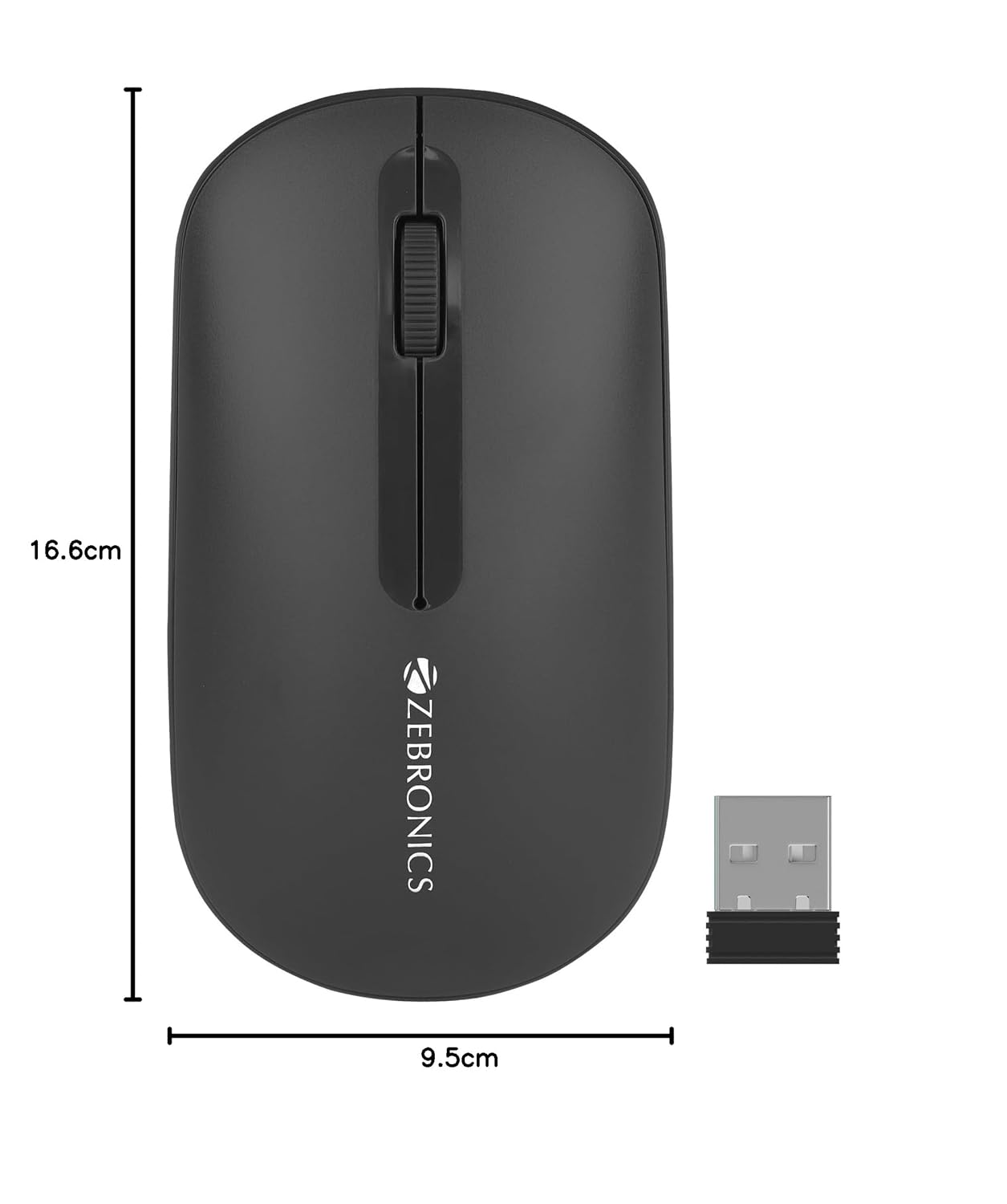
Image 8.1: Diagram showing the physical dimensions of the ZEBRONICS Pulse Wireless Mouse.
9. Баталгаат хугацаа ба дэмжлэг
Баталгаат хугацаа, техникийн дэмжлэг эсвэл үйлчилгээний талаарх лавлагаа авахыг хүсвэл бүтээгдэхүүнтэй хамт ирсэн баталгаат картыг үзэх эсвэл албан ёсны ZEBRONICS вэбсайтад зочилно уу. webсайт. Худалдан авалтын баримтаа баталгаат нэхэмжлэлд зориулж худалдан авалтын баталгаа болгон хадгална уу.
Official ZEBRONICS Webсайт: www.zebronics.com


