1. Танилцуулга
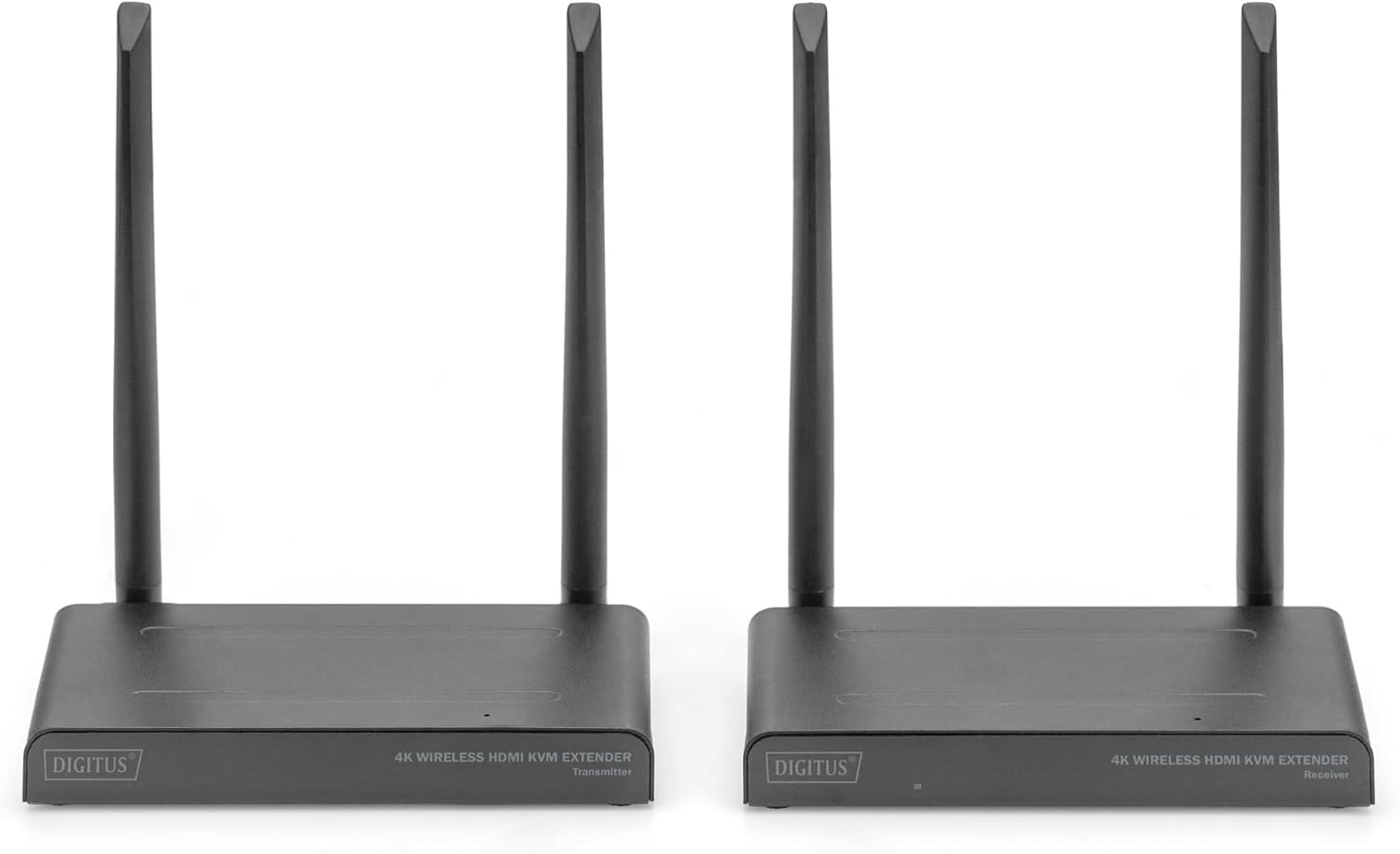
The DIGITUS DS-55328 Wireless HDMI KVM Extender Kit is designed to transmit HDMI video and audio signals wirelessly. This kit supports UHD 4K/30Hz resolution over distances up to 150 meters in an unobstructed environment. It consists of a sending unit (Transmitter) and a receiving unit (Receiver).
Key features include KVM functionality, allowing control of the signal source from the receiver unit using a connected mouse and keyboard. An HDMI Loop-Out port on the sending unit enables a local monitor connection for monitoring the output. The system supports point-to-multipoint connections, allowing one transmitter to connect with up to four receivers (additional receivers, model DS-55329, are sold separately).
- Wireless transmission of HDMI signals up to 150 meters (with free view).
- Point-to-multipoint connection: 1 sender (source) + up to 4 receivers (output devices).
- Supports wireless transmission of AV signals with resolutions up to 4K UHD (2160p/30Hz).
- HDMI 2.0 болон HDCP 2.2 нийцтэй.
- KVM functionality for mouse/keyboard control at the receiver.
- HDMI Loop-Out on the transmitter for local monitoring.
- Easy plug & play operation, no drivers or software required.
- Touch Screen Back Control compatible via USB connection on receiver.
- Power via USB-C connection and included power supply.
- 128-bit AES encoding and WPA2 protocol for secure transmission.
2. Багцын агуулга
Доор жагсаасан бүх зүйлс таны багцад багтсан эсэхийг шалгана уу. Хэрэв ямар нэгэн зүйл алга болсон эсвэл гэмтсэн бол жижиглэн худалдаа эрхлэгчтэйгээ холбогдоно уу.
- 1x DIGITUS DS-55328 Transmitter Unit
- 1x DIGITUS DS-55328 Receiver Unit
- 2x Power Adapters (USB-C)
- 2x HDMI кабель
- 2x USB-C Power Cables
- 1x IR Link Cable
- Хэрэглэгчийн гарын авлага (энэ баримт бичиг)
Зураг 2.1: Contents of the DS-55328 package, including the transmitter, receiver, power adapters, HDMI cables, USB-C cables, and an IR link cable.
3. Бүтээгдэхүүн дууссанview
Familiarize yourself with the ports and indicators on both the Transmitter and Receiver units.
3.1. Transmitter Unit (TX)
- HDMI IN: Connects to your HDMI source device (e.g., PC, laptop, media player).
- HDMI OUT (Loop-Out): Connects to a local monitor for direct display of the source signal.
- USB-C: Эрчим хүчний оролтын порт.
- IR Link: Connects to the IR blaster cable for controlling the source device.
- Товчлуур: For pairing or mode selection.
- Эрчим хүч солих: Төхөөрөмжийг асаах, унтраахын тулд.
3.2. Receiver Unit (RX)
- HDMI ГАРАХ: Connects to your display device (e.g., TV, monitor, projector).
- USB портууд: Connects to a keyboard, mouse, or touch screen panel for KVM functionality.
- USB-C: Эрчим хүчний оролтын порт.
- Статусын дэлгэц: Indicates connection status and other operational information.
- Товчлуур: For pairing or mode selection.
- Эрчим хүч солих: Төхөөрөмжийг асаах, унтраахын тулд.

Зураг 3.1: Detailed diagram showing the various ports and features on both the Transmitter and Receiver units of the DS-55328.

Зураг 3.2: Урд view of the DS-55328 Transmitter and Receiver units, highlighting their compact design.

Зураг 3.3: Арын view of the DS-55328 Transmitter and Receiver units, showing all input and output ports.
4. Тохируулах заавар
Follow these steps to set up your Wireless HDMI KVM Extender Kit.
4.1. Цэгээс цэгт холболт
- Эх үүсвэрийг дамжуулагчтай холбох: Use an HDMI cable to connect your source device (e.g., PC, laptop) to the HDMI оролт port on the DS-55328 Transmitter unit.
- Connect Local Monitor (Optional): If you wish to monitor the source locally, connect an HDMI cable from the HDMI OUT (Loop-Out) port on the Transmitter to your local monitor.
- Дамжуулагчийг асаах: Connect one of the provided USB-C power cables to the USB-C port on the Transmitter, and then plug the power adapter into an electrical outlet.
- Хүлээн авагчийг дэлгэц рүү холбох: Use an HDMI cable to connect your display device (e.g., TV, monitor) to the HDMI OUT port on the DS-55328 Receiver unit.
- Connect KVM Peripherals (Optional): For KVM functionality, connect your USB keyboard and mouse to the USB портууд on the Receiver unit.
- Хүлээн авагчийг асаана уу: Connect the second USB-C power cable to the USB-C port on the Receiver, and then plug the power adapter into an electrical outlet.
- Асаах: Turn on both the Transmitter and Receiver units using their respective power switches. Ensure your source device and display are also powered on.
- Хослуулах (шаардлагатай бол): The units should automatically pair. If not, refer to the operating instructions for manual pairing.

Зураг 4.1: Diagram illustrating a typical point-to-point connection setup for the DS-55328, showing connections from a source to the transmitter and from the receiver to a display with KVM peripherals.
4.2. Цэгээс олон цэгийн холболт
The DS-55328 supports connecting one Transmitter to up to four Receiver units (DS-55329, sold separately).
- Follow steps 1-3 from the Point-to-Point Connection for setting up the Transmitter unit.
- For each additional Receiver unit (DS-55329), follow steps 4-6 from the Point-to-Point Connection.
- Ensure all Transmitter and Receiver units are powered on. The Transmitter will broadcast the signal to all paired Receivers.

Зураг 4.2: Diagram showing a point-to-multipoint connection setup, where one DS-55328 Transmitter sends signals to multiple DS-55329 Receiver units.
5. Ашиглалтын заавар
5.1. Асаах/унтраах
Use the power switch on each unit to turn it on or off. Ensure both Transmitter and Receiver units are powered on for operation.
5.2. KVM Functionality
Once a USB keyboard and mouse are connected to the Receiver's USB ports, you can control the source device connected to the Transmitter. This allows for remote operation of your computer or other KVM-compatible source.
5.3. IR хяналт
Connect the IR Link cable to the IR port on the Transmitter. Position the IR blaster head near the IR receiver of your source device. This enables you to use the source device's remote control from the location of the Receiver unit.
5.4. Статусын үзүүлэлтүүд
The Status Display on the Receiver unit provides visual feedback on the connection status. Refer to the device's LED indicators for specific states (e.g., power, signal, connection status).
5.5. Хослох
In most cases, the Transmitter and Receiver units will automatically pair upon power-up. If pairing does not occur, press the 'Button' on both the Transmitter and Receiver units simultaneously for a few seconds until the status indicators confirm a successful connection.
6. Засвар үйлчилгээ
To ensure optimal performance and longevity of your DIGITUS DS-55328, follow these maintenance guidelines:
- Цэвэрлэгээ: Use a soft, dry cloth to clean the units. Do not use liquid or aerosol cleaners, as they may damage the casing эсвэл дотоод бүрэлдэхүүн хэсгүүд.
- Байгаль орчин: Operate the device in a well-ventilated area. Avoid exposing the units to extreme temperatures, high humidity, or direct sunlight.
- Хадгалах: When not in use for extended periods, store the units in a cool, dry place, away from dust and moisture.
- Кабель: Ensure all cables are connected securely and are not bent or crimped, which could lead to signal loss or damage.
7. Алдаа засах
If you encounter issues with your DS-55328, refer to the following troubleshooting steps:
| Асуудал | Боломжит шалтгаан | Шийдэл |
|---|---|---|
| No image or black screen on display. |
|
|
| Зургийн чанар муу эсвэл анивчих. |
|
|
| KVM (keyboard/mouse) not responding. |
|
|
| IR хяналт ажиллахгүй байна. |
|
|
| Audio delay/synchronization issues. |
|
|
8. Техникийн үзүүлэлтүүд
| Онцлог | Дэлгэрэнгүй |
|---|---|
| Загварын дугаар | DS-55328 |
| Дамжуулах зай | Up to 150 meters (unobstructed viewing) |
| Дэмжигдсэн нягтрал | UHD 4K/30Hz (2160p/30Hz) |
| HDMI хувилбар | HDMI 2.0 |
| HDCP хувилбар | HDCP 2.2 |
| KVM функциональ байдал | Yes (Keyboard/Mouse via USB) |
| Loop-Out | Yes (on Transmitter) |
| IR хяналт | Тиймээ |
| Цэгээс олон цэгт | 1 Transmitter to up to 4 Receivers (DS-55329) |
| Аюулгүй байдал | 128-bit AES encryption, WPA2 protocol |
| Эрчим хүчний хангамж | USB-C (5V DC) |
| Бүтээгдэхүүний хэмжээс | 3.11 x 6.06 x 0.87 инч |
| Зүйлийн жин | 2.64 фунт |
| Үйлдвэрлэгч | ТОНО |
9. Баталгаат хугацаа ба дэмжлэг
For warranty information, please refer to the documentation provided with your purchase or visit the official DIGITUS website. Technical support may be available through your retailer or the manufacturer's support channels.
Баталгаат заргад зориулж худалдан авалтаа нотлох баримтаа үлдээнэ үү.