1. Танилцуулга
Welcome to the user manual for your Natec FURY SHOBO SH4F RGB MIDI TOWER PC Case. This guide provides essential information for the proper assembly, installation, operation, and maintenance of your new computer chassis. Please read this manual thoroughly before beginning installation to ensure optimal performance and longevity of your components.
2. Аюулгүй ажиллагааны заавар
- Always disconnect the power supply from the wall outlet before installing or removing any components inside the PC case.
- Цахилгаан цэнэг алдалтаас (ESD) болж гэмтэхээс сэргийлж эд ангиудыг болгоомжтой харьцана уу. Статик бус бугуйн оосор ашиглах талаар бодож үзээрэй.
- Keep small parts, such as screws, away from children.
- Ensure proper ventilation around the PC case to prevent overheating.
- Do not expose the case to extreme temperatures, humidity, or direct sunlight.
- Avoid placing heavy objects on top of the case.
3. Багцын агуулга
Таны багцад бүх зүйл байгаа эсэхийг шалгана уу:
- Natec FURY SHOBO SH4F RGB MIDI TOWER PC Case
- Accessory box (containing screws, cable ties, and other small parts)
- Хэрэглэгчийн гарын авлага (энэ баримт бичиг)
4. Бүтээгдэхүүн дууссанview
The Natec FURY SHOBO SH4F is a MIDI TOWER PC case designed for gaming and general-purpose computing, offering ample space for components and efficient cooling. It features a modern design with RGB lighting.
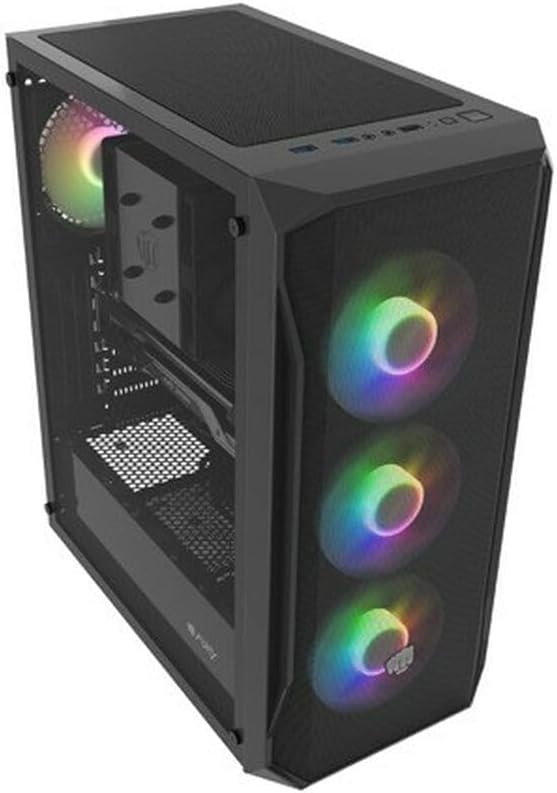
Зураг 4.1: Өнцөг view of the Natec FURY SHOBO SH4F RGB MIDI TOWER PC Case, showcasing its black metal and tempered glass construction. The front panel features a mesh design with three illuminated RGB fans, and a single RGB fan is visible at the rear exhaust. The top panel includes I/O ports and a mesh filter.
4.1 Урд талын оролт гаралтын самбар
- Цахилгаан товч
- Дахин тохируулах товч
- USB 2.0 порт (x1)
- Аудио залгуур (чихэвч/микрофон)
- RGB Control Button (if applicable)
4.2 Internal Layout
The case supports Micro ATX and Mini ATX motherboards and features a bottom-mounted power supply bay. It includes dedicated areas for storage drives and efficient cable management.
5. Тохиргоо ба бүрэлдэхүүн хэсгүүдийн суурилуулалт
Follow these steps to install your PC components into the FURY SHOBO SH4F case.
5.1 Хэргийг бэлтгэх
- Хайрцгийг хавтгай, тогтвортой гадаргуу дээр байрлуул.
- Remove the side panels. Typically, the tempered glass side panel is secured with thumbscrews.
5.2 Эх хавтангийн суурилуулалт
- Эх хавтан дээрээ урьдчилан суулгаагүй бол I/O бамбайг гэрний арын нүхэнд суулгана уу.
- Ensure the motherboard standoffs are correctly aligned for your Micro ATX or Mini ATX motherboard. Adjust or install additional standoffs if necessary.
- Эх хавтанг болгоомжтой байрлуулж, шурагны нүхийг тэгшлээрэй.
- Secure the motherboard with the provided screws. Do not overtighten.
5.3 Цахилгаан хангамжийн суурилуулалт
- Locate the power supply bay at the bottom rear of the case.
- Slide your power supply unit (PSU) into the bay from the rear of the case, ensuring the fan faces downwards (if the case has a bottom vent) or upwards.
- PSU-ийг хайрцагны арын боолтоор бэхлээрэй.
5.4 Хадгалах хөтч суурилуулах
Refer to your case's specific drive bay design for 2.5" SSDs and 3.5" HDDs. Typically, these involve trays or direct screw mounting.
5.5 Expansion Card Installation (e.g., Graphics Card)
- Шаардлагатай PCI-E үүрний тагийг хайрцагны ар талаас салга.
- Insert your expansion card into the corresponding PCI-E slot on the motherboard.
- Secure the card with a screw or the case's retention mechanism.
5.6 Кабелийн менежмент
Эх хавтангийн тавиурын ард байрлах зүсэлт болон холбох цэгүүдийг ашиглан кабелийг холбож, бэхлээрэй. Энэ нь агаарын урсгал болон гоо зүйн байдлыг сайжруулна.
5.7 Connecting RGB Fans
The pre-installed RGB fans typically connect to a central RGB controller or directly to your motherboard's RGB headers. Consult your motherboard manual for specific RGB header locations and software control. Ensure all fan power cables are connected to appropriate fan headers on the motherboard or a fan hub.
6. Компьютерийнхээ гэрийг ажиллуулах
6.1 Асаах/унтраах
After all components are installed and cables connected, plug your power supply into a wall outlet. Press the power button on the front I/O panel to turn on your system. To turn off, use the operating system's shutdown function or press and hold the power button for several seconds.
6.2 RGB гэрэлтүүлгийн удирдлага
If your case features an RGB control button on the front I/O panel, press it to cycle through various lighting modes and colors. For advanced customization, use your motherboard's RGB software (e.g., ASUS Aura Sync, MSI Mystic Light, Gigabyte RGB Fusion) if the fans are connected to compatible headers.
7. Засвар үйлчилгээ
Тогтмол засвар үйлчилгээ нь таны компьютерийн бүрэлдэхүүн хэсгүүдийн ашиглалтын хугацааг уртасгаж, оновчтой гүйцэтгэлийг хангахад тусалдаг.
7.1 Тоосны шүүлтүүр цэвэрлэх
The FURY SHOBO SH4F case includes dust filters (e.g., on the top and bottom). Periodically remove and clean these filters by rinsing them with water and allowing them to dry completely before re-installing. This prevents dust buildup and maintains airflow.
7.2 Гадна цэвэрлэгээ
Хэргийн гадна талыг зөөлөн арчих, damp cloth. Avoid abrasive cleaners or solvents that could damage the finish or tempered glass.
8. Алдаа засах
Хэрэв танд асуудал тулгарвал дараах нийтлэг алдааг олж засварлах алхмуудыг үзнэ үү.
- Эрчим хүчгүй: Ensure the power supply is properly connected to the wall outlet and the motherboard. Check all internal power cables (24-pin ATX, 8-pin CPU, GPU power). Verify the power button cable is correctly connected to the motherboard's front panel header.
- Фэнүүд эргэхгүй байна: Check if fan power cables are securely connected to the motherboard or fan hub. Ensure the power supply is functioning.
- RGB гэрэлтүүлэг ажиллахгүй байна: Verify RGB cables are correctly connected to the RGB controller or motherboard header. If using a button, try cycling through modes. If using software, ensure it's installed and configured correctly.
- Хэт халалт: Ensure all fans are spinning correctly and oriented for proper airflow (intake/exhaust). Clean dust filters and internal components. Verify CPU cooler and GPU cooler are properly installed.
9. Техникийн үзүүлэлтүүд
| Брэнд | Natec |
| Цуврал | SH4F |
| Загварын дугаар | NFO-2154 |
| Кейсийн төрөл | Миди цамхаг |
| Эх хавтангийн нийцтэй байдал | Micro ATX, Mini ATX |
| Өнгө | Хар |
| Материал | Металл |
| Бүтээгдэхүүний хэмжээ (LxWxH) | 19.69 x 16.93 x 9.84 инч (50 x 43 x 25 см) |
| Зүйлийн жин | 9.46 фунт (4.3 килограмм) |
| Цахилгаан хангамжийн угсралтын төрөл | Доод бэхэлгээ |
| Хөргөх арга | Агаар |
| USB 2.0 портын тоо | 1 |
10. Баталгаат хугацаа ба дэмжлэг
Natec products are manufactured to high-quality standards. For information regarding warranty terms and conditions, please refer to the warranty card included with your product or visit the official Natec website. If you encounter any issues not covered in this manual or require further assistance, please contact Natec customer support through their official channels.
Үйлдвэрлэгч: Natec