1. Танилцуулга
This manual provides essential information for the safe and effective operation of your OWON DGE1060 Waveform Generator. Please read this manual thoroughly before using the device and keep it for future reference. The DGE1060 is a versatile arbitrary waveform generator designed for various applications in laboratories, research, and education, offering a 60MHz bandwidth, 300MSa/s sampling rate, and a wide range of waveform outputs.
2. Аюулгүй байдлын мэдээлэл
Always observe the following safety precautions to prevent injury and avoid damage to the instrument or any products connected to it.
- Эрчим хүчний эх үүсвэр: Зөвхөн заасан тэжээлийн адаптерийг ашиглана уу. Боть байгаа эсэхийг баталгаажуулна ууtage and frequency match the device requirements.
- Газардуулга: Цахилгаан цочролоос урьдчилан сэргийлэхийн тулд багажийг зөв газардуулсан эсэхийг шалгаарай.
- Байгаль орчин: Operate the device in a dry, well-ventilated area, away from direct sunlight, high temperatures, humidity, and dust.
- Агааржуулалт: Агааржуулалтын нүхийг бүү хаагаарай. Хэт халалт нь гэмтэл учруулж болзошгүй.
- Цэвэрлэгээ: Цэвэрлэхийн өмнө цахилгааныг салга. Зөөлөн, хуурай даавуу хэрэглээрэй. Шингэн болон аэрозол цэвэрлэгч хэрэглэж болохгүй.
- Үйлчилгээ: Төхөөрөмжийг өөрөө засварлах гэж бүү оролдоорой. Бүх үйлчилгээг мэргэшсэн үйлчилгээний ажилтнуудад шилжүүлээрэй.
3. Багцын агуулга
Доор жагсаасан бүх зүйлс таны багцад багтсан эсэхийг шалгана уу. Хэрэв ямар нэгэн зүйл дутуу эсвэл гэмтсэн бол нийлүүлэгчтэйгээ холбоо барина уу.
- Host Machine (OWON DGE1060 Waveform Generator)
- BNC to Alligator Clip Cable
- USB кабель
- USB to DC Cord
- Эрчим хүчний адаптер
- Түргэн гарын авлага

Figure 3.1: OWON DGE1060 Waveform Generator and included accessories.
4. Бүтээгдэхүүн дууссанview
4.1 Урд самбар

Зураг 4.1: Урд талын самбарын зохион байгуулалт
The front panel features a 3.6-inch TFT LCD display for clear waveform observation and parameter settings. Key areas include:
- 3.6 инчийн TFT LCD дэлгэц: Shows waveform graphs, parameters, and menu options.
- Function Setting Area: Buttons and rotary knob for adjusting parameters and navigating menus.
- Waveform Switching Area: Dedicated buttons for selecting basic waveforms.
- Channel Output Control Area: BNC connector for waveform output and ON/OFF button for the output.
4.2 Арын самбар

Зураг 4.2: Арын самбарын зохион байгуулалт
The rear panel provides essential connectivity:
- USB төхөөрөмжийн интерфейс: Supports PC remote control via SCPI commands.
- Цахилгаан залгуур: Гадаад цахилгаан адаптерийг холбох зориулалттай.
5. Үндсэн шинж чанарууд
- Долгионы хэлбэр үүсгэх: 60MHz зурвасын өргөн, 300MSa/s бодит цагийн хурдampling rate, 8K record depth, 14 bits vertical resolution.
- Comprehensive Waveform Output: Includes 5 standard basic waveforms and 160 built-in arbitrary waveforms (e.g., exponential rise, exponential fall, sin(x)/x, step wave).
- Хэрэглэгчдэд ээлтэй интерфэйс: 3.6-inch TFT LCD display and intuitive function setting area for clear observation and easy operation.
- Multiple Modulation Modes: Supports AM, FM, PM, and FSK modulation modes.
- Нарийвчилсан функцууд: Features Sweep and Burst functions.
- Долгионы хэлбэрийн хадгалалт: Stores 16 digital arbitrary waveforms.
- PC Remote Control: Compatible with PC remote control for enhanced functionality.
- Компакт дизайн: Ultra-thin body for portability and convenient shortcut keys for improved user interaction.
6. Тохиргоо
- Эрчим хүчний холболт: Connect the provided power adapter to the Power Socket on the rear panel and then to a suitable AC power outlet.
- Гаралтын холболт: Connect the BNC to Alligator Clip cable to the OUT1 BNC connector on the front panel. Connect the alligator clips to your test circuit or device.
- Асаах: Press the ON/OFF button on the front panel to power on the device.
- Компьютерийн холболт (заавал биш): For remote control, connect the USB cable from the USB Device interface on the rear panel to your computer. Install any necessary drivers or software provided by OWON.
7. Ашиглалтын заавар
7.1 Долгион хэлбэрийн үндсэн үүсгэлт
To generate a basic waveform (Sine, Square, Pulse, Ramp, Noise):
- Press the desired waveform button in the Waveform Switching Area (e.g., Sine wave button).
- Use the Function Setting Area buttons and rotary knob to adjust parameters such as Frequency, Amplitude, Offset, and Phase.
- Press the OUT1 ON/OFF button to enable the output.
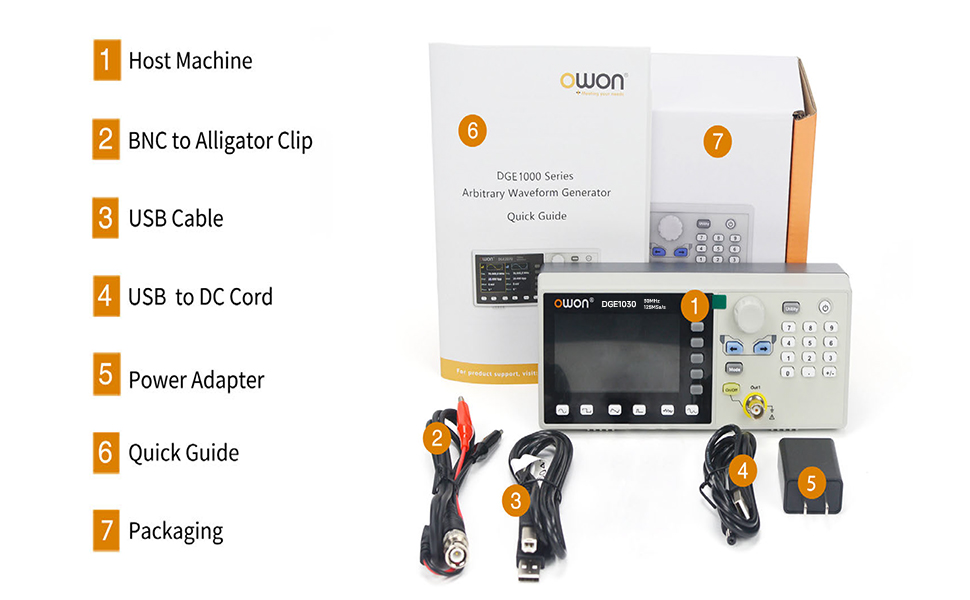
Figure 7.1: High Frequency Stable Output and Arbitrary Waveform Selection
7.2 дур зоргын долгионы хэлбэрүүд
The DGE1060 includes 160 built-in arbitrary waveforms and supports user-defined waveforms.
- Press the 'Arb' button (if available, or navigate through the menu to 'Arb').
- Select a built-in arbitrary waveform from the list using the navigation buttons and rotary knob.
- Adjust parameters as needed and enable output.
7.3 Modulation Functions (AM, FM, PM, FSK)
To apply modulation to a waveform:
- Select a basic waveform to be modulated.
- Press the 'Mode' button and select the desired modulation type (AM, FM, PM, or FSK).
- Adjust the modulation parameters (e.g., depth, frequency) using the controls.

Figure 7.2: Modulation and Sweep Function Settings
7.4 Шүүрдэх функц
The sweep function allows the output frequency to vary over a specified range.
- Press the 'Sweep' button.
- Select the sweep type (Linear or Log).
- Set the Start Frequency, Stop Frequency, and Sweep Time.
7.5 Burst Function
The burst function generates a specific number of waveform cycles.
- Press the 'Burst' button.
- Set the Burst Period and the number of Cycles (N-Cycle, Gated, or Infinite).
- Select the Trigger Source (Internal or Manual).

Figure 7.3: Burst Function and Waveform Storage
7.6 компьютерын алсын удирдлага
The DGE1060 supports remote control via a PC using the USB device interface and SCPI commands. Refer to the OWON website or additional software documentation for detailed instructions on setting up and using PC remote control.
Video 7.1: An official product video demonstrating the OWON DGE1060 Waveform Generator, highlighting its compact size, exterior dimensions, large LCD display, and remote operation capabilities. It also introduces various functions like high frequency stable output, arbitrary waveforms, multi-modulation modes (AM, FM, PM, FSK), sweep function, burst function, and waveform storage.
8. Техникийн үзүүлэлтүүд
| Ангилал | Тодорхойлолт |
|---|---|
| Брэнд | OWON |
| Загварын нэр | DGE1060 |
| Давтамжийн гаралт | 60 МГц |
| Sampling Rate | 300MSa / s |
| Босоо нарийвчлал | 14 бит |
| Долгион хэлбэрийн урт | 8 мянган оноо |
| Стандарт долгионы хэлбэрүүд | Синус, дөрвөлжин, импульс, Ramp, Дуу чимээ |
| Arbitrary Waveforms | 160 built-in, user-defined |
| Модуляцийн төрлүүд | AM, FM, PM, FSK, Sweep, Burst |
| Дэлгэц | 3.6 инчийн TFT LCD |
| Харилцаа холбооны интерфейс | USB төхөөрөмж |
| Эрчим хүчний эх үүсвэр | AC/DC |
| Ботьtage | 120 вольт (AC) |
| Гаралтын ватtage | 120 ватт |
| Бүтээгдэхүүний хэмжээ (L x W x H) | 5"L x 3"W x 5"H (ойролцоогоор) |
| Зүйлийн жин | 2.35 фунт |
| Өнгө | Хар |
9. Засвар үйлчилгээ
- Цэвэрлэгээ: Regularly clean the exterior of the instrument with a soft, dry cloth. Do not use abrasive cleaners or solvents.
- Хадгалах: When not in use for extended periods, store the device in a cool, dry place, protected from dust and extreme temperatures.
- Шалгалт тохируулга: Хэмжилтийн нарийвчлалыг хадгалахын тулд мэргэшсэн ажилтнуудаар үе үе тохируулга хийхийг зөвлөж байна.
10. Алдаа засах
If you encounter issues with your DGE1060 Waveform Generator, refer to the following common troubleshooting steps:
- Эрчим хүчгүй: Ensure the power adapter is securely connected to both the device and the power outlet. Verify the power outlet is functional.
- Гаралтын дохио байхгүй: Check if the OUT1 ON/OFF button is enabled. Verify that the output cable is correctly connected and not damaged. Ensure the amplitude and frequency settings are appropriate for your application.
- Incorrect Waveform: Double-check the selected waveform type and all associated parameters (frequency, amplitude, offset, etc.).
- PC Remote Control Issues: Ensure the USB cable is properly connected. Verify that the correct drivers are installed on your PC and that the remote control software is configured correctly.
If the problem persists after attempting these steps, please contact OWON customer support or your local distributor for assistance.
11. Баталгаат хугацаа ба дэмжлэг
For warranty information, technical support, or service inquiries, please refer to the official OWON website or contact your authorized OWON dealer. Keep your purchase receipt as proof of purchase for warranty claims.


