Танилцуулга
This manual provides essential instructions for the setup, operation, and maintenance of your new Vibox VI-124 PC Gamer system. This system includes an AMD Ryzen 3 3200GE processor with integrated Radeon Vega 8 graphics, 16GB RAM, a 2TB HDD, and a pre-installed Linux Mint operating system. It also comes with a 22-inch monitor, RGB keyboard, RGB mouse, and a gaming headset. Please read this manual carefully before using your system to ensure optimal performance and longevity.
1. Тохиргоо
1.1 Савлах
Carefully remove all components from their packaging. Ensure all items listed in the "What's in the Box" section are present:
- PC Tower
- 22" Monitor
- RGB Тоглоомын гар
- RGB тоглоомын хулгана
- Тоглоомын чихэвч
- Цахилгаан кабель (компьютер болон дэлгэцэнд)
- Video Cable (VGA/DVI-D)
- Wi-Fi адаптер
1.2 Бүрэлдэхүүн хэсгүүдийг холбох
- Place the PC Tower: Position the PC tower on a stable, flat surface with adequate ventilation.
- Мониторыг холбоно уу:
- Connect one end of the video cable (VGA or DVI-D) to the corresponding port on the back of the PC.
- Connect the other end of the video cable to the monitor.
- Мониторын цахилгааны кабелийг монитор руу, дараа нь цахилгаан залгуурт холбоно уу.
- Дагалдах төхөөрөмжүүдийг холбох:
- Connect the RGB Gaming Keyboard and RGB Gaming Mouse to available USB ports on the PC.
- Connect the Gaming Headset to the audio input/output jacks on the PC (usually green for audio out, pink for microphone in).
- Connect Wi-Fi Adapter: Insert the USB Wi-Fi adapter into an available USB port.
- Эрчим хүчийг холбох: Connect the PC's power cable to the power supply unit on the back of the PC, then plug it into a power outlet.

Image: Front panel ports for connecting USB devices and audio peripherals.

Image: The Vibox VI-124 PC tower, illustrating its design and internal components.
1.3 Анхдагч ачаалах
Press the power button on the front of the PC tower. The system will boot into the pre-installed Linux Mint operating system. Follow any on-screen prompts for initial setup, such as language selection and user account creation.
2. Ашиглалтын заавар
2.1 Асаах/унтраах
- Асаах: Press the power button on the front of the PC tower.
- Унтраах: In Linux Mint, click the "Menu" button (usually in the bottom-left corner), then select "Shut Down" or "Power Off". Do not simply unplug the PC while it is running.
- Дахин эхлүүлэх: In Linux Mint, click the "Menu" button, then select "Restart".
2.2 Wi-Fi-д холбогдож байна
Once the Wi-Fi adapter is connected, Linux Mint should automatically detect it. Click on the network icon in the system tray (usually top-right or bottom-right of the screen), select your Wi-Fi network, enter the password, and connect.
2.3 Using Peripherals
- Гар ба хулгана: These are plug-and-play devices. They should function immediately upon connection. RGB lighting effects may be controlled via dedicated software or buttons on the devices themselves, if available.
- Чихэвч: Ensure the headset is properly plugged into the audio jacks. You may need to select the headset as the default audio output/input device in Linux Mint's sound settings.
3. Засвар үйлчилгээ
3.1 Цэвэрлэгээ
- Гадна: Use a soft, dry cloth to wipe down the exterior of the PC tower, monitor, keyboard, and mouse. For stubborn marks, a slightly damp даавуу хэрэглэж болох ч шингэн төхөөрөмжид орохгүй байхыг анхаарна уу.
- Агааржуулалт: Periodically clean dust from the PC's ventilation grilles and fans using compressed air. Ensure the PC is powered off and unplugged before cleaning.
- Хяналтын дэлгэц: Use a microfiber cloth specifically designed for electronics screens. Do not use harsh chemicals.
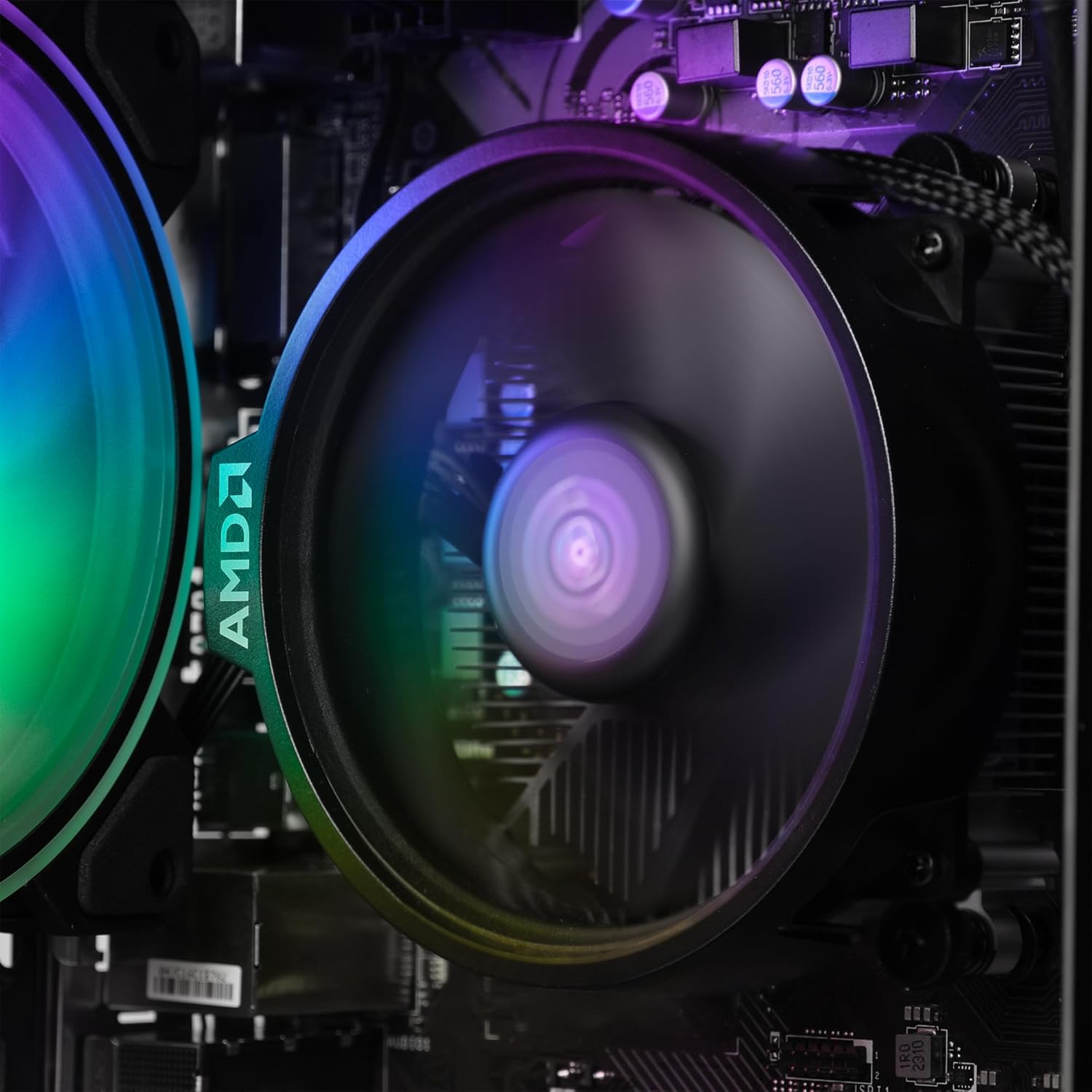
Зураг: Дотоод view of the CPU fan, highlighting the importance of keeping internal components dust-free.
3.2 Програм хангамжийн шинэчлэлтүүд
Regularly update your Linux Mint operating system and installed software to ensure security and optimal performance. Use the built-in Update Manager in Linux Mint to check for and install updates.
3.3 Өгөгдлийн нөөцлөлт
Өгөгдлийн алдагдлаас урьдчилан сэргийлэхийн тулд чухал мэдээллээ гадаад диск эсвэл клоуд санд тогтмол нөөцлөхийг зөвлөж байна.
4. Алдаа засах
| Асуудал | Боломжит шийдэл |
|---|---|
| Хүч чадалгүй |
|
| Дэлгэц дээр дэлгэц байхгүй |
|
| Интернет холболт байхгүй |
|
| Гар/Хулгана хариу өгөхгүй байна |
|
5. Техникийн үзүүлэлтүүд
| Бүрэлдэхүүн хэсэг | Дэлгэрэнгүй |
|---|---|
| Брэнд | VIBOX |
| Загварын дугаар | VBX-PC-6-124-AFR |
| Процессор | AMD Ryzen 3 3200GE Quad Core (3.6 GHz, up to 4.0 GHz Turbo) |
| График | Integrated Radeon Vega 8 Graphics (2GB DDR4 SDRAM) |
| RAM | 16 GB DDR4 3200MHz High Speed (Dual-Channel) |
| Хадгалах | 2 TB HDD (SATA-III 6.0 Gbit/s / 7200rpm) |
| Үйлдлийн систем | Linux Mint OS |
| Хяналт | 22" 1080p (FullHD 1920x1080 / 5ms Response / LED Backlight / 1x DVI-D / 1x VGA Ports) |
| Холболт | Wi-Fi (300Mbps Wireless Adapter) |
| Хэмжээ (L x W x H) | 32.6 x 19.5 x 42 см |
6. Баталгаат хугацааны мэдээлэл
Your Vibox VI-124 PC Gamer system comes with a Vibox Evolution Lifetime Warranty. This warranty covers manufacturing defects and hardware failures under normal use. For specific terms and conditions, please refer to the warranty documentation included with your product or visit the official Vibox webсайт. Баталгаат нэхэмжлэл гаргахын тулд худалдан авалтаа нотлох баримтаа хадгалаарай.
7. Хэрэглэгчийн дэмжлэг
If you encounter any issues or have questions not covered in this manual, please contact Vibox customer support. You can find contact information on the official Vibox website or through your retailer. When contacting support, please have your product model number (VBX-PC-6-124-AFR) and proof of purchase ready.
Дэлгэрэнгүй мэдээллийг эндээс авах боломжтой VIBOX Store on Amazon.


