1. Танилцуулга
This manual provides detailed instructions for setting up, operating, and maintaining your Womier SK80 PRO 75% Wireless Mechanical Keyboard. Please read this guide thoroughly to ensure proper usage and to maximize your keyboard's features.

Image 1.1: Womier SK80 PRO keyboard, wrist rest, and mouse pad setup.
2. Багцын агуулга
Таны багцад бүх зүйл байгаа эсэхийг шалгана уу:
- Womier SK80 PRO 75% Wireless Mechanical Keyboard
- Matching Wrist Rest
- Matching Mouse Pad
- USB-C кабель
- 2.4G USB Receiver (stored magnetically in the keyboard)
- Товчлуур татагч
- Шилжүүлэгч татагч
- Хэрэглэгчийн гарын авлага (энэ баримт бичиг)
3. Тохиргоо
3.1 Физик тохиргоо
- Гарыг тогтвортой гадаргуу дээр байрлуул.
- Position the wrist rest in front of the keyboard for ergonomic support.
- Place the mouse pad next to your keyboard.
- Adjust the keyboard's feet for your preferred typing angle.

Image 3.1: Ergonomic design and dimensions of the keyboard and wrist rest.
3.2 Холболтын горимууд
The Womier SK80 PRO supports three connection modes: 2.4G Wireless, Bluetooth, and USB-C Wired.
- 2.4G утасгүй горим:
- Locate the 2.4G USB receiver stored magnetically on the underside of the keyboard.
- Хүлээн авагчийг компьютер дээрээ байгаа USB порт руу холбоно уу.
- Switch the mode selector on the keyboard's underside to '2.4G'.
- Гар автоматаар холбогдох ёстой.
- Bluetooth горим:
- Switch the mode selector on the keyboard's underside to 'BT'.
- Төхөөрөмж дээрээ (компьютер, таблет, утас) Bluetooth-г асаагаад шинэ төхөөрөмжүүдийг хайгаарай.
- Select 'Womier SK80 PRO' from the list of available devices to pair.
- The keyboard can connect to up to 3 Bluetooth devices. Use Fn + Q/W/E to switch between paired devices.
- USB-C Утастай Горим:
- Өгөгдсөн USB-C кабелийг гарын USB-C порт руу холбоно уу.
- Кабелийн нөгөө үзүүрийг компьютер дээрээ байгаа USB порт руу холбоно уу.
- Switch the mode selector on the keyboard's underside to 'USB'.
- Гар нь утастай төхөөрөмж шиг ажиллах бөгөөд нэгэн зэрэг цэнэглэгдэх болно.

Image 3.2: The keyboard supports three versatile connection modes.
3.3 Driver/Software Installation
For advanced customization, including key remapping, macro settings, RGB lighting effects, and custom GIF images on the multimedia screen, download the official Womier SK80 PRO software from the Womier website. The software is compatible with Windows systems.
Video 3.3: Demonstration of the Womier SK80 PRO programming software.
4. Ашиглалтын заавар
4.1 Гарны үндсэн функцууд
The keyboard features a 75% layout with standard keys. Refer to the keycap legends for primary and secondary functions. Use the Fn key in combination with other keys to access secondary functions (e.g., media controls, F-keys).
4.2 Multimedia Screen Functions
The built-in color multimedia smart display screen can show various information and custom content:
- Дэлгэцийн мэдээлэл: Time, connection status, and battery level.
- Custom GIF Images: Upload custom GIF images via the software for a personalized display.

Image 4.1: Multimedia screen displaying various functions and custom GIFs.
Video 4.2: Demonstration of the multimedia display features.
4.3 RGB гэрэлтүүлгийн тохируулга
The keyboard features 16.8 million RGB backlight colors with south-facing LEDs for enhanced illumination. Customize lighting effects, brightness, and speed using the dedicated software or onboard controls (refer to the keyboard's quick guide for specific key combinations).

Image 4.3: RGB customization options via software.
4.4 Халуун сольж болдог унтраалга
The PCB supports 3-pin/5-pin hot-swappable switches, allowing you to easily replace the pre-lubed linear cream switches with other compatible mechanical switches without soldering.
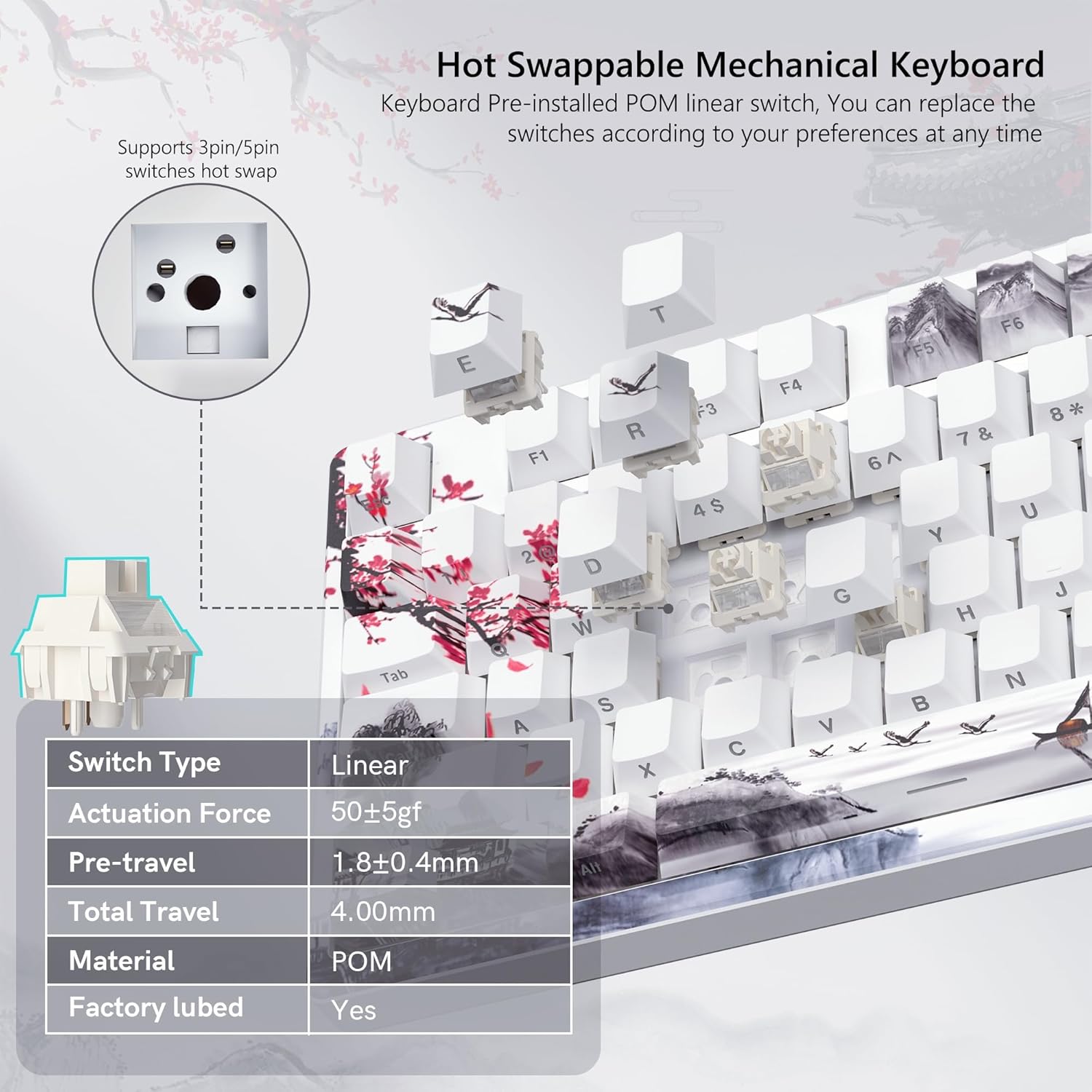
Image 4.4: Hot-swappable switch mechanism.
Video 4.5: Demonstration of hot-swappable switches and connectivity modes.
4.5 Key Remapping and Macro Settings
Utilize the Womier SK80 PRO software to redefine key functions and set up custom macros, enhancing your productivity and gaming experience.
5. Засвар үйлчилгээ
5.1 Цэвэрлэгээ
- Цэвэрлэхийн өмнө гарыг төхөөрөмжөөсөө салга.
- Use a keycap puller to carefully remove keycaps for thorough cleaning.
- Wipe the keyboard surface with a soft, damp даавуу. Хэт их чийгээс зайлсхий.
- Түлхүүрүүдийн хоорондох тоос шороо, хогийг зайлуулахын тулд шахсан агаар ашиглана уу.
5.2 Батерейны арчилгаа
The keyboard is equipped with a 4000mAh battery. To prolong battery life:
- Эхний хэрэглээний өмнө гарыг бүрэн цэнэглэ.
- Байнга зайгаа бүрэн шавхахаас зайлсхий.
- Гараа удаан хугацаагаар ашиглаагүй бол сэрүүн, хуурай газар хадгална.
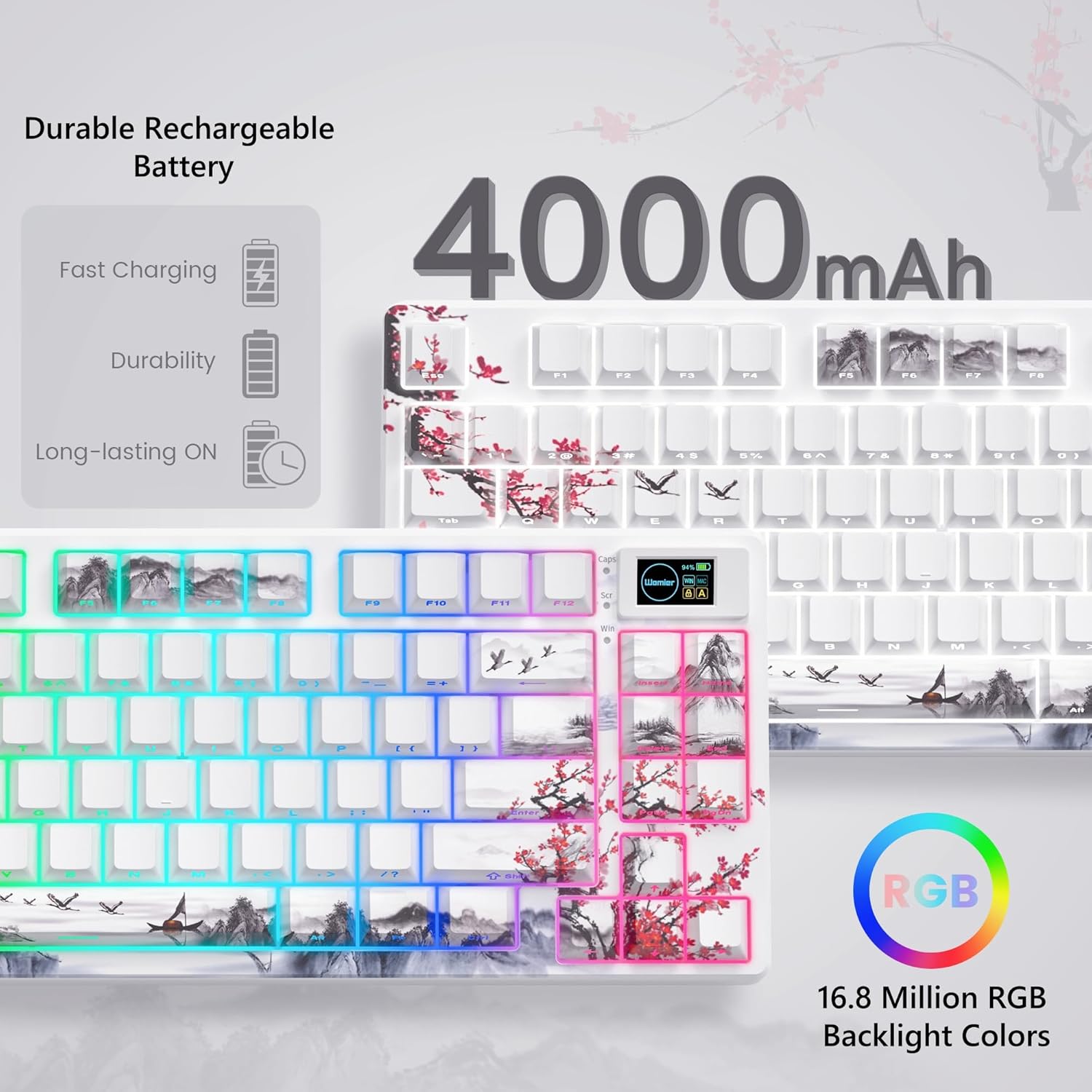
Image 5.1: Battery and RGB features.
5.3 Шилжүүлэгчийг солих
Товчлууруудыг солихын тулд:
- Use the provided keycap puller to remove the desired keycap.
- Use the switch puller to gently grasp and pull the switch upwards until it detaches from the PCB.
- Шинэ унтраалгын зүүг хэлхээний самбар дээрх нүхнүүдтэй зэрэгцүүл.
- Press the new switch firmly until it clicks into place. Ensure pins are not bent.
- Түлхүүрийн тагийг буцааж бэхлэнэ үү.
6. Алдаа засах
- Гар хариу өгөхгүй байна:
- Check the connection mode switch (2.4G, BT, USB) on the underside of the keyboard.
- Ensure the USB-C cable or 2.4G receiver is securely connected.
- Блютүүт холболтын хувьд гар нь төхөөрөмж дээрээ хосолсон, сонгогдсон эсэхийг шалгаарай.
- Батерейны түвшинг шалгах; бага бол цэнэглэ.
- RGB lighting not working/customizing:
- Гар асаалттай байгаа эсэхийг шалгаарай.
- Install and use the Womier SK80 PRO software for full customization.
- Refer to the quick guide for onboard RGB control shortcuts.
- Multimedia screen not displaying correctly:
- Ensure the keyboard is connected and powered.
- Use the Womier SK80 PRO software to upload or reset custom GIFs.
- Бүртгүүлээгүй эсвэл давхар бичээгүй түлхүүрүүд:
- This may indicate a faulty switch. Use the switch puller to replace the affected switch.
- Шилжүүлэгч нь самбар дээр бүрэн суурилагдсан эсэхийг шалгаарай.
7. Техникийн үзүүлэлтүүд
| Онцлог | Дэлгэрэнгүй |
|---|---|
| Загварын дугаар | JM-AZ-129 |
| Зохион байгуулалт | 75% |
| Холболт | 2.4G утасгүй, Bluetooth, USB-C утастай |
| Тохиромжтой төхөөрөмжүүд | PC (Windows, Mac, Android, iOS) |
| Шилжүүлэгч | Womier Customized Pre-lubed Linear Cream Switches (Hot-swappable 3-pin/5-pin) |
| Товчлуурууд | Theme Art Keycaps (Shine-through) |
| Арын гэрэлтүүлэг | 16.8 Million RGB (South-facing LED) |
| Зайны багтаамж | 4000 мАч лити полимер |
| Онцлог шинж чанарууд | Color Multimedia Smart Display Screen, Gasket Mount Design, EVA Positioning Plate, Bottom Filling |
| Бүтээгдэхүүний хэмжээс | 13.39 x 6.69 x 1.38 инч |
| Зүйлийн жин | 2.97 фунт |
8. Баталгаат хугацаа ба дэмжлэг
Womier products are designed for reliability and performance. For warranty information, technical support, or service inquiries, please visit the official Womier webсайтаас лавлах эсвэл хэрэглэгчийн дэмжлэгтэй шууд холбогдоно уу. Баталгаат хугацааны нэхэмжлэлийн талаар худалдан авалтын баримтаа хадгална уу.


