1. Танилцуулга
Welcome to the Ninkear A15 Laptop user manual. This guide provides essential information for setting up, operating, maintaining, and troubleshooting your new Ninkear A15 laptop. Please read this manual thoroughly to ensure proper use and to maximize the performance and longevity of your device.
The Ninkear A15 is a high-performance laptop featuring an AMD Ryzen 5 5500U Hexa-core Processor, 16GB RAM, and a 512GB PCIe SSD, designed for a variety of computing tasks from daily productivity to graphic design and entertainment.
2. Хайрцагт юу байна
Upon opening your Ninkear A15 Laptop package, please verify that all the following items are included:
- A15 laptop x 1
- Хулгана x 1
- Хулганы дэвсгэр x 1
- Цэнэглэгч x 1
3. Бүтээгдэхүүн дууссанview
The Ninkear A15 laptop is engineered for efficiency and user comfort. Below are key features and components:
3.1 Гол онцлогууд
- Хүчирхэг процессор: Equipped with an AMD Ryzen 5 5500U processor, AMD Radeon graphics, 6 cores and 12 threads, with a frequency up to 4.0Ghz, suitable for various applications.
- Иммерсив дэлгэц: Features a 15.6-inch FHD IPS display with 1920x1080 resolution, offering a 90.3% screen-to-body ratio and a 180-degree viewing angle for clear and natural picture quality.
- Өргөтгөсөн зай: A 4350mAh battery provides up to 6 hours of daily use, making it ideal for mobile work. It supports full-function Type-C charging.
- AmpХадгалалт ба санах ой: Comes with 16GB DDR4 RAM (3200Mhz) and a 512GB PCIe SSD, ensuring fast performance for professional software and multitasking.
- Хэрэглэгчдэд ээлтэй дизайн: Includes a full digital backlit keyboard with three adjustable monochrome backlight levels (FN+F9) and a 0.5-second fingerprint unlocking feature for enhanced security and convenience.
3.2 Харагдах байдалview

Урд view of the Ninkear A15 Laptop, showcasing түүний гоёмсог дизайн, дэлгэц.

Нэг гаруйview of the Ninkear A15 Laptop highlighting key specifications like 15.6" IPS FHD display, AMD Ryzen 5 5500U processor, 16GB DDR4 RAM, 512GB PCIe SSD, 4350mAh battery, backlit keyboard, and Type-C full function port.

Нарийвчилсан view of the AMD Ryzen 5 5500U processor, emphasizing its 6 cores, 12 threads, 7nm process, and 4.0GHz max turbo frequency.
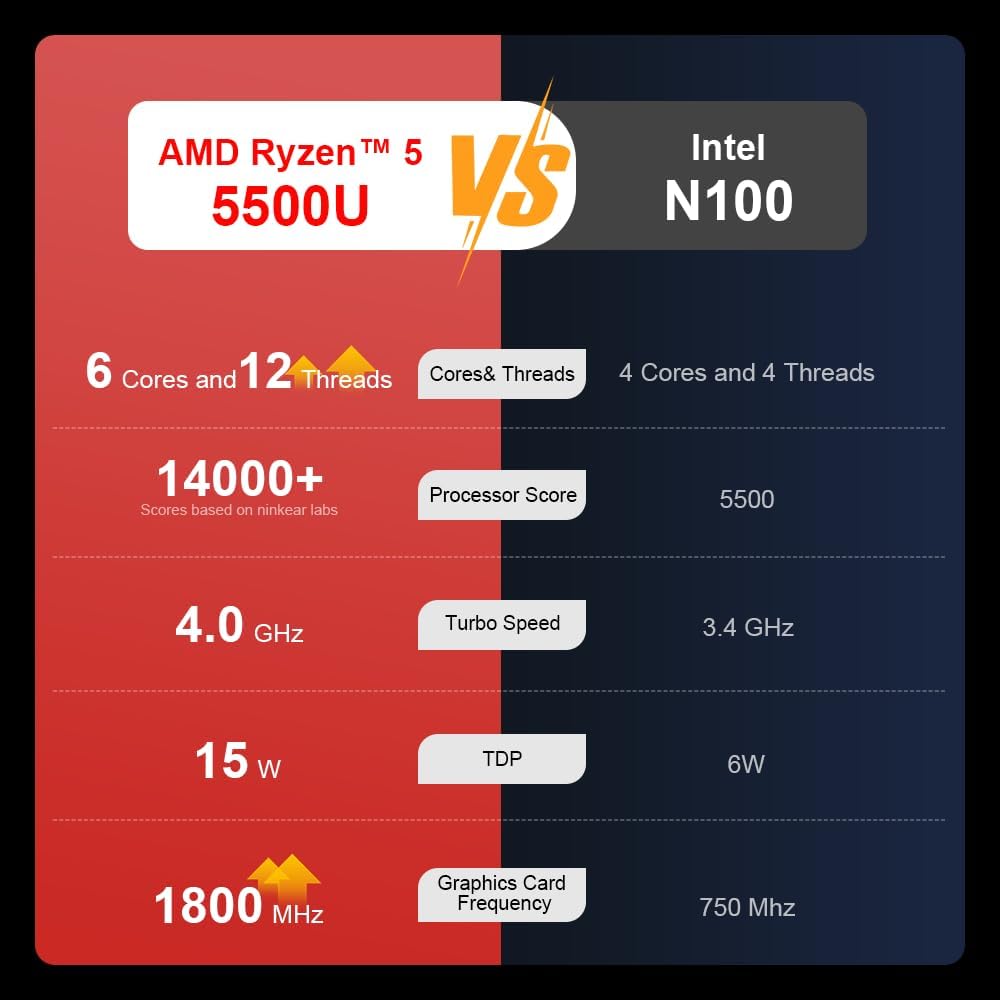
A comparison chart illustrating the performance differences between the AMD Ryzen 5 5500U and Intel N100 processors, including core/thread count, processor score, turbo speed, TDP, and graphics card frequency.

Image showing the 512GB M.2 PCIe SSD and highlighting the 3200MHz DDR4 running frequency, indicating a 20% speed improvement over 2666MHz DDR4.

The 15.6-inch IPS FHD screen of the A15, designed to deliver vibrant and accurate colors while reducing eye strain during long work hours.

Illustration of the A15 laptop's suitability for various 'recreational office' tasks, including graphic design (Ae, Ps, Ai) and gaming/entertainment.

Information about the laptop's 50.5WH high-capacity lithium-ion battery, providing up to 8 hours of local video playback and 72 hours of standby time.

A visual guide to the rich interfaces of the Ninkear A15 Laptop, including USB 3.0, USB 2.0, Headphone Jack, Charging Port, HDMI, and full-function Type-C ports.
3.3 Бүтээгдэхүүний видео
Албан ёсны бүтээгдэхүүний видео шоуasing the Ninkear A15 Laptop's features, including its design, display, backlit keyboard, and various ports. This video provides a dynamic overview of the laptop's capabilities and physical attributes.
4. Тохиргоо
Follow these steps to set up your Ninkear A15 Laptop for the first time:
- Зөөврийн компьютерийг задлах: Зөөврийн компьютер болон бүх дагалдах хэрэгслийг сав баглаа боодолоос болгоомжтой авч хая.
- Эрчим хүчийг холбох: Plug the charger into the laptop's charging port (DC-in or Type-C) and then into a power outlet.
- Анхны ачаалах: Open the laptop lid and press the power button (integrated with fingerprint sensor). The laptop will power on and begin the initial Windows 11 setup process.
- Windows 11-ийн тохиргоо: Follow the on-screen instructions to complete the Windows 11 setup, including selecting your region, language, connecting to Wi-Fi, and creating a user account.
- Хурууны хээ тохиргоо: During or after Windows setup, you can configure the fingerprint reader for quick and secure login.
5. Ашиглалтын заавар
This section covers basic operation of your Ninkear A15 Laptop.
5.1 Power On/Off and Sleep
- Асаах: Цахилгаан товчийг дар.
- Унтраах: Windows дээр Start товчийг дараад Power > Shut down-ыг сонгоно уу.
- Унтах горим: Тагийг хаах эсвэл Эхлүүлэх товчийг дарж, дараа нь Асаах > Унтах горимыг сонгоно уу.
5.2 Гар ба мэдрэгчтэй самбар
- Арын гэрэлтүүлэгтэй гар: дарна уу Fn + F9 to cycle through the three levels of monochrome backlight brightness or turn it off.
- Мэдрэгч самбар: Курсорыг удирдах болон дохио зангаа хийхийн тулд нэгдсэн мэдрэгчтэй самбарыг ашиглана уу. Мэдрэгч самбарын тохиргоог Windows тохиргооноос харна уу.
- Тоон товчлуур: The laptop features a full digital numeric keypad for convenient data entry.
5.3 Захын төхөөрөмжүүдийг холбох
Utilize the various ports for external devices:
- USB портууд: Connect USB devices like external hard drives, mice, or keyboards to the USB 2.0 or USB 3.0 ports.
- HDMI: Connect to external monitors or projectors using the HDMI port.
- C төрөл: The full-function Type-C port supports data transfer, video output, and power delivery.
- Аудио Жак: Чихэвч эсвэл гадаад чанга яригчийг 3.5 мм-ийн аудио залгуурт холбоно уу.
5.4 Дэлгэцийн тохиргоо
Adjust display settings via Windows Settings > System > Display to optimize resolution, scaling, and multiple monitor setups.
6. Засвар үйлчилгээ
Proper maintenance ensures the longevity and optimal performance of your Ninkear A15 Laptop.
- Цэвэрлэгээ: Дэлгэц болон явах эд ангиудыг цэвэрлэхийн тулд зөөлөн, хөвөнгүй даавуу ашиглана уу. Зөрүүд тэмдгийн хувьд бага зэрэг dampАлчуурыг ус эсвэл тор цэвэрлэгчээр арчина. Хүчтэй химийн бодисоос зайлсхий.
- Програм хангамжийн шинэчлэлтүүд: Regularly update Windows and device drivers to ensure system stability, security, and performance.
- Батерейны арчилгаа: Батерейны ашиглалтын хугацааг уртасгахын тулд батерейг байнга бүрэн цэнэггүй болгохоос зайлсхий. Зөөврийн компьютерээ удаан хугацаагаар ашиглаагүй үед сэрүүн, хуурай газар хадгална уу.
- Агааржуулалт: Хэт халалтаас сэргийлж зөөврийн компьютерын агааржуулалтын нүхийг бөглөөгүй эсэхийг шалгаарай. Зөөврийн компьютерээ хатуу, тэгш гадаргуу дээр ашиглаарай.
- Өгөгдлийн нөөцлөлт: Өгөгдөл алдагдахаас сэргийлж чухал өгөгдлөө гадаад диск эсвэл үүлэн хадгалалт руу тогтмол нөөцөлж байгаарай.
7. Алдаа засах
This section addresses common issues you might encounter with your Ninkear A15 Laptop.
| Асуудал | Боломжит шалтгаан | Шийдэл |
|---|---|---|
| Зөөврийн компьютер асахгүй байна | Батерей бага эсвэл тэжээлийн адаптерийн асуудал | Ensure the charger is properly connected and the power outlet is working. Allow the laptop to charge for at least 30 minutes before attempting to power on again. |
| Дэлгэц хоосон эсвэл хар байна | Display driver issue, external display connected, or sleep mode | Press any key or move the mouse to wake from sleep. Disconnect any external monitors. Try pressing Fn + F7 (or the key with a display icon) to switch display modes. If still blank, force shut down by holding the power button for 10 seconds, then restart. |
| Wi-Fi холбогдоогүй байна | Wi-Fi adapter off, incorrect password, or router issue | Check if Wi-Fi is enabled in Windows settings. Verify the Wi-Fi password. Restart your router and modem. Update Wi-Fi drivers if necessary. |
| Гарны арын гэрэлтүүлэг ажиллахгүй байна | Backlight turned off or low brightness setting | дарна уу Fn + F9 repeatedly to adjust brightness or turn on the backlight. |
| Удаан гүйцэтгэл | Too many programs running, low disk space, or outdated drivers | Close unnecessary applications. Free up disk space. Run Windows Update and update drivers. Consider running a virus scan. |
8. Техникийн үзүүлэлтүүд
Detailed technical specifications for the Ninkear A15 Laptop:
| Онцлог | Тодорхойлолт |
|---|---|
| Брэнд | Нинкер |
| Загварын нэр | A15 |
| Дэлгэцийн хэмжээ | 15.6 инч |
| Дэлгэцийн нягтрал | 1920 x 1080 пиксел (FHD IPS) |
| Процессор | AMD Ryzen 5 5500U (2.1 GHz, 6 цөмт, 12 утас) |
| RAM | 16 ГБ DDR4 (3200 МГц) |
| Хатуу диск | 512 GB PCIe SSD |
| График карт | Нэгдсэн AMD Radeon график |
| Үйлдлийн систем | Windows 11 |
| Өнгө | Мөнгө |
| Зүйлийн жин | 5 фунт |
| Бүтээгдэхүүний хэмжээс | 14 x 9 x 0.15 инч |
| USB 3.0 портууд | 2 |
| Батерейны дундаж хугацаа | Up to 6-8 hours (daily use) |
| Онцлог шинж чанарууд | Backlit Keyboard, Numeric Keypad, Fingerprint Unlock, Full-function Type-C |
9. Баталгаат хугацаа ба дэмжлэг
Ninkear provides a standard warranty for the A15 Laptop. Please refer to the warranty card included in your product packaging for specific terms and conditions, including warranty duration and coverage details.
For technical support, troubleshooting assistance, or warranty claims, please contact Ninkear customer service through the official website or the contact information provided with your purchase. Ensure you have your product model (A15) and purchase details ready when contacting support.
You can also visit the official Ninkear store on Amazon for additional product information and support resources: Ninkear Amazon Store


