Танилцуулга
This manual provides detailed instructions for the Keychron K10 Max Wireless Custom Mechanical Keyboard. It covers initial setup, operational procedures, maintenance guidelines, troubleshooting tips, and product specifications. Please read this manual thoroughly to ensure proper use and optimal performance of your keyboard.
Багцын агуулга
Таны багцад бүх зүйл байгаа эсэхийг шалгана уу:
- Keychron K10 Max утасгүй захиалгат механик гар
- Type-A-аас Type-C кабель
- Type-A 2.4GHz Receiver
- Товчлуур татагч
- Hex Key & Screwdriver
- Additional Windows Keycaps

Image: The Keychron K10 Max keyboard displayed with its accessories, including the USB-C cable, 2.4GHz receiver, keycap puller, hex key, screwdriver, and extra keycaps.
Тохиргоо
1. Анхны тохиргоо
Before first use, it is recommended to fully charge the keyboard using the provided Type-A to Type-C cable. Connect the USB-C end to the keyboard and the USB-A end to a power source (e.g., computer USB port, USB wall adapter).
2. Холболтын горимууд
The K10 Max supports three connectivity options: 2.4 GHz wireless, Bluetooth 5.1, and wired USB-C.

Image: The Keychron K10 Max keyboard on a desk, illustrating its three connectivity options: USB Wired, 2.4GHz, and Bluetooth 5.1, connecting to a monitor, tablet, and smartphone.
2.1. 2.4 GHz утасгүй холболт
- Locate the 2.4 GHz receiver (USB-A dongle) included in the package.
- Plug the 2.4 GHz receiver into an available USB-A port on your computer.
- On the keyboard, slide the mode switch (located on the back or side) to the "2.4G" position.
- The keyboard should automatically connect. The 2.4 GHz connection provides a 1000 Hz polling rate for responsive performance.
2.2. Bluetooth 5.1 холболт
- On the keyboard, slide the mode switch to the "BT" (Bluetooth) position.
- -г удаан дар fn+1 (эсвэл fn+2 / fn+3) key combination for 4 seconds until the backlight flashes rapidly. This indicates the keyboard is in pairing mode.
- Төхөөрөмж дээрээ (компьютер, таблет, ухаалаг утас) Bluetooth-г асаагаад шинэ төхөөрөмжүүдийг хайгаарай.
- Select "Keychron K10 Max" from the list of available devices to pair.
- The keyboard can store up to three Bluetooth devices. Switch between them by pressing fn+1, fn+2, эсвэл fn+3.
2.3. Утастай USB-C холболт
- Connect the provided Type-A to Type-C cable to the keyboard's USB-C port and to a USB-A port on your computer.
- Slide the mode switch on the keyboard to the "Cable" position.
- The keyboard will function as a wired device. This mode also supports a 1000 Hz polling rate.
3. Operating System Toggle
The K10 Max is compatible with both macOS and Windows/Linux operating systems. Use the OS toggle switch located on the back or side of the keyboard to select the appropriate layout.

Image: A close-up of the Keychron K10 Max keyboard's side, showing the physical toggle switch to select between Windows/Android and macOS modes, along with the connectivity switch for Cable or Bluetooth.
- Mac/iOS: Use this setting for Apple devices. The keyboard includes Mac multimedia keys and specific keycaps.
- Win/Android: Use this setting for Windows and Android devices. Additional Windows keycaps are provided for customization.
Ашиглалтын заавар
1. Key Remapping and Customization (QMK Firmware & Keychron Launcher)
The K10 Max is powered by QMK open-source firmware, allowing for extensive customization of key functions, macros, and lighting effects. The Keychron Launcher web application provides an intuitive interface for these customizations.
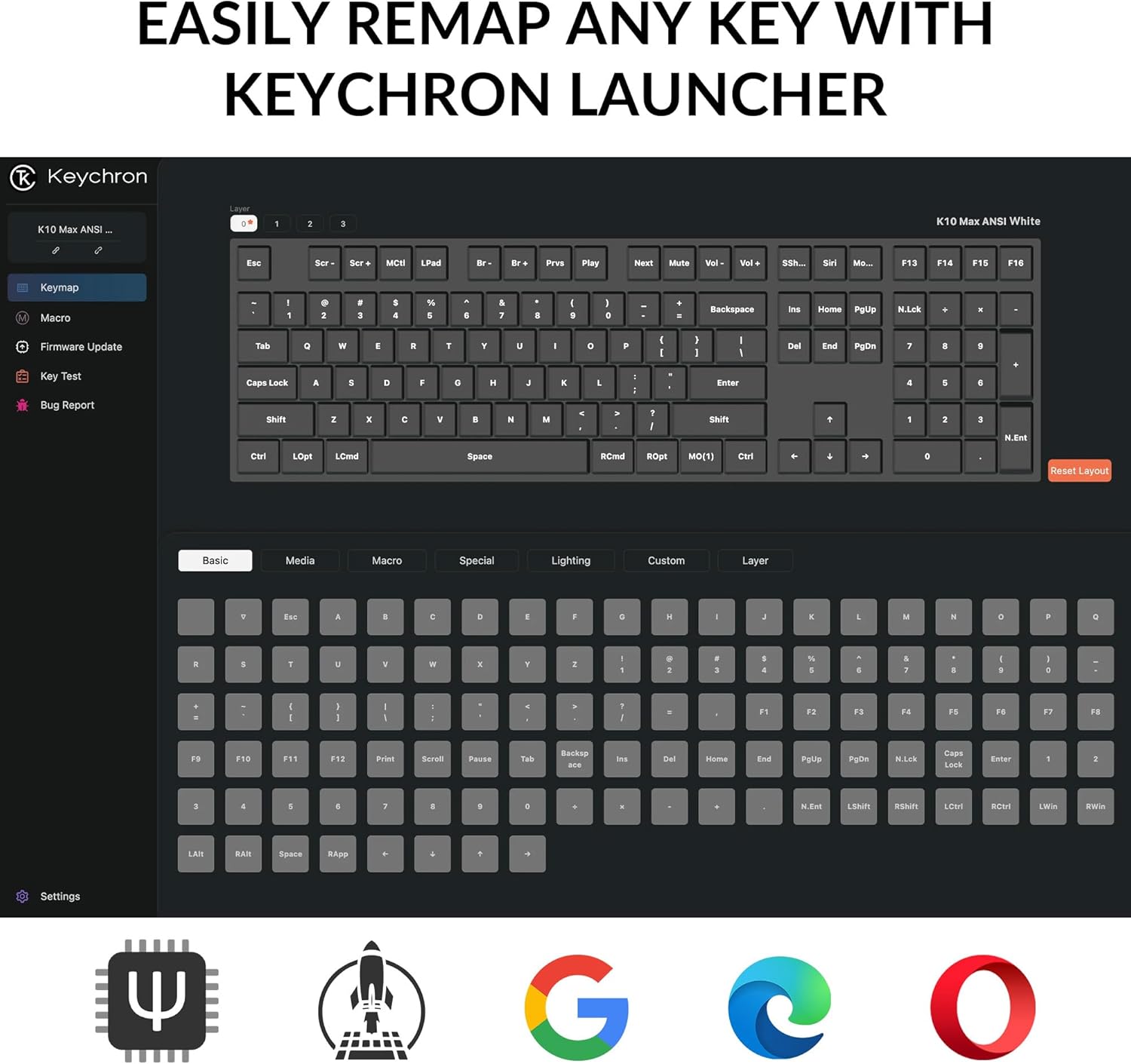
Image: A screenshot of the Keychron Launcher web application, showing the graphical interface for remapping keys and configuring keyboard settings.
- Access the Keychron Launcher web app through your web хөтөч.
- Connect your keyboard to your computer via the USB-C cable.
- Follow the on-screen instructions in the Launcher to remap keys, create macros, and adjust lighting.
- Save your changes to the keyboard's firmware.
2. Арын гэрэлтүүлгийн хяналт
The keyboard features a south-facing white LED backlight. Use the following key combinations to control the backlight:
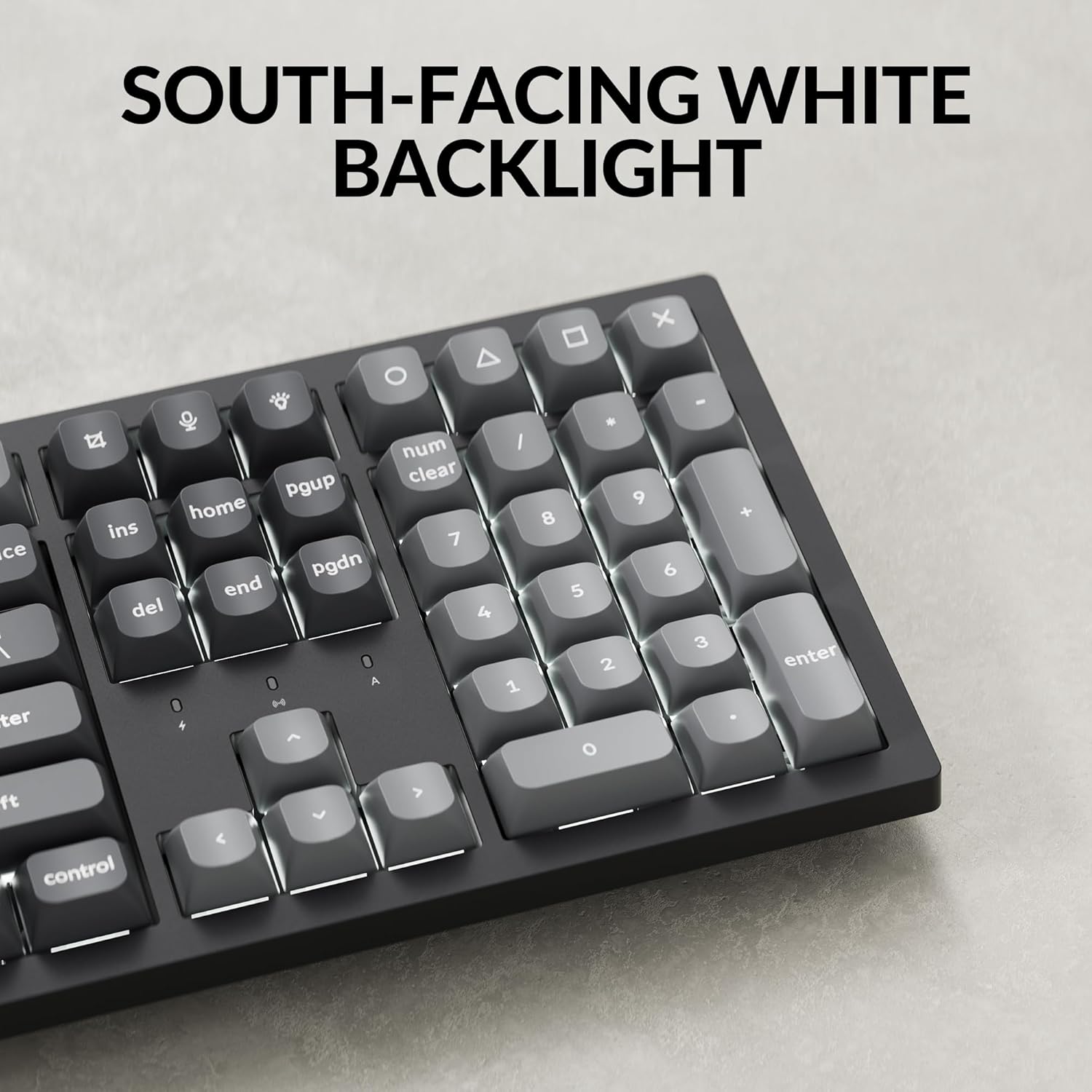
Зураг: Ойрын зураг view of the Keychron K10 Max keyboard's number pad and arrow keys, showcasing the south-facing white LED backlight illuminating the key legends.
- Fn + Light Key (usually F5 or a dedicated key): Cycle through backlight effects.
- Fn + Дээш/Доош сум: Арын гэрлийн тод байдлыг тохируулна уу.
- Fn + Зүүн/Баруун сум: Adjust backlight effect speed (if applicable).
3. Зайны удирдлага
The K10 Max is equipped with a 4000 mAh rechargeable battery. To maximize battery life:
- Turn off the backlight when not needed.
- Use the wired connection when possible to conserve battery.
- The keyboard can last up to 190 hours with the backlight off and approximately 100 hours at the lowest brightness setting.
- A low battery indicator (usually a flashing LED) will notify you when charging is required.
Засвар үйлчилгээ
1. Цэвэрлэгээ
Тогтмол цэвэрлэгээ хийх нь гарны харагдах байдал, ажиллагааг хадгалахад тусалдаг.
- Цэвэрлэхийн өмнө гарыг бүх тэжээлийн эх үүсвэр болон төхөөрөмжүүдээс салга.
- Зөөлөн, хөвөнгүй даавууг бага зэрэг хэрэглээрэй dampened with water or a mild cleaning solution to wipe the keycaps and frame. Avoid excessive moisture.
- Товчлуурын хоорондох тоос шороо, хог хаягдлыг шахсан агаар эсвэл жижиг сойз ашиглана уу.
- The PBT keycaps are durable and oil-resistant, making them easy to clean.
2. Keycap Removal
To remove keycaps for cleaning or replacement:

Image: A close-up of the Keychron K10 Max keyboard, showing several double-shot PBT keycaps removed, revealing their construction and the underlying switches.
- Use the provided keycap puller.
- Gently hook the puller onto the sides of the keycap.
- Pull straight up with even pressure to remove the keycap. Avoid twisting or excessive force to prevent damage to the switch.
- When reattaching, align the keycap with the switch stem and press down firmly until it clicks into place.
Алдааг олж засварлах
- Гар хариу өгөхгүй байна:
- Гар цэнэглэгдсэн эсэхийг шалгаарай.
- Check the connectivity mode switch (2.4G, BT, Cable) is set correctly.
- For 2.4 GHz, ensure the receiver is securely plugged in.
- For Bluetooth, re-pair the device or try a different Bluetooth slot (Fn+1/2/3).
- For wired, ensure the USB-C cable is properly connected to both the keyboard and the computer.
- Компьютер дээрээ өөр USB порт руу холбогдож үзнэ үү.
- Бүртгүүлээгүй эсвэл давхар бичээгүй түлхүүрүүд:
- Clean around the affected keycap to remove any debris.
- Түлхүүрийн тагийг унтраалга дээр зөв байрлуулсан эсэхийг шалгаарай.
- If using wireless, ensure there is no interference and the keyboard is within range.
- Consider updating the keyboard firmware via the Keychron Launcher.
- Арын гэрэлтүүлэг ажиллахгүй байна:
- Гарын зай хангалттай цэнэгтэй байгаа эсэхийг шалгаарай.
- Гэрэлтүүлгийг ашиглан тохируулна уу Fn + Дээш сум.
- Арын гэрэлтүүлгийн эффектүүдийг ашиглан эргэлдэнэ Fn + Light Key.
- OS layout issues (e.g., Alt/Cmd keys swapped):
- Verify the OS toggle switch on the keyboard is set to the correct operating system (Mac/iOS or Win/Android).
Үзүүлэлтүүд
| Загварын нэр | K10 Макс |
| Загварын дугаар | K10M-A3 |
| Зохион байгуулалт | 100% Full-sized, 108 Keys |
| Холболт | 2.4 GHz Wireless, Bluetooth 5.1, USB-C Wired |
| Санал хураалтын хувь | 1000 Hz (2.4 GHz & Wired), 90 Hz (Bluetooth) |
| Товчлуурууд | Double-shot PBT (non-shine-through) |
| Арын гэрэлтүүлэг | South-facing White LED |
| Шилжүүлэгч | Keychron Super Mechanical Switch (Super Red Switch) |
| Тогтворжуулагч | Screw-in PCB Stabilizers |
| Програм хангамж | QMK (Open-source), Keychron Launcher compatible |
| Зайны багтаамж | 4000 мАч |
| Зайны ашиглалт | Up to 190 hours (backlight off), approx. 100 hours (lowest brightness) |
| Тохиромжтой үйлдлийн систем | macOS, Windows, Linux |
| Хүрээний материал | ABS |
| Бүтээгдэхүүний хэмжээс | 13.94 x 4.89 x 0.64 инч (447.37 x 139.82 мм) |
| Зүйлийн жин | 1.1 pounds (1530 g ± 10 g) |
| N-Key Rollover (NKRO) | Тиймээ |
Баталгаат болон дэмжлэг
For warranty information and technical support, please refer to the official Keychron website or contact Keychron customer service. Details regarding warranty periods and service procedures are available through these channels.
Official Keychron Webсайт: www.keychron.com


