1. Танилцуулга
This manual provides comprehensive instructions for the ShanWan Bluetooth Gamepad Keychain Sized Mini Controller. Please read this manual carefully before use to ensure proper operation and to maximize your gaming experience. This device is designed for use with Android phones and tablets, PS4/Slim/Pro, iPhone, iPad, Nintendo Switch, and Windows PCs.
2. Бүтээгдэхүүн дууссанview
The ShanWan Mini Controller is a compact and versatile gamepad designed for portability and multi-platform compatibility. It features 17 buttons and a D-Pad, all within a keychain-sized form factor.
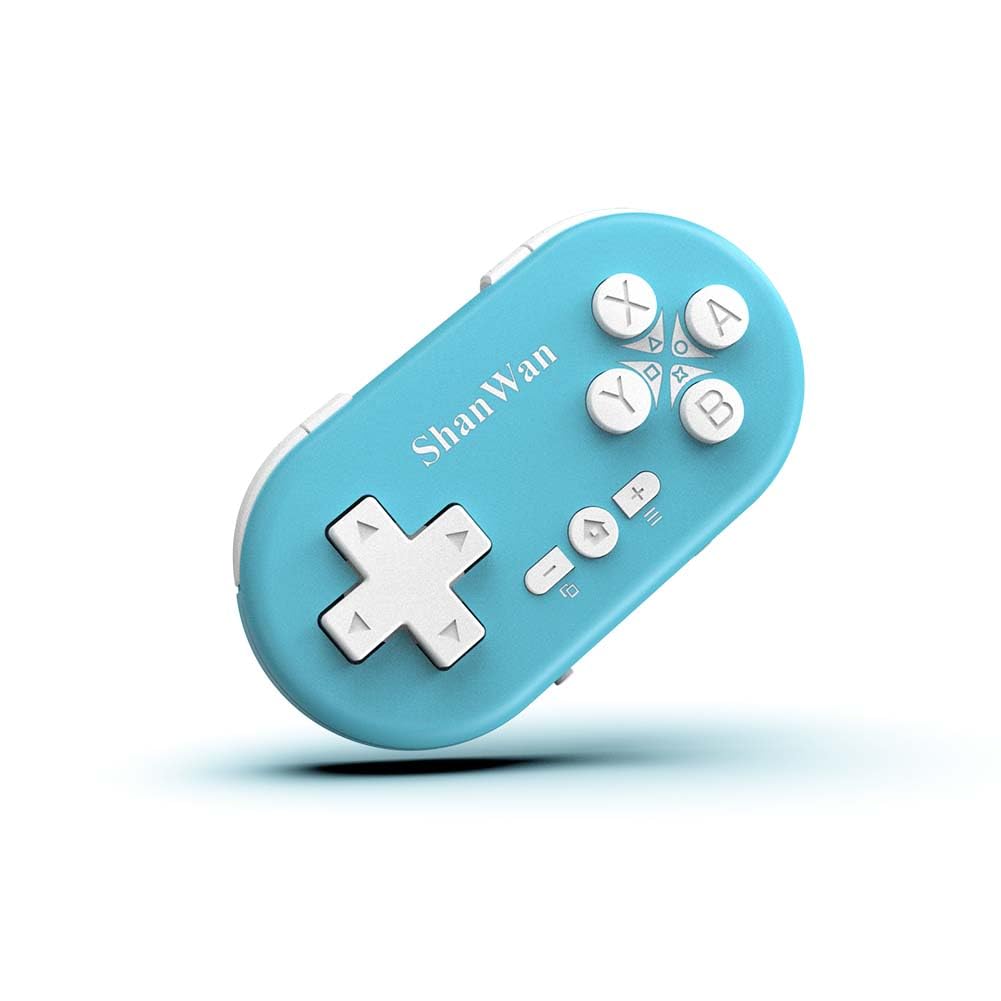
Figure 2.1: ShanWan Mini Bluetooth Gamepad, showcasing its compact design and button layout.

Figure 2.2: Dimensions of the ShanWan Mini Bluetooth Gamepad, measuring 2.83 inches in length, 1.57 inches in width, and 0.55 inches in thickness.
2.1 Багцын агуулга
- ShanWan Bluetooth Gamepad Keychain Sized Mini Controller
- USB цэнэглэгч кабель
- Хэрэглэгчийн гарын авлага (энэ баримт бичиг)
3. Техникийн үзүүлэлтүүд
| Онцлог | Дэлгэрэнгүй |
|---|---|
| Загварын дугаар | Q36-XPS-KABRILAN |
| Холболт | Bluetooth утасгүй |
| Тохиромжтой байдал | Android, iOS, Windows, Nintendo Switch, PlayStation 4 |
| Зайны багтаамж | 180 мАч лити полимер (оруулсан) |
| Цэнэглэх хугацаа | Ойролцоогоор 1 цаг |
| Ашиглалтын хугацаа | 5-6 цаг хүртэл |
| Утасгүй сүлжээ | 10 метр (33 фут) хүртэл |
| Бүтээгдэхүүний хэмжээс | 2.83 x 1.57 x 0.55 инч |
| Зүйлийн жин | 1.44 унц (ойролцоогоор 41 грамм) |
| Онцлог шинж чанарууд | Gyroscope motion sensing, One-button wake-up function |
4. Тохиргоо ба Хослуулах
4.1 Хянагчийг цэнэглэх
Before first use, fully charge the controller. Connect the provided USB charging cable to the controller's charging port and the other end to a USB power source (e.g., computer, USB wall adapter). The charging indicator light will show the charging status and turn off when fully charged. A full charge typically takes about 1 hour.
4.2 Асаах/унтраах
- Асаах: Press and hold the Home button (usually the button with a house icon) for a few seconds until the indicator lights turn on.
- Унтраах: Press and hold the Home button for approximately 5 seconds until the indicator lights turn off. The controller will also automatically power off after a period of inactivity to conserve battery.
4.3 Bluetooth холбох заавар
The controller supports multiple platforms. Ensure the mode switch on the controller is set to the correct platform before pairing.
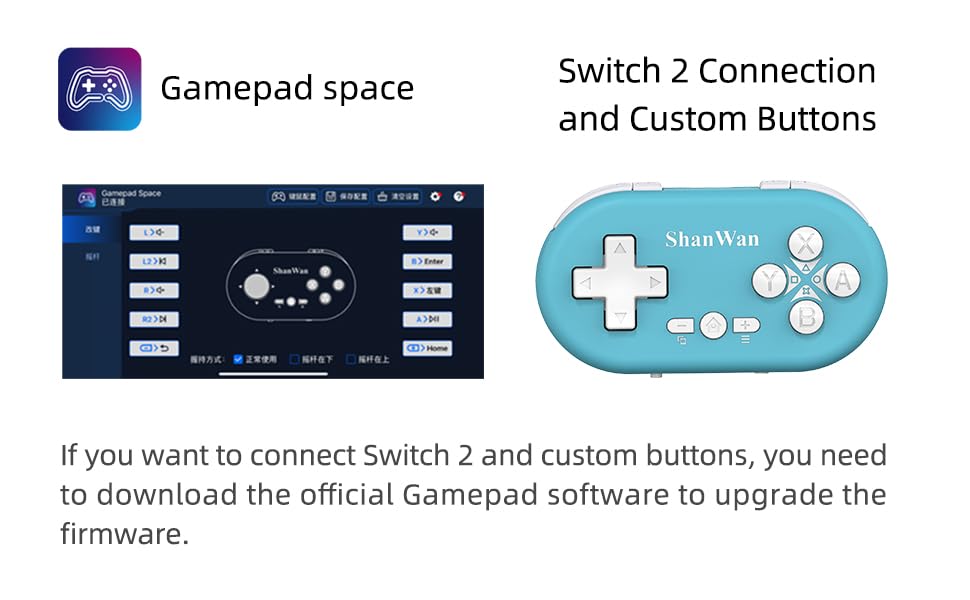
Figure 4.1: The mode switch on the controller, allowing selection between X (Xbox/PC), S (Switch), and P (PlayStation) modes for multi-device compatibility.
4.3.1 Nintendo Switch-тэй хослуулах
- Nintendo Switch дээрээ НҮҮР ХУУДАС цэс рүү очно уу.
- Select "Controllers" then "Change Grip/Order".
- Set the controller's mode switch to "S" (Switch mode).
- Press and hold the "Pair" button on the controller until the indicator lights begin to blink rapidly.
- The Switch will detect the controller. Once paired, the LED indicator on the controller will remain solid, and the controller will be displayed on the Switch host screen.

Figure 4.2: Visual guide for connecting the controller to a Nintendo Switch, showing menu navigation and the pairing button location.
4.3.2 Pairing with Android/iOS Devices
- Set the controller's mode switch to the appropriate mode (e.g., "X" for Android, or a specific iOS mode if available, refer to device-specific instructions).
- Андройд эсвэл iOS төхөөрөмж дээрээ Bluetooth тохиргоо руу очно уу.
- Bluetooth идэвхжсэн эсэхийг шалгаарай.
- Press and hold the "Pair" button on the controller until the indicator lights blink rapidly.
- Select "ShanWan Controller" or a similar name from the list of available devices on your phone/tablet.
- Холбогдсоны дараа хянагч дээрх заагч гэрэл тогтворжих болно.
4.3.3 Pairing with PS4
- Set the controller's mode switch to "P" (PlayStation mode).
- On your PS4, go to "Settings" > "Devices" > "Bluetooth Devices".
- Press and hold the "Pair" button on the controller until the indicator lights blink rapidly.
- Select "ShanWan Controller" or a similar name from the list of available devices on your PS4.
- Холбогдсоны дараа хянагч дээрх заагч гэрэл тогтворжих болно.
4.3.4 Pairing with Windows PC
- Set the controller's mode switch to "X" (Xbox/PC mode).
- On your Windows PC, go to "Settings" > "Devices" > "Bluetooth & other devices".
- Ensure Bluetooth is enabled and click "Add Bluetooth or other device".
- "Bluetooth"-г сонгоно уу.
- Press and hold the "Pair" button on the controller until the indicator lights blink rapidly.
- Select "ShanWan Controller" or a similar name from the list of available devices.
- Холбогдсоны дараа хянагч дээрх заагч гэрэл тогтворжих болно.
5. Ашиглалтын заавар
5.1 Товчлуурын функцууд
The controller features standard gamepad buttons. Their specific function may vary slightly depending on the platform and game.
- D-Pad: Чиглэлийн оролт.
- A, B, X, Y товчлуурууд: Үйлдлийн товчлуурууд.
- L1, L2, R1, R2 Buttons: Мөр болон гох товчлуурууд.
- Нүүр хуудас товч: Асаах/унтраах, үндсэн дэлгэц рүү буцах (платформоос хамаарна).
- Нэмэх (+) / Хасах (-) товчлуурууд: Start/Select or menu functions.
- Хосуудын товчлуур: Bluetooth холболтыг эхлүүлнэ.
5.2 Онцлог шинж чанарууд
5.2.1 One-Button Wake-Up Function
After initial pairing, you can wake up the controller and reconnect it to the last paired device by simply pressing the Home button. This feature allows for quick resumption of gameplay.
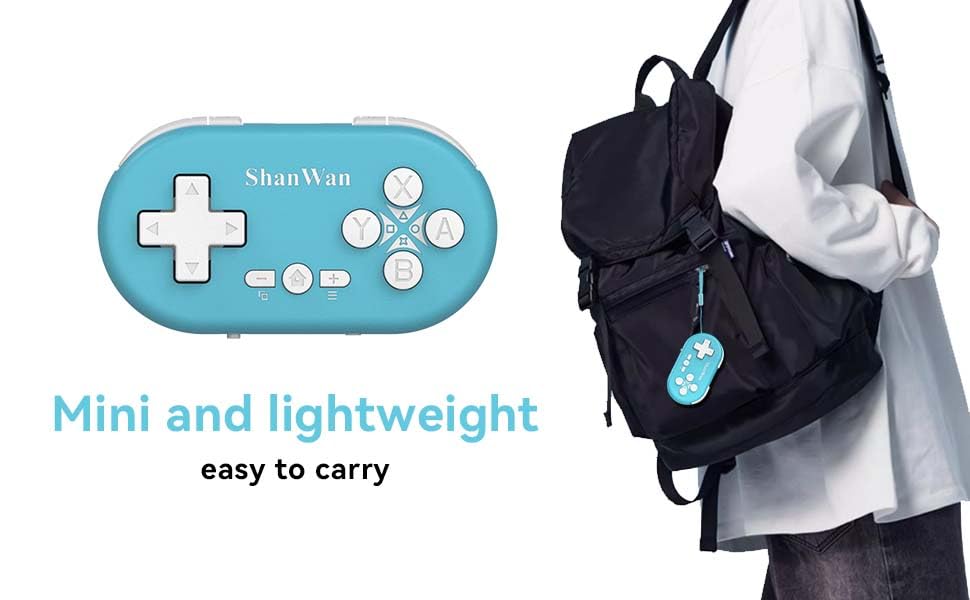
Figure 5.1: Illustration of the one-button wake-up function, highlighting the Home button used to quickly reactivate the controller.
5.2.2 Gyroscope Motion Sensing
The controller is equipped with a gyroscope for motion sensing effects, providing an immersive gaming experience in supported games, particularly on platforms like Nintendo Switch.
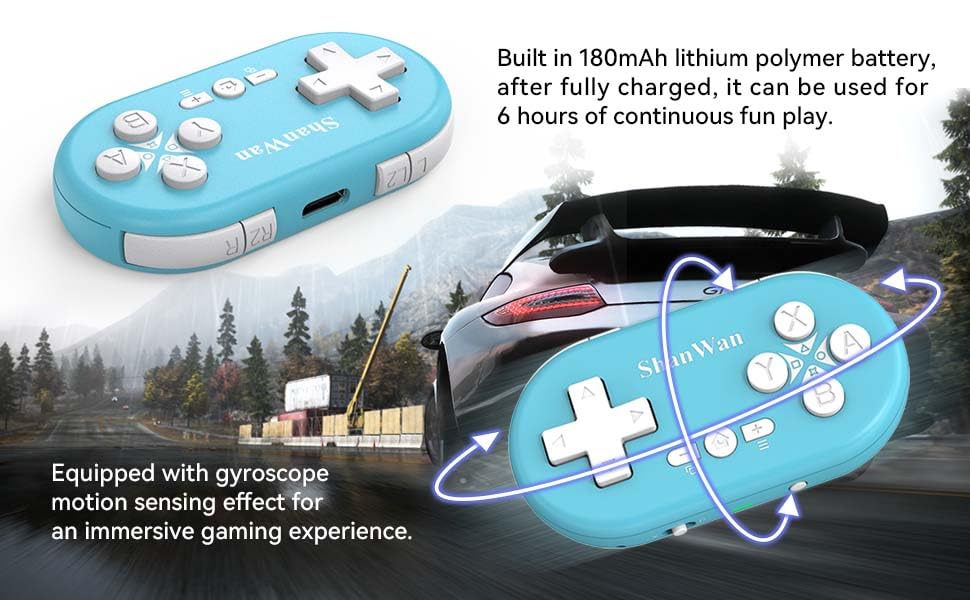
Figure 5.2: Visual representation of the gyroscope motion sensing effect, showing the controller being tilted to influence in-game actions.
5.2.3 Firmware Upgrade for Switch 2 and Custom Buttons
For compatibility with Switch 2 and to customize button mappings, it may be necessary to download the official Gamepad software and upgrade the controller's firmware. Refer to the manufacturer's official webхамгийн сүүлийн үеийн програм хангамж болон зааврыг авах сайт.

Figure 5.3: Screenshot illustrating the "Gamepad Space" software interface, used for firmware upgrades and custom button configurations, particularly for Switch 2 compatibility.
6. Засвар үйлчилгээ
- Цэвэрлэгээ: Удирдагчийг цэвэрлэхийн тулд зөөлөн, хуурай даавуу ашиглана уу. Химийн хатуу бодис, зүлгүүрийн материал ашиглахаас зайлсхий.
- Хадгалах: Удирдагчийг нарны шууд тусгал, хэт температураас хол, сэрүүн, хуурай газар хадгална.
- Батерейны арчилгаа: Батерейны ашиглалтын хугацааг уртасгахын тулд батерейг байнга бүрэн цэнэггүй болгохоос зайлсхий. Удаан хугацаанд ашиглаагүй байсан ч удирдлагыг тогтмол цэнэглээрэй.
- Нөлөөлөлөөс зайлсхийх: Хянагчийг унагаж эсвэл хүчтэй цохилтод оруулж болохгүй, учир нь энэ нь дотоод эд ангиудыг гэмтээж болзошгүй.
7. Алдаа засах
7.1 Controller Does Not Power On
- Удирдлага бүрэн цэнэглэгдсэн эсэхийг шалгаарай. Үүнийг тэжээлийн эх үүсвэрт холбоод дахин асаахаасаа өмнө дор хаяж 15 минут цэнэглээрэй.
- Verify that the charging cable and power source are functioning correctly.
7.2 Unable to Pair Controller
- Ensure the controller is in pairing mode (indicator lights blinking rapidly).
- Check that the mode switch on the controller is set to the correct platform (S for Switch, X for Android/Windows, P for PS4).
- Make sure Bluetooth is enabled on your device (Switch, phone, PC, PS4).
- Move the controller closer to the device you are trying to pair with.
- Remove any previous pairings of the controller from your device's Bluetooth settings and try pairing again.
- Хянагч болон төхөөрөмжөө хоёуланг нь дахин эхлүүлнэ үү.
7.3 Оролтын саатал эсвэл тасалдал
- Хянагч нь таны төхөөрөмжөөс 10 метрийн утасгүй сүлжээний хүрээнд байгаа эсэхийг шалгаарай.
- Бусад утасгүй төхөөрөмжүүдээс (Wi-Fi чиглүүлэгч, бусад Bluetooth төхөөрөмжүүд) үүсэх хөндлөнгийн оролцоог багасгах.
- Ensure the controller is fully charged. Low battery can affect connection stability.
- Хянагчийг төхөөрөмжтэйгээ дахин хослуулахыг оролдоно уу.
- Update the controller's firmware if available (refer to Section 5.2.3).
7.4 Buttons Not Responding Correctly
- Test the controller on a different game or application to determine if the issue is game-specific.
- Хянагчийн програм хангамж шинэчлэгдсэн эсэхийг шалгаарай.
- Perform a factory reset if possible (refer to manufacturer's support for specific instructions, as this model may not have a dedicated reset button).
8. Баталгаат хугацаа ба дэмжлэг
ShanWan products are designed for reliability and performance. For warranty information, technical support, or further assistance, please visit the official ShanWan webсайт эсвэл харилцагчийн үйлчилгээтэй холбогдоно уу. Худалдан авалтын баримтаа баталгаат нэхэмжлэлд зориулж худалдан авалтын баталгаа болгон хадгална уу.
Official ShanWan Store: ShanWan Store on Amazon
9. Нэмэлт мэдээлэл
The ShanWan Mini Controller's compact and lightweight design makes it highly portable, allowing users to carry it easily and enjoy gaming on the go.

Figure 9.1: The ShanWan Mini Bluetooth Gamepad attached to a backpack, illustrating its keychain-sized portability and ease of transport.

Figure 9.2: The ShanWan Mini Bluetooth Gamepad being used outdoors with a portable screen, demonstrating its ease of transport and use anywhere.


