Танилцуулга
The Tera Pro 2025 Barcode Scanner (Model 8200_US) is an advanced, industrial-grade scanning device designed for efficient and reliable barcode reading in various environments. This manual provides comprehensive instructions for setting up, operating, maintaining, and troubleshooting your scanner.
Гол онцлогууд:
- Unparalleled and Unique Design Globally: Features patented NFC technology allowing quick switching between up to 10 user settings in 1 second using NFC cards. Five NFC cards are included.
- Battery Level Indicator & 2200mAh Capacity: Equipped with a high-capacity 2200mAh battery and a built-in indicator light for real-time charge updates, ensuring efficient usage and minimizing downtime.
- Industrial Grade Long-Lasting: Built for durability with a sturdy stand, top-tier waterproof (IP66) and dustproof protection, and drop resistance up to 9.84 feet (3 meters), suitable for rugged environments.
- Superior Global CMOS Imaging Scanning: Excels in fast and accurate reading of both ordinary and high-density 1D, 2D, and QR barcodes, including challenging formats like PDF417. Capable of scanning barcodes on silver paper, reflective materials, and even underwater.
- 3-in-1 Connectivity & Support 1D 2D Codes: Offers versatile connectivity options including Bluetooth, 2.4G wireless (via USB dongle), and USB wired. Compatible with Windows 11/10/8/7/XP, Mac OS, iOS, Android, and Linux.
Багцын агуулга
Багцыг нээхдээ дараах зүйлс багтсан эсэхийг шалгана уу.
- Tera Pro 2025 Barcode Scanner (Model 8200)
- Сканнерийн тавиур
- USB кабель (C төрлөөс USB-A хүртэл)
- 2.4G USB Dongle
- NFC Cards (x5)
- Хэрэглэгчийн гарын авлага (энэ баримт бичиг)

Тохиргоо
1. Анхны цэнэглэлт
Before first use, fully charge the scanner using the provided USB cable. Connect the USB-C end to the scanner and the USB-A end to a power adapter (not included) or a computer USB port. The battery level indicator will show charging progress.

2. Холболтын сонголтууд
The Tera Pro 2025 scanner offers three connection modes:
- Bluetooth Connection (Wireless Mode): Ideal for connecting to smartphones, tablets, and Bluetooth-enabled computers.
- 2.4G Wireless Connection (Wireless Mode): Use the included 2.4G USB dongle for wireless connection to computers. Offers a range of up to 328ft in open spaces and 114ft with obstacles.
- USB утастай холболт: Connect directly to a computer via the USB cable for stable, wired operation and charging.

3. Setting Up NFC Cards for User Profiles
The scanner supports saving up to 10 user settings using NFC cards. This allows for quick switching of scanner configurations based on individual user preferences or specific tasks.
- To program an NFC card, scan the configuration barcodes from the full user manual (PDF link available in the Support section) to set desired parameters such as volume, vibration, data format (prefix/suffix), and connection mode.
- Once settings are configured, scan the 'Save Settings to NFC Card' barcode (found in the full manual), then tap an NFC card to the scanner's NFC reader area. The settings will be saved to that card.
- To load settings, simply tap the programmed NFC card to the scanner. The scanner will automatically apply the stored configuration.

Video: This video demonstrates how to set up the Tera 8200 barcode scanner, highlighting the ease and speed of configuration.
Сканнерыг ажиллуулах
1. Бар кодыг сканнердах
The Tera Pro 2025 can scan both 1D and 2D barcodes, including QR codes, from paper and digital screens. Point the scanner's window at the barcode and press the trigger button. A successful scan will typically be indicated by a beep and/or vibration.

2. Скан хийх горимууд
The scanner supports two primary scanning modes:
- Түлхүүр гох горим: Press the trigger button for each scan. This mode is suitable for individual item scanning.
- Тасралтгүй скан хийх горим: When placed on its stand, the scanner can be configured to continuously scan barcodes as they pass through its field of view, ideal for hands-free operation.
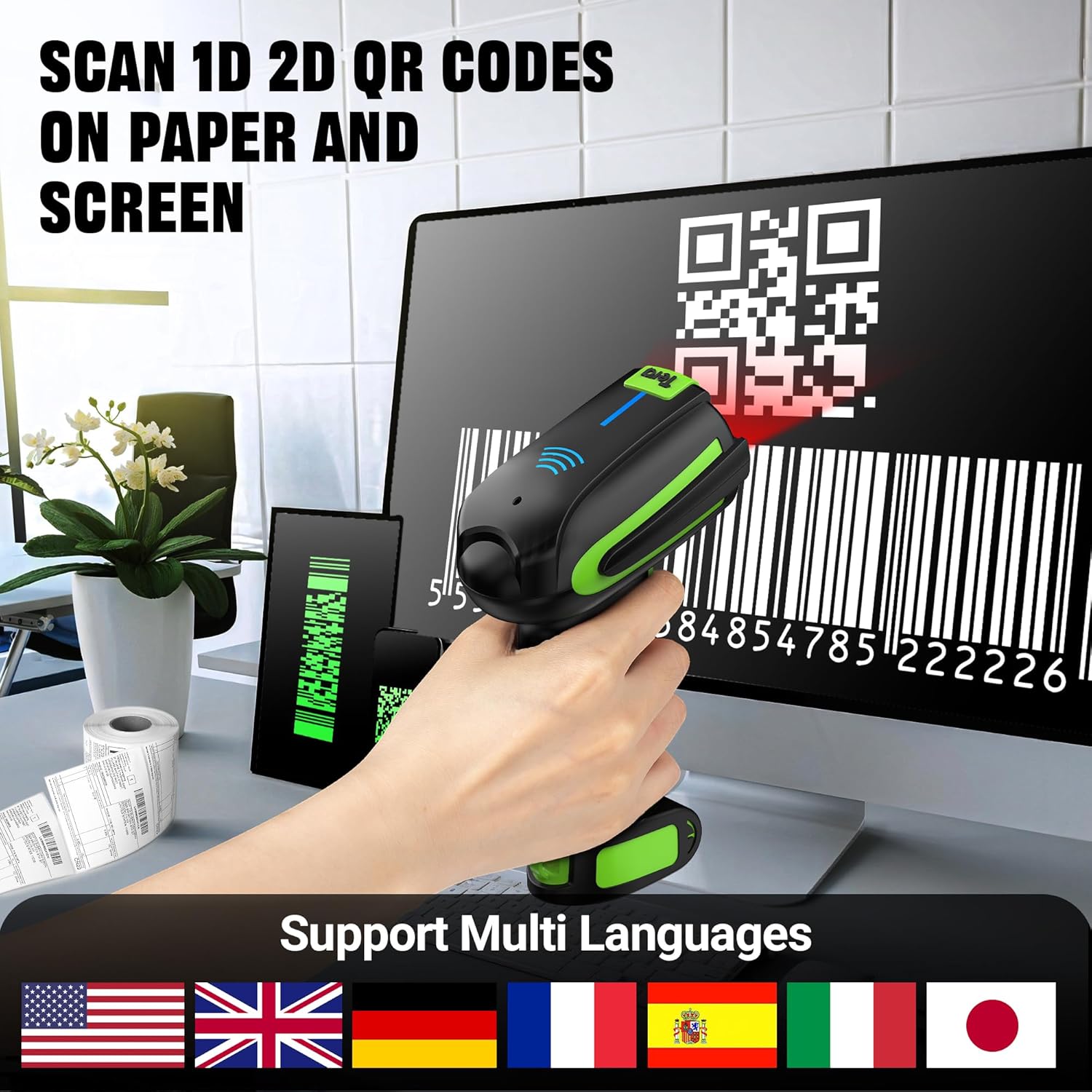
3. Data Formatting (Prefix/Suffix)
The scanner can be configured to add prefixes or suffixes to scanned data, or to drop leading/trailing characters. This is useful for integrating scanned data into specific software systems or spreadsheets.

4. Volume and Vibration Settings
Adjust the scanner's feedback settings (volume and vibration) by scanning specific configuration codes. Options typically include turning off, low, medium, and high volume, and enabling or disabling vibration.
Засвар үйлчилгээ
1. Цэвэрлэгээ
Тохиромжтой гүйцэтгэлийг хадгалахын тулд сканнерын цонх болон гадна талыг тогтмол цэвэрлэж байгаарай. Зөөлөн, хөвөнгүй даавууг бага зэрэг хэрэглээрэй dampened with water or a mild cleaning solution. Avoid abrasive materials or harsh chemicals that could damage the device.
2. Бат бөх, хамгаалалт
The Tera Pro 2025 is designed with industrial-grade durability:
- IP66 зэрэглэл: Provides excellent protection against dust ingress and powerful water jets.
- 9.84 Feet Drop Resistant: Engineered to withstand drops from up to 9.84 feet (3 meters), ensuring resilience in demanding work environments.

3. Зайны арчилгаа
To prolong battery life, avoid fully discharging the scanner frequently. Recharge the battery when the indicator shows low levels. If storing the scanner for an extended period, ensure it is charged to approximately 50% and store in a cool, dry place.
Алдааг олж засварлах
This section addresses common issues you might encounter with your Tera Pro 2025 Barcode Scanner. For more detailed troubleshooting steps, please refer to the comprehensive user manual PDF linked in the Support section.
| Асуудал | Боломжит шалтгаан | Шийдэл |
|---|---|---|
| Scanner not connecting via Bluetooth/2.4G. | Out of range, low battery, incorrect pairing mode, interference. | Ensure scanner is charged and within range. Re-enter pairing mode. Check for other wireless devices causing interference. |
| Cannot scan certain barcodes. | Barcode damaged, poor lighting, unsupported barcode type, scanner settings. | Ensure barcode is clear and well-lit. Verify the barcode type is supported. Reset scanner to factory defaults or adjust settings as per manual. |
| No beep/vibration on successful scan. | Volume/vibration settings turned off. | Scan the appropriate configuration barcodes from the manual to enable volume and/or vibration feedback. |
| NFC card not changing settings. | Card not programmed, incorrect tapping area, scanner not in NFC mode. | Ensure the NFC card is correctly programmed. Tap the card directly to the NFC sensing area on the scanner. Refer to the manual for NFC programming steps. |
Үзүүлэлтүүд
| Онцлог | Дэлгэрэнгүй |
|---|---|
| Загварын дугаар | 8200_US |
| Брэнд | Тера |
| Холболтын технологи | 2.4G утасгүй, Bluetooth, USB кабель |
| Эрчим хүчний эх үүсвэр | Батерейгаар ажилладаг (2200 мАч) |
| Тохиромжтой төхөөрөмжүүд | Компьютер, ухаалаг утас, таблет |
| Зүйлийн жин | 2 фунт (ойролцоогоор 0.91 кг) |
| Багцын хэмжээ | 9.17 x 5.43 x 3.9 инч (ойролцоогоор 23.3 x 13.8 x 9.9 см) |
| Уналтын эсэргүүцэл | 9.84 фут (3 метр) хүртэл |
| Ус/тоосны хамгаалалт | IP66 Grade |
| Дэмжигдсэн бар код | 1D (UPC, Code 128, GS1, Codabar, ITF-14, etc.), 2D (QR, Data Matrix, PDF417, Aztec, etc.) |
Баталгаат болон дэмжлэг
For detailed warranty information and customer support, please refer to the official Tera website or contact your point of purchase. Additional resources are available:
- Хэрэглэгчийн бүрэн гарын авлага (PDF): For comprehensive instructions and advanced configurations, download the complete user manual from the official Tera webсайт эсвэл энэ шууд холбоосоор: Tera 8200 User Manual PDF
- Хамгаалалтын төлөвлөгөө: Өргөтгөсөн хамгаалалтын төлөвлөгөө худалдан авах боломжтой байж магадгүй. 3 жилийн эсвэл 4 жилийн хамгаалалтын төлөвлөгөө гэх мэт сонголтуудын талаар жижиглэн худалдаачнаасаа лавлана уу.
- Tera Brand Store: Explore other Tera products and accessories by visiting the official Tera store: Tera Store on Amazon


