1. Танилцуулга
This user manual provides comprehensive instructions for the setup, operation, maintenance, and troubleshooting of your Thomson 27-inch QHD Gaming Monitor (Model: M27QG5Y14). This monitor is designed to deliver a superior visual experience with its QHD resolution, 180Hz refresh rate, and IPS panel technology, making it ideal for gaming and multimedia applications.

Зураг 1.1: Урд view of the Thomson 27-inch QHD Gaming Monitor, showcasing its sleek design and display area.
2. Аюулгүй байдлын мэдээлэл
Мониторыг ашиглахаасаа өмнө аюулгүй байдлын бүх зааврыг анхааралтай уншина уу. Энэ гарын авлагыг цаашид лавлах зорилгоор хадгална уу.
- Эрчим хүчний эх үүсвэр: Зөвхөн дэлгэцтэй хамт ирдэг тэжээлийн адаптерийг ашиглаарай. Цахилгааны залгуур зөв газардуулсан эсэхийг шалгаарай.
- Агааржуулалт: Агааржуулалтын нүхийг хааж болохгүй. Хэт халалтаас сэргийлэхийн тулд мониторын эргэн тойронд агаарын урсгалыг хэвийн байлгахад хангалттай зай гарга.
- Шингэн ба чийг: Мониторыг ус, бороо, хэт их чийгээс хол байлга. Шингэнээр дүүрсэн зүйлийг монитор дээр бүү байрлуул.
- Цэвэрлэгээ: Disconnect the power cable before cleaning. Use a soft, dry cloth. Do not use liquid cleaners or aerosol cleaners.
- Байршил: Мониторыг тогтвортой, тэгш гадаргуу дээр байрлуул. Нарны шууд тусгалд эсвэл дулааны эх үүсвэрийн ойролцоо байрлуулахаас зайлсхий.
- Харьцуулах: Монитортой болгоомжтой харьц. Унах, хүчтэй нөлөө үзүүлэхээс зайлсхий.
- Үйлчилгээ: Мониторыг өөрөө засварлах гэж бүү оролдоорой. Бүх үйлчилгээг мэргэшсэн үйлчилгээний ажилтнуудад шилжүүлээрэй.
3. Багцын агуулга
Савлагаанд бүх зүйл байгаа эсэхийг шалгана уу. Хэрэв ямар нэгэн зүйл алга болсон эсвэл гэмтсэн бол худалдагчтайгаа холбогдоно уу.
- Thomson 27-inch QHD Gaming Monitor
- Мониторын тавиур (суурь ба хүзүү)
- Цахилгаан адаптер ба цахилгаан кабель
- HDMI кабель
- DisplayPort (DP) Cable (may vary by region)
- USB-B-аас USB-A кабель (USB төвийн функцэд зориулагдсан)
- Хэрэглэгчийн гарын авлага (энэ баримт бичиг)
- Тавиурын угсралтын эрэг
4. Тохиргоо
4.1. Мониторын тавиурыг угсрах
- Зурагдахаас сэргийлж дэлгэцийг савлагаанаас нь болгоомжтой гаргаж, зөөлөн, цэвэр гадаргуу дээр доош харуулан байрлуулна уу.
- Өгөгдсөн боолтыг ашиглан суурийн хүзүүг дэлгэцийн самбарт бэхлэнэ үү.
- Attach the stand base to the stand neck and secure it with the designated screw.
- Once assembled, carefully lift the monitor and place it on a stable desk or table.

Image 4.1: Monitor dimensions and stand assembly overview. The monitor measures approximately 61 cm wide, 54 cm high (with stand), and 24 cm deep (with stand).
4.2. Мониторыг холбох
Connect the necessary cables to the monitor's input ports. Refer to the image below for port locations.
- Эрчим хүчний холболт: Connect the power adapter to the "DC IN" port on the monitor, then plug the power cable into a power outlet.
- Видео оруулах:
- Connect an HDMI cable from your computer's graphics card to an "HDMI 2.1" port on the monitor.
- Alternatively, connect a DisplayPort (DP) cable from your computer's graphics card to a "DP 1.2" port on the monitor.
- USB төв: To enable the monitor's USB 3.0 ports, connect a USB-B cable from the "USB 3.0 B" port on the monitor to a USB-A port on your computer.
- Аудио гаралт: Connect headphones or external speakers to the "Earphone Plug" (3.5mm audio jack) for audio output.

Image 4.2: Rear panel of the monitor displaying the various input and output ports for connectivity.
4.3. Эргономикийн тохируулга
Мониторын тавиур нь таныг оновчтой болгохын тулд янз бүрийн тохируулга хийх боломжийг олгодог viewтав тухтай байдал:
- Хазайлт: Adjust the screen's vertical angle (up or down).
- Эргэдэг: Rotate the screen horizontally (left or right).
- Пивот: Босоо горимд дэлгэцийг 90 градус эргүүлнэ үү viewing.
- Өндөр тохируулга: Мониторыг хүссэн нүднийхээ түвшинд хүртэл өргөх эсвэл буулгах.
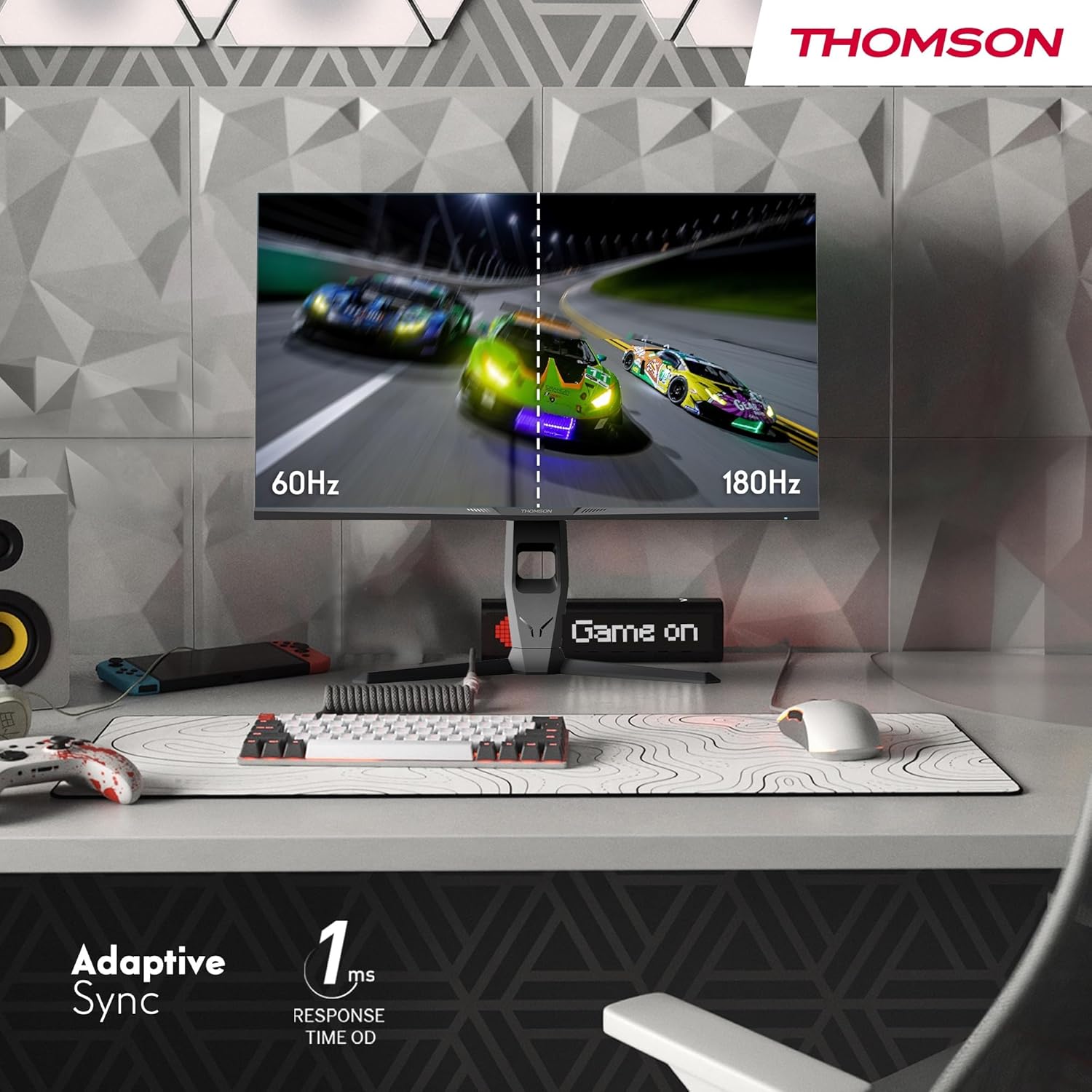
Image 4.3: Demonstrations of the monitor's ergonomic capabilities, including tilt, swivel, and pivot for optimal viewөнцөг.
4.4. VESA угсралт
The monitor is compatible with VESA 100x100mm mounting standards. To mount the monitor on a wall or an alternative stand, remove the original stand and attach the VESA-compatible mount (sold separately) using appropriate screws.
5. Ашиглалтын заавар
5.1. Асаах/унтраах
Мониторыг асаах эсвэл унтраахын тулд ихэвчлэн арын эсвэл доод хэсэгт байрлах цахилгаан товчийг дарна уу. Дэлгэц асаалттай үед цахилгаан заагч гэрэл асна.
5.2. Дэлгэц дээрх дэлгэц (OSD) цэс
The OSD menu allows you to adjust various monitor settings. Use the joystick or buttons (location may vary) on the monitor to navigate the menu.
- Зургийн тохиргоо: Гэрэлтүүлэг, тодосгогч, тод байдал, өнгөний температур, гамма зэргийг тохируулна уу.
- Өнгөний тохиргоо: Fine-tune RGB levels, saturation, and hue.
- Оролтын сонголт: HDMI болон DisplayPort оролтуудын хооронд гараар шилжих.
- Аудио: Суулгасан чанга яригч эсвэл чихэвчний гаралтын дууны хэмжээг тохируулна уу.
- OSD тохиргоо: OSD хэл, ил тод байдал, завсарлага зэргийг өөрчлөх.
- Тоглоомын тохиргоо: Access features like Adaptive Sync, response time (OD), and crosshair overlays.
5.3. Тоглоомын онцлог
- 180 Гц сэргээх хурд: Provides smoother motion and reduced input lag, especially beneficial for fast-paced games. Ensure your graphics card and cable support this refresh rate.
- 1мс хариу өгөх хугацаа (OD): Minimizes motion blur and ghosting for clear, crisp images during rapid movements.
- Дасан зохицох синк: Synchronizes the monitor's refresh rate with your graphics card's frame rate, eliminating screen tearing and stuttering. Enable this feature in the OSD menu and your graphics card control panel.

Image 5.1: Visual comparison illustrating the difference between 60Hz and 180Hz refresh rates, highlighting the smoother motion provided by the higher refresh rate, alongside the Adaptive Sync feature.
5.4. Нүдний арчилгааны онцлогууд
- Анивчих эсрэг технологи: Reduces screen flickering, which can cause eye strain during prolonged use.
- Бага цэнхэр гэрлийн горим: Filters out harmful blue light emissions to protect your eyes and reduce fatigue. This mode can be activated through the OSD menu.
- Гэрлийн эсрэг дэлгэц: The matte screen surface minimizes reflections from ambient light, providing clear visuals without distraction.

Image 5.2: Depiction of the monitor's eye comfort features, including an anti-glare screen and technologies like Anti-Flicker and Low Blue Light for reduced eye strain.
5.5. RGB Ambient Lighting
The monitor features integrated RGB ambient lighting on the rear. This lighting can be customized via the OSD menu to enhance your gaming environment or match your setup's aesthetics.
6. Засвар үйлчилгээ
6.1. Мониторыг цэвэрлэх
- Дэлгэц: Зөөлөн, хөвөнгүй даавуугаар дэлгэцийг зөөлөн арчина. Зөрүүд тэмдгийн хувьд хөнгөнөөр dampen the cloth with water or a specialized screen cleaner (ensure it's safe for LCD/IPS panels) and wipe gently. Never spray liquid directly onto the screen.
- Casing: Мониторыг зөөлөн хуурай даавуугаар арчих casing. Зүлгүүрийн цэвэрлэгч, уусгагч хэрэглэхээс зайлсхий.
- Цэвэрлэхийн өмнө цахилгааны кабелийг үргэлж салгаж байгаарай.
6.2. Хадгалах
Хэрэв мониторыг удаан хугацаагаар хадгалах бол бүх кабелийг салгаж, анхны савлагаанд нь (хэрэв байгаа бол) савлаж, нарны шууд тусгал, хэт температураас хол, сэрүүн, хуурай газар хадгална уу.
7. Алдаа засах
Энэ хэсэгт танд тулгарч болох нийтлэг асуудлуудыг авч үзэх болно. Хэрэв асуудал хэвээр байвал хэрэглэгчийн тусламжтай холбогдоно уу.
| Асуудал | Боломжит шалтгаан | Шийдэл |
|---|---|---|
| Хүч чадалгүй | Power cable not connected; Power outlet faulty; Monitor off. | Ensure power cable is securely connected. Test the power outlet. Press the monitor's power button. |
| Дохио байхгүй / Хоосон дэлгэц | Video cable not connected; Incorrect input selected; Computer not outputting signal. | Check HDMI/DP cable connections. Select the correct input source via OSD. Ensure computer is on and outputting video. |
| Distorted image / Flickering | Incorrect resolution/refresh rate; Faulty cable; Graphics driver issue. | Set display resolution to 2560x1440 and refresh rate to 180Hz. Try a different video cable. Update graphics drivers. |
| Чанга яригч/чихэвчнээс дуу гарахгүй байна | Volume too low; Audio cable not connected; Incorrect audio output selected on PC. | Increase monitor volume via OSD. Ensure headphones/speakers are connected. Select monitor as audio output device in PC settings. |
8. Техникийн үзүүлэлтүүд
Detailed technical specifications for the Thomson M27QG5Y14 monitor.
| Онцлог | Тодорхойлолт |
|---|---|
| Брэнд | Томсон |
| Загвар | M27QG5Y14 |
| Дэлгэцийн хэмжээ | 27 инч |
| Самбарын төрөл | IPS |
| Шийдвэр | 2560 x 1440 (QHD) |
| Сэргээх хурд | 180 Гц |
| Хариу өгөх хугацаа | 1 Millisecond (OD) / 5 Milliseconds (GtG) |
| Гэрэлтүүлэг | 350 нит |
| Ялгаатай харьцаа | 1200:1 |
| Viewing өнцөг | 178 Degrees (Horizontal/Vertical) |
| Өнгөний хүрээ | 120% sRGB |
| HDR дэмжлэг | HDR10 (10-bit) |
| Дасан зохицох синк | Тиймээ |
| Холболт | 2x HDMI 2.1, 1x DisplayPort 1.2, 1x USB 3.0 Type-B (upstream), 3x USB 3.0 Type-A (downstream), 1x Earphone Plug (3.5mm) |
| Суулгасан чанга яригч | Тийм (2x2W) |
| VESA бэхэлгээний нийцтэй байдал | 100x100 мм |
| Бүтээгдэхүүний хэмжээс (индэртэй) | 61 x 54 x 24 см (Ө x Ө x D) |
| Жин (индэртэй) | 7.3 кг |
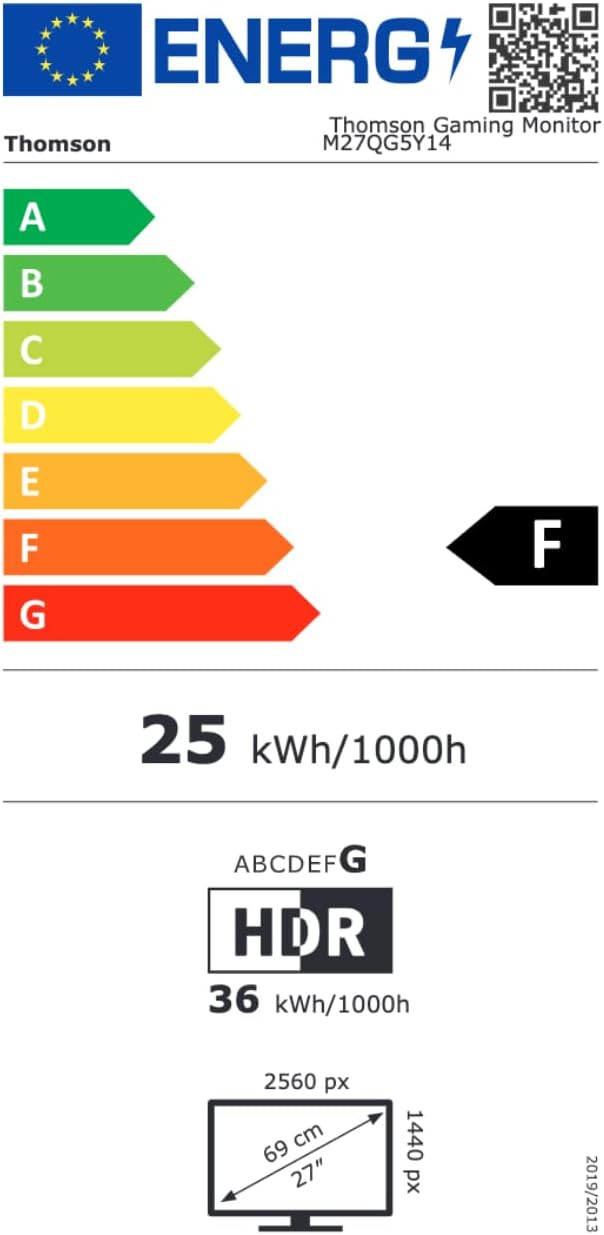
Image 8.1: EU Energy Label for the Thomson M27QG5Y14 monitor. For more details, visit the EPREL мэдээллийн сан.
9. Баталгаат хугацаа ба дэмжлэг
Thomson products are designed for reliability and performance. This monitor typically comes with a 3 жилийн баталгаат хугацаа худалдан авсан өдрөөс эхлэн үйлдвэрлэлийн согогийг хамарна. Баталгаат заргад зориулж худалдан авалтаа нотлох баримтаа үлдээнэ үү.
For technical assistance, troubleshooting beyond this manual, or warranty inquiries, please contact Thomson customer support or your local retailer. Refer to the official Thomson website or your product packaging for specific contact details.
You can also visit the official Thomson store on Amazon for more information: Thomson Store.