1. Танилцуулга
This manual provides comprehensive instructions for the setup, operation, and maintenance of your Displays2go Advertising Multimedia Kiosk, model DF043TLB2. This 43-inch multi-touch kiosk is designed for displaying interactive digital content in various public and commercial environments. Please read this manual thoroughly before use to ensure proper functionality and safety.
2. Аюулгүй байдлын мэдээлэл
- ТҮЦ-ийг өнхрөхөөс сэргийлж тогтвортой, тэгш гадаргуу дээр байрлуулсан эсэхийг шалгаарай.
- Төхөөрөмжийг чийг, бороо, хэт өндөр температурт бүү гарга.
- Зөвхөн өгсөн тэжээлийн адаптерийг ашиглана уу.
- Хэт халалтаас урьдчилан сэргийлэхийн тулд агааржуулалтын нүхийг цэвэр байлгах хэрэгтэй.
- Төхөөрөмжийг өөрөө нээх, засах гэж бүү оролдоорой. Бүх үйлчилгээг мэргэшсэн боловсон хүчинд шилжүүлээрэй.
- Төхөөрөмжийг цэвэрлэх эсвэл зөөхөөс өмнө цахилгааныг салга.
3. Багцын агуулга
Бүх зүйл багцад байгаа эсэхийг шалгана уу:
- Displays2go Advertising Multimedia Kiosk (DF043TLB2)
- Цахилгаан кабель
- Four Locking Casters (pre-installed or to be installed)
- Хэрэглэгчийн гарын авлага (энэ баримт бичиг)
4. Тохируулах заавар
4.1. Савлах ба байрлуулах
Carefully remove the kiosk from its packaging. Place the unit on a flat, stable surface. Ensure adequate space around the kiosk for ventilation and access.

Зураг 1: Урд view of the Displays2go Advertising Multimedia Kiosk.

Зураг 2: Хажуу тал view of the kiosk displaying content.

Зураг 3: Ар талд view of the kiosk, showing ventilation and access panel.
Видео 1: 360 градус view of the 43-inch Floor Standing Poster, showcasing its physical design and features from all angles.
4.2. Caster Installation (if not pre-installed)
If the four locking casters are not pre-installed, carefully tilt the kiosk and attach each caster to the designated mounting points on the base. Ensure they are securely fastened. Lock the casters once the kiosk is in its final position to prevent unintended movement.
4.3. Эрчим хүчний холболт
- Locate the power input port on the back of the kiosk.
- Connect the provided power cable to the kiosk and then to a standard electrical outlet.
- Flip the power switch to the "ON" position. The kiosk will begin to boot up.

Зураг 4: Нарийвчилсан view of the kiosk's connectivity ports and power switch.
5. Ашиглалтын заавар
5.1. Initial Boot-Up and Android 11 OS
Upon powering on, the kiosk will boot into the Android 11 operating system. The initial setup may require you to configure basic settings such as language, Wi-Fi connection, and time zone. Follow the on-screen prompts.
Video 2: Product Showcase of the Displays2go Digital Poster, highlighting various features and applications. This video provides a general overview of the kiosk's capabilities, including its touch functionality and design.
5.2. Using the Multi-Touch Screen
The kiosk features a 10-point IR touchscreen, allowing for interactive gestures such as tapping, swiping, and multi-finger operations. Navigate the Android interface and interactive applications by touching the screen directly.
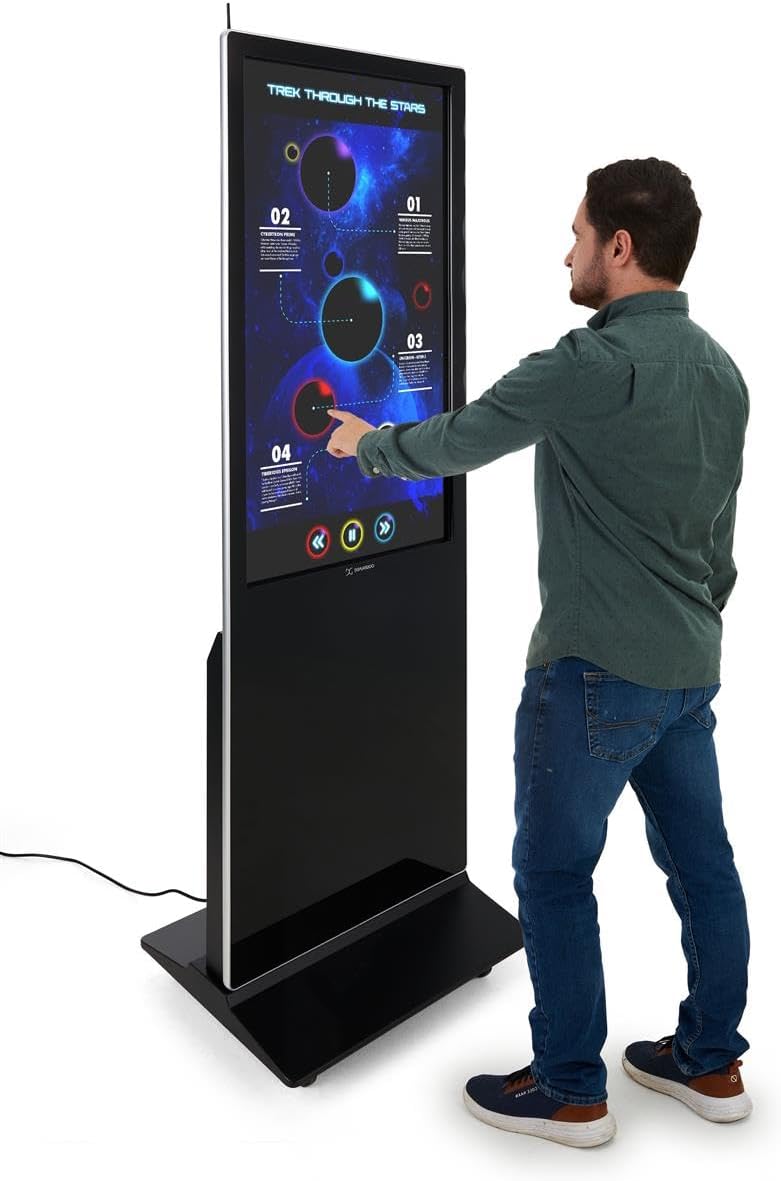
Figure 5: A user interacting with the multi-touch screen of the kiosk.
5.3. Content Upload and Management
There are several methods to upload and manage content on your kiosk:
- USB Plug-and-Play: Connect a USB drive to one of the three available USB ports. The kiosk will detect the drive, allowing you to transfer media files (images, videos, documents) directly to the internal storage.
- Cloud Storage/CMS: Connect the kiosk to your network via Wi-Fi or Ethernet (LAN port). You can then access your personal cloud storage accounts or integrate with a connected content management system (CMS) for remote content updates.
5.4. Using the DiViEX Slideshow App
The kiosk comes with the DiViEX slideshow app pre-installed. This application allows you to create and manage captivating slideshows with various borders, aspect ratios, and theme sharing capabilities. Refer to the in-app help or the DiViEX documentation for detailed usage instructions.
Video 3: Demonstration of the DiViEX Slideshow App. This video illustrates how to use the pre-installed application to create and customize digital content for display on the kiosk.
5.5. Аудио гаралт
The kiosk is equipped with dual 8W speakers for audio output. Adjust the volume through the Android operating system settings or within the media playback application.
6. Засвар үйлчилгээ
6.1. Cleaning the Screen and Casing
- Цэвэрлэхийн өмнө цахилгааны кабелийг үргэлж салгаж байгаарай.
- Зөөлөн, хөвөнгүй даавууг бага зэрэг хэрэглээрэй dampened with water or a non-abrasive screen cleaner to wipe the screen.
- c-ийн хувьдasing, зөөлөн, хуурай даавуу ашиглана уу. Хүчтэй химийн бодис, зүлгүүрийн материалаас зайлсхий.
6.2. Програм хангамжийн шинэчлэлтүүд
Periodically check for system updates through the Android settings menu to ensure optimal performance and security. Ensure the kiosk is connected to the internet during updates.
7. Алдаа засах
| Асуудал | Боломжит шалтгаан | Шийдэл |
|---|---|---|
| Киоск асахгүй байна. | Power cable disconnected; power switch off; no power from outlet. | Цахилгааны кабелийн холболтыг шалгана уу; цахилгаан унтраалга асаалттай байгаа эсэхийг шалгана уу; залгуурыг өөр төхөөрөмжөөр шалгана уу. |
| Мэдрэгчтэй дэлгэц хариу өгөхгүй байна. | Software glitch; screen dirty; external interference. | Restart the kiosk; clean the screen; ensure no objects are blocking the IR sensors. |
| No content displayed. | No media loaded; incorrect app selected; network issue for streaming content. | Verify media files are present; ensure the correct application (e.g., DiViEX) is running; check network connection. |
| Аудио байхгүй. | Volume too low; audio muted; application audio settings. | Increase volume in Android settings; unmute audio; check audio settings within the playing application. |
8. Техникийн үзүүлэлтүүд
| Онцлог | Дэлгэрэнгүй |
|---|---|
| Загвар | DF043TLB2 |
| Дэлгэцийн хэмжээ | 43 инч |
| Шийдвэр | 1920 x 1080 (1080p HD) |
| Мэдрэгч технологи | 10pt IR Touchscreen |
| Үйлдлийн систем | Android 11 |
| Дотоод санах ой | 32 ГБ |
| RAM | 4 ГБ |
| USB портууд | 3 |
| Илтгэгчид | Хос 8 Вт |
| Харьцаа | 1.78:1 |
| Зургийн ялгаатай харьцаа | 1200:1 |
| Бүтээгдэхүүний хэмжээ (W x H x D) | 24.4 x 56 x 9 инч |
| Үйлдвэрлэгч | Displays2go |
9. Баталгаат хугацаа ба дэмжлэг
For warranty information and technical support, please refer to the Displays2go official webсайт эсвэл харилцагчийн үйлчилгээтэй холбогдоно уу. Баталгаат зарга авахын тулд худалдан авалтын баримтаа хадгална уу.
Displays2go Contact Information:
- Webсайт: www.displays2go.com
- Утас: 1-844-221-3393


