Танилцуулга
This manual provides essential information for setting up, operating, maintaining, and troubleshooting your Acer TravelLite TL14-42M Business Laptop. Please read this guide thoroughly to ensure proper use and to maximize the lifespan of your device.
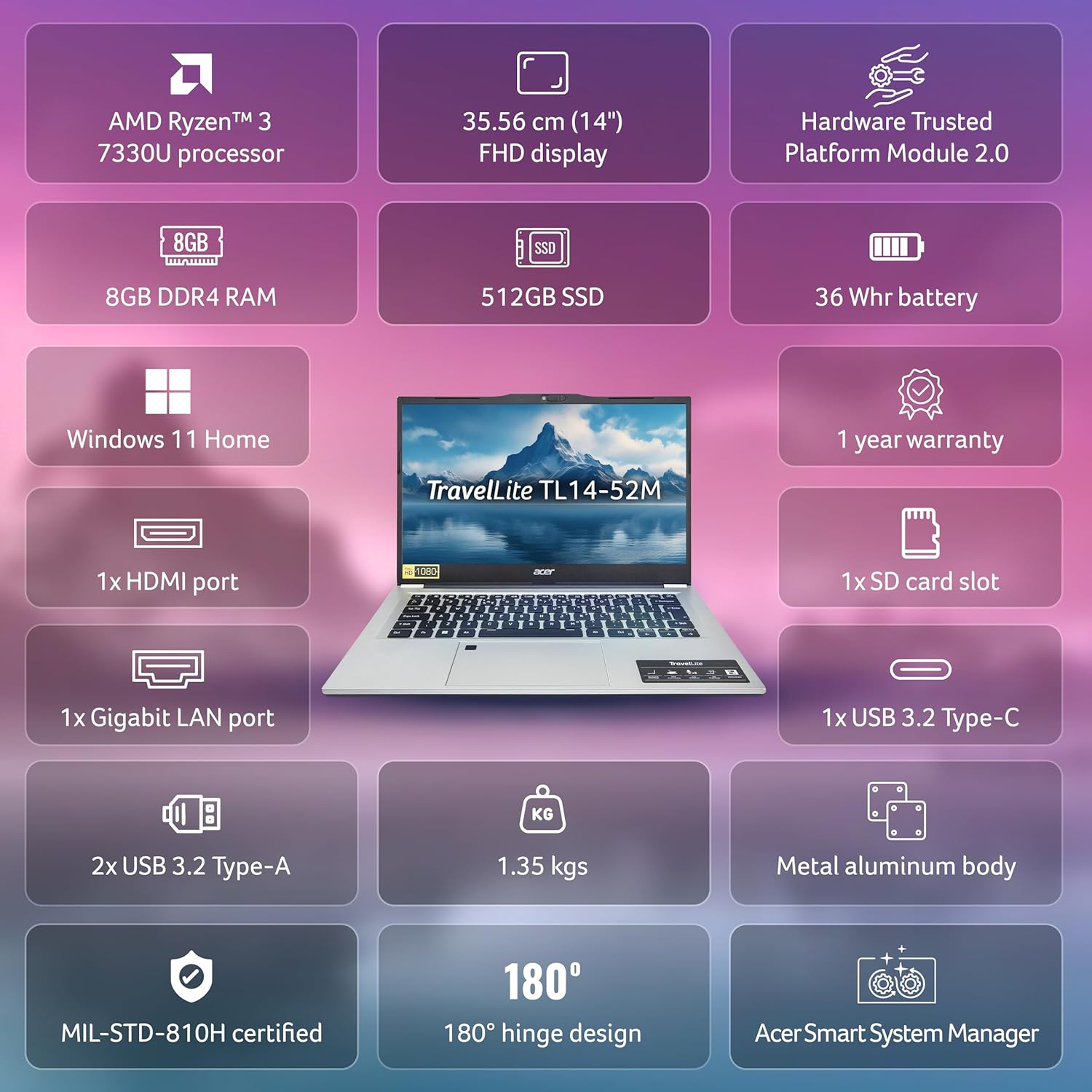
Урд view of the Acer TravelLite TL14-42M laptop, showcasing түүний гоёмсог дизайн, дэлгэц.
Тохиргоо
1. Хайрцагнаас задлах, анхны үзлэг
Carefully remove the laptop and all accessories from the packaging. Verify that the following items are included:
- Acer TravelLite TL14-42M Laptop
- Эрчим хүчний адаптер
- Цахилгааны утас
- Хэрэглэгчийн гарын авлага (энэ баримт бичиг)
Зөөврийн компьютерт ямар нэгэн физик гэмтэл байгаа эсэхийг шалгана уу. Хэрэв ямар нэгэн гэмтэл илэрвэл яаралтай худалдагчтайгаа холбоо барина уу.
2. Цахилгаан хувиргагчийг холбох
Connect the power adapter to the laptop's charging port and then plug the power cord into an electrical outlet. It is recommended to fully charge the battery before initial use.
3. Анх асаах болон Windows 11-ийн тохиргоо
Press the power button located on the keyboard deck to turn on the laptop. Follow the on-screen instructions to complete the Windows 11 Home setup process. This includes selecting your region, language, connecting to a Wi-Fi network, and creating a user account.
4. Захын төхөөрөмжүүдийг холбох
Utilize the available ports to connect external devices such as a mouse, external display, or USB drives.

Хажуу тал view of the laptop, illustrating the various connectivity ports including USB, HDMI, and LAN.
Ашиглалтын заавар
1. Эрчим хүчний менежмент
- Асаах: Цахилгаан товчийг дар.
- Унтах горим: Тагийг нь хааж эсвэл асаах товчийг богино хугацаанд дарна уу.
- Унтраах: Эхлэх товчийг дараад Асаах > Унтраах гэснийг товшино уу.
- Дахин эхлүүлэх: Start товчийг дараад Power > Restart дээр дарна уу.
2. Гар болон мэдрэгчтэй самбар
The laptop features a multi-language A4 size isolated spill-resistant keyboard and an extra-large touchpad. Use the touchpad for navigation and gestures. Refer to Windows 11 settings for touchpad customization.
3. Дэлгэцийн онцлог
The 14-inch Full HD (1920 x 1080) anti-glare TFT LCD provides clear visuals. Adjust display settings via Windows 11 for brightness and resolution preferences.

The laptop's 14-inch Full HD display offers vivid clarity for various tasks.
4. Холболт
The laptop supports 802.11ac and 802.11ax wireless standards for Wi-Fi connectivity. It also includes a Gigabit LAN port for wired network connections.
5. Портууд дууссанview
Your TravelLite laptop is equipped with the following ports:
- 1 x HDMI порт
- 1 x SD картны үүр
- 1 x Gigabit LAN Port
- 1 x USB 3.2 Gen 2 Type-C (Full function, supports display over Type-C & charging)
- 2 x USB 3.2 Type-A (1 with power-off charging)
6. Нууцлалын онцлог
The laptop includes a built-in camera shutter for enhanced privacy and enterprise-level security with TPM 2.0.

The laptop emphasizes privacy with a built-in camera shutter and TPM 2.0 security.
Засвар үйлчилгээ
1. Зөөврийн компьютер цэвэрлэх
Зөөлөн, хөвөнгүй даавууг бага зэрэг хэрэглээрэй dampened with water or a specialized screen cleaner to clean the display. For the keyboard and chassis, use a soft, dry cloth. Avoid harsh chemicals or abrasive materials.
2. Зайны арчилгаа
To prolong battery life, avoid extreme temperatures. It is recommended to fully discharge and recharge the battery periodically. If storing the laptop for an extended period, ensure the battery is charged to approximately 50%.
3. Програм хангамжийн шинэчлэлтүүд
Regularly update your Windows 11 operating system and drivers to ensure optimal performance and security. Windows 11 Home includes automatic updates.
4. Хадгалалтын менежмент
Шаардлагагүй зүйлсийг үе үе цэвэрлэж байх files and applications to maintain sufficient storage space on the 512GB SSD. Utilize cloud storage or external drives for large files.
Алдааг олж засварлах
Энэ хэсэгт таны зөөврийн компьютерт тулгарч болох нийтлэг асуудлуудыг авч үзэх болно.
1. Зөөврийн компьютер асахгүй байна
- Цахилгаан адаптер нь зөөврийн компьютер болон ажиллаж байгаа цахилгаан залгуурт найдвартай холбогдсон эсэхийг шалгаарай.
- Өөр төхөөрөмжийг залгах замаар цахилгааны залгуур ажиллаж байгаа эсэхийг шалгана уу.
- Хэрэв батерей бүрэн дууссан бол асаахаасаа өмнө дор хаяж 30 минутын турш цэнэглэхийг зөвшөөрнө үү.
2. Дэлгэцийн асуудлууд
- Хэрэв дэлгэц хоосон байвал функцийн товчлууруудыг ашиглан гэрэлтүүлгийн тохиргоог тохируулж үзээрэй.
- Connect an external monitor to determine if the issue is with the laptop's display or the graphics output.
3. Wi-Fi холболтын асуудлууд
- Windows тохиргоонд Wi-Fi идэвхжсэн эсэхийг шалгана уу.
- Чиглүүлэгч болон модемоо дахин эхлүүлнэ үү.
- Бусад төхөөрөмжүүд ижил Wi-Fi сүлжээнд холбогдох боломжтой эсэхийг шалгана уу.
4. Удаан гүйцэтгэл
- Ар талд ажиллаж байгаа шаардлагагүй програмуудыг хаа.
- Run a disk cleanup and defragmentation (for HDD, though SSDs manage this differently).
- Windows болон драйверууд шинэчлэгдсэн эсэхийг шалгаарай.
Илүү төвөгтэй асуудлуудыг Acer-ийн тусламжаас авна уу webсайт эсвэл харилцагчийн үйлчилгээтэй холбоо барина уу.
Үзүүлэлтүүд
Below are the detailed technical specifications for the Acer TravelLite TL14-42M Business Laptop:

Нэг гаруйview of the Acer TravelLite TL14-42M's key features and specifications.
| Онцлог | Тодорхойлолт |
|---|---|
| Загварын дугаар | TL14-42M |
| Процессор | AMD R3 7330U with AMD Radeon Graphics |
| Үйлдлийн систем | Windows 11 Нүүр хуудас |
| Дэлгэц | 14-inch Full HD (1920 x 1080) Anti-glare TFT LCD |
| RAM | 8 ГБ DDR4 |
| Хадгалах | 512 GB SSD |
| График | Integrated AMD Radeon R3 |
| Портууд | 1x HDMI, 1x SD Card Slot, 1x Gigabit LAN, 1x USB 3.2 Gen 2 Type-C, 2x USB 3.2 Type-A |
| Утасгүй холболт | 802.11ac, 802.11ax |
| Батерей | 36 Watt Hours, 3-cell Lithium Ion (Approx. 4 hours average battery life) |
| Хэмжээ (LxWxH) | 22 x 32.5 x 1.9 см |
| Жин | 1.34 кг |
| Оруулсан бүрэлдэхүүн хэсгүүд | Зөөврийн компьютер, цахилгааны утас, адаптер, хэрэглэгчийн гарын авлага |
Баталгаат болон дэмжлэг
Your Acer TravelLite TL14-42M laptop comes with a 1-year manufacturer's warranty. For detailed warranty terms and conditions, please refer to the warranty card included with your product or visit the official Acer support webсайт.
For technical assistance, driver downloads, or service inquiries, please visit the Acer support portal or contact their customer service department. Keep your product's serial number and proof of purchase readily available when seeking support.


