1. Танилцуулга
Thank you for choosing the TECPHILE K936 Wireless Keyboard and Mouse Combo. This product is designed to provide versatile and efficient input for multiple devices, featuring both Bluetooth 5.0 and 2.4GHz USB connectivity. This manual will guide you through the setup, operation, and maintenance of your new keyboard and mouse.
2. Багцын агуулга
- TECPHILE K936 Wireless Keyboard
- TECPHILE Wireless Mouse
- USB хүлээн авагч (хулганы зайны тасалгаанд хадгалагддаг)
- USB-C цэнэглэгч кабель
- Keyboard Protective Cover
- Хэрэглэгчийн гарын авлага
3. Бүтээгдэхүүн дууссанview
Familiarize yourself with the components of your TECPHILE K936 Wireless Keyboard and Mouse Combo.

Зураг 3.1: The TECPHILE K936 Wireless Keyboard and Mouse Combo in Grey. The keyboard features a full layout with a numeric keypad, and the mouse is a compact, ergonomic design.

Зураг 3.2: Diagram showing the dimensions of the keyboard (368mm x 121mm) and mouse (110mm x 63mm x 30mm).
Гарны онцлогууд:
- Multi-device connectivity: 3 x Bluetooth 5.0, 1 x 2.4GHz USB
- Dedicated function keys (F1-F12) with multimedia controls
- 300mAh лити батерейгаар цэнэглэдэг
- Type-C цэнэглэгч порт
- Automatic sleep mode for power saving
- Scissor-leg key structure for comfortable typing
- Transparent protective cover included
Хулганы онцлог:
- Dual-mode connectivity: 1 x Bluetooth, 1 x 2.4GHz USB
- Optical movement detection technology
- Хоёр талт загвар
- Quiet click buttons
4. Тохиргоо
4.1 Анхны цэнэглэлт
Before first use, fully charge both the keyboard and mouse. Connect the provided USB-C charging cable to the charging port on the keyboard and mouse, and the other end to a 5V/1A power adapter (not included) or a computer USB port. The charging indicator light will show charging status and turn off when fully charged.
Note: Only use a 5V/1 Amp power adapter for charging to ensure optimal battery life.

Зураг 4.1: Illustration of the keyboard's battery specifications: 2-4 hours charging time, 300mAh battery capacity, and up to 180 days standby time.
4.2 Гарыг холбох
The keyboard supports up to three Bluetooth connections and one 2.4GHz USB connection.

Зураг 4.2: Diagram illustrating the keyboard's ability to connect to multiple devices via Bluetooth (3 channels) and 2.4GHz USB.
2.4GHz USB Connection:
- Locate the USB receiver inside the mouse's battery compartment.
- USB хүлээн авагчийг компьютер эсвэл төхөөрөмж дээрх боломжтой USB порт руу холбоно уу.
- Turn on the keyboard. The keyboard should automatically connect.
Bluetooth Connection (BT1, BT2, BT3):
- Гараа асаана уу.
- -г удаан дар Fn товчлуур болон Bluetooth товчлууруудын нэг (BT1, BT2, эсвэл BT3) for 3-5 seconds until the corresponding indicator light flashes rapidly. This indicates pairing mode.
- Төхөөрөмж дээрээ (компьютер, таблет, ухаалаг утас) Bluetooth тохиргоо руу очоод шинэ төхөөрөмжүүдийг хайгаарай.
- Select "TECPHILE Keyboard" from the list of available devices to pair.
- Хослуулсны дараа заагч гэрэл анивчихаа больж, унтрахаасаа өмнө хэдэн секундын турш тогтвортой байна.
- Repeat for other Bluetooth channels to connect to additional devices.
4.3 Хулгана холбох
The mouse supports one Bluetooth connection and one 2.4GHz USB connection.
2.4GHz USB Connection:
- Ensure the USB receiver is plugged into your device.
- Switch the mouse to 2.4GHz mode using the switch on the bottom of the mouse.
- Хулгана автоматаар холбогдох ёстой.
Bluetooth холболт:
- Switch the mouse to Bluetooth mode using the switch on the bottom of the mouse.
- Press and hold the Bluetooth pairing button on the bottom of the mouse for 3-5 seconds until the indicator light flashes.
- Төхөөрөмж дээрээ Bluetooth тохиргоо руу очоод шинэ төхөөрөмжүүдийг хайгаарай.
- Select "TECPHILE Mouse" from the list to pair.
5. Ашиглалтын заавар
5.1 Switching Between Devices (Keyboard)
To switch between connected devices on the keyboard, simply press the Fn key along with the corresponding connection key (BT1, BT2, BT3, эсвэл 2.4G for USB). The keyboard will switch to the selected device instantly.
5.2 Switching Between Devices (Mouse)
To switch between 2.4GHz USB and Bluetooth modes on the mouse, use the toggle switch located on the bottom of the mouse.
5.3 Function Keys (Keyboard)
The keyboard features dedicated function keys (F1-F12) that can be used in conjunction with the Fn key for various multimedia and system controls.
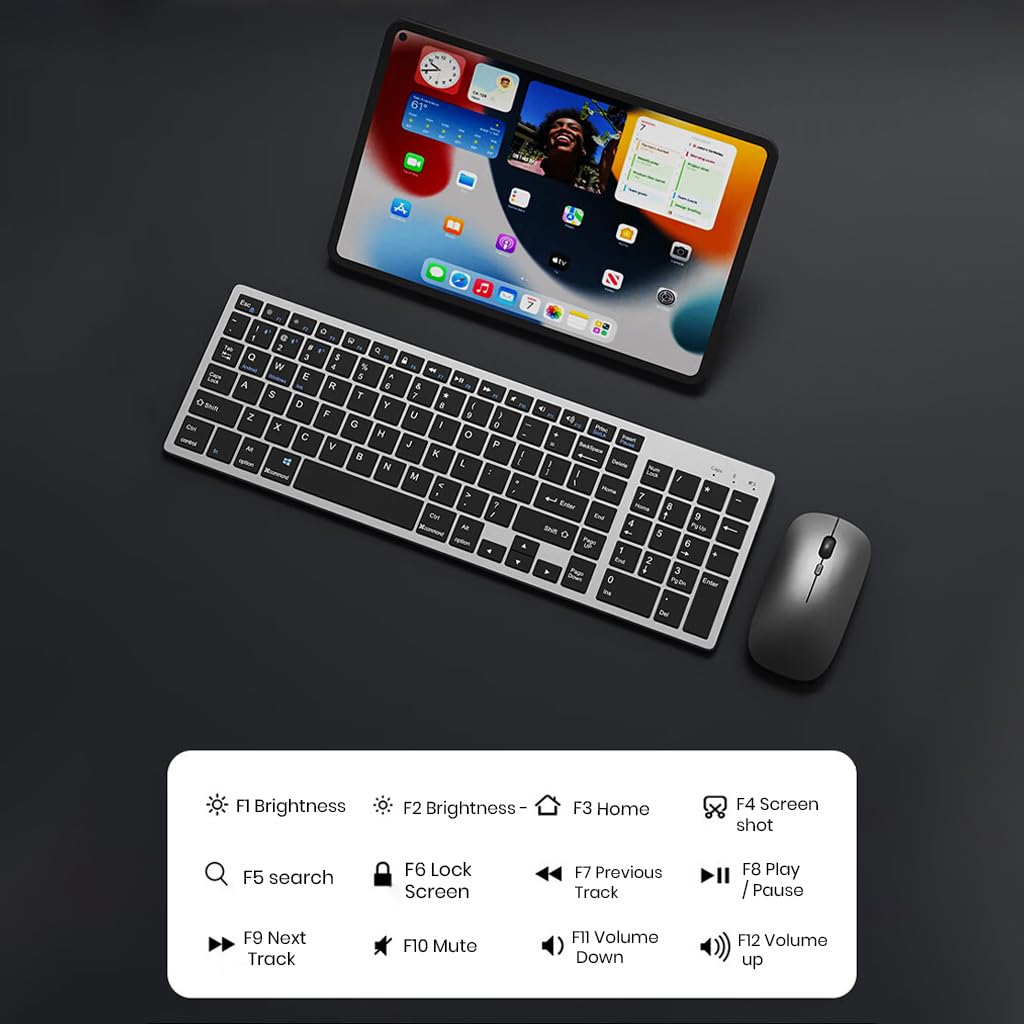
Зураг 5.1: The keyboard displaying its function keys and their associated actions, such as brightness control, home, screen shot, search, lock screen, media playback, and volume control.
- Fn+F1: Гэрэл буурах
- Fn+F2: Гэрэлтүүлэх
- Fn+F3: Гэр
- Fn+F4: Дэлгэцийн агшин
- Fn+F5: хайх
- Fn+F6: Дэлгэцийг түгжих
- Fn+F7: Өмнөх зам
- Fn+F8: Тоглуулах/түр зогсоох
- Fn+F9: Дараагийн дуу
- Fn+F10: Дууг хаах
- Fn+F11: Дууг багасгах
- Fn+F12: Дууны хэмжээг нэмэгдүүлэх
5.4 Цахилгаан хэмнэх горим
The keyboard and mouse are equipped with an automatic sleep mode to conserve battery life. If inactive for 10 minutes, the devices will enter sleep mode. To wake them up, simply press any key on the keyboard or move/click the mouse.

Зураг 5.2: Diagram illustrating the auto-sleep mode and how to reactivate the keyboard and mouse by pressing any key.
6. Засвар үйлчилгээ
- Цэвэрлэгээ: Зөөлөн, хуурай даавуугаар гар, хулганыг цэвэрлэ. Зөрүүд шороонд бага зэрэг damp даавуу ашиглаж болох бөгөөд ингэснээр төхөөрөмжид шингэн орохгүй байх боломжтой.
- Хамгаалалтын бүрээс: Utilize the included transparent protective cover for the keyboard to guard against dust and accidental spills.
- Хадгалах: Төхөөрөмжүүдийг нарны шууд тусгал, хэт температураас хол, сэрүүн, хуурай газар хадгална.
- Цэнэглэж байна: Always use a 5V/1A power adapter for charging to prevent damage and ensure battery longevity.

Зураг 6.1: The keyboard shown with its transparent protective keyskin, designed to prevent dust and spills.
7. Алдаа засах
| Асуудал | Боломжит шалтгаан | Шийдэл |
|---|---|---|
| Keyboard/Mouse not connecting via 2.4GHz USB. | USB receiver not properly inserted, low battery, incorrect mode selected. |
|
| Гар/хулгана нь Bluetooth-ээр холбогдоогүй байна. | Not in pairing mode, device's Bluetooth is off, already connected to max devices, low battery. |
|
| Хоцролт эсвэл тасалдсан холболт. | Хөндлөнгийн оролцоо, хүлээн авагч/төхөөрөмжөөс хол зай, батерей бага байна. |
|
| Keyboard keys not responding. | Low battery, device in sleep mode, connection issue. |
|
8. Техникийн үзүүлэлтүүд
| Онцлог | Дэлгэрэнгүй |
|---|---|
| Брэнд | ТЕХНИК |
| Загвар | K936 |
| Холболтын технологи | Keyboard: 3 x Bluetooth 5.0, 1 x 2.4GHz USB; Mouse: 1 x Bluetooth, 1 x 2.4GHz USB |
| Тохиромжтой төхөөрөмжүүд | Зөөврийн компьютер, хувийн компьютер, ухаалаг утас, таблет |
| Үйлдлийн систем | Android, iOS, Windows, macOS |
| Гарны батерей | 300mAh Lithium Ion (Rechargeable) |
| Цэнэглэх порт | USB Type-C |
| Цэнэглэх хугацаа | 2-4 цаг (ойролцоогоор) |
| Зогсоолын цаг | 180 хоног хүртэл |
| Гарын хэмжээ (LxWxH) | 36 x 13 x 1.5 см |
| Хулганы хэмжээс (Урт x Өргөн x Өндөр) | 11 x 6.3 x 3 см (ойролцоогоор) |
| Зүйлийн жин | 661 гр (холимог) |
| Хөдөлгөөнийг илрүүлэх технологи | Оптик |
| Гарын чиг баримжаа | Хоёр талт |
9. Баталгаат хугацаа ба дэмжлэг
TECPHILE products come with a standard warranty. For warranty claims, technical support, or any product-related inquiries, please contact TECPHILE customer service through the retailer where the product was purchased or visit the official TECPHILE webхолбоо барих мэдээлэл авах сайт.
Баталгаат хугацаанд худалдаж авсан баримтаа хадгална уу.
Manufacturer/Importer: TECPHILE, 2nd Floor, A36, Block B, Naraina Industrial Area Phase 2, Naraina, New Delhi, Delhi, 110028


