1. Танилцуулга
This manual provides essential information for the proper installation, operation, and maintenance of your GAMEON Pro Series 27-inch Fast IPS Gaming Monitor (Model: GOAE27QHD165IPS). Please read this manual thoroughly before using the product to ensure optimal performance and safety. Keep this manual for future reference.

Зураг 1.1: Урд view of the GAMEON Pro Series 27-inch Fast IPS Gaming Monitor, showcasing түүний нарийхан хүрээ болон тавиур.
The GAMEON Pro Series 27-inch Fast IPS Gaming Monitor features a QHD 2K (2560x1440p) resolution, a 165Hz refresh rate, and a 0.5ms MPRT response time. It supports Adaptive-Sync and Variable Refresh Rate (VRR) technologies for smooth, tear-free gameplay. Connectivity options include dual HDMI 2.1 ports and dual DisplayPort 1.4 ports, along with an audio-out jack and integrated speakers. This monitor is compatible with various gaming consoles and PCs, including PS5.
2. Багцын агуулга
Хайрцагнаас задлахдаа багцын агуулгыг шалгана уу. Хэрэв ямар нэг зүйл дутуу эсвэл гэмтсэн бол жижиглэн худалдаалагчтайгаа холбоо барина уу.
- GAMEON Pro Series 27-inch Fast IPS Gaming Monitor
- Мониторын тавиур (суурь ба хүзүү)
- Цахилгаан адаптер ба цахилгаан кабель
- HDMI кабель
- DisplayPort кабель
- Хэрэглэгчийн гарын авлага
3. Тохиргоо
3.1 Мониторын угсралт
- Дэлгэцийг хамгаалж, мониторыг сав баглаа боодолоос нь болгоомжтой авч хая.
- Дэлгүүрийн хүзүүг мониторын самбарт холбоно. Энэ нь байрандаа найдвартай товших эсвэл хэрэв байгаа бол эрэг шургаар бэхлэгдсэн эсэхийг шалгаарай.
- Суурины суурийг суурийн хүзүүнд бэхлээд, суурийн доод хэсэгт байгаа боолтыг чангална.
- Угсарсан мониторыг тогтвортой, тэгш гадаргуу дээр байрлуул.
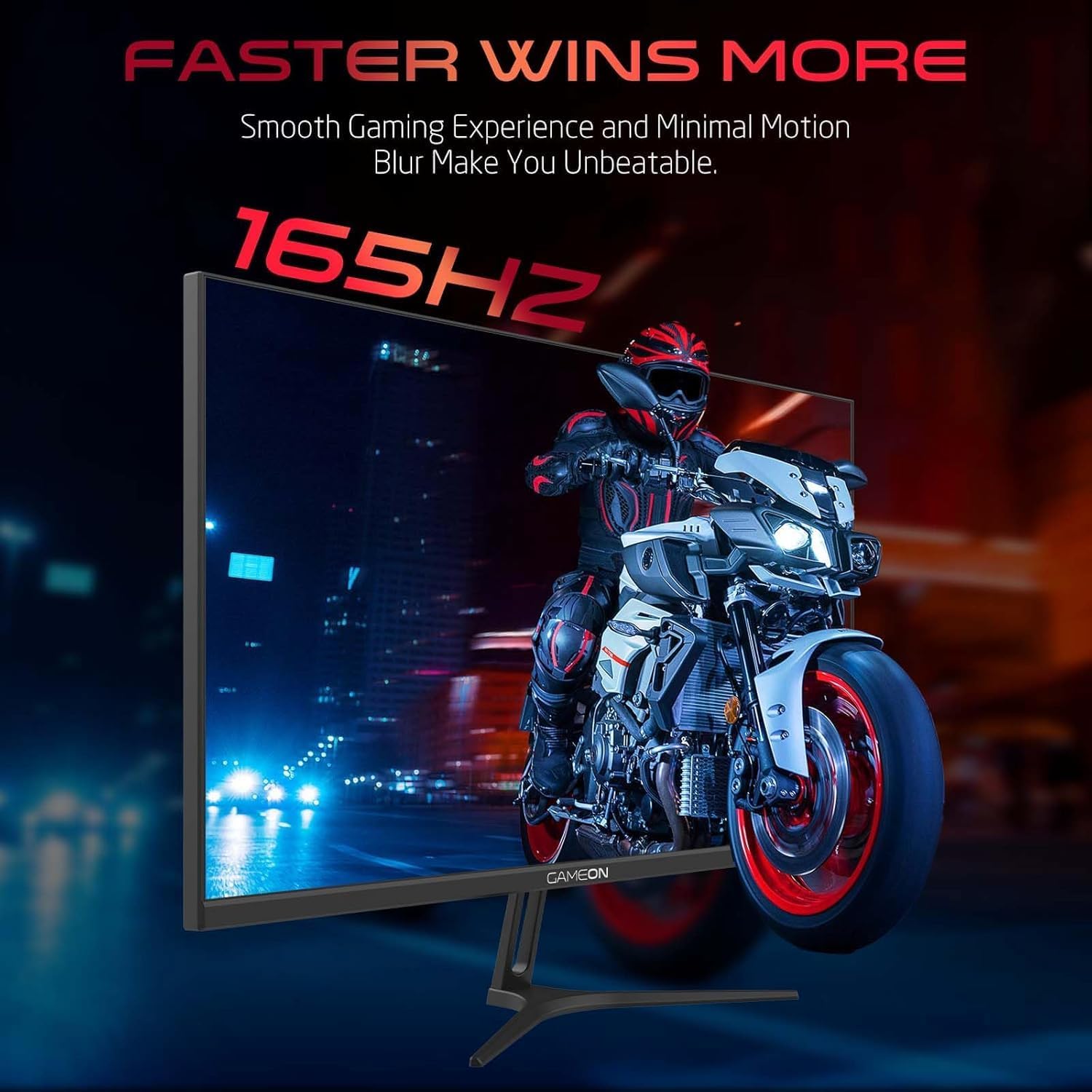
Image 3.1: Illustration of the monitor with its stand, ready for assembly.
3.2 Төхөөрөмжүүдэд холбогдох
The monitor offers multiple input options. Choose the appropriate cable for your device (PC, gaming console, etc.).

Зураг 3.2: Ар талд view of the monitor, highlighting the input ports and VESA mounting points.

Image 3.3: Detailed diagram illustrating the various input/output ports and their corresponding devices.
- HDMI холболт: Connect one end of the HDMI cable to the HDMI output port of your device (PC, PS5, Xbox, TV box) and the other end to one of the HDMI 2.1 ports on the monitor.
- DisplayPort холболт: Connect one end of the DisplayPort cable to the DisplayPort output of your PC and the other end to one of the DisplayPort 1.4 ports on the monitor.
- Аудио гаралт: For external audio, connect headphones or external speakers to the 3.5mm audio-out jack on the monitor.
3.3 Эрчим хүчний холболт
- Connect the power adapter to the DC IN port on the monitor.
- Plug the power cable into the power adapter, then plug the other end of the power cable into a power outlet.
4. Ашиглалтын заавар
4.1 Асаах/унтраах
Дэлгэц дээр байрлах цахилгаан товчийг дарж асаах эсвэл унтраана уу. Дэлгэц асаалттай үед цахилгаан заагч гэрэл асна.
4.2 Дэлгэц дээрх дэлгэц (OSD) цэс
The monitor features a menu button (often a joystick or a series of buttons) usually located on the back or bottom right of the monitor. Use this to navigate the OSD menu and adjust settings.
- Press the menu button to open the OSD menu.
- Цэсийн сонголтууд руу шилжихийн тулд навигацийн удирдлагыг ашиглана уу.
- Press the menu button again (or a designated 'Enter' button) to select an option.
- Use the navigation controls to adjust values or select sub-menus.
- Select 'Exit' or press the menu button repeatedly to close the OSD menu.
4.3 OSD-ийн нийтлэг тохиргоо
- Зургийн тохиргоо: Гэрэлтүүлэг, тодосгогч, тод байдал, гамма, өнгөний температурыг тохируулна уу.
- Өнгөний тохиргоо: RGB утгууд, өнгө, ханалт зэргийг нарийн тааруулна.
- Оролтын эх сурвалж: Manually select between HDMI 1, HDMI 2, DisplayPort 1, or DisplayPort 2.
- Аудио: Суурилагдсан чанга яригч эсвэл холбогдсон чихэвчний дууны түвшинг тохируулна уу.
- Тоглоомын онцлогууд: Enable/disable Adaptive-Sync/FreeSync, adjust overdrive settings, and activate crosshair overlays if available.
4.4 PS5 120Hz Setup Guide
To enable 120Hz output on your PlayStation 5 with this monitor, follow these steps:

Image 4.1: Visual guide for configuring 120Hz refresh rate on a PlayStation 5 console.
- Enable 120Hz from PS5 Settings:
- руу оч Тохиргоо > Дэлгэц ба видео > Видео гаралт.
- Тохируулах Enable 120Hz Output руу Автомат.
- Тохируулах Шийдвэр руу 1080p or Автомат. (Note: While the monitor supports 1440p, some PS5 games may require 1080p for 120Hz output.)
- Enable Performance Mode for Gamers:
- руу оч Тохиргоо > Save Data and Game App Settings > Тоглоомын урьдчилсан тохиргоо.
- Тохируулах Гүйцэтгэлийн горим өгөгдмөл байдлаар.
- Check In-Game Settings:
- Go to the specific game's Тоглоомын тохиргоо > Видео тохиргоо болон сонгох 120 кадр/сек or Гүйцэтгэлийн горим.
5. Засвар үйлчилгээ
5.1 Дэлгэц цэвэрлэх
- Мониторыг унтраагаад цахилгааны кабелийг салга.
- Зөөлөн, хөвөнгүй даавууг хөнгөн хэрэглээрэй dampусаар эсвэл тусгай дэлгэц цэвэрлэгчээр дүүргэнэ.
- Wipe the screen gently. Do not press hard or use abrasive materials.
- Avoid using alcohol, ammonia, or benzene-based cleaners, as they may damage the screen surface.
5.2 C-г цэвэрлэхasing
- Мониторыг зөөлөн хуурай даавуугаар арчих casing.
- Зөрүүд толбоны хувьд бага зэрэг dampдаавуунд ус, зөөлөн угаалгын нунтаг хийж, дараа нь хуурай арчина.
6. Алдаа засах
Хэрэв танд монитортой холбоотой асуудал гарвал дараах алдааг олж засварлах гарын авлагыг үзнэ үү.
| Асуудал | Боломжит шалтгаан | Шийдэл |
|---|---|---|
| Дэлгэц дээр зураг алга | No power; Incorrect input source; Loose video cable | Ensure power cable is securely connected and power outlet is active. Press power button. Check OSD menu to select correct input source (HDMI/DP). Reconnect video cable firmly. |
| Зураг бүдгэрсэн эсвэл гажуудсан байна | Incorrect resolution; Video cable issue | Set display resolution to 2560x1440p in your device's display settings. Try a different video cable. |
| Дуу алга | Volume too low; Incorrect audio output selected; Loose audio cable | Adjust monitor volume via OSD. Ensure monitor is selected as the audio output device on your PC/console. Check external audio cable connection if using headphones/speakers. |
| Дэлгэц анивчих | Refresh rate mismatch; Adaptive-Sync/VRR issue | Ensure your device's refresh rate is set to 165Hz. If flickering persists with Adaptive-Sync/VRR enabled, try disabling it in the OSD or your graphics card settings. |
| Monitor not detected by PC/console | Video cable issue; Driver issue | Try a different video cable or port. Update your graphics card drivers. Restart your PC/console. |
7. Техникийн үзүүлэлтүүд
Below are the technical specifications for the GAMEON Pro Series 27-inch Fast IPS Gaming Monitor (GOAE27QHD165IPS):
| Онцлог | Тодорхойлолт |
|---|---|
| Дэлгэцийн хэмжээ | 27 инч |
| Самбарын төрөл | Хурдан IPS |
| Шийдвэр | QHD 2K (2560x1440p) |
| Сэргээх хурд | 165 Гц |
| Хариу өгөх хугацаа | 0.5 мс MPRT |
| Ялгаатай харьцаа | 1000:1 |
| Гэрэлтүүлэг | 280 (±30) nits typical |
| Viewing Angings | Өргөн viewing angles (IPS technology) |
| Дасан зохицох синхрончлолын технологи | Adaptive-Sync, FreeSync, VRR Compatible |
| Холболт | 2x HDMI 2.1, 2x DisplayPort 1.4, 1x Audio Out (3.5mm) |
| Аудио | Built-in 4Ω2W speakers |
| VESA бэхэлгээний нийцтэй байдал | 100x100 мм |
| Эрчим хүчний оролт | Гадаад DC 12V 4А адаптер |
| Хамгийн их эрчим хүчний хэрэглээ | 48 Вт |
| Бүтээгдэхүүний хэмжээс (индэртэй) | 16.2 x 61.4 x 45.3 см |
| Бүтээгдэхүүний жин | 5.84 кг |
| Загварын дугаар | GOAE27QHD165IPS |
8. Баталгаат хугацаа ба дэмжлэг
The GAMEON Pro Series 27-inch Fast IPS Gaming Monitor comes with a 2 жилийн баталгаат хугацаа худалдан авсан өдрөөс. Энэхүү баталгаа нь ердийн ашиглалтын үеийн үйлдвэрлэлийн согогийг хамарна. Баталгаат заргад зориулж худалдан авалтаа нотлох баримтаа үлдээнэ үү.
For technical support, warranty inquiries, or service requests, please contact GAMEON customer service through their official website or the retailer where the product was purchased. Provide your monitor's model number (GOAE27QHD165IPS) and a detailed description of the issue to expedite assistance.


