1. Танилцуулга
This manual provides detailed instructions for the setup, operation, maintenance, and troubleshooting of your Phomemo D520BT Bluetooth Thermal Label Printer. Please read this manual thoroughly before using the device to ensure proper functionality and to extend the product's lifespan.

Figure 1: Phomemo D520BT printer in purple, printing a shipping label, with a smartphone displaying a label design connected via Bluetooth. This image illustrates the printer's compact design and wireless printing capability.
2. Багцын агуулга
Доор жагсаасан бүх зүйл таны багцад байгаа эсэхийг шалгаарай. Хэрэв ямар нэгэн зүйл дутуу эсвэл эвдэрсэн бол хэрэглэгчийн дэмжлэгтэй холбоо барина уу.
- Phomemo D520BT Thermal Printer
- Roll Label (sampлэ)
- Түргэн эхлүүлэх гарын авлага
- Хэрэглэгчийн гарын авлага (энэ баримт бичиг)
- Цахилгааны утас
- USB кабель
- Type-C адаптер
- Эрчим хүчний адаптер

Figure 2: All components included in the Phomemo D520BT product package.
3. Тохируулах гарын авлага
3.1 Савлах
- Принтер болон бүх дагалдах хэрэгслийг савлагаанаас болгоомжтой салга.
- Remove any protective films or packing materials from the printer.
3.2 Шошгыг ачаалж байна
The Phomemo D520BT supports both roll paper and folding paper labels.
- Принтерийн тагийг зөөлөн өргөж нээнэ үү.
- For Roll Paper: Place the label roll into the internal paper holder, ensuring the labels feed from the bottom and the printing side faces upwards. Guide the first label through the output slot until it is slightly visible.
- For Folding Paper: Place the stack of folding labels behind the printer, ensuring the labels feed smoothly into the rear input slot and the printing side faces upwards. Guide the first label through the output slot until it is slightly visible.
- Принтерийн тагийг сайтар хаа.

Figure 3: The Phomemo D520BT printer supports both folding paper and roll paper labels.
3.3 Принтерийг холбох
The D520BT offers both USB and Bluetooth connectivity.
3.3.1 USB Connection (Windows, Mac, Chrome OS, Linux)
- Connect one end of the USB cable to the printer and the other end to your computer.
- Цахилгаан адаптерийг принтерт холбож, цахилгаан залгуурт залгаарай.
- Принтерээ асаана уу.
- Install the necessary printer drivers for your operating system. Drivers can typically be found on the official Phomemo webсайт.
3.3.2 Bluetooth Connection (Android, iOS, iPad)
- Цахилгаан адаптерийг принтерт холбож, цахилгаан залгуурт залгаарай.
- Принтерээ асаана уу.
- -ийг татаж аваад суулгана уу “Labelife” таны төхөөрөмжийн апп дэлгүүрээс програм.
- Open the Labelife app and follow the in-app instructions to pair your device with the D520BT printer via Bluetooth.

Figure 4: The Phomemo D520BT supports both Bluetooth and USB connectivity for various devices and operating systems.
4. Ашиглалтын заавар
4.1 Асаах/унтраах
- Асаах: Press the power button located on the printer. The indicator light will illuminate.
- Унтраах: Заагч гэрэл унтрах хүртэл асаах товчийг удаан дар.
4.2 Шошго хэвлэх
- Ensure the printer is powered on and connected to your device (computer via USB or mobile device via Bluetooth).
- Хэвлэхийг хүссэн баримт бичиг эсвэл програмаа нээнэ үү.
- Select the Phomemo D520BT as your printer.
- Adjust print settings as needed (e.g., label size, orientation). The printer supports a width range of 1 to 4.6 inches.
- Хэвлэх командыг эхлүүлнэ үү.
The Labelife app provides various free templates for customizing shipping labels, address labels, barcode labels, and thank-you stickers.
4.3 Гол онцлогууд
- Өндөр хурдтай хэвлэх: The D520BT can print up to 72 labels per minute (150mm/s), suitable for high-volume printing tasks.
- Өндөр нягтрал: Prints at 203 DPI, ensuring sharp and precise details on each label.
- Wide Printing Range: Supports label widths from 1 inch to 4.6 inches, accommodating various label types including 4x6 inch shipping labels.
- Ink-Free Thermal Technology: Utilizes direct thermal printing, eliminating the need for ink or toner cartridges.
- Зай хэмнэх дизайн: Features a built-in paper holder, reducing the need for external label racks and optimizing desktop space.
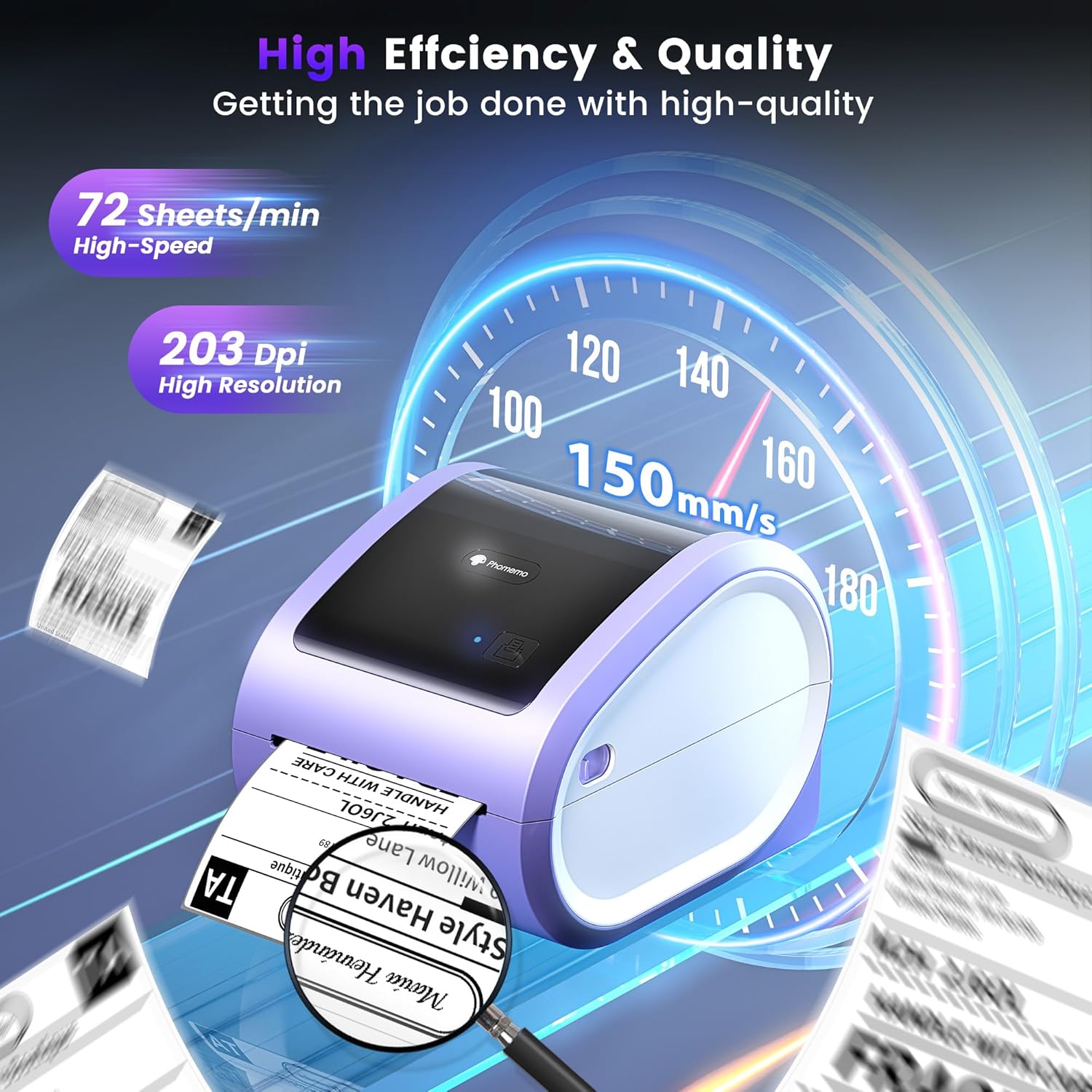
Figure 5: The Phomemo D520BT offers high efficiency and quality with a print speed of 150mm/s and 203 DPI resolution.

Figure 6: The Phomemo D520BT is compatible with various label sizes, from 1 inch to 4.6 inches wide.

Figure 7: The Phomemo D520BT supports multi-scenario applications for various labeling needs.

Figure 8: The Phomemo D520BT is compatible with all major shipping and sales platforms.
5. Засвар үйлчилгээ
5.1 Хэвлэх толгойг цэвэрлэх
Regular cleaning of the print head ensures optimal print quality and extends the printer's life.
- Принтерээ унтраагаад цахилгааны утсыг салга.
- Принтерийн тагийг нээ.
- Gently wipe the print head with an alcohol swab or a soft, lint-free cloth lightly dampизопропилийн спиртээр хангадаг.
- Тагийг нь хааж, принтерийг асаахаасаа өмнө хэвлэх толгойг бүрэн хаттал хүлээнэ үү.
5.2 Хадгалалт
Store the printer in a cool, dry place away from direct sunlight and extreme temperatures. Avoid exposing the printer to dust or moisture.
6. Алдаа засах
If you encounter issues with your Phomemo D520BT printer, refer to the following common problems and solutions:
- Принтер асаалтгүй байна:
- Цахилгаан адаптер нь хэвлэгч болон ажиллаж байгаа цахилгаан залгуурт найдвартай холбогдсон эсэхийг шалгаарай.
- Цахилгаан товчийг чанга дарсан эсэхийг шалгана уу.
- Labels not printing or feeding incorrectly:
- Verify that labels are loaded correctly with the printing side facing up.
- Ensure there are no obstructions in the label path.
- Check if the label roll or stack is depleted.
- Poor print quality (faded, streaky, or blank labels):
- Хэвлэх толгойг 5.1-р хэсэгт заасны дагуу цэвэрлэнэ үү.
- Өндөр чанартай дулааны шошго ашиглаж байгаа эсэхээ шалгаарай.
- Check print density settings in your printer preferences.
- Bluetooth холболттой холбоотой асуудлууд:
- Ensure Bluetooth is enabled on your mobile device and the printer.
- Принтер болон мобайл төхөөрөмжөө дахин эхлүүлнэ үү.
- Ensure you are within the Bluetooth range.
- Re-pair the printer through the Labelife app.
- USB холболттой холбоотой асуудлууд:
- USB кабель принтер болон компьютерт найдвартай холбогдсон эсэхийг шалгана уу.
- Ensure the correct printer drivers are installed.
- Өөр USB порт эсвэл кабель ашиглаж үзнэ үү.
For further assistance, refer to the detailed video tutorials and user manuals available online, or contact Phomemo customer support.
7. Техникийн үзүүлэлтүүд
| Онцлог | Тодорхойлолт |
|---|---|
| Брэнд | Фомемо |
| Загварын нэр | D520BT |
| Холболтын технологи | Bluetooth, USB |
| Хэвлэлийн технологи | Дулааны |
| Онцлог шинж чанар | Portable, Built-in Holder |
| Принтерийн гаралт | Монохром |
| Хамгийн их хэвлэх хурд | 150 mm/s (72 labels/min) |
| Хэвлэлийн нягтрал | 203 DPI |
| Хамгийн их хэвлэх өргөн | 4.6 инч |
| Зүйлийн жин | 2.4 фунт |
| Бүтээгдэхүүний хэмжээс | 10.31"D x 10.31"W x 7.87"H |
8. Баталгаат хугацаа ба дэмжлэг
Phomemo provides customer support to assist with any questions or issues you may encounter. For detailed warranty information, please refer to the warranty card included with your product or visit the official Phomemo website. Our customer support team is available via phone, email, or remote support.
For additional resources, including video tutorials and updated user manuals, please visit the Phomemo support page.


