1. Танилцуулга
This manual provides essential information for the proper setup, operation, and maintenance of your Tera P150 Android 12 Barcode Scanner PDA. Please read this manual thoroughly before using the device to ensure optimal performance and longevity.

Image 1.1: The Tera P150 Android Barcode Scanner PDA, showcasing түүний гоёмсог дизайн, хэрэглэгчийн интерфэйс.
2. Тохиргоо
2.1 Багцын агуулга
Бүх зүйл багцад байгаа эсэхийг шалгана уу:
- Tera P150 Android Barcode Scanner PDA
- Хамгаалалтын хайрцаг
- Дэлгэц хамгаалагч
- Гар оосор
- USB кабель
- Цэнэглэгч адаптер
- Хэрэглэгчийн гарын авлага (хурдан эхлүүлэх гарын авлага)

Image 2.1: All components included in the Tera P150 product package.
2.2 Зайг суурилуулах, цэнэглэх
- Төхөөрөмжийн арын хэсэгт зайны тасалгааг ол.
- Insert the 5000 mAh removable battery, ensuring proper alignment of the contacts.
- Зайны тагийг бэхлээрэй.
- Connect the USB cable to the device and the charger adapter, then plug into a power outlet.
- Бүрэн цэнэглэхийн тулд ойролцоогоор 3 цаг зарцуулна уу.

Image 2.2: The removable 5000 mAh battery, designed for extended use.
2.3 Асаах/унтраах
Press and hold the power button located on the side of the device until the screen illuminates (for power on) or a power-off menu appears (for power off).
3. Ашиглалтын заавар
3.1 Андройд 12 үйлдлийн систем
The Tera P150 operates on Android 12, offering an intuitive user interface, enhanced performance, and improved privacy controls. Navigate using touch gestures similar to other Android devices.

Image 3.1: The Tera P150 displaying multiple applications, demonstrating seamless multitasking capabilities with Android 12.
3.2 Barcode Scanning with Zebra SE4710
The device integrates a Zebra SE4710 scanner engine for efficient barcode reading. To scan:
- Open the scanning application on the device.
- Сканнерын цонхыг бар код руу чиглүүлнэ үү.
- Press the dedicated scan button (if available) or trigger the scan via the on-screen interface.
- Ensure the red laser or illumination covers the entire barcode for accurate capture.

Image 3.2: A user operating the Tera P150 to scan barcodes in a warehouse environment, highlighting the integrated Zebra SE4710 scanner.
3.3 Мэдрэгчтэй дэлгэцийн ажиллагаа
The 5.5-inch full touch screen supports operation with gloves and wet hands, enhancing usability in various work conditions. The display offers a resolution of 1440 x 720 pixels.
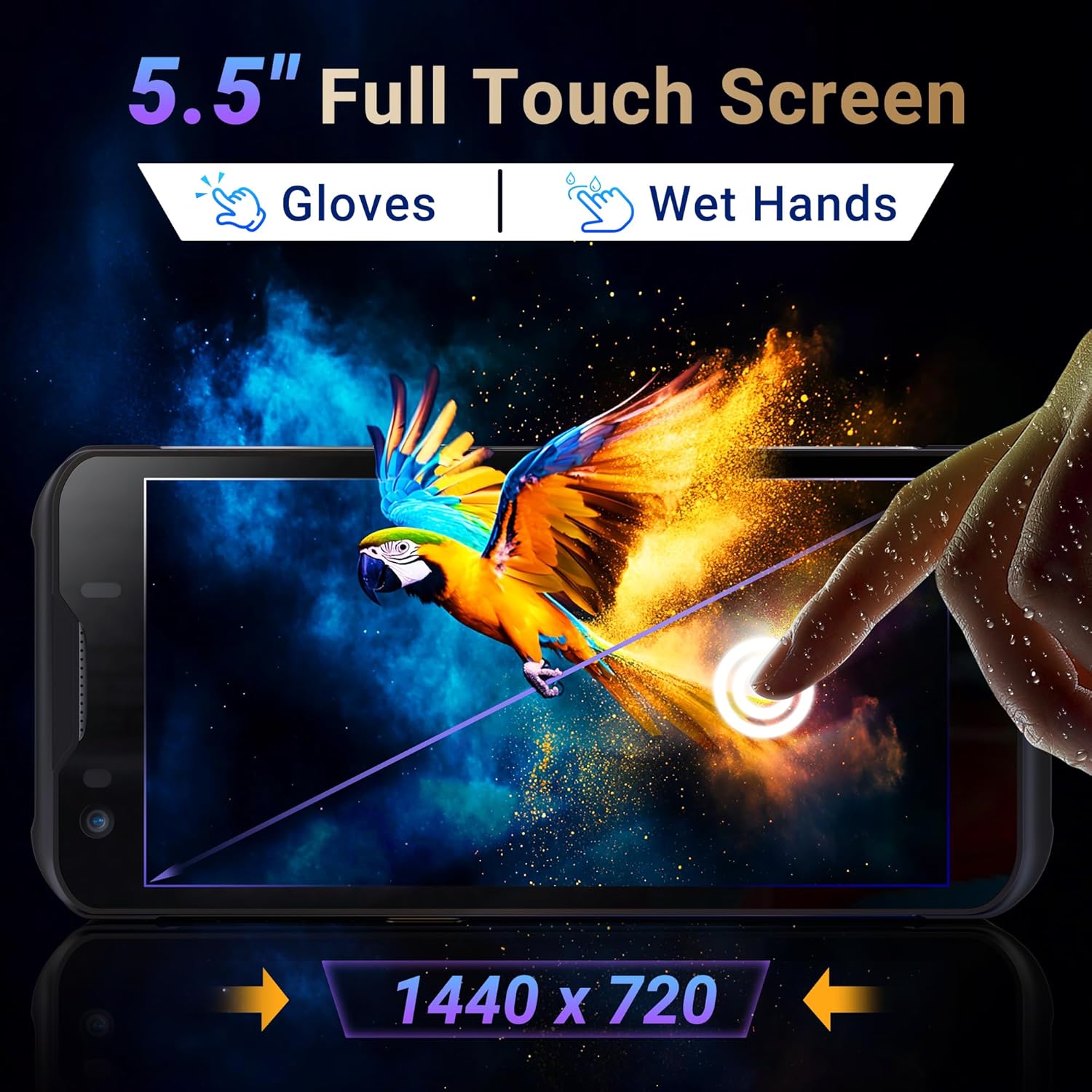
Image 3.3: The Tera P150's 5.5-inch full touch screen, illustrating its responsiveness and clarity.
3.4 камерын ажиллагаа
The device is equipped with a 13.0 MP rear camera and a 5.0 MP front camera for documentation and communication purposes.

Зураг 3.4: Ойролцоогоор view of the Tera P150, highlighting the 13.0 MP rear camera and 5.0 MP front camera.
4. Засвар үйлчилгээ
4.1 Rugged Design and IP67 Rating
The Tera P150 features an IP67 rating, indicating resistance to dust and water ingress. It is also designed to withstand drops from up to 4.9 feet (1.5 meters), making it suitable for demanding environments.
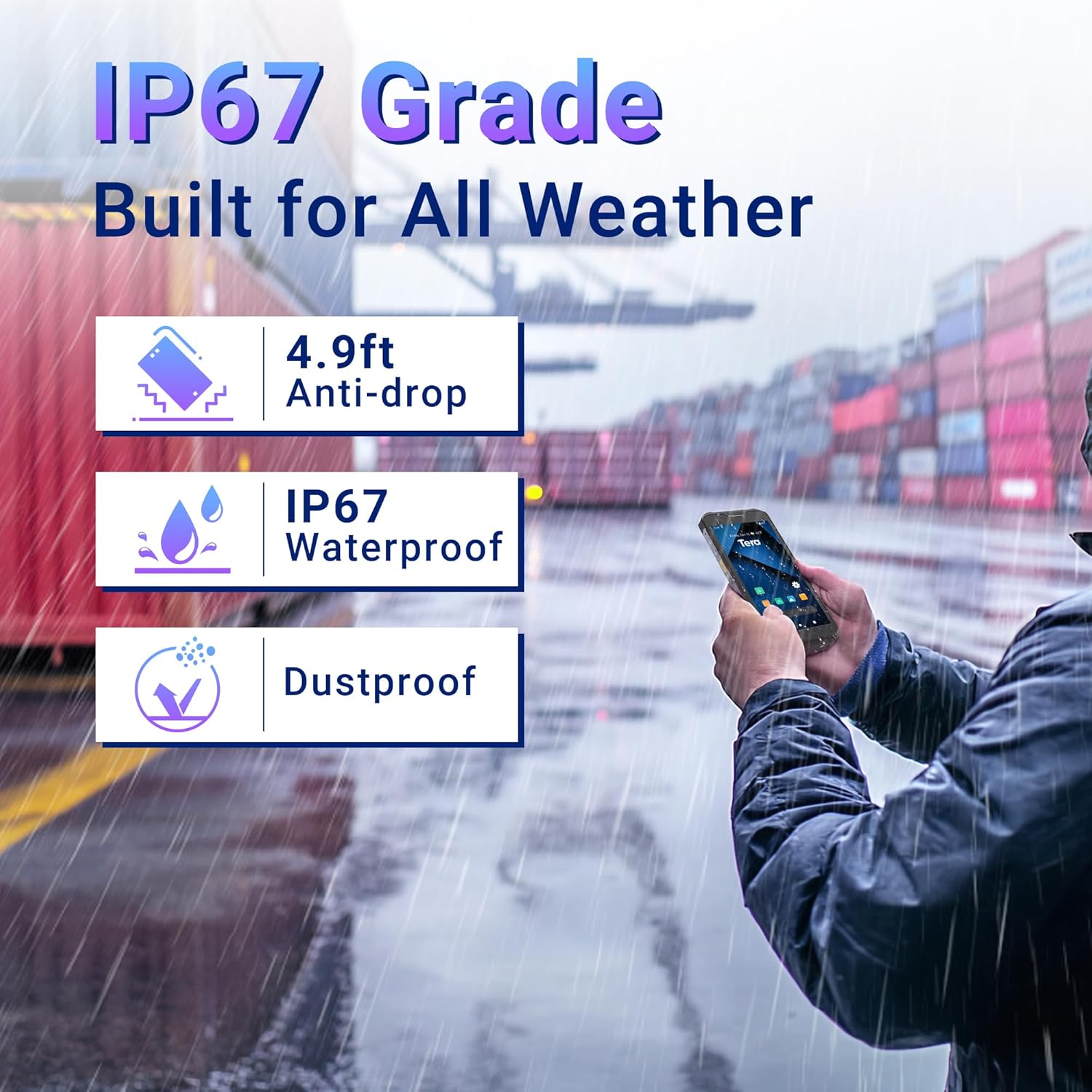
Image 4.1: Visual representation of the Tera P150's IP67 water and dust resistance, and its 4.9ft drop resistance.
Video 4.1: Demonstration of the Tera P150's IP67-rated protection, showcasing its durability against water and drops.
4.2 Цэвэрлэгээ
Зөөлөн ашиглах, damp cloth to clean the device. Avoid harsh chemicals or abrasive materials that could damage the screen or casing.
5. Алдаа засах
5.1 Төхөөрөмж асахгүй байна
- Батерейг зөв суурилуулж, бүрэн цэнэглэсэн эсэхийг шалгаарай.
- Connect the device to the charger and attempt to power on.
5.2 Сканнердахтай холбоотой асуудлууд
- Verify the barcode is clean and undamaged.
- Гэрэлтүүлгийн хангалттай нөхцлийг хангах.
- Check the scanning application settings.
5.3 Гүйцэтгэлийн хоцрогдол
- Шаардлагагүй дэвсгэр програмуудыг хаа.
- Кэш болон түр зуурыг цэвэрлэх files.
- Төхөөрөмжийг дахин эхлүүлнэ үү.
6. Техникийн үзүүлэлтүүд
| Онцлог | Дэлгэрэнгүй |
|---|---|
| Загварын дугаар | P150 |
| Үйлдлийн систем | Android 12 |
| Процессор | MTK CPU |
| RAM | 4 ГБ |
| ROM (Хадгалах) | 64 ГБ |
| Бар код сканнер | Zebra SE4710 |
| Дэлгэц | 5.5-inch Full Touch Screen |
| Бат бөх байдлын үнэлгээ | IP67, 4.9 ft Drop Resistant |
| Батерей | 5000 mAh Removable |
| Арын камер | 13.0 МП |
| Урд камер | 5.0 МП |
| Холболт | 4G, GPS, USB |
| Зүйлийн жин | 1.3 фунт |
| Багцын хэмжээ | 7.6 x 4.2 x 2.9 инч |
Видео 6.1: Дууслааview of the Tera P150's key features, including its IP67 rating, 4GB RAM, 64GB storage, Android 12 OS, and 5.5-inch touch screen.
7. Баталгаат хугацааны мэдээлэл
Баталгаат хугацааны дэлгэрэнгүй нөхцөл, болзлыг бүтээгдэхүүнтэйгээ хамт ирсэн баталгаат картаас үзнэ үү. Баталгаат хугацааны нэхэмжлэл гаргахын тулд худалдан авалтын баримтаа хадгална уу.
8. Дэмжлэг
For technical assistance, troubleshooting, or further inquiries, please contact Tera customer support. Contact information can be found on the official Tera webсайт эсвэл хурдан эхлүүлэх гарын авлагад.