1. Бүтээгдэхүүн дууссанview
The Makeid D50 Industrial Label Printer is a versatile and robust desktop label maker designed for various industrial and professional labeling needs. It features a 2-inch print head, compatibility with both mobile applications and PC editing software, and a powerful 2600mAh Li-ion battery for extended use. Utilizing thermal transfer printing technology, the D50 produces durable labels that resist fading for up to 5 years, making it suitable for demanding environments.

Image: Makeid D50 Industrial Label Printer. This image shows the printer from a slight angle, highlighting its compact design and the label output slot. A yellow label with the word 'EXIT' and an arrow is partially extended from the printer.
Гол онцлогууд:
- 2-Inch Print Head: Supports a maximum media size of 2 inches, allowing for a wide range of label applications.
- Өндөр хэвлэх чанар: 300 DPI resolution ensures sharp, clear prints with minimal margins.
- Thermal Transfer Technology: Labels maintain clarity for up to 5 years without fading, suitable for outdoor and harsh conditions.
- Automatic Cutter: Equipped with an auto-cutter for clean and precise label separation, enhancing efficiency.
- Integrated Cartridge Design: Label and ribbon cartridges are integrated for quick and easy consumable changes (approx. 5 seconds).
- Олон талт холболт: Connects via Bluetooth to mobile devices (iOS & Android) and via USB to PC (Windows & macOS).
- Батерейны урт наслалт: Features a 2600mAh Li-ion battery with a standby time of up to 90 days.
- OLED дэлгэц: Provides real-time printing status monitoring.
- Ultra-Strong Adhesive Labels: Labels are designed to adhere firmly to rough surfaces and withstand oil, low temperatures, and harsh outdoor conditions.
2. Тохируулах гарын авлага
2.1. Хайрцагт юу байна
Эхлэхээсээ өмнө бүх бүрэлдэхүүн хэсгүүд савлагаанд байгаа эсэхийг шалгана уу.
- 1 x Makeid D50 Industrial Label Printer
- 1 x Label Cartridge (with built-in ribbon)
- 1 x USB кабель (Type-C)
- 1 x Зааварчилгааны гарын авлага
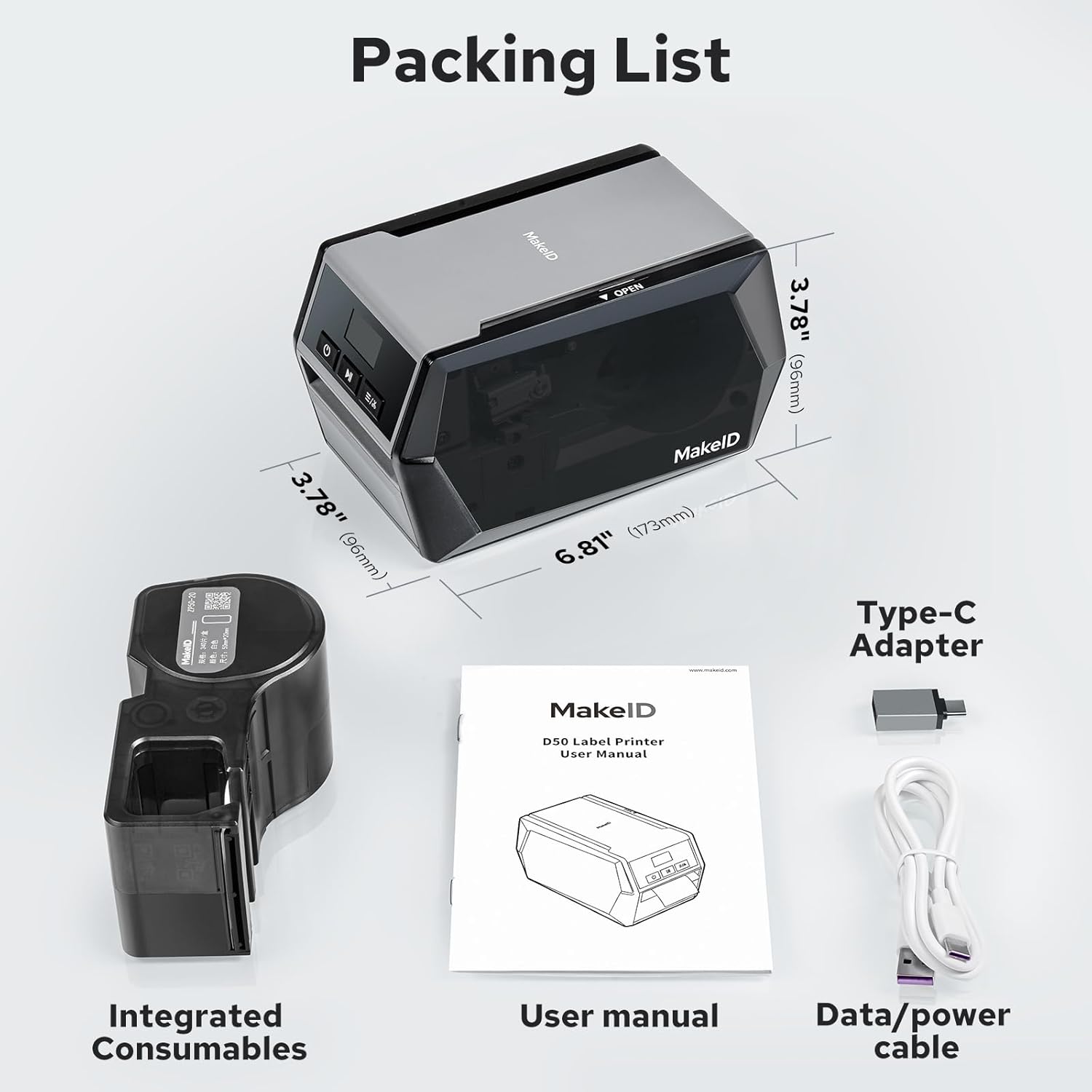
Image: Packing List. This image displays all items included in the standard package: the D50 printer, an integrated label cartridge, a user manual, and a USB Type-C cable with an adapter.
2.2. Installing the Label Cartridge
The D50 printer uses integrated label and ribbon cartridges for easy installation.
- Open the printer's side door to access the cartridge compartment.
- Insert the label cartridge into the designated slot. Ensure it clicks firmly into place.
- Close the side door. The printer is now ready for use.

Image: Effortless Installation. This image illustrates the simple process of inserting the integrated label cartridge into the D50 printer's open compartment.
2.3. Програм хангамжийн суурилуулалт ба холболт
The Makeid D50 printer can be operated via a mobile app or PC software.
Mobile App (MakeID Label Pro)
- Download the 'MakeID Label Pro' app from the Google Play Store (for Android) or Apple App Store (for iOS).
- Принтер чинь асаалттай байгаа эсэхийг шалгаарай.
- Open the app and tap the connection icon (usually a printer or Bluetooth symbol) in the upper right corner.
- Select 'Search device' and choose your D50 printer from the list to connect via Bluetooth. Do not connect via your phone's Bluetooth settings directly.
- Once connected, you can begin editing and printing labels.

Image: How to Connect Label Maker. This visual guide shows the four steps for connecting the D50 printer to the MakeID Label Pro mobile application, from downloading the app to connecting the device.
PC Software (MakeID Label Design)
- Download the 'MakeID Label Design' software from the official Makeid webсайт (www.makeid.com). Navigate to the Support section and look for PC Editing Software. The D50 software is typically listed under 'Consumer' products.
- Install the software on your computer (Windows or macOS).
- Connect the D50 printer to your computer using the provided USB Type-C cable.
- Launch the MakeID Label Design software. The software should automatically detect the connected printer.
- You can now edit your label designs and print directly from your PC.

Image: PC Editor Quick Installation. This image illustrates the four steps for installing and using the PC editing software: download, connect printer via USB, connect printer to software, and edit/print.
3. Ашиглалтын заавар
3.1. Creating and Printing Labels
The Makeid D50 offers flexible options for label creation and printing.
Using the Mobile App / PC Software
Both the mobile app and PC software provide comprehensive tools for designing labels:
- Текст: Add text with various fonts (20+ available), sizes, and styles.
- Элементүүд: Utilize over 200 pre-made elements, shapes, and stickers.
- Barcodes/QR Codes: Generate and embed barcodes and QR codes for asset tracking and inventory management.
- Загварууд: Access a library of templates for common labeling applications.
- Image/Picture: Insert images or pictures into your label designs.
After designing your label:
- Ensure the D50 printer is connected and powered on. The OLED display will show 'Ready'.
- In the software/app, click the 'Print' button.
- The printer will automatically feed the label and cut it after printing.

Image: Customize Labels via MakeID Web Editor or Mobile APP. This image displays the user interfaces of both the mobile application and the PC software, showcasing the various customization options available for label design, including fonts, elements, barcodes, and QR codes.
3.2. Automatic Cutter Function
The D50 printer features an integrated automatic cutter that provides clean and precise cuts for each label, eliminating the need for manual trimming. This function activates automatically after each print job is completed.

Image: AUTO Cutter. This image shows the D50 printer in action, with a label being automatically cut as it exits the device, demonstrating the clean and precise cuts.
3.3. Label Applications
The D50 Industrial Label Printer is designed for a wide array of applications due to its durable labels and versatile printing capabilities:
- Electrical & DataCom Labeling: Ideal for cable labels, wire identification, and data/telecommunications labeling.
- Safety & Facility Identification: Create hazard warnings, equipment instructions, and facility signs.
- Хөрөнгийн хяналт: Generate labels for inventory, barcoding, and equipment tagгинг.
- Laboratory Labeling: Produce pre-sized labels for tubes and samples, resistant to low temperatures.
- Warehouse Marking: Durable labels for shelves, bins, and other warehouse identification.
- Pipe Markers: Create clear and durable labels for pipe identification.

Image: Versatile Applications. This collage showcases five different uses for the D50 printer's labels: electrical labeling, facility identification, wire and cable labeling, pipe markers, and laboratory labeling.
4. Засвар үйлчилгээ
4.1. Replacing Label Cartridges
The D50 printer uses integrated label and ribbon cartridges, making replacement quick and clean.
- Принтер унтарсан эсэхийг шалгана уу.
- Open the side door of the printer.
- Gently pull out the used label cartridge.
- Insert a new MakeID Z series label cartridge, ensuring it is seated correctly.
- Хажуугийн хаалгыг хаа.
Жич: Only use authentic MakeID Z series label cartridges to ensure optimal performance and print quality.
4.2. Принтерийг цэвэрлэх
Тогтмол цэвэрлэгээ хийх нь хэвлэх чанарыг хадгалахад тусалдаг ба принтерийн ашиглалтын хугацааг уртасгадаг.
- Use a soft, lint-free cloth to wipe the exterior of the printer.
- For the print head and platen roller, use a cotton swab lightly dampened with isopropyl alcohol. Gently wipe away any dust or adhesive residue.
- Allow all components to dry completely before closing the printer and resuming operation.
5. Алдаа засах
This section addresses common issues you might encounter with your Makeid D50 Industrial Label Printer.
5.1. Нийтлэг асуудал ба шийдэл
- Printer Not Connecting to App/PC:
- Принтер асаалттай, бүрэн цэнэглэгдсэн эсэхийг шалгаарай.
- For mobile app connection, ensure Bluetooth is enabled on your device and connect through the 'MakeID Label Pro' app, not your phone's system Bluetooth settings.
- For PC connection, ensure the USB cable is securely connected to both the printer and the computer. Try a different USB port or cable if necessary.
- Restart both the printer and your connecting device (phone/PC).
- Verify that the correct software/app version is installed and up to date.
- Poor Print Quality / Faded Prints:
- Check if the label cartridge is correctly installed and seated firmly. Re-seat it if necessary.
- Ensure you are using authentic MakeID Z series label cartridges.
- Засвар үйлчилгээний хэсэгт тайлбарласны дагуу хэвлэх толгой болон хавтангийн өнхрүүшийг цэвэрлэнэ үү.
- Verify that the label type selected in the software/app matches the installed label cartridge.
- Шошго нь тэжээл өгөхгүй эсвэл гацахгүй байна:
- Ensure the label cartridge is installed correctly and not obstructed.
- Check for any foreign objects or debris in the label path.
- If the issue persists, try removing and re-inserting the label cartridge.
- Printer Not Charging / Battery Issues:
- Ensure the USB cable is properly connected to the printer and a working power source (e.g., a USB wall adapter or computer USB port).
- Өөр USB кабель эсвэл тэжээлийн адаптер ашиглаж үзнэ үү.
- If the battery does not hold a charge after extended charging, contact MakeID customer support.
- Software/App Usability Issues (e.g., text alignment, sizing):
- Familiarize yourself with the software's features and options. Some advanced formatting may require manual adjustments.
- Check for software/app updates, as these often include bug fixes and performance improvements.
- Refer to the software's built-in help or online tutorials for specific design functions.
6. Техникийн үзүүлэлтүүд
| Онцлог | Тодорхойлолт |
|---|---|
| Загварын нэр | D50-Grey |
| Брэнд | Makeid |
| Хэвлэлийн технологи | Дулааны / Дулааны дамжуулалт |
| Принтерийн гаралт | Монохром |
| Хамгийн их медиа хэмжээ | 2 инч |
| Хамгийн их хэвлэх нягтрал | 300 dpi |
| Хамгийн их хэвлэх хурд (Цанг өнгөтэй) | 70 ppm |
| Холболтын технологи | Bluetooth, USB Type-C |
| Тохиромжтой төхөөрөмжүүд | Зөөврийн компьютер, компьютер, ухаалаг гар утас |
| Батерей | 1 лити ион батерей (дагсан) |
| Бүтээгдэхүүний хэмжээс | 6.81" D x 3.77" W x 3.77" H (173 x 96 x 96 мм) |
| Зүйлийн жин | 3.45 фунт |
| Онцлог шинж чанарууд | APP Editor, OLED Display, PC Editor, Portable |
| Тохиромжтой хайрцаг | Z series Label Cartridge |
7. Баталгаат хугацаа ба дэмжлэг
7.1. Баталгаат хугацааны мэдээлэл
The Makeid D50 Industrial Label Printer comes with a хязгаарлагдмал баталгаат хугацаа. MakeID provides comprehensive support for the D50 label maker, including lifetime technical assistance and a robust 3-year promise that prioritizes replacements over repairs.
7.2. Хэрэглэгчийн дэмжлэг
For any questions, technical assistance, or warranty claims, please contact MakeID customer support. When contacting support, it is helpful to have your order number and a detailed description of the issue ready.
You can typically reach MakeID support through the seller's contact page on the platform where you purchased the product. Look for an option to 'Ask a question' or 'Contact Seller'.

Image: Any Question Please Contact Us. This image provides a visual guide on how to contact the seller for support, typically by navigating to product details, clicking 'Ask a question', and providing the order number and problem description.


